SharedSamples.org

Column Formatting Samples

Visual examples for formatting individual SharePoint and Microsoft Lists fields.

187 samples
0 to 10 Rating Scale preview
Column Formatting
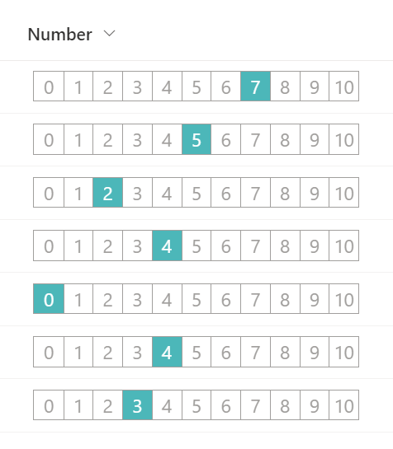
0 to 10 Rating Scale
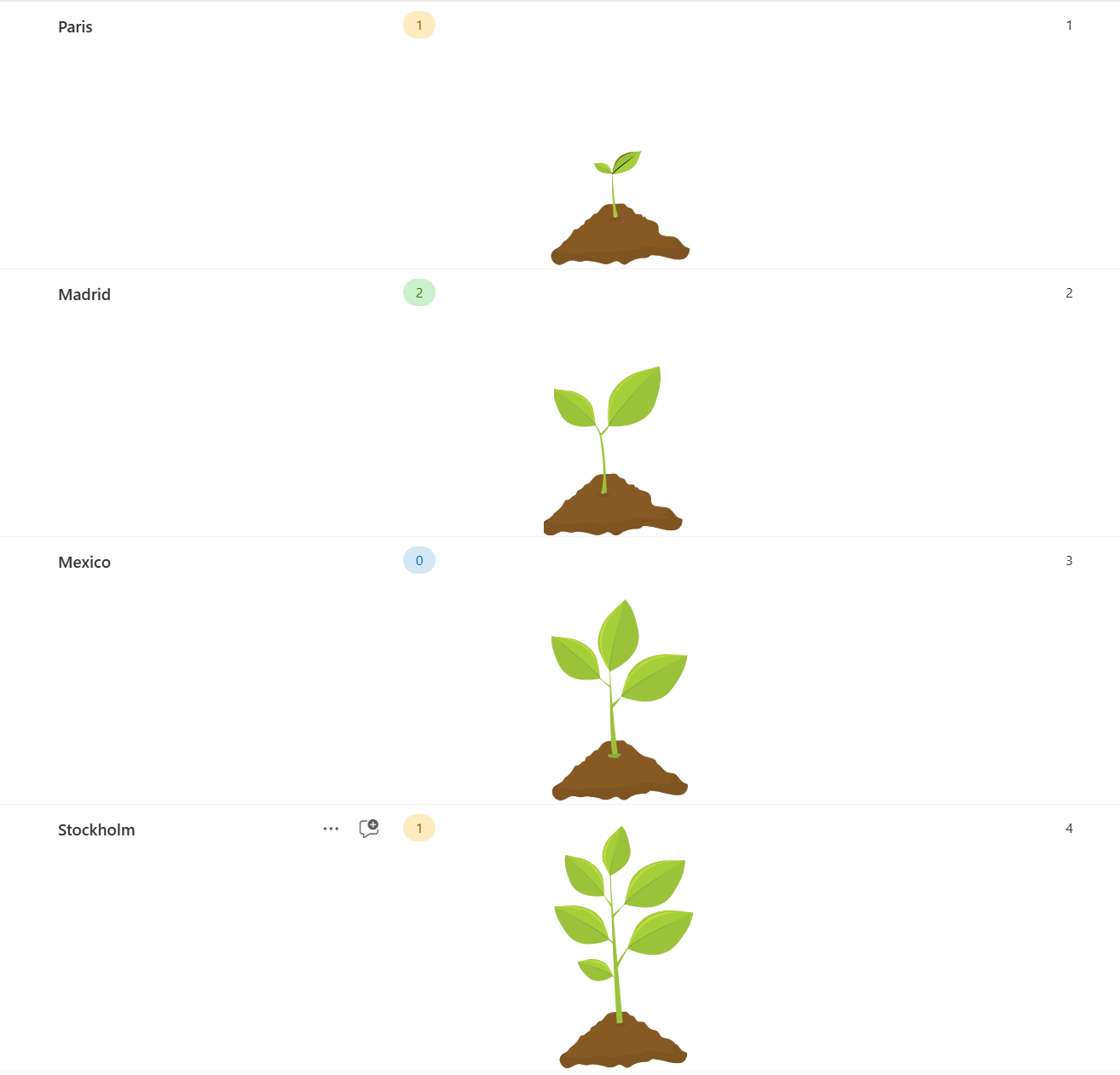
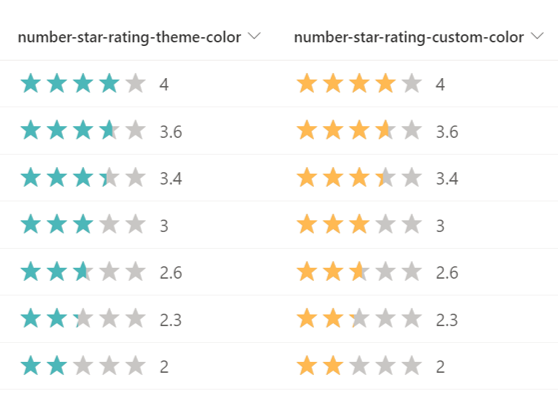
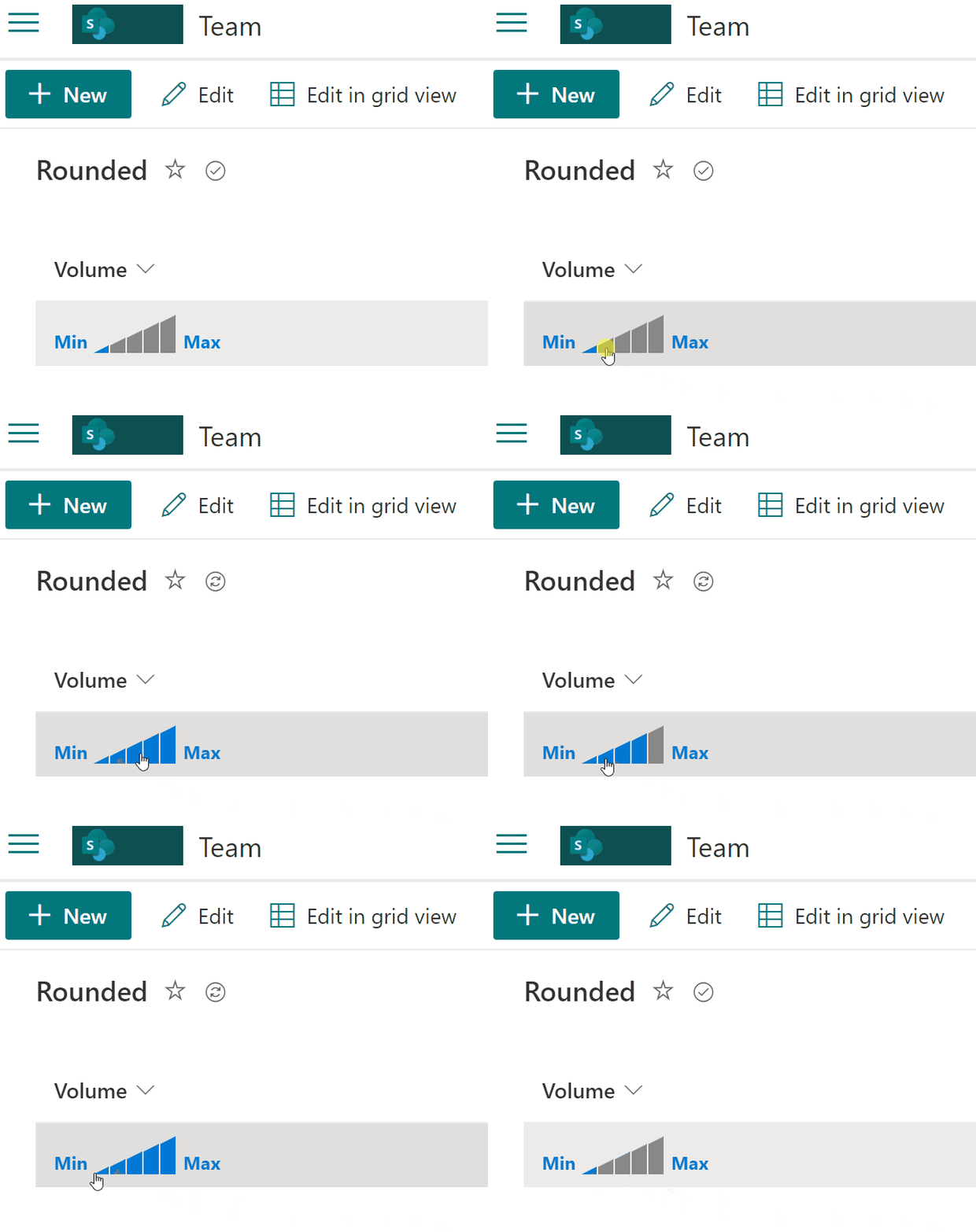
This sample demonstrates the use of the split operator to change the value of a number column to the appearance of a 0 to 10 rating scale.
View sample details →
Bar Chart Column Formatter preview
Column Formatting
Bar Chart Column Formatter
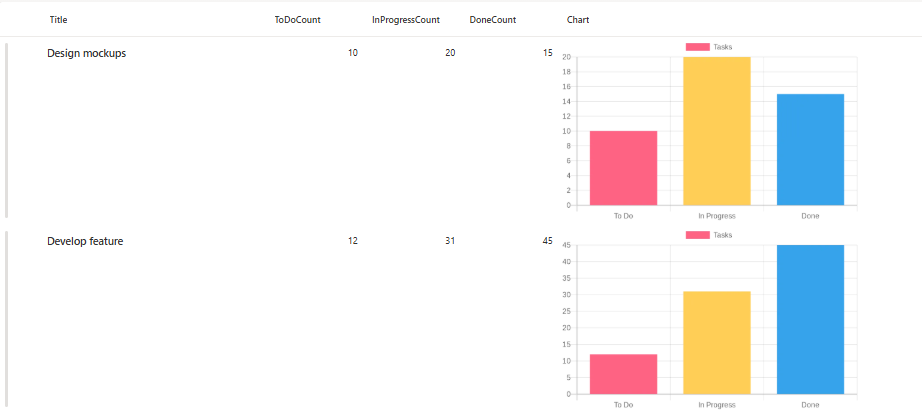
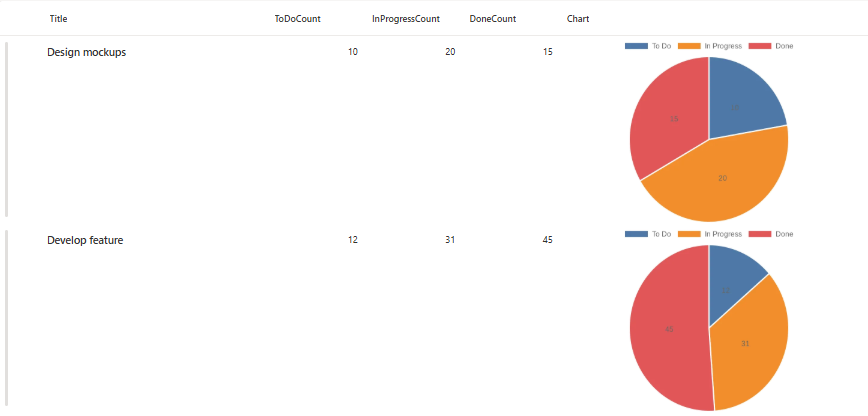
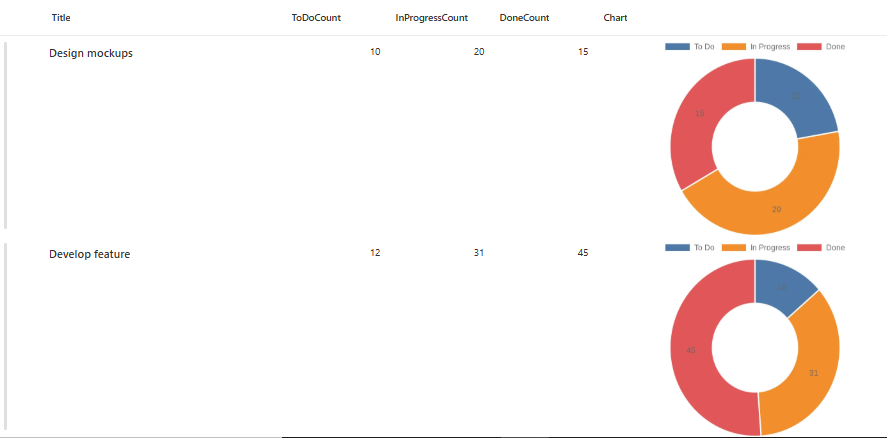
This sample uses SharePoint column formatting to automatically generate bar charts visualizing task status distribution across To Do, In Progress, and Done states.
View sample details →
Blurred Field Value preview
Column Formatting
Blurred Field Value
This format demonstrates how to blur the value of a field. You can use this formatting when you want to share your screen for a demo and don't want to display real data.
View sample details →
Bubble Chart Column Formatting preview
Column Formatting
Bubble Chart Column Formatting
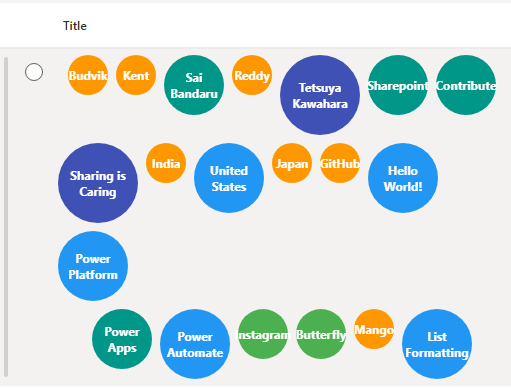
This sample demonstrates how to use SharePoint Column Formatting to generate a dynamic bubble chart for list items.
View sample details →
Call phone number with Microsoft Teams preview
Column Formatting
Call phone number with Microsoft Teams
This sample demonstrates displaying a phone number stored in a single line of text column as a link to initiate a Microsoft Teams call.
View sample details →
Centered Content preview
Column Formatting
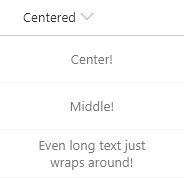
Centered Content
Demonstrates making your content be both vertically and horizontally centered (in the middle) within the cell.
View sample details →
Changing Image Hyperlink Standard Behavior preview
Column Formatting
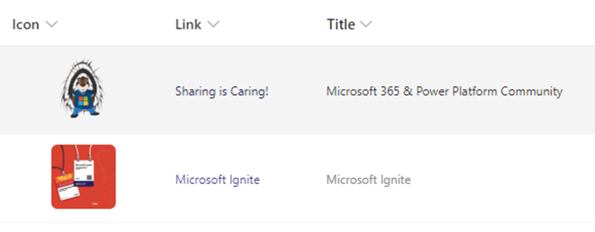
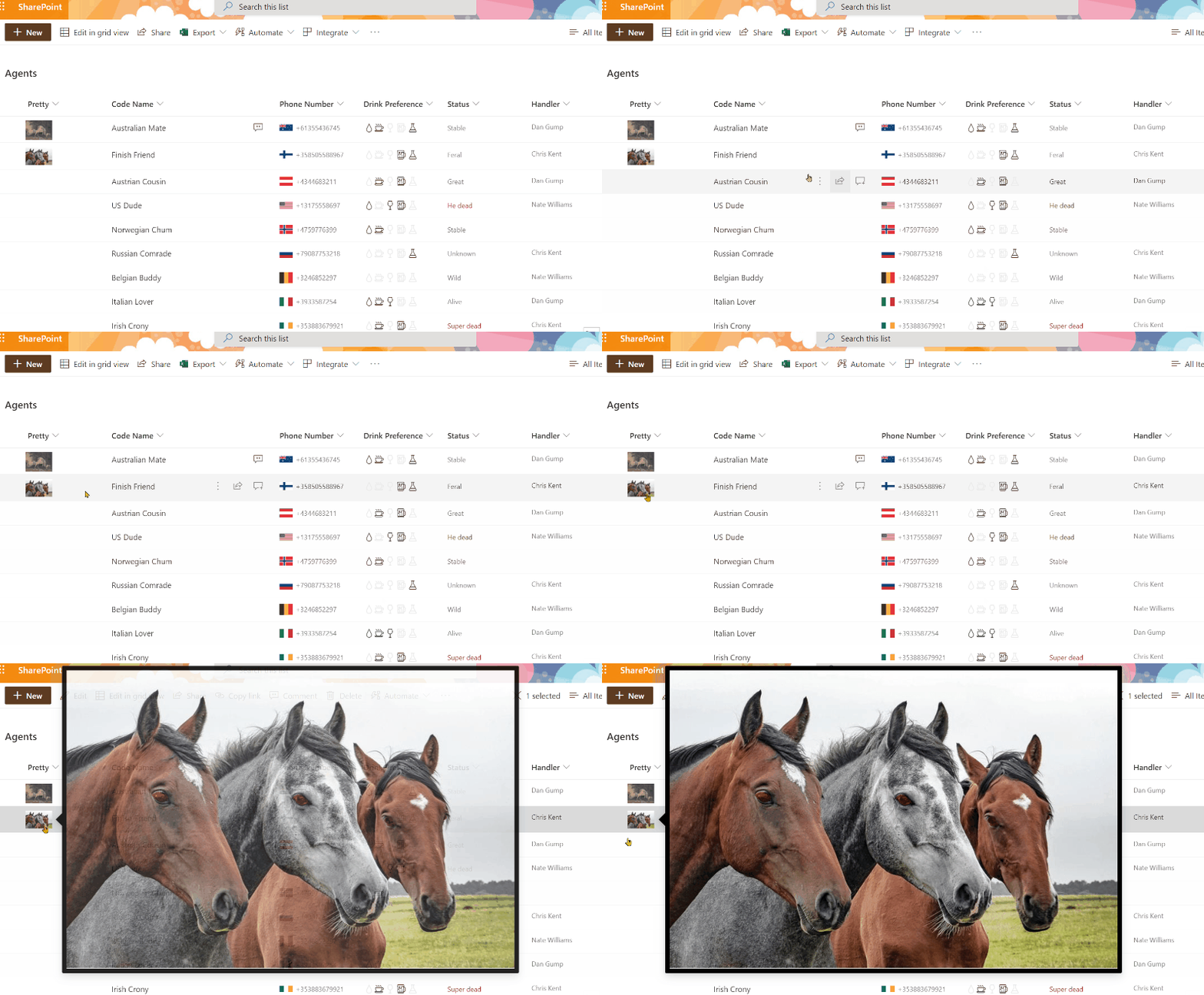
Changing Image Hyperlink Standard Behavior
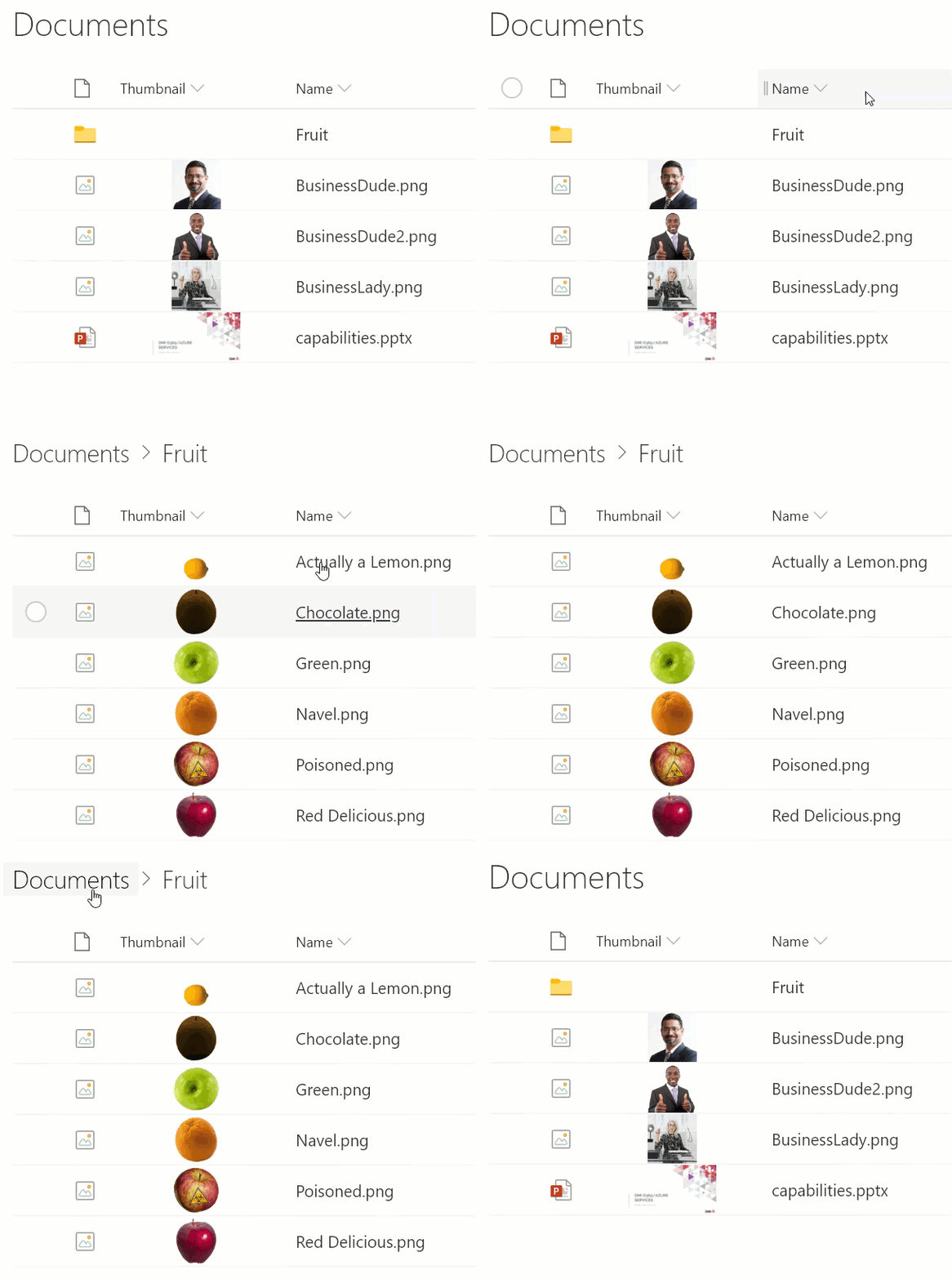
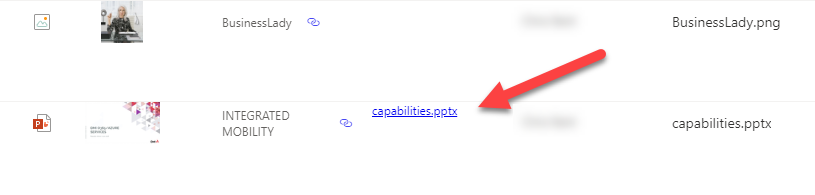
If you click on an image in a SharePoint list, the image is displayed as a preview. This formatter changes the standard behavior in which a link from another column is used. In this way, a click on the image has the same behavior as if the link had been clicked directly.
View sample details →
Compressed Date preview
Column Formatting
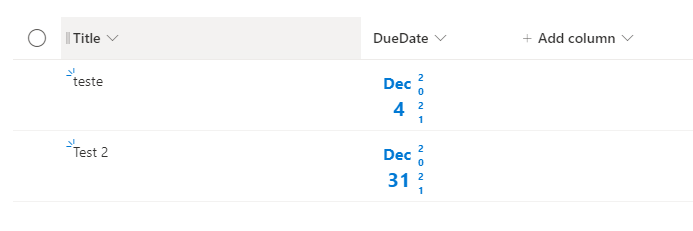
Compressed Date
This sample provide a different style to provide Date in a compress way such us align days and month and display year parallel as vertical.
View sample details →
Concatenate Currency Symbol preview
Column Formatting
Concatenate Currency Symbol
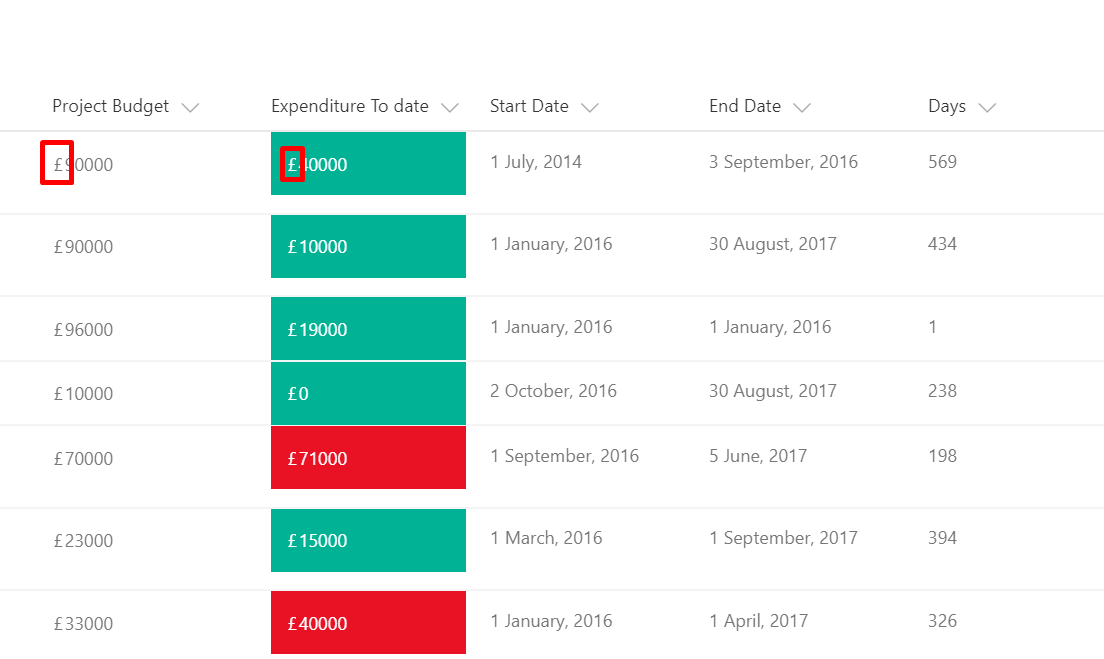
This sample will allow the users to concatenate a currency symbol(£, $ ... etc.) to the existing data. This sample will compare two numeric columns and add a currrency symbol. In this example, two columns (Budget Approved and Expenditure To Date) from a Project Register has been used.
View sample details →
Conditional Text Formatting (Severity) preview
Column Formatting
Conditional Text Formatting (Severity)
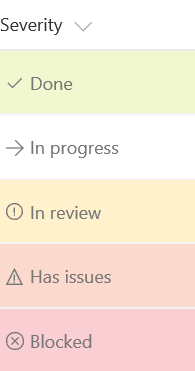
You can apply conditional formatting to text or choice fields that might contain a fixed set of values. This sample applies different classes depending on whether the value of the field is Done, In Review, Blocked, or another value.
View sample details →
Conditionally Launch Flow for Item preview
Column Formatting
Conditionally Launch Flow for Item
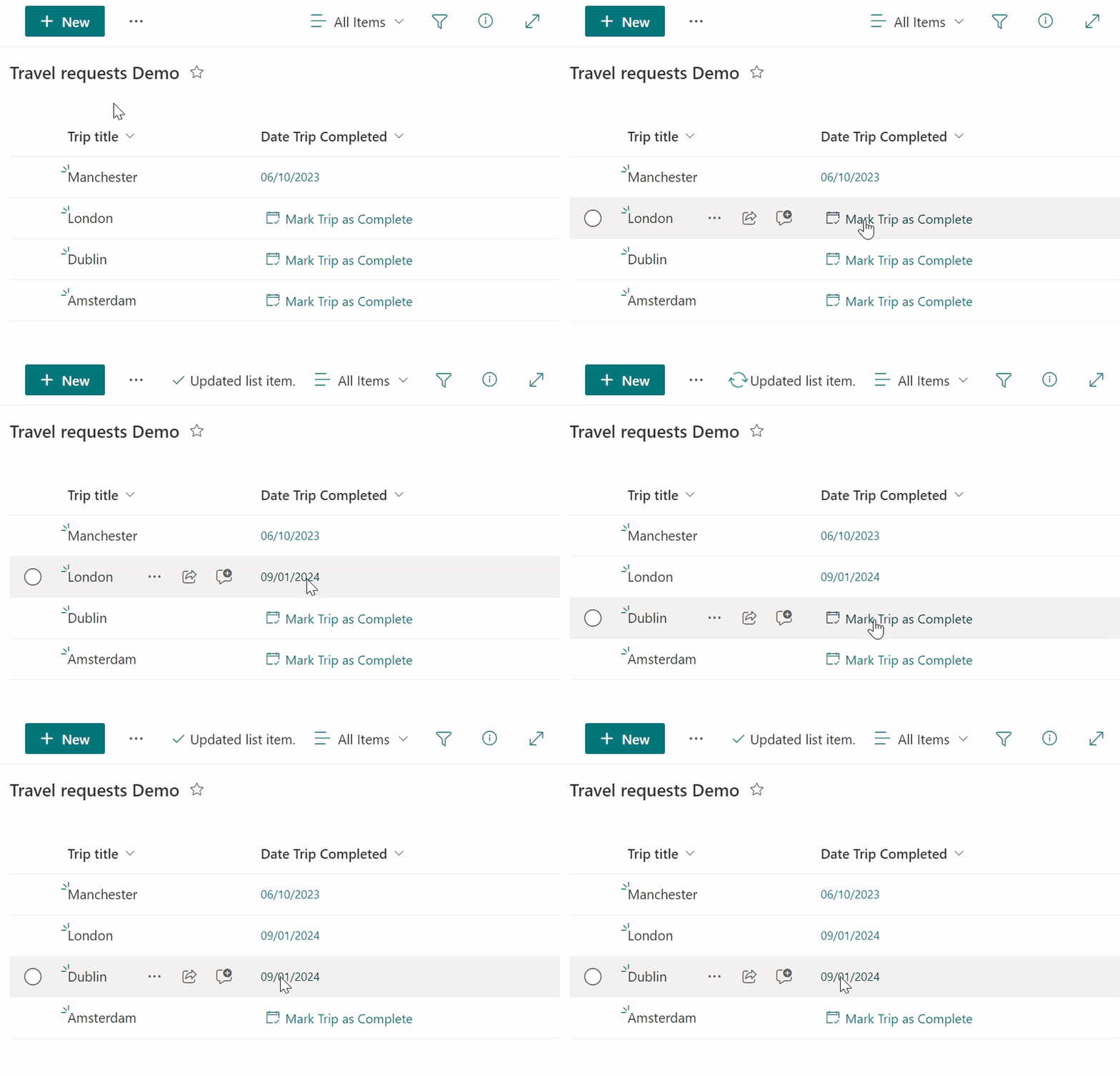
You can use column formatting to create buttons that, when clicked, run Flows on the corresponding list item. The Flow Launch Panel will be displayed after clicking the button allowing the user to specify any required data and then run the flow. This is demonstrated in the Generic-Start-Flow sample.
View sample details →
Context Menu preview
Column Formatting
Context Menu
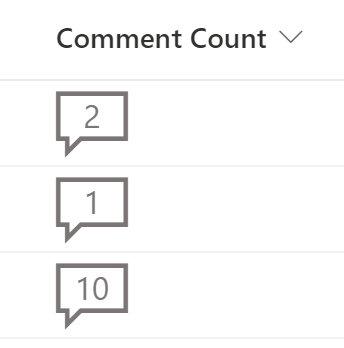
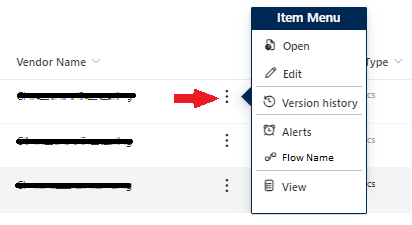
The sample is a simple version of the current context menu. It allows you to customize the menu options and link to the most user of visited links. You can add links to Flows, web pages, or other items specific the the item it is on.
View sample details →
Country Flag preview
Column Formatting
Country Flag
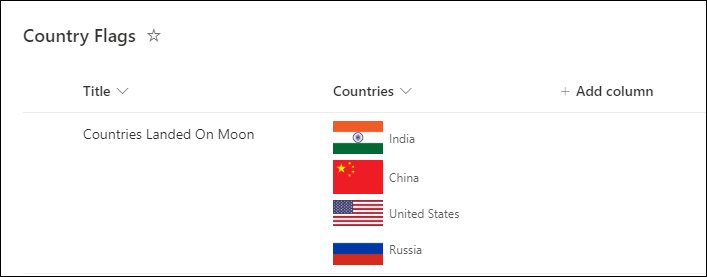
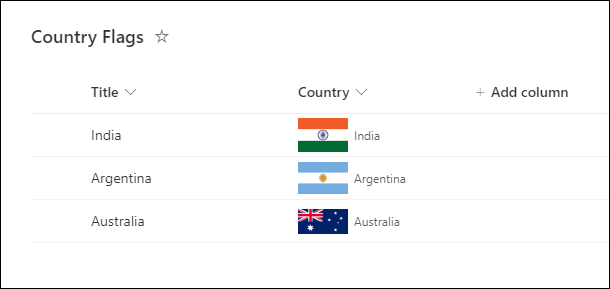
This sample demonstrates displaying the flag of the country selected in the single selection SharePoint choice column.
View sample details →
Custom Approver Hover Card preview
Column Formatting
Custom Approver Hover Card
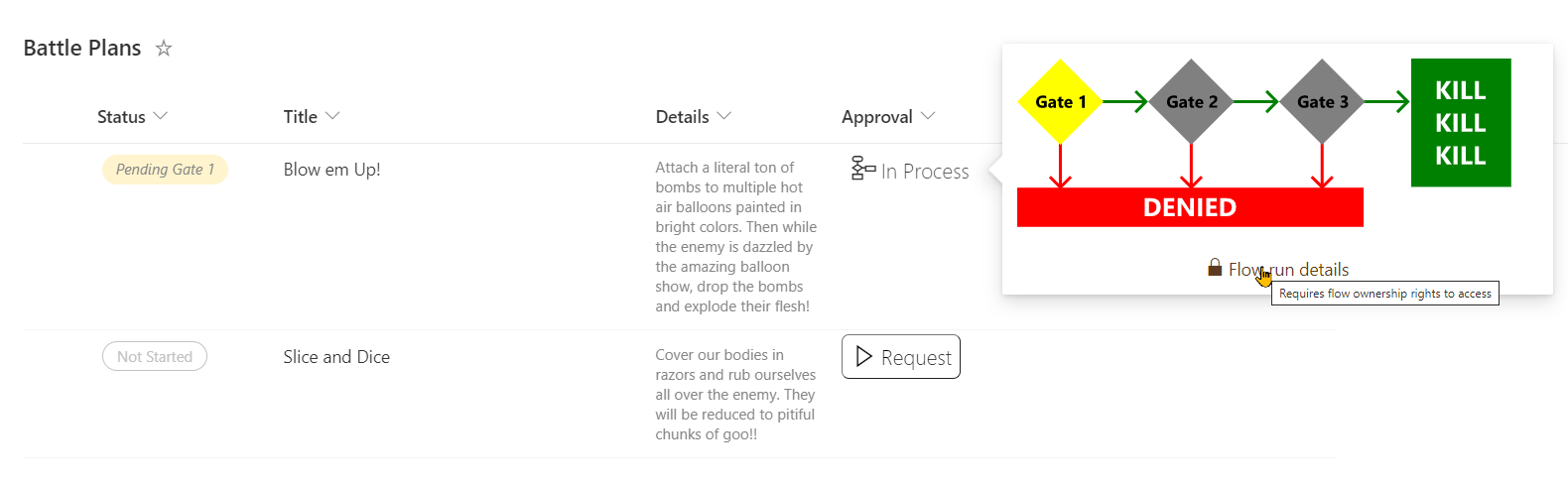
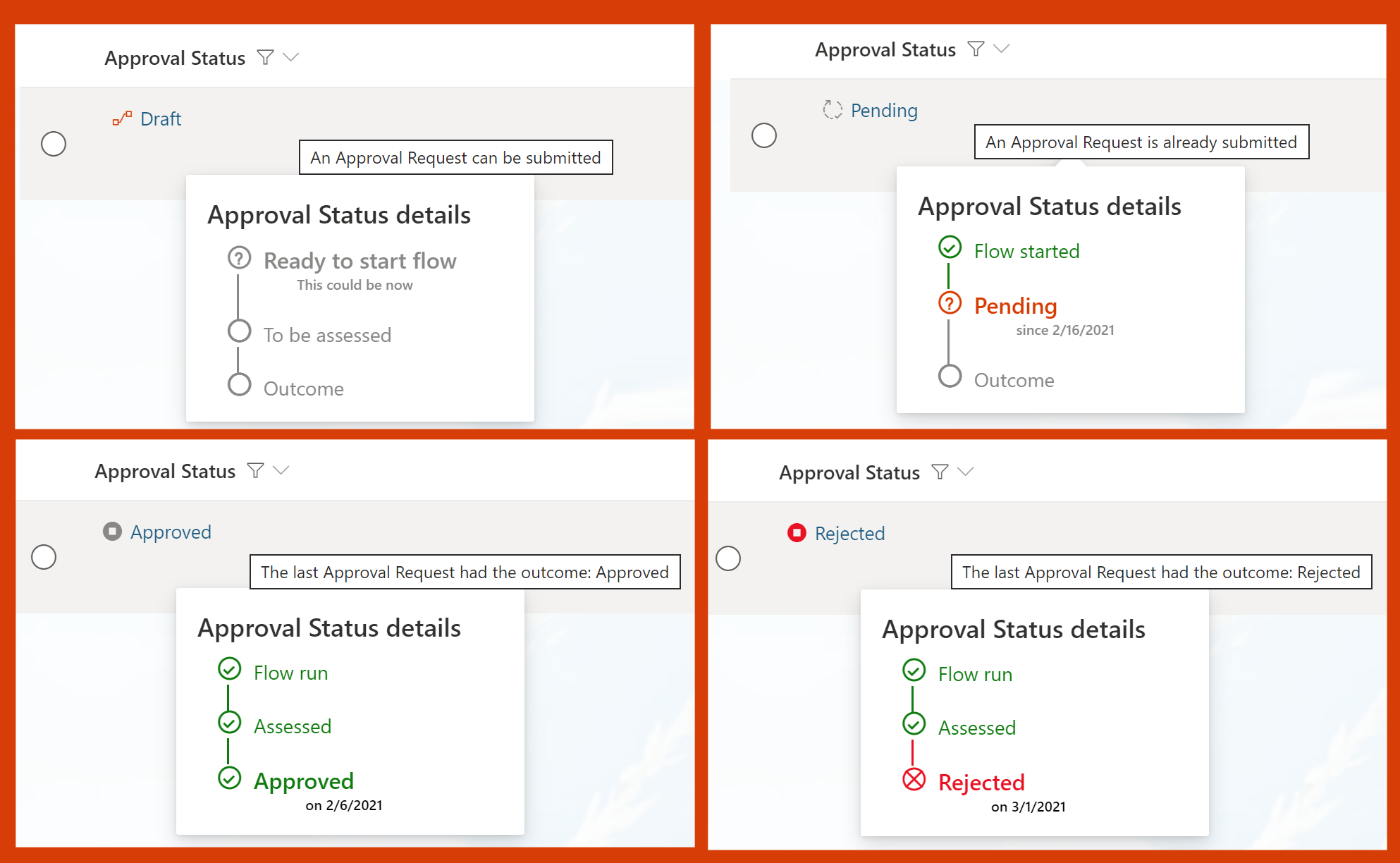
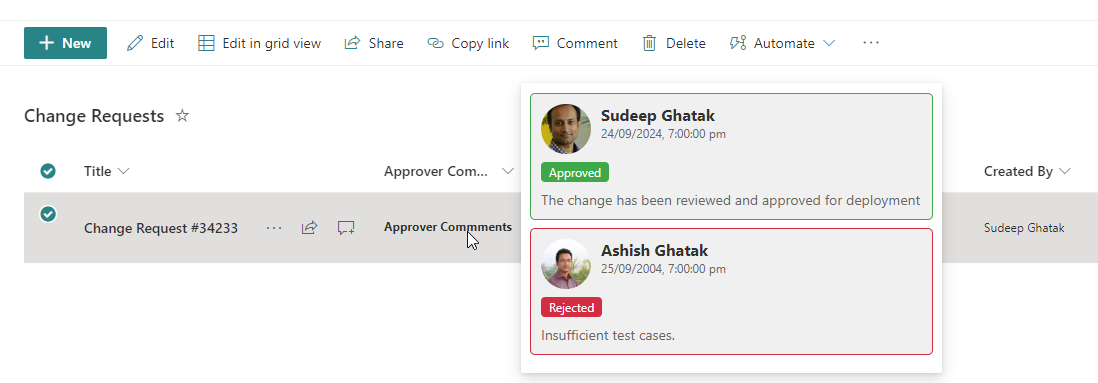
The approval hover card provides an intuitive, streamlined way for users to quickly access key details about an approval details without navigating away from their current task or screen.
View sample details →
Custom Hover Card (Column) preview
Column Formatting
Custom Hover Card (Column)
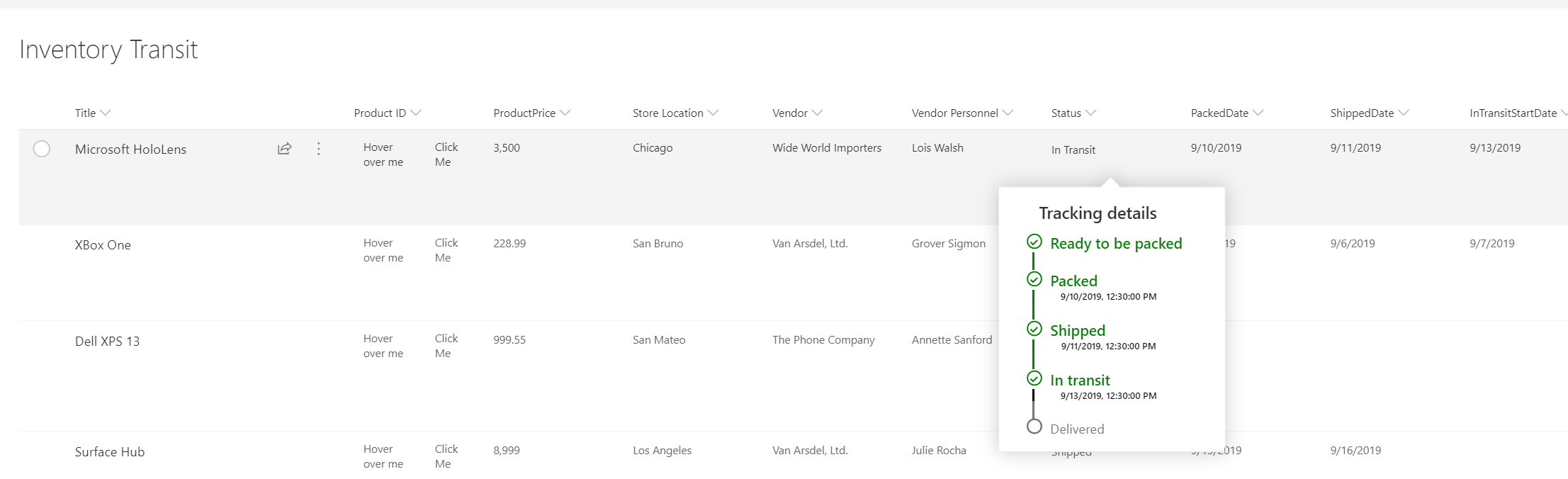
A custom card is shown on hover of an item. The hover card shows additional details about an item's status.
View sample details →
Custom Share to Teams preview
Column Formatting
Custom Share to Teams
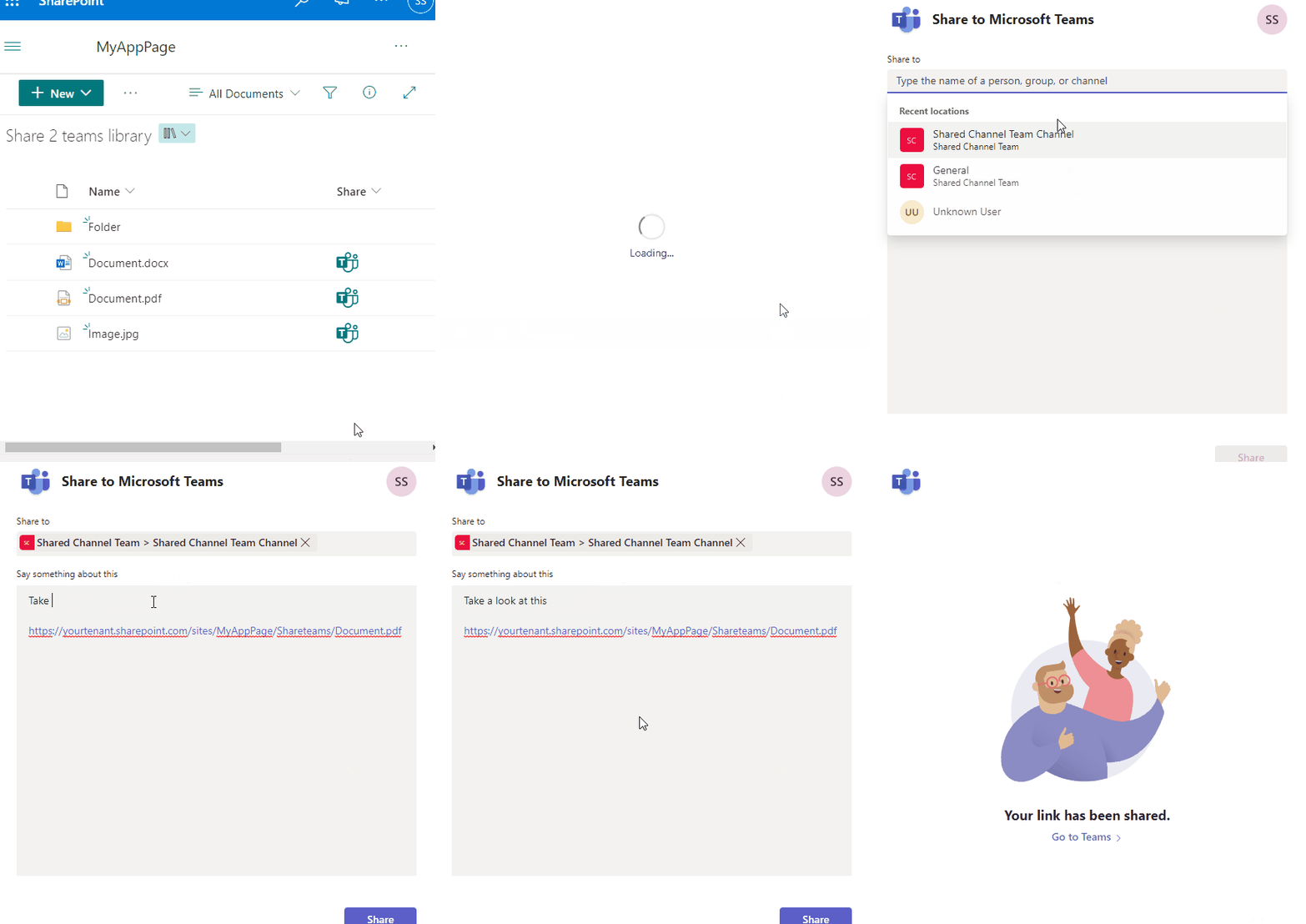
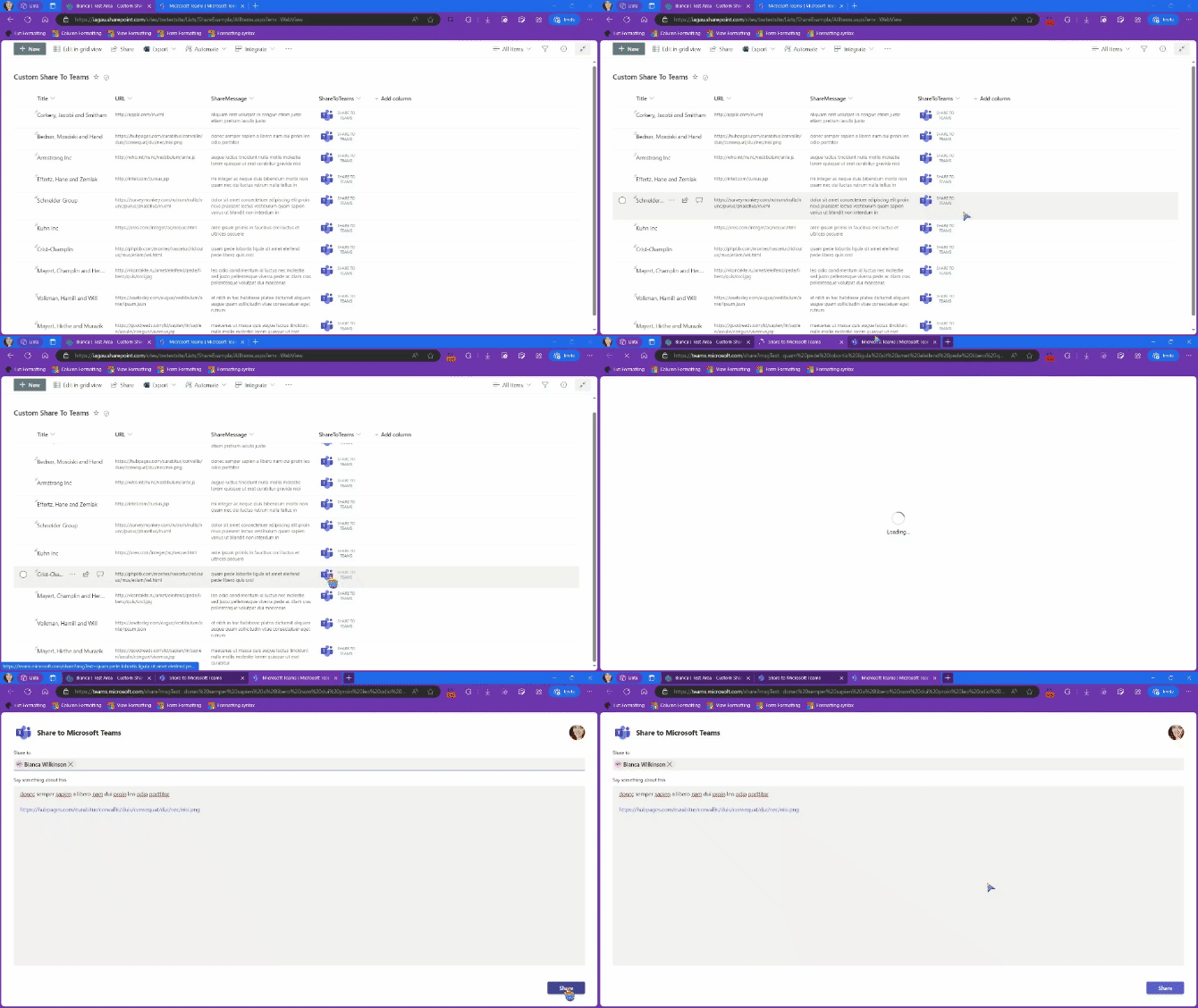
This sample demonstrates displaying a Share to Microsoft Teams screen with a message and URL.
View sample details →
Data Bar preview
Column Formatting
Data Bar
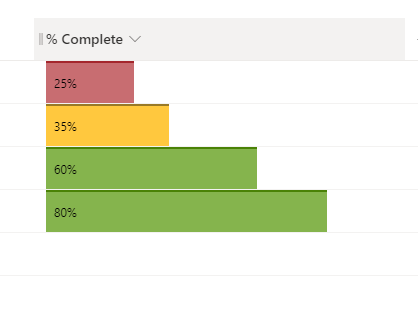
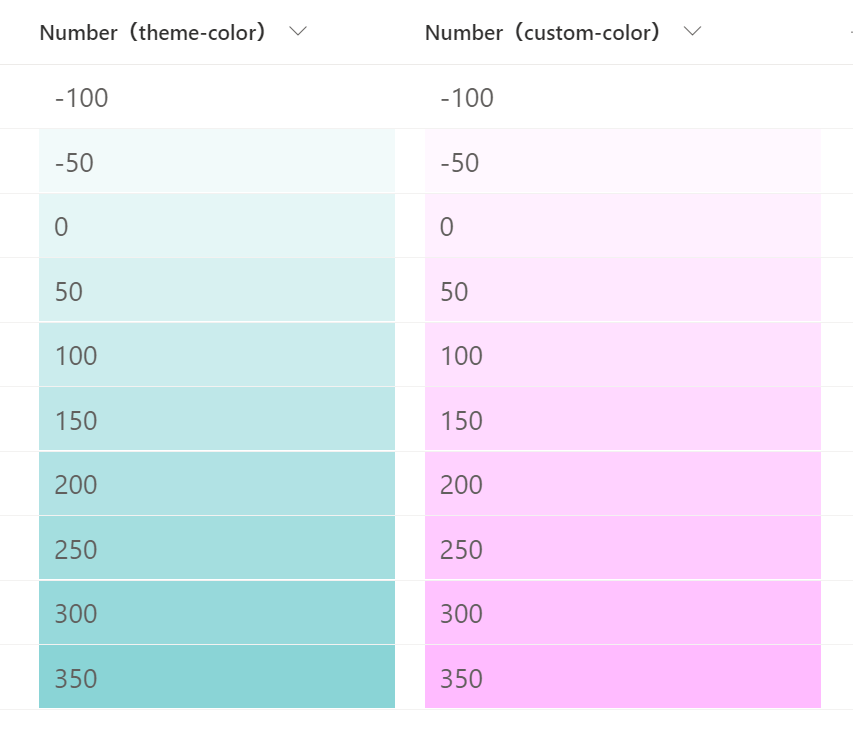
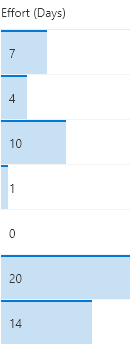
These formats apply background-color and border-top styles to create a data bar visualization of @currentField, which is a number field. These styles are applied using the special column formatting class sp-field-dataBars. The bars are sized differently for different values based on the way the width attribute of the main div is set.
View sample details →
Date Difference preview
Column Formatting
Date Difference
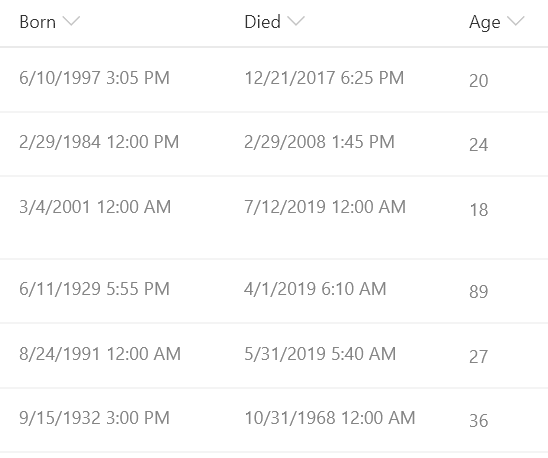
This sample demonstrates calculating the difference between 2 dates. In this sample the age in years is calculated based on the date of birth and the date of death. This format could easily be adjusted to calculate a different unit of time (months, days, hours, minutes, etc.) by adjusting the multiplier.
View sample details →
Date Notation preview
Column Formatting
Date Notation
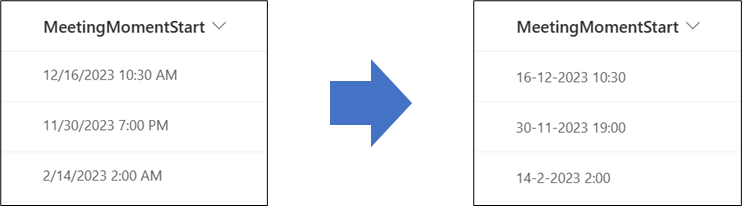
This sample provides a way to make sure that the notation of a date and time column in SharePoint is forced in a specific notation.
View sample details →
Days Counter preview
Column Formatting
Days Counter
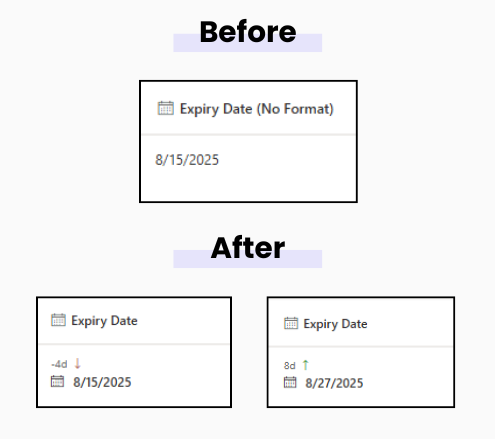
This sample shows how many days are left until a date or how many days have passed since a date, right inside a SharePoint list column. Color-coded for quick scanning.
View sample details →
Display a Bing Maps Image for a Location preview
Column Formatting
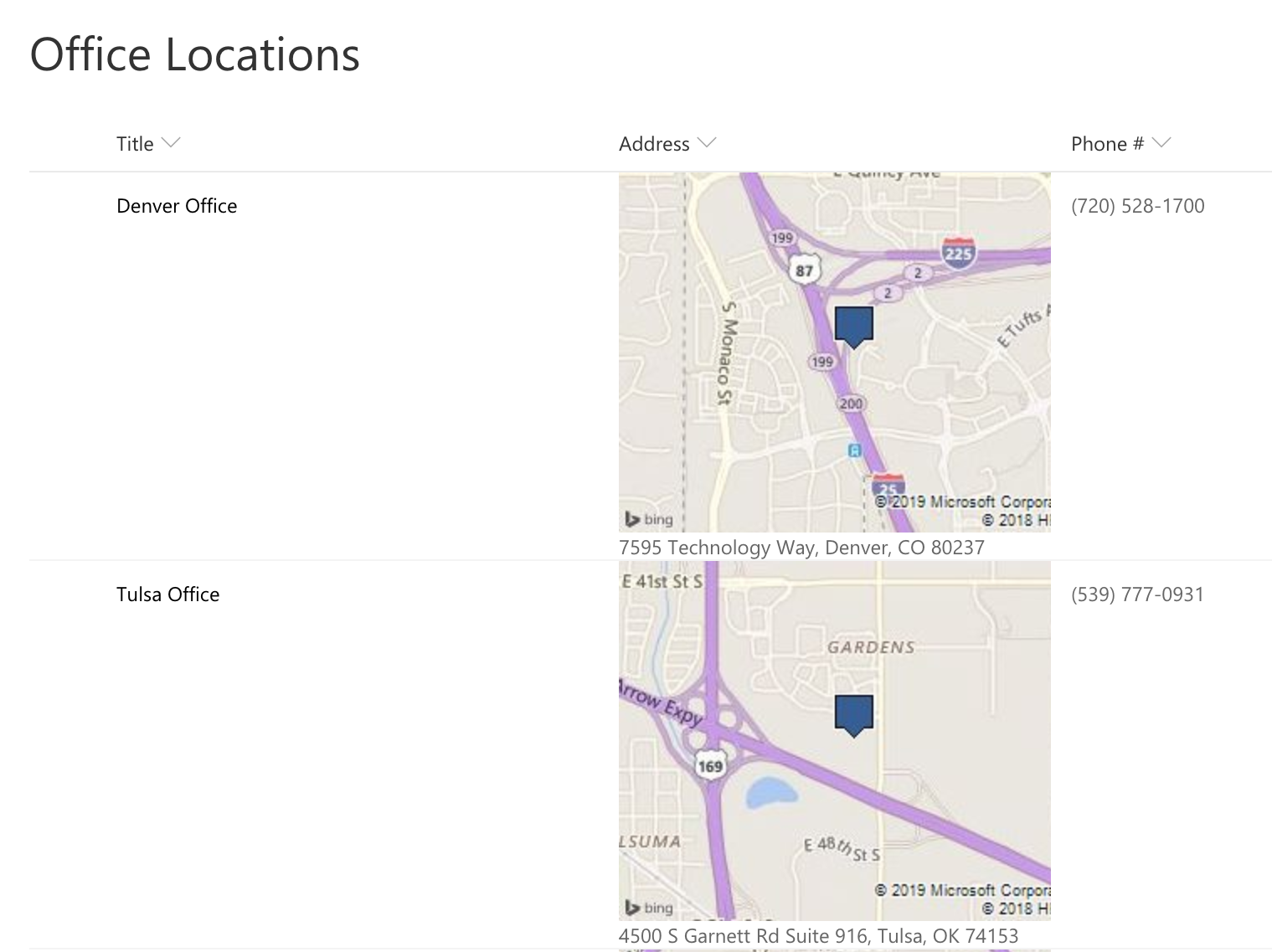
Display a Bing Maps Image for a Location
This template uses Bing Maps staticmap API which generates an image using a parameterized URL. The template only uses the most basic features of map location and image size. To see all of the available option see the static map documentation
View sample details →
Display a Google Maps Image for a Location preview
Column Formatting
Display a Google Maps Image for a Location
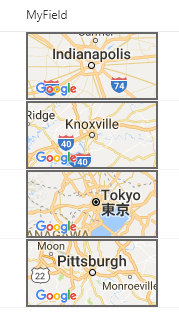
This template takes advantage of Google Maps' staticmap API which generates an image using a parameterized URL.
View sample details →
Display a Person's Profile Picture in a Circle preview
Column Formatting
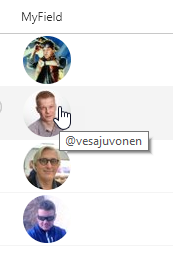
Display a Person's Profile Picture in a Circle
This sample applies styles to a parent div element and a child img element to show a person's profile picture in a circle.
View sample details →
Display a Picture Column in a Circle preview
Column Formatting
Display a Picture Column in a Circle
This sample applies styles to a parent div element and a child img element to show a picture column in a circle.
View sample details →
Display Count Up and Count Down Buttons preview
Column Formatting
Display Count Up and Count Down Buttons
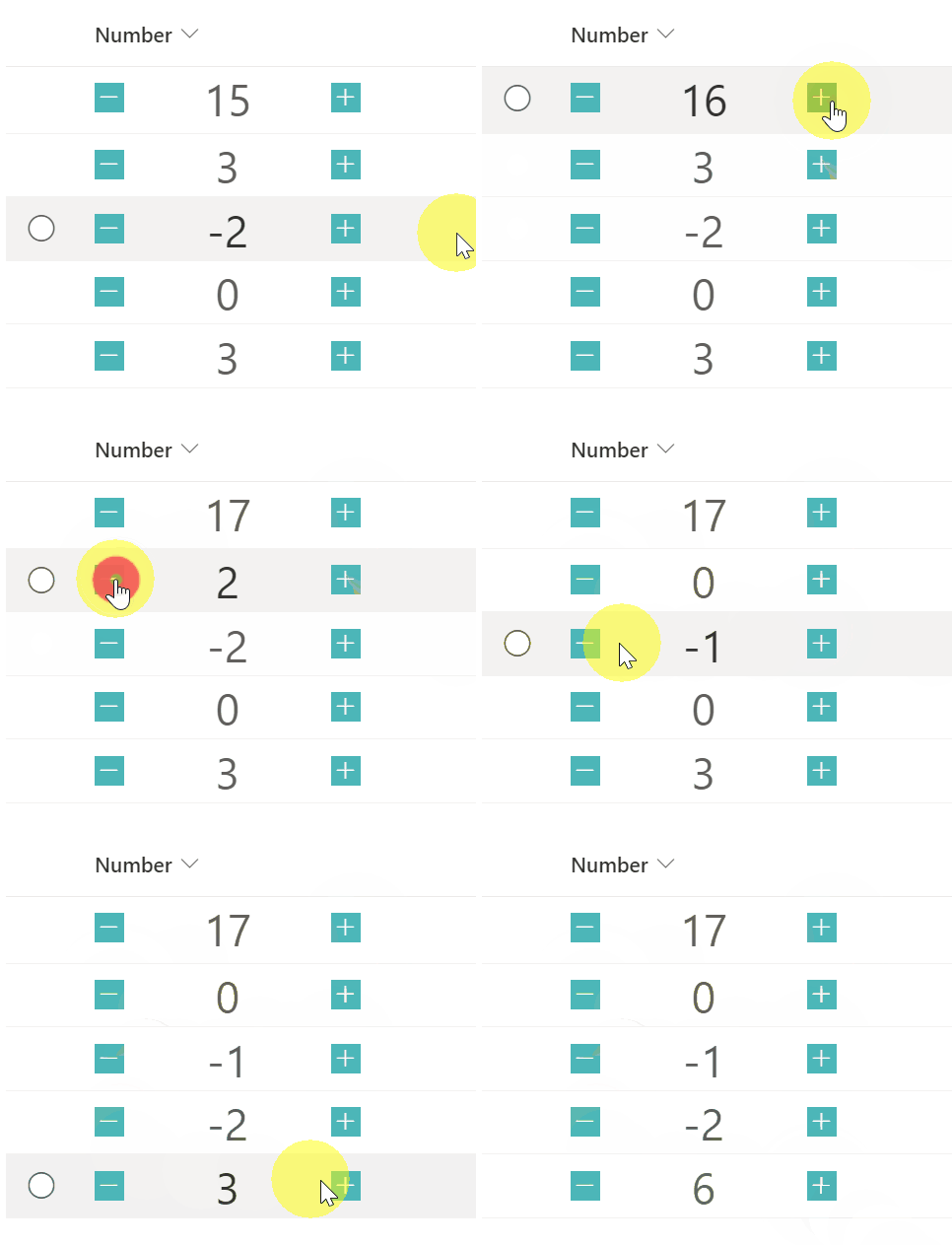
This sample demonstrates a button with a number increasing by one and a button with a number decreasing by one.
View sample details →
Display icons by repeating preview
Column Formatting
Display icons by repeating
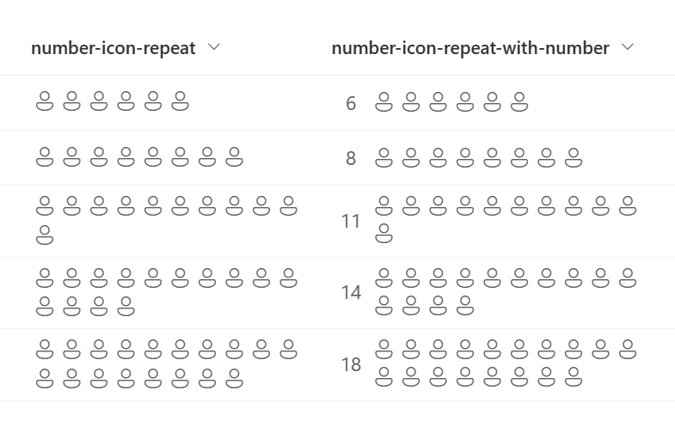
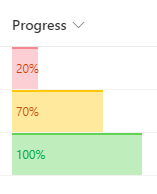
This sample demonstrates the use of the padStart and split operators to repeatedly display icons for the number of values in the number column.
View sample details →
Display Link to Google Maps preview
Column Formatting
Display Link to Google Maps
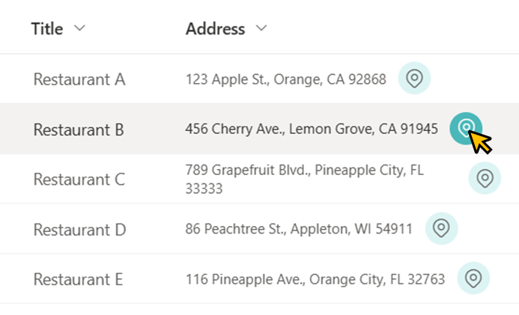
This sample demonstrates displaying a link to Google Maps. When you open that link, a map of the area around the field value location is displayed.
View sample details →
Display Location Address Details preview
Column Formatting
Display Location Address Details
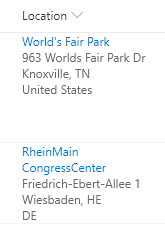
Location columns provide several properties that can be accessed to provide more information to users. This sample pulls out sub properties to turn the standard Display Name only to a full address and provides a link to Bing Maps for a given location.
View sample details →
Display Location Weather Details preview
Column Formatting
Display Location Weather Details
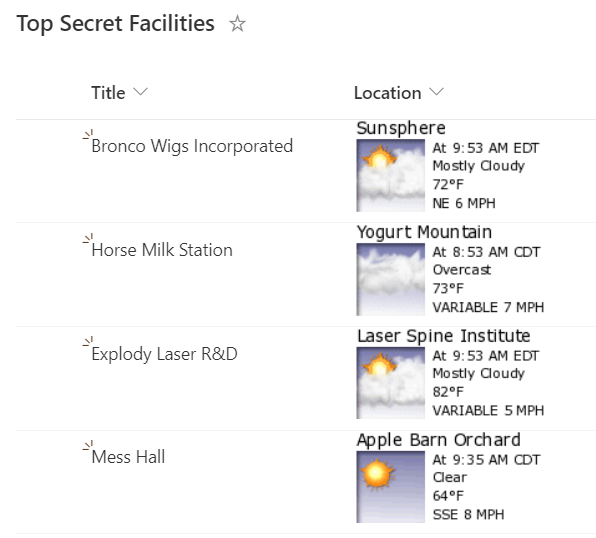
This sample utilizes sub properties of a Location column to build an image that pulls weather from WeatherForYou.com
View sample details →
Download Image from SharePoint Image column preview
Column Formatting
Download Image from SharePoint Image column
This sample demonstrates adding a button within a SharePoint Online/Microsoft Lists view which downloads the image from image column.
View sample details →
Dynamic Links preview
Column Formatting
Dynamic Links
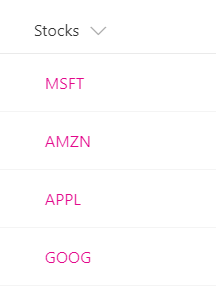
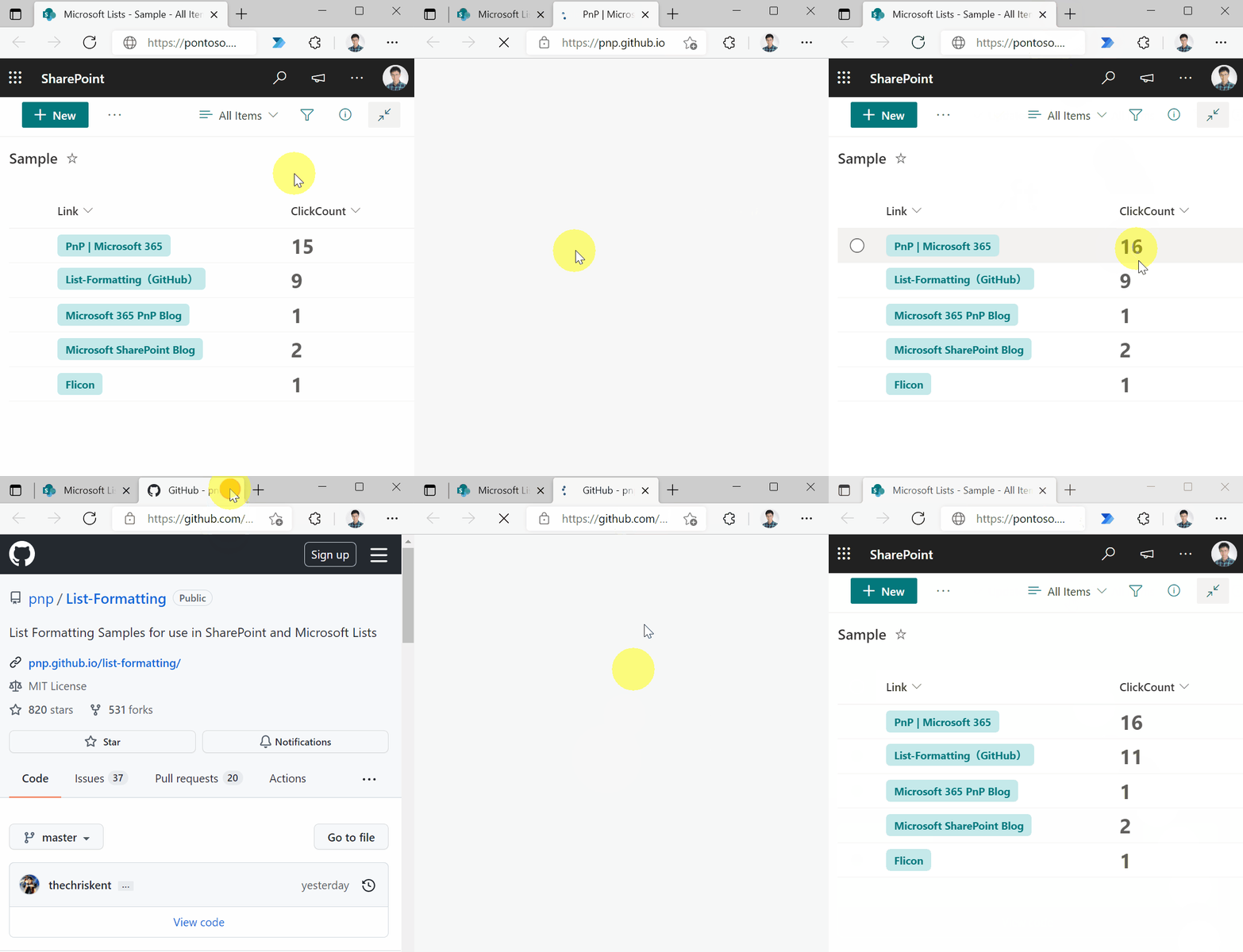
This example shows how to turn a text field that contains stock ticker symbols into a hyperlink that targets the Yahoo Finance real-time quotes page for that stock ticker. The example uses a + operator that appends the current field value to the static hyperlink http://finance.yahoo.com/quote/. You can extend this pattern to any scenario in which you want users to view contextual information related to an item, or you want to start a business process on the current item, as long as the information or process can be accessed via a hyperlink parameterized with values from the list item.
View sample details →
File Picker preview
Column Formatting
File Picker
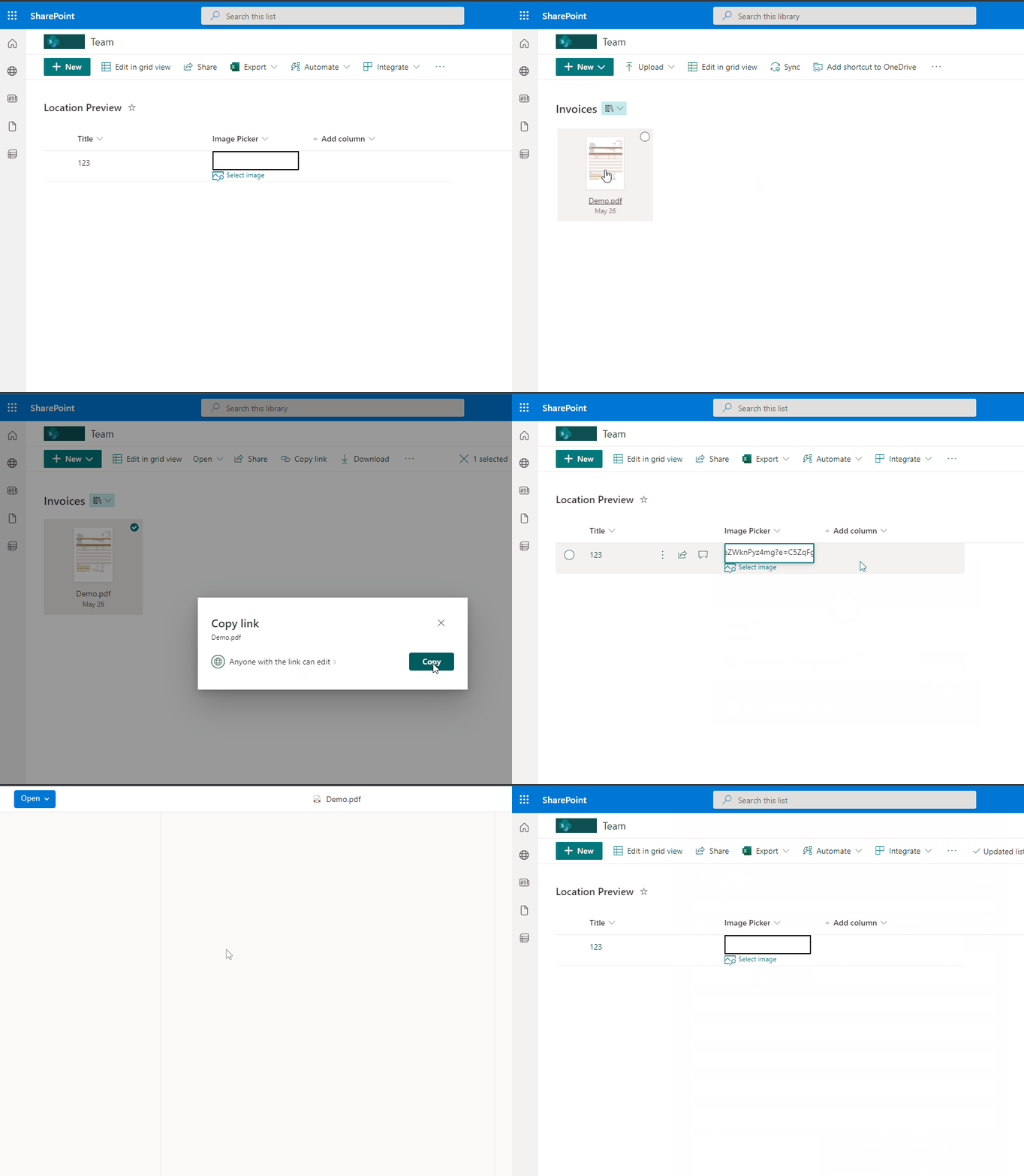
This sample demonstrates how to prompt users to copy a file link from a specific library and displays it in the column.
View sample details →
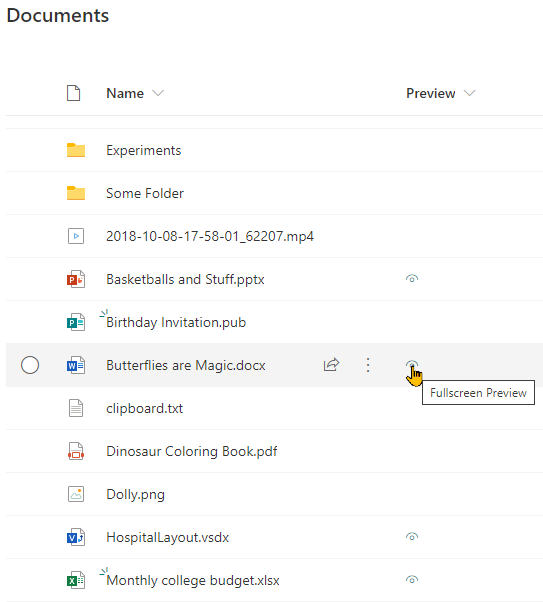
File Preview preview
Column Formatting
File Preview
This sample opens Microsoft Office documents in full screen within a new tab. This is the same view as used in the fileviewer webpart (no toolbars).
View sample details →
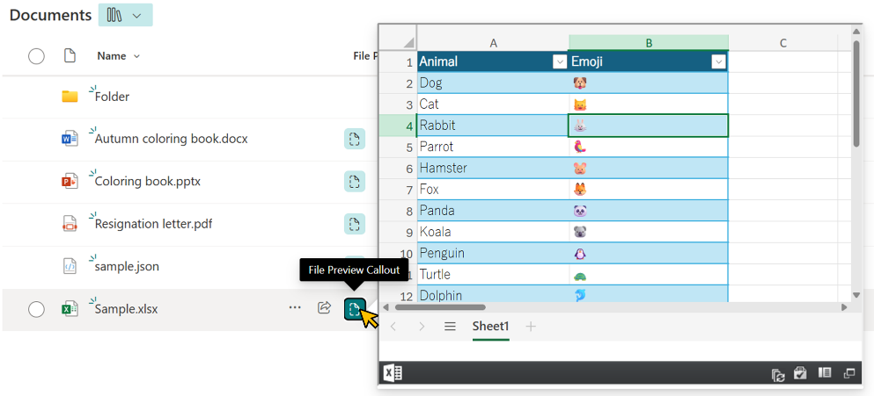
File Preview Callout with the embed Action preview
Column Formatting
File Preview Callout with the embed Action
This sample demonstrates how to display a file preview from a document library or Site Pages inside a callout using the embed action. This allows users to view file contents without leaving the current page.
View sample details →
Flow Status preview
Column Formatting
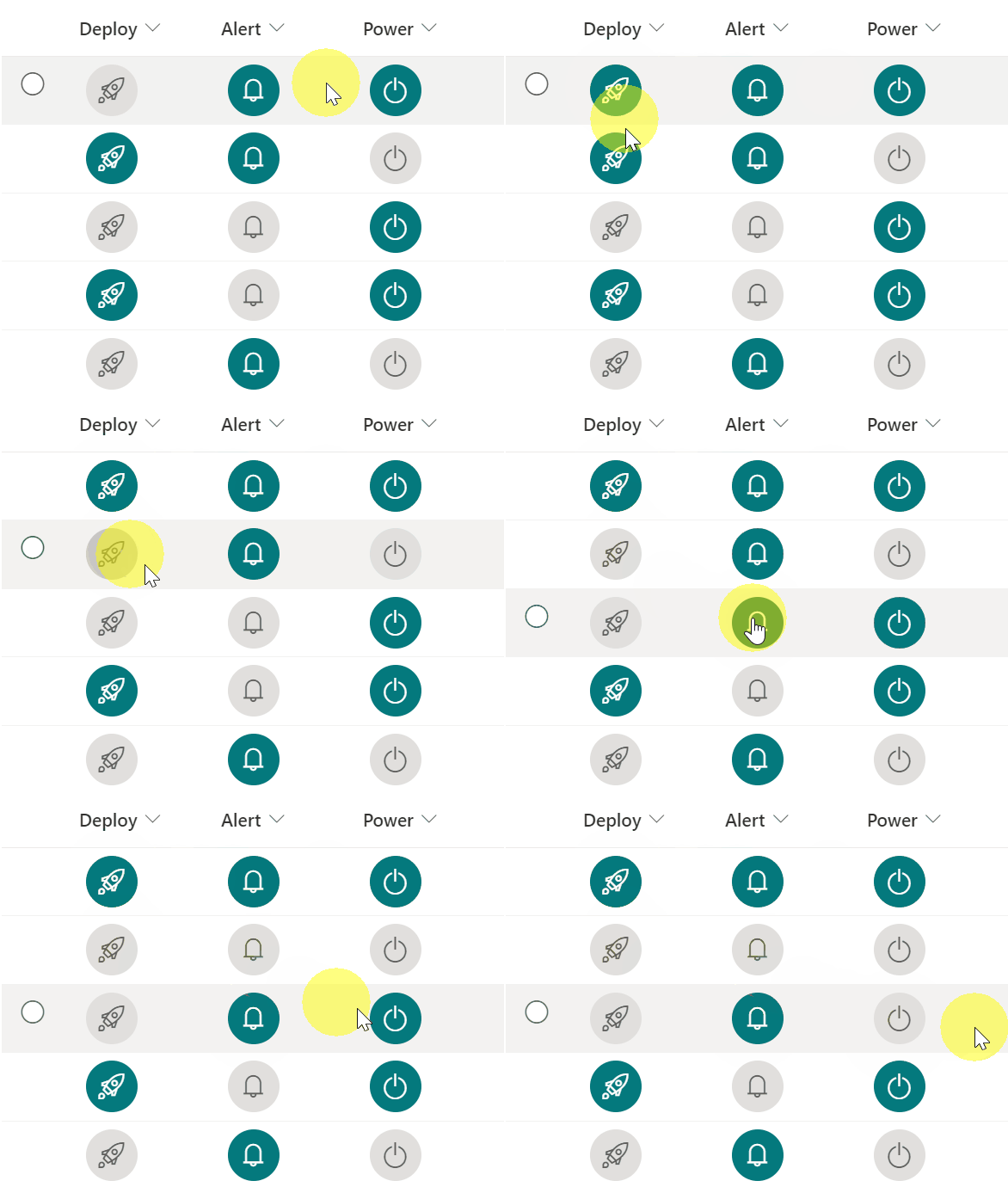
Flow Status
This sample conditionally shows a button to launch a flow. Additional details are provided to customize the flow panel title and button. This provides context to users and is often far more meaningful than the default of 'Run Flow' which generally doesn't mean much to end users.
View sample details →
Format a column with multi-path SVGs preview
Column Formatting
Format a column with multi-path SVGs
This formats applies different SVGs with multiple paths to a number field, depending on the value of the field.
View sample details →
Format a row as a card with buttons preview
Column Formatting
Format a row as a card with buttons
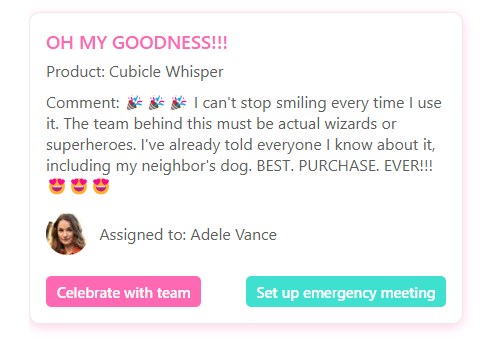
This is a sample that enables you to show content of various columns (single line of text, person) in a modern card design. It also shows two buttons that can call Power Automate flows for actions like sending emails or scheduling meetings.
View sample details →
Formatting a column when a date column is blank preview
Column Formatting
Formatting a column when a date column is blank
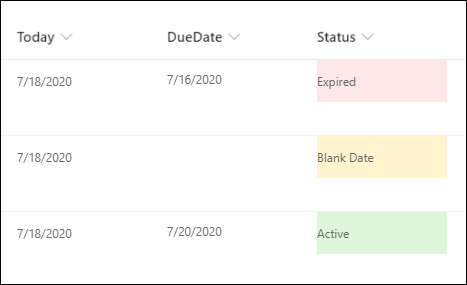
This example populates the text content and applies different classes to the Status field depending on the value inside an item's DueDate field. This example applies formatting to one field by looking at the value inside another field. Note that DueDate is referenced using the `[$FieldName]` syntax. FieldName is assumed to be the internal name of the field. This example also takes advantage of a special value that can be used in date/time fields - `@now`, which resolves to the current date/time, evaluated when the user loads the list view.
View sample details →
Gamification Badges preview
Column Formatting
Gamification Badges
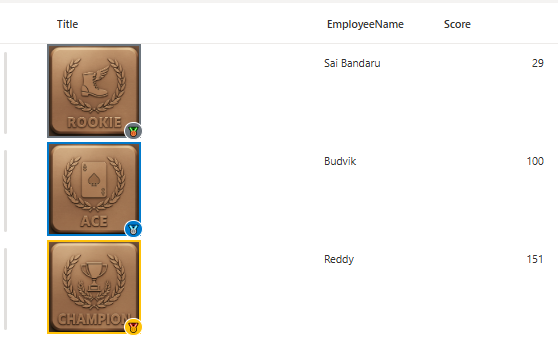
This sample demonstrates how to create dynamic Gamification badges in SharePoint columns based on score values with visual indicators and tooltips.
View sample details →
Gantt Chart preview
Column Formatting
Gantt Chart
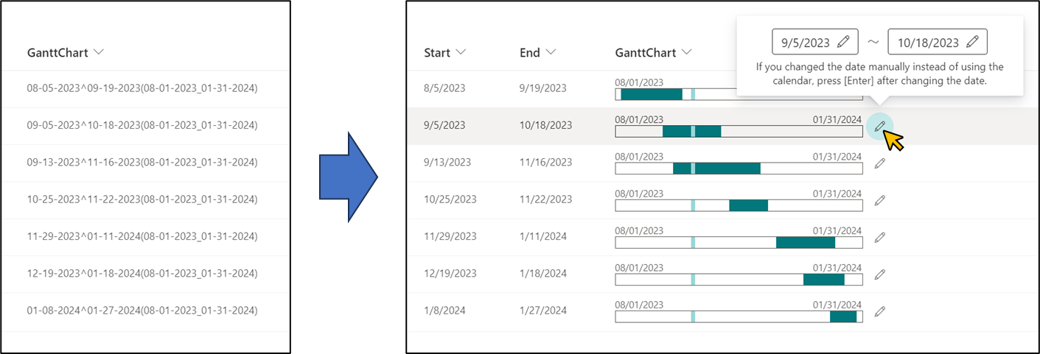
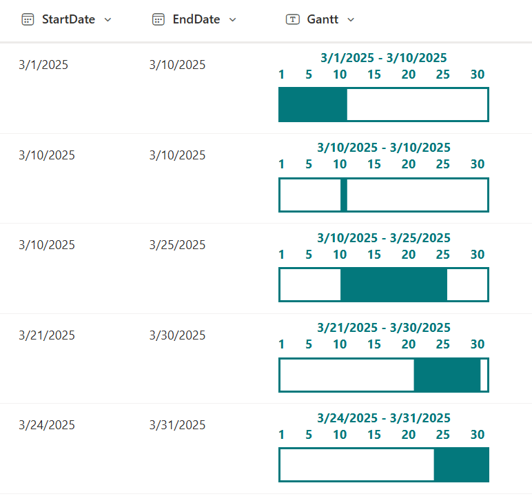
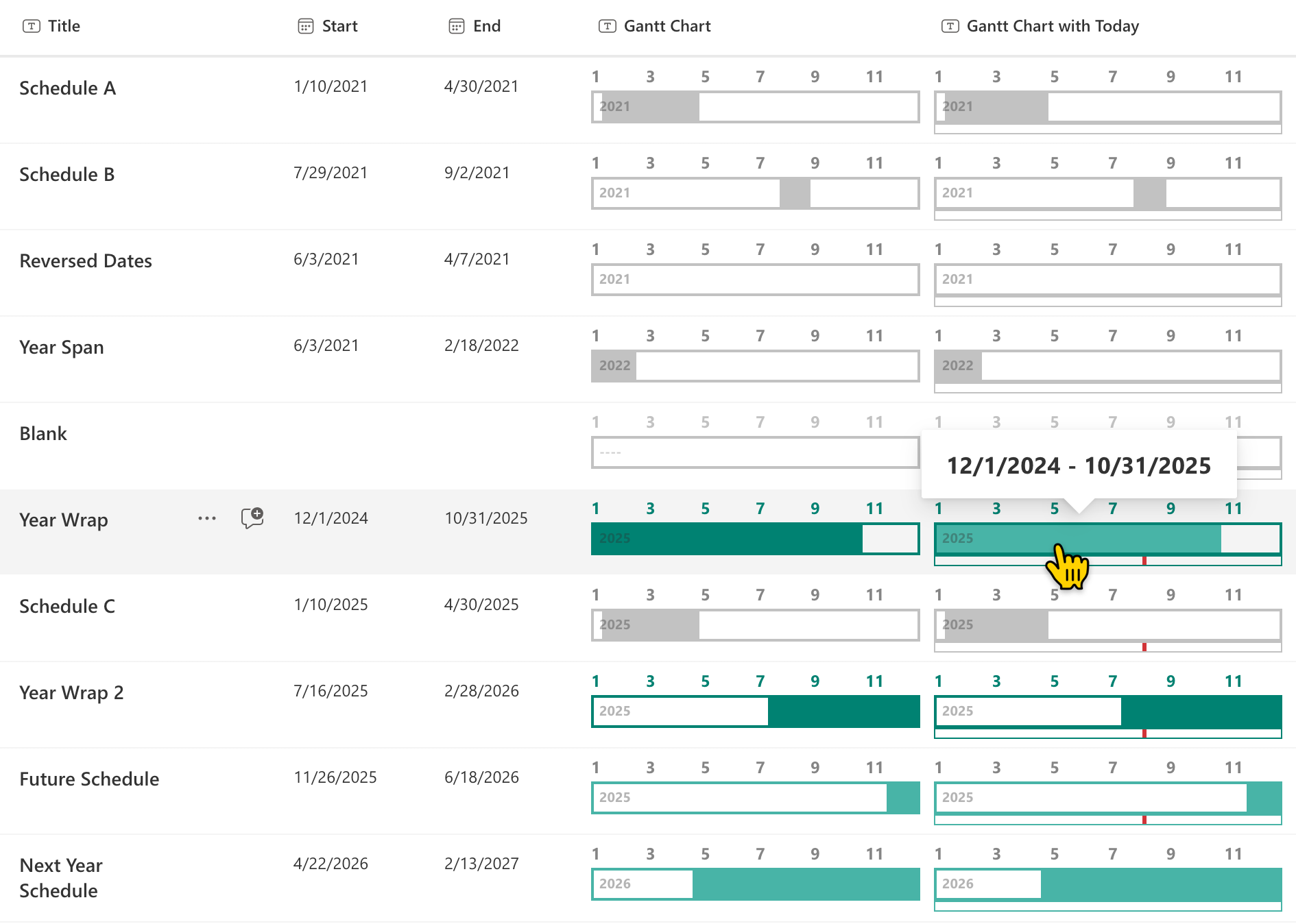
This sample demonstrates the use of the Calculated column to generate a string for displaying a Gantt chart, and then parses the string to display the Gantt chart.
View sample details →
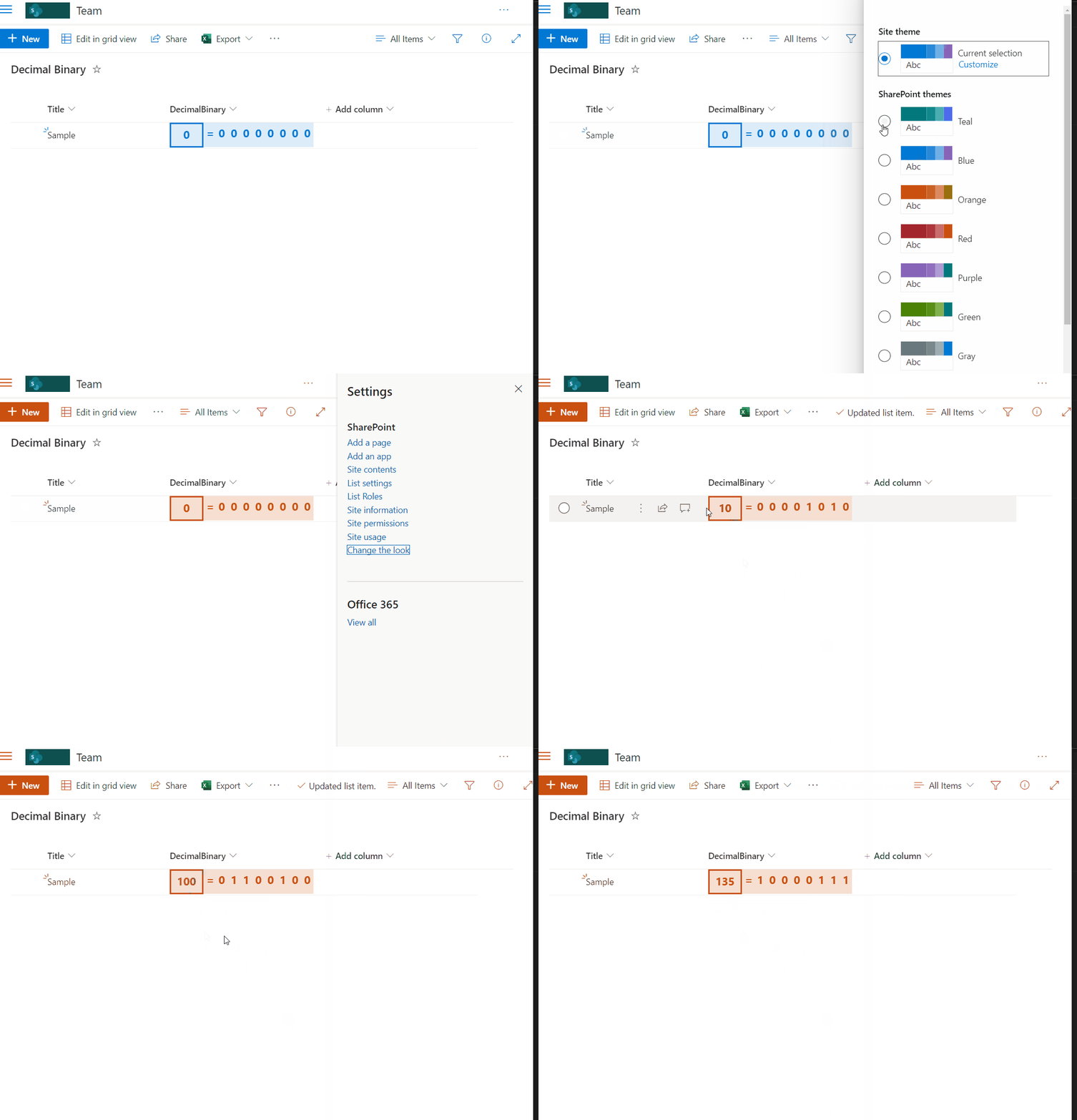
Generic Gauge preview
Column Formatting
Generic Gauge
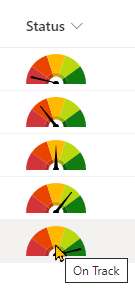
This sample demonstrates combining a fixed SVG (gauge background) with a dynamic SVG (needle). The values are based on text values (choice or text).
View sample details →
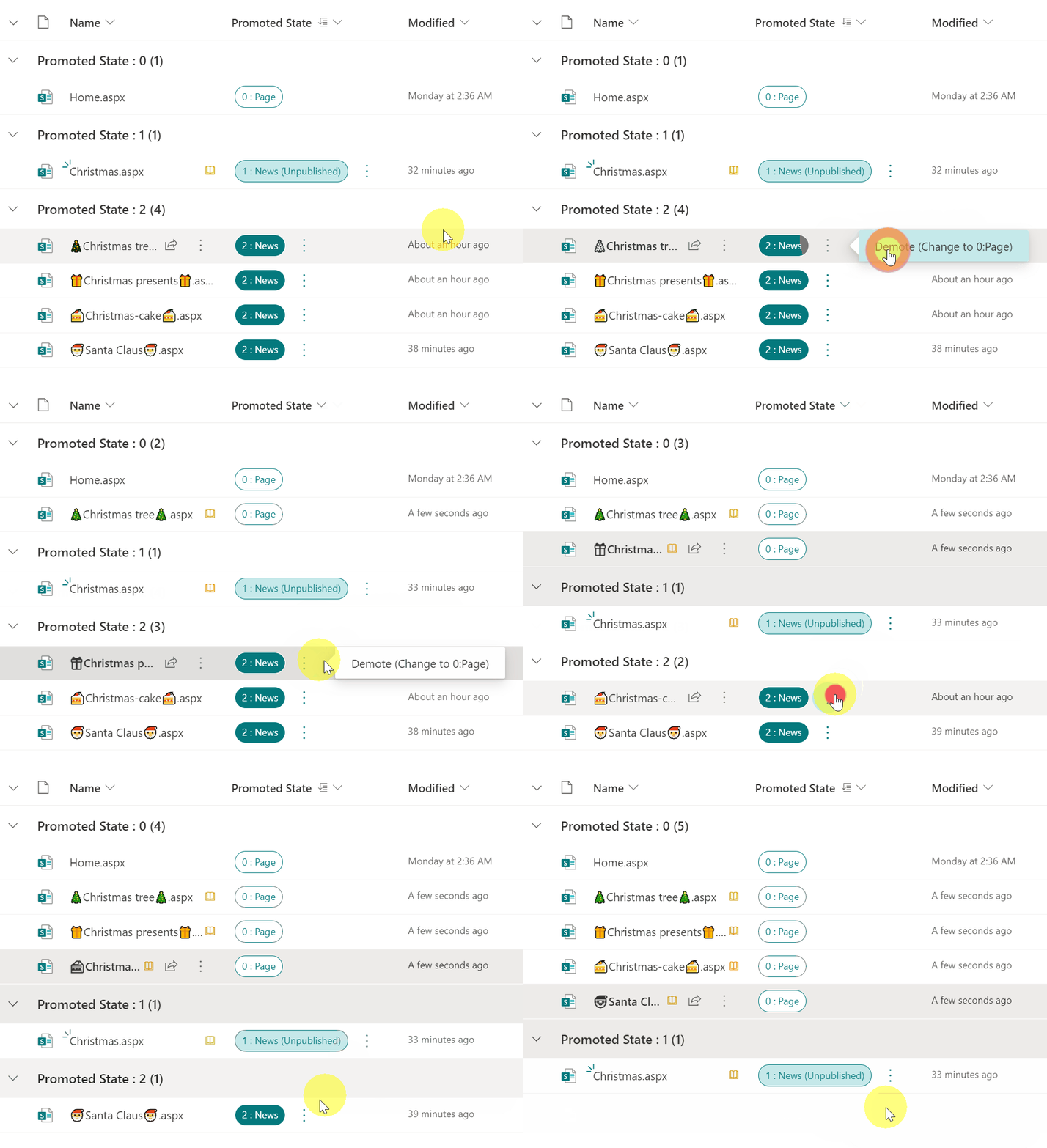
Generic Super Type preview
Column Formatting
Generic Super Type
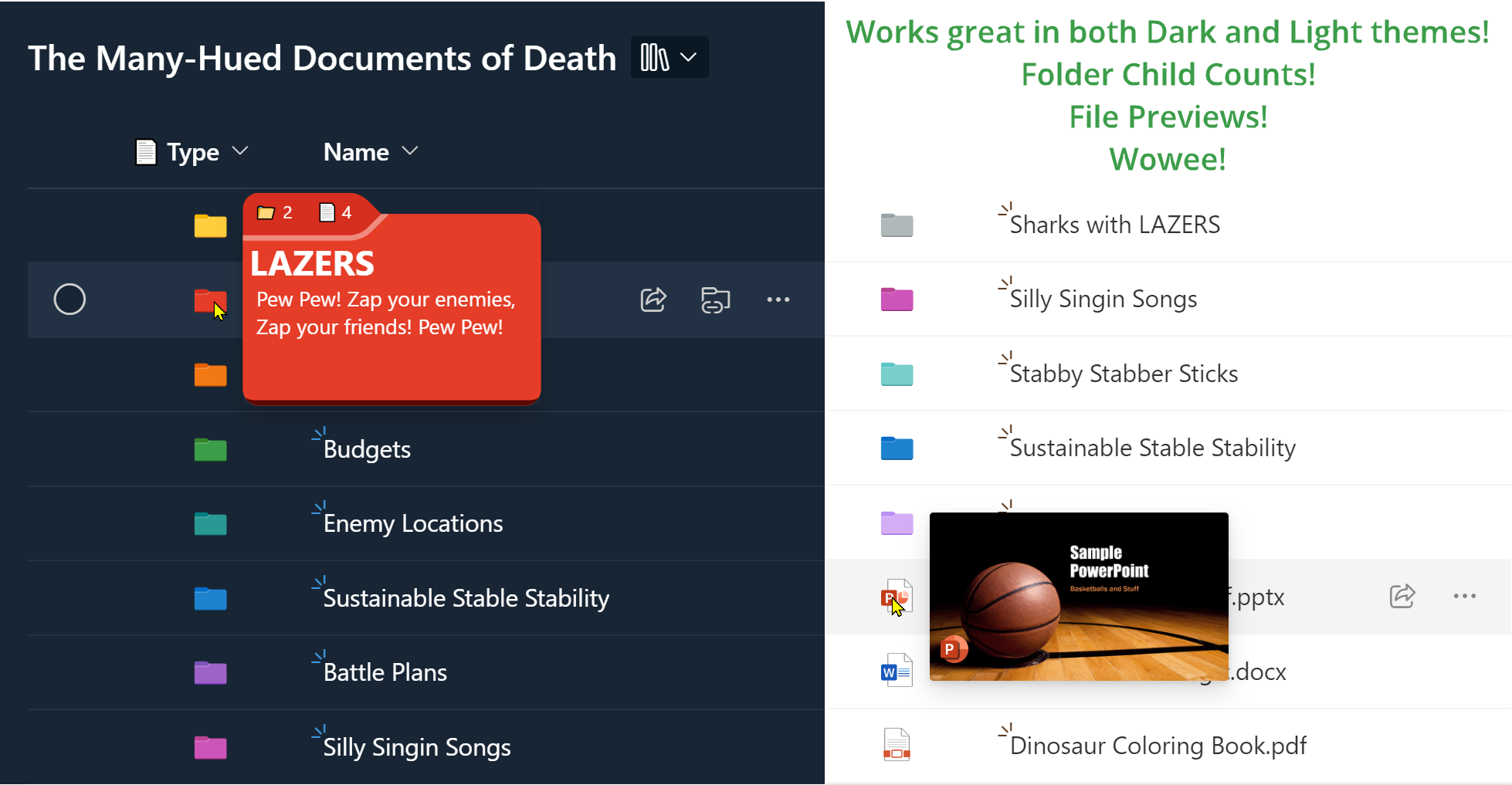
This sample demonstrates recreating the `Type` column (folder/file icons) and adds meaningful hover panels.
View sample details →
Highlight the Current User preview
Column Formatting
Highlight the Current User
This sample uses the @me keyword to check if the person field is the current user and shows that person using a different color and weight. This is a dynamic check that will always highlight the user using the list (not the creater of the format). This template could easily be extended to apply different/additional styles or icons as desired by simply copying the same expression logic for other fields.
View sample details →
Highlight the Current User (Using a Multi-Person Column) preview
Column Formatting
Highlight the Current User (Using a Multi-Person Column)
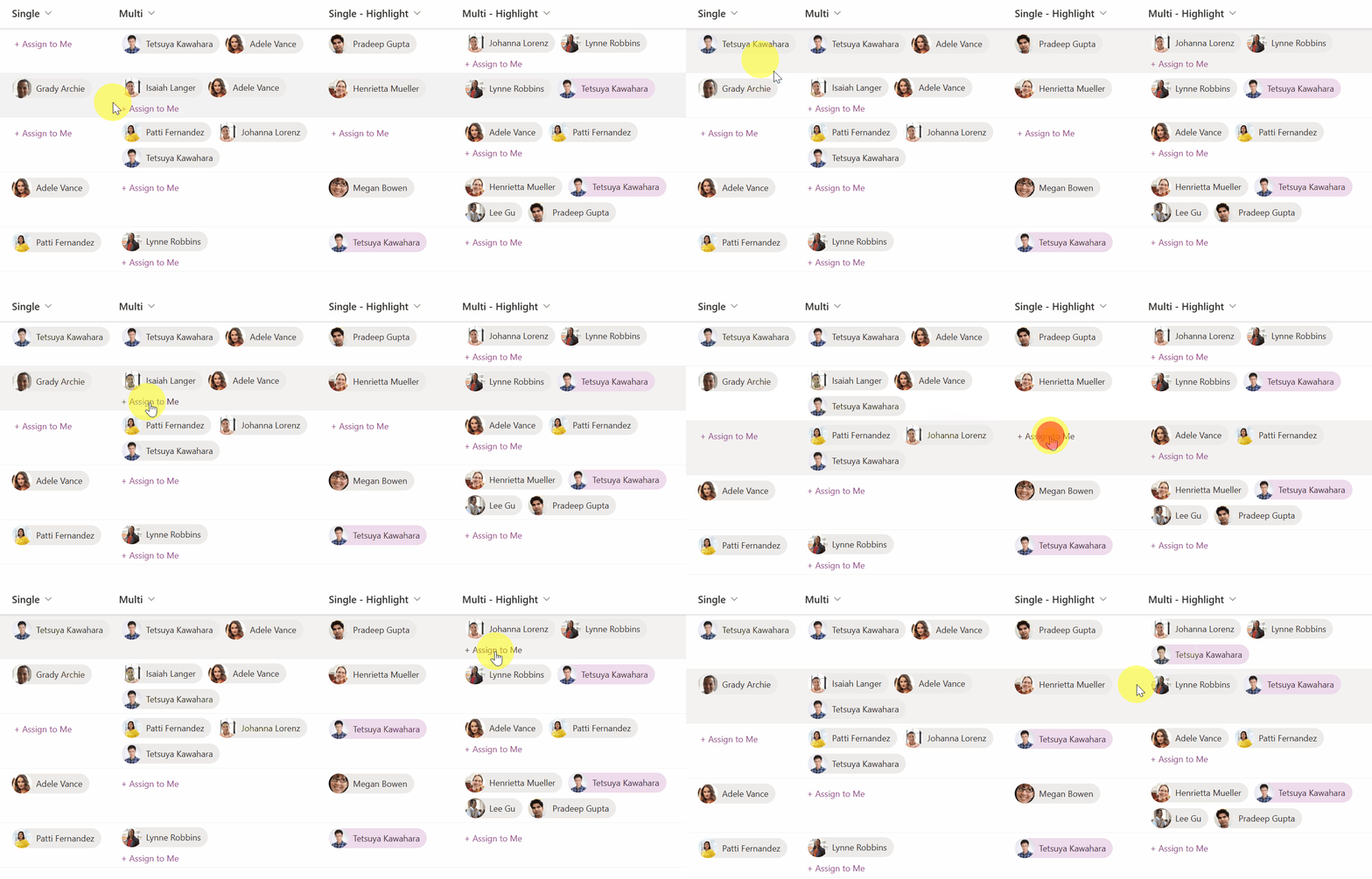
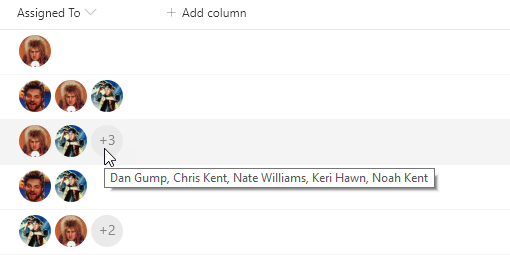
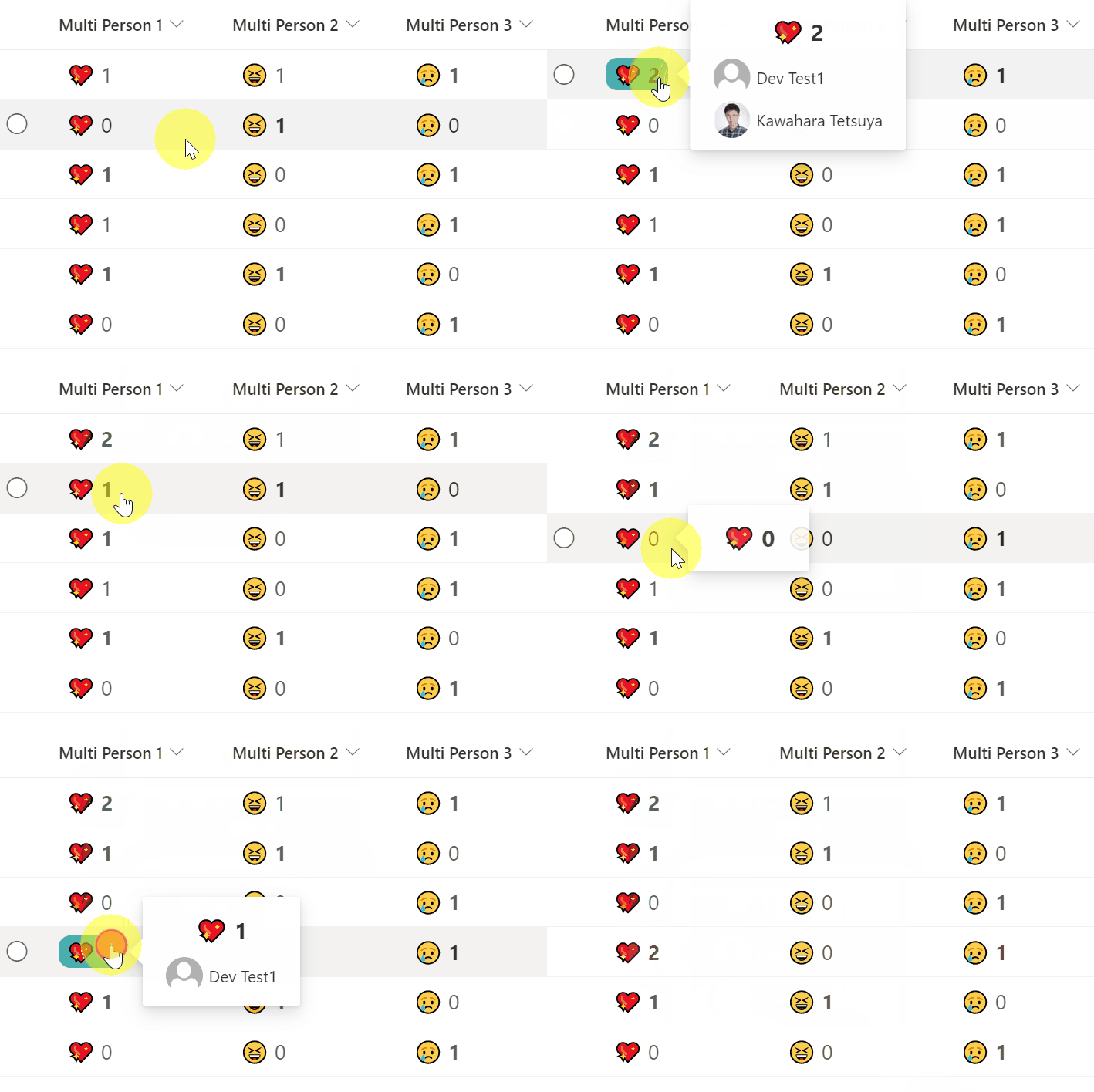
This sample uses the @me keyword to check if the person field contains the current user and shows that entry using a different color and weight. This is a dynamic check that will always highlight the user using the list (not the creater of the format). This template could easily be extended to apply different/additional styles or icons as desired by simply copying the same expression logic for other fields.
View sample details →
Hyperlink long addresses preview
Column Formatting
Hyperlink long addresses
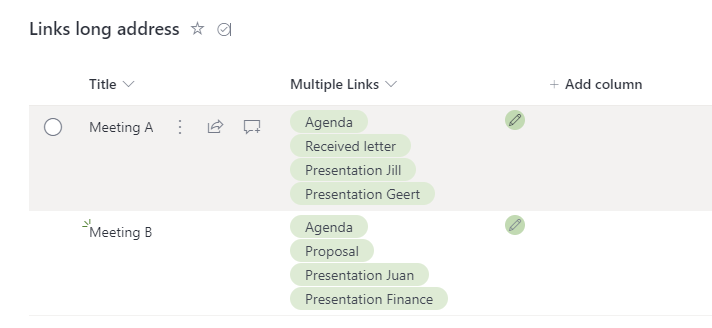
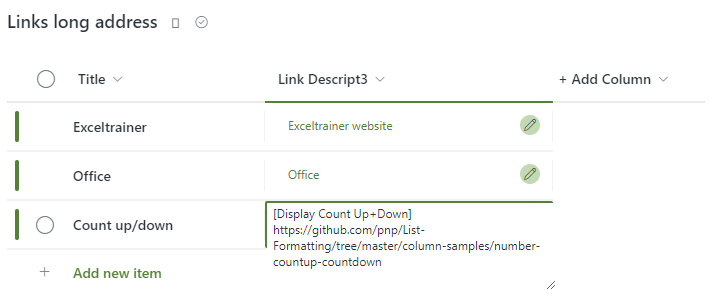
The URL in a hyperlink column has a 255-character limit, which can get you into trouble. This sample demonstrates the use of a multiple lines of text column to display the link so that this limitation can be avoided.
View sample details →

Icon Overlays preview
Column Formatting
Icon Overlays
You can UI Fabric Icons within your column and view formats. This sample demonstrates combining multiple icons by overlaying to create colorful icons that can indicate more information than a single icon can.
View sample details →
Icon Progress Bar preview
Column Formatting
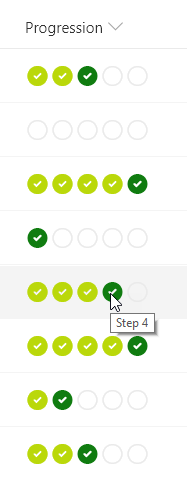
Icon Progress Bar
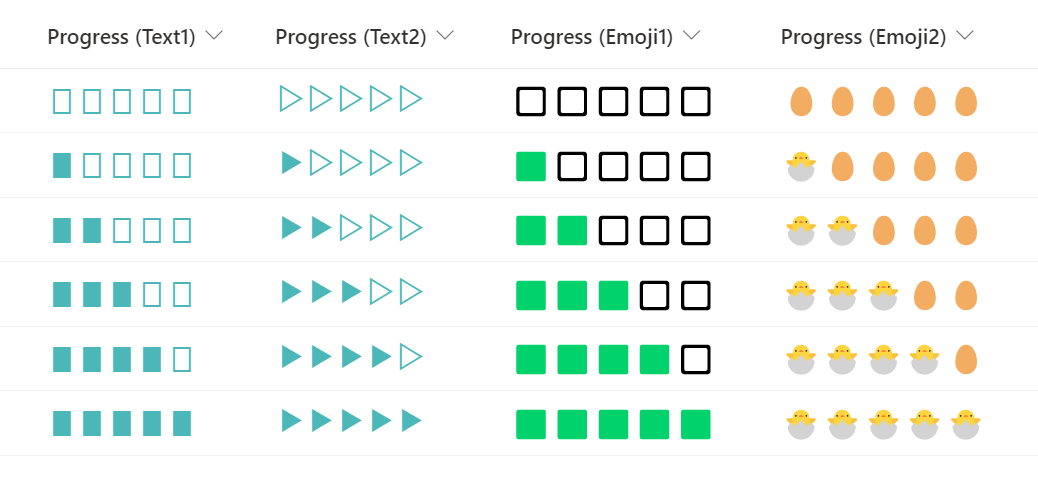
This sample demonstrates creating a progress bar using icons. The number column represents the stage in a process and the format provides a visual indicator of where an item is in relation to the process by showing the previous steps as completed, highlighting the current step, and indicating which steps remain.
View sample details →
Identicon Column Formatting preview
Column Formatting
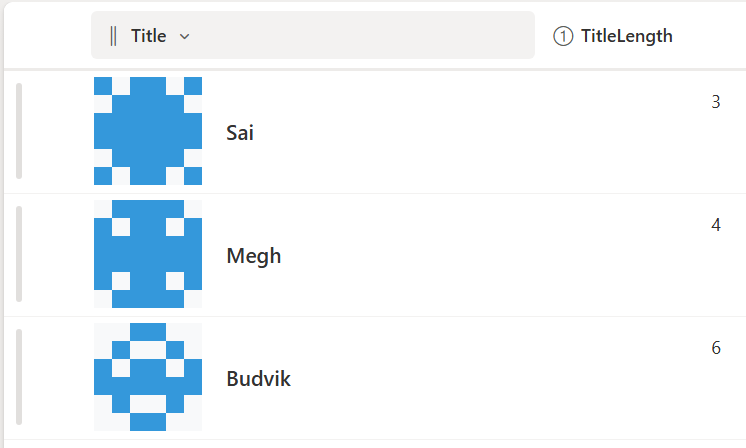
Identicon Column Formatting
This sample demonstrates how to use SharePoint Column Formatting to generate Identicons for list items.
View sample details →
Image with Overlay Buttons preview
Column Formatting
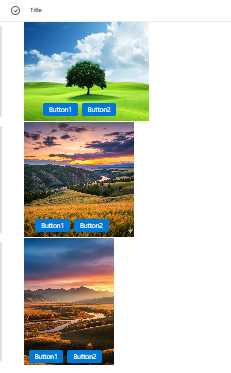
Image with Overlay Buttons
This column formatting sample displays images with action buttons overlaid at the bottom, with dynamic sizing based on image orientation.
View sample details →
Inline Approval preview
Column Formatting
Inline Approval
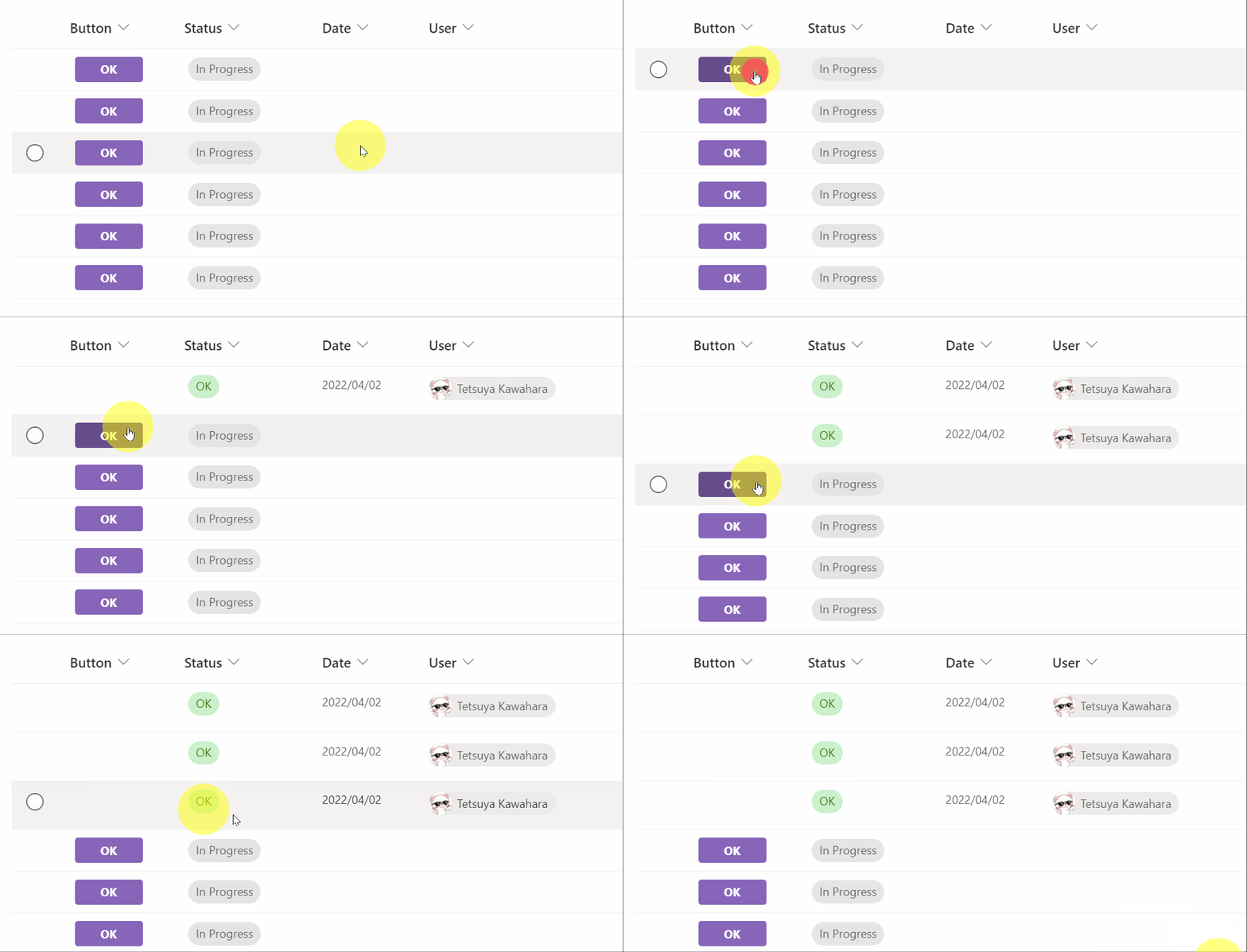
Creates buttons to approve/reject an item by updating an Approval Status field created using a choice field, and also set the value of a person field to the user who took the action by using the setValue action.
View sample details →
Inline Column Chart preview
Column Formatting
Inline Column Chart
This sample demonstrates displaying a column chart using SVG. It uses the `currentColor` for the fill value of the SVGs which allows us to use a theme class to make the final SVGs fit your site's theme.
View sample details →
Instant Flow Trigger with HTML Response via Embed Action preview
Column Formatting
Instant Flow Trigger with HTML Response via Embed Action
Trigger a Power Automate flow instantly with visual feedback using the embed action.
View sample details →
ISBN to Book Cover Image preview
Column Formatting
ISBN to Book Cover Image
This example retrieves book cover images based on their ISBN numbers by utilizing the Open Library Covers API. The API works by building a cover image URL with the ISBN.
View sample details →
Issue Status Pill  preview
Column Formatting
Issue Status Pill
This format demonstrates how you can reproduce the status choices as pills found in the Microsoft Lists Issue Tracker template..
View sample details →
Item Version History preview
Column Formatting
Item Version History
This sample demonstrates how to build a button to display the version history of an item in SharePoint Online.
View sample details →
Launch a Flow for a Selected Item preview
Column Formatting
Launch a Flow for a Selected Item
You can use column formatting to create buttons that, when clicked, run Flows on the corresponding list item. The Flow Launch Panel will be displayed after clicking the button allowing the user to specify any required data and then run the flow.
View sample details →
Launch Power App Button preview
Column Formatting
Launch Power App Button
Providing a direct link to an item within Power Apps is easy to do using this sample. To use it follow the instructions below to get the link to your Power App (and replace that portion of the format).
View sample details →
Link to Parent Documentset preview
Column Formatting
Link to Parent Documentset
The purpose of this sample is to enhance the use of documentsets. Assuming you have a SharePoint Library with documentsets, it can be useful to create a view that shows all the files without the documentset (folder) structure. By adding a column to this view using this sample, users can open the parent documentset of a file.
View sample details →
Linking to a Local Resource preview
Column Formatting
Linking to a Local Resource
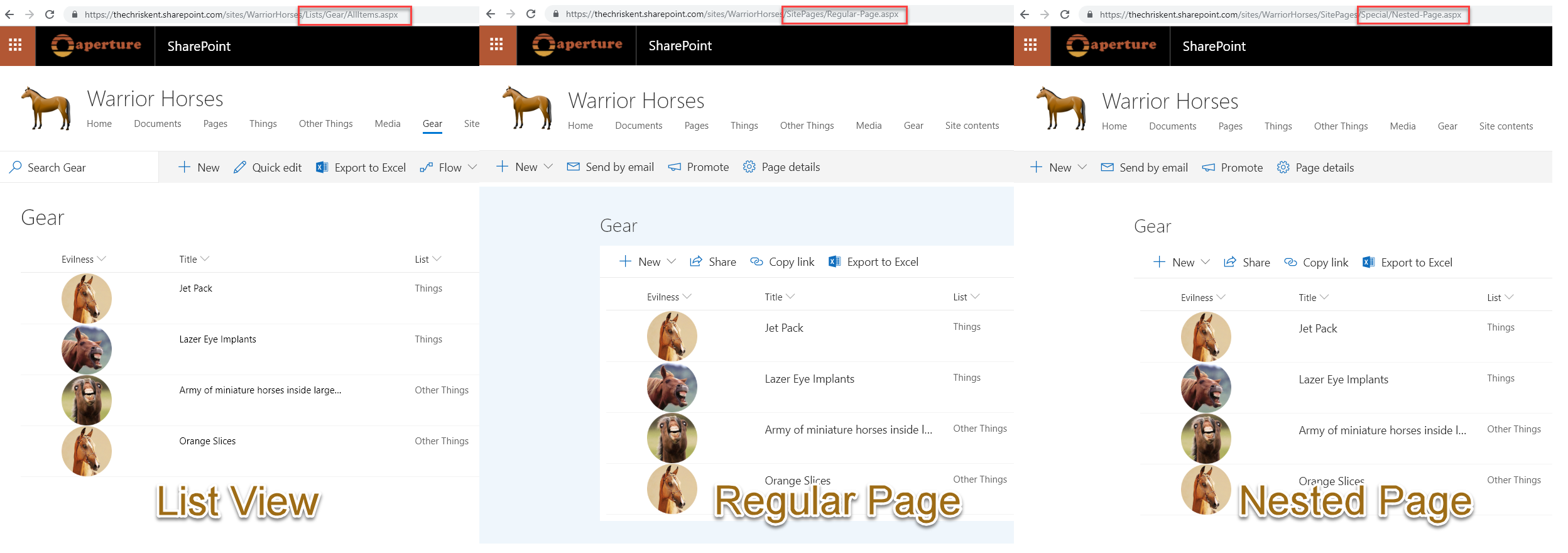
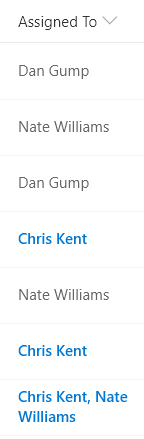
This sample provides multiple formats to illustrate the options available to link to local resources. The primary purpose is to demonstrate the usage of `@currentWeb` (O365 only) to prevent issues with reusable formats or formats rendered outside of the main list view. This format links to other lists, but this could just as easily be specific pages/files/etc. on a site.
View sample details →
MailTo Button preview
Column Formatting
MailTo Button
This sample demonstrates making a mailto link (opens email with prepopulated values) button that references a different field.
View sample details →
Managed Metadata Values to Buttons preview
Column Formatting
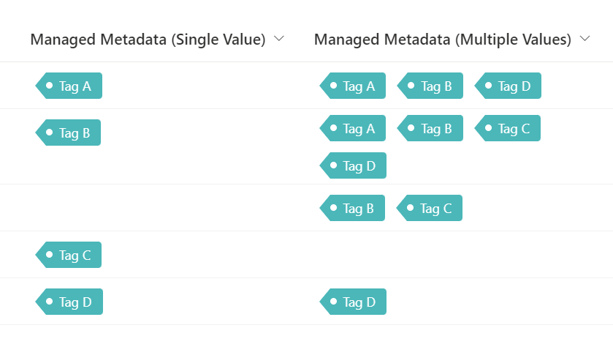
Managed Metadata Values to Buttons
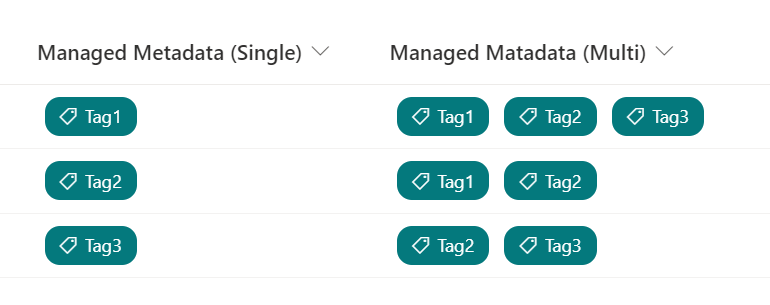
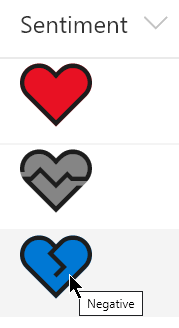
This sample demonstrates changing managed metadata (multiple) values to buttons that open (external) sites, documents or items on other links.
View sample details →
Minimum Value Highlight preview
Column Formatting
Minimum Value Highlight
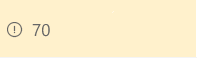
This example uses the conditional operator ? to apply a class (sp-field-severity--warning) to the parent div element when the value in the current field is less than or equal to 70. This causes the field to be highlighted when the value is less than or equal to 70, and appear normally if it's greater than 70.
View sample details →
Missing Information Callout preview
Column Formatting
Missing Information Callout
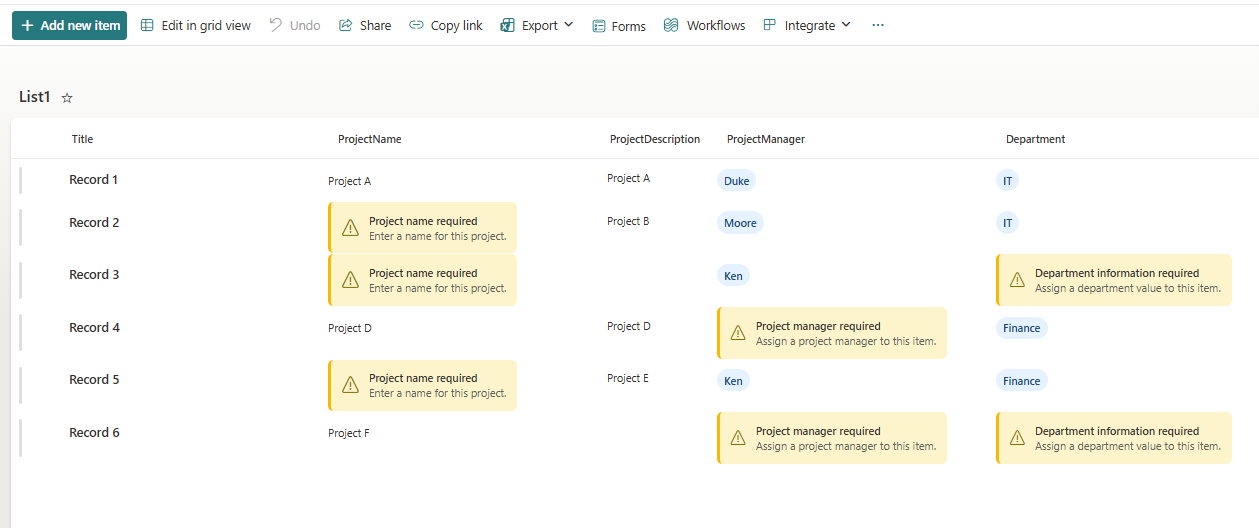
The Missing Information Callout column formatter provides a clear, accessible visual indicator when a SharePoint list column contains no value.
View sample details →
Monthly Gantt Chart preview
Column Formatting
Monthly Gantt Chart
This sample demonstrates the display of a monthly Gantt chart. The Gantt chart for the month corresponding to the StartDate value will be shown.
View sample details →
Multi-Choice forEach preview
Column Formatting
Multi-Choice forEach
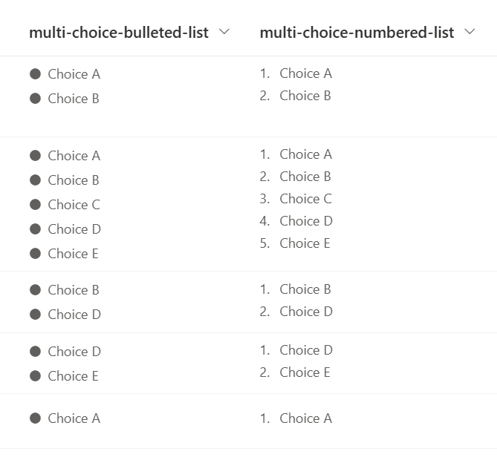
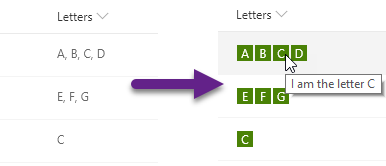
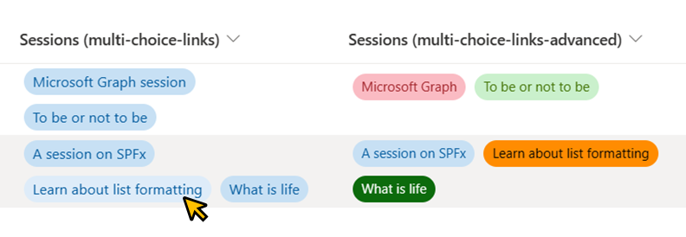
This sample demonstrates usage of the forEach property to create template elements applied to each choice in a multi-select choice field.
View sample details →
Multi-Choice Icons preview
Column Formatting
Multi-Choice Icons
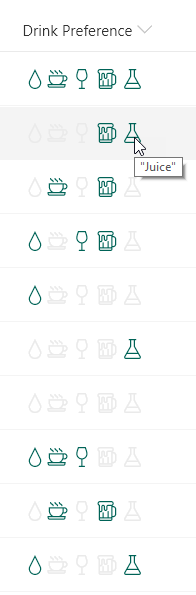
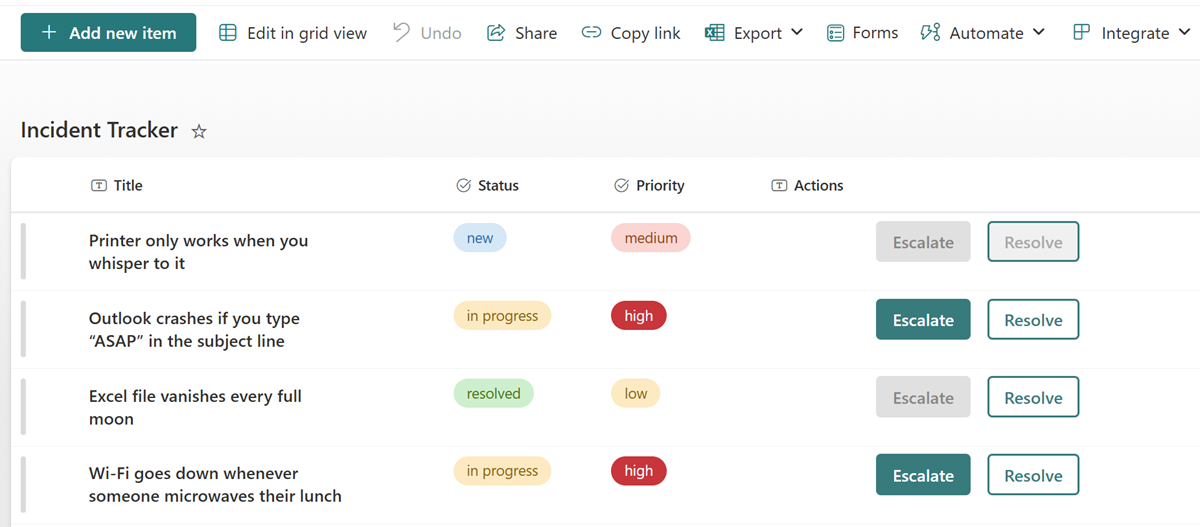
This sample demonstrates using the indexOf and join functions (O365 only) to test if a multi-select choice field has a selected choice. Providing icons of the known choices and applying themed colors based on if the given choice is selected or not creates an intuitive, easy to understand visualization that doesn't suffer from varying item order or text formatting issues.
View sample details →
Multi-Colored Databars preview
Column Formatting
Multi-Colored Databars
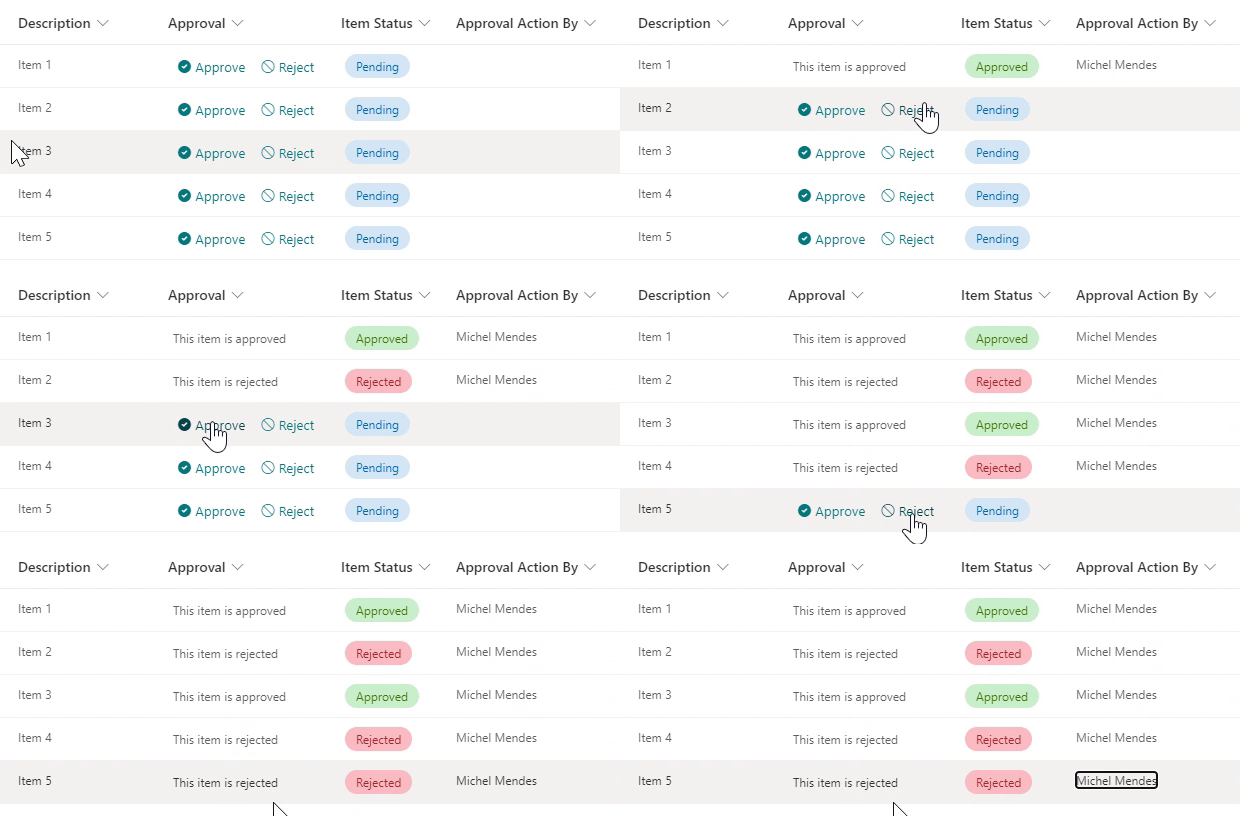
This column formatting sample demonstrates how to show the number column as data bars with multiple colors.
View sample details →
Multi-line Text with Word Wrap preview
Column Formatting
Multi-line Text with Word Wrap
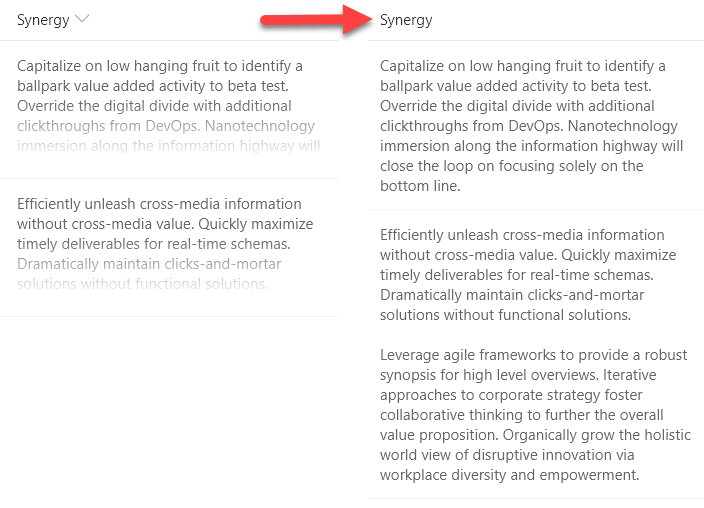
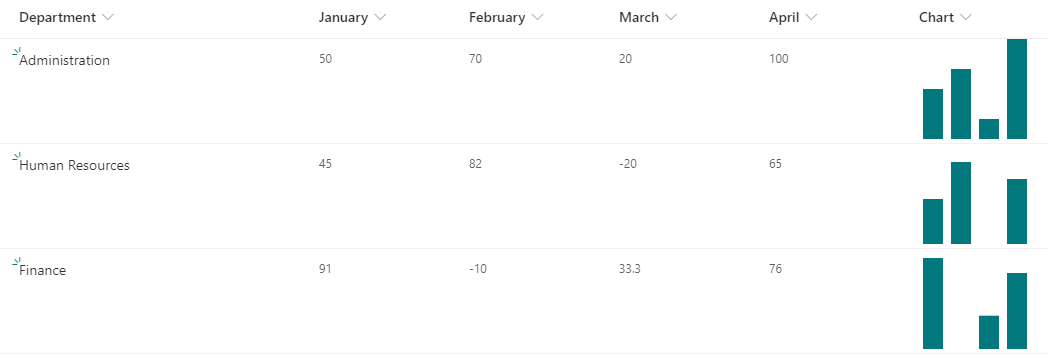
With modern document libraries and lists, lengthy multi-line fields no longer show text in full (a fade is provided). This isn't always desired, so this sample demonstrates rending long text to mutilple lines with word wrap, similar to classic mode.
View sample details →
Multi-lookup fields and projected fields preview
Column Formatting
Multi-lookup fields and projected fields
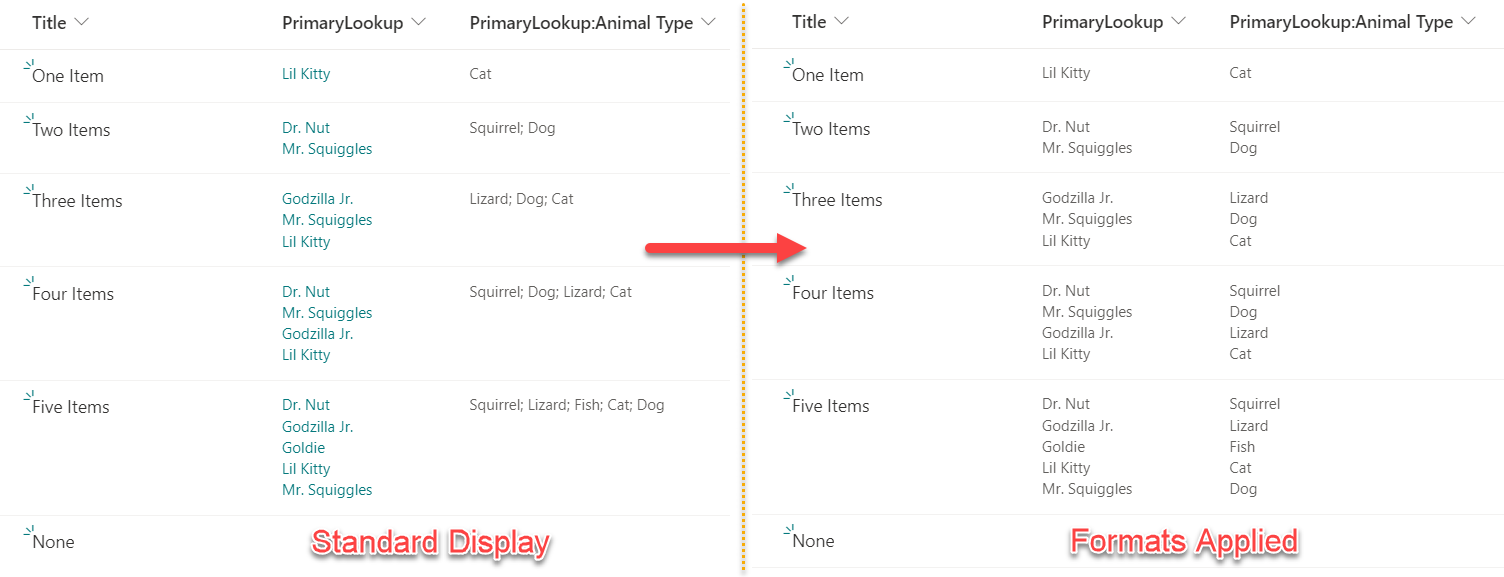
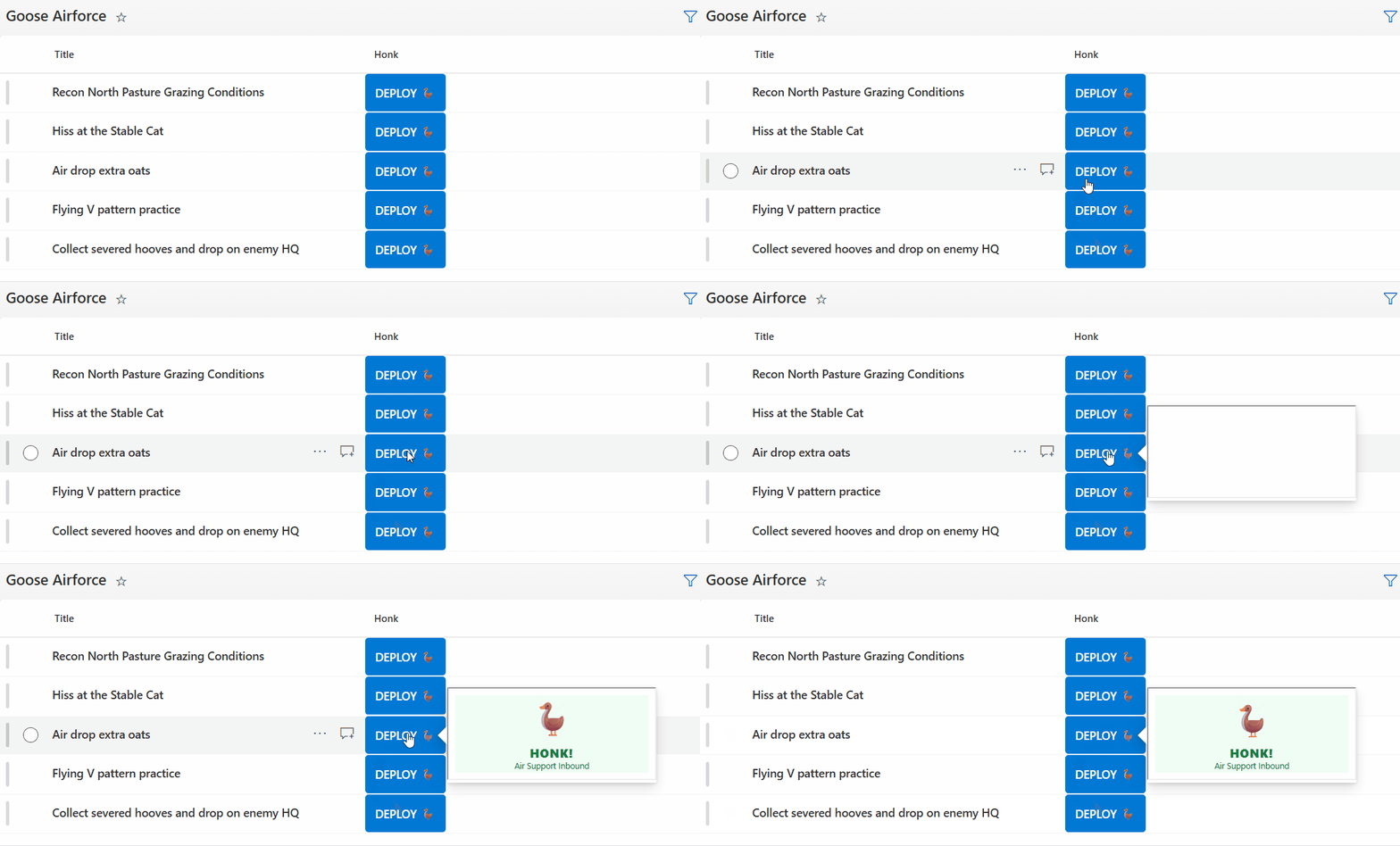
Lookup columns that support multiple values can be formatted using the advanced `forEach` property. Unfortunately, the way values are returned for any projected fields (additional columns associated to your lookup column) can present unique challenges. This sample provides two formats illustrating the difference in how these columns are formatted.
View sample details →
Multi-Person inline edit pill preview
Column Formatting
Multi-Person inline edit pill
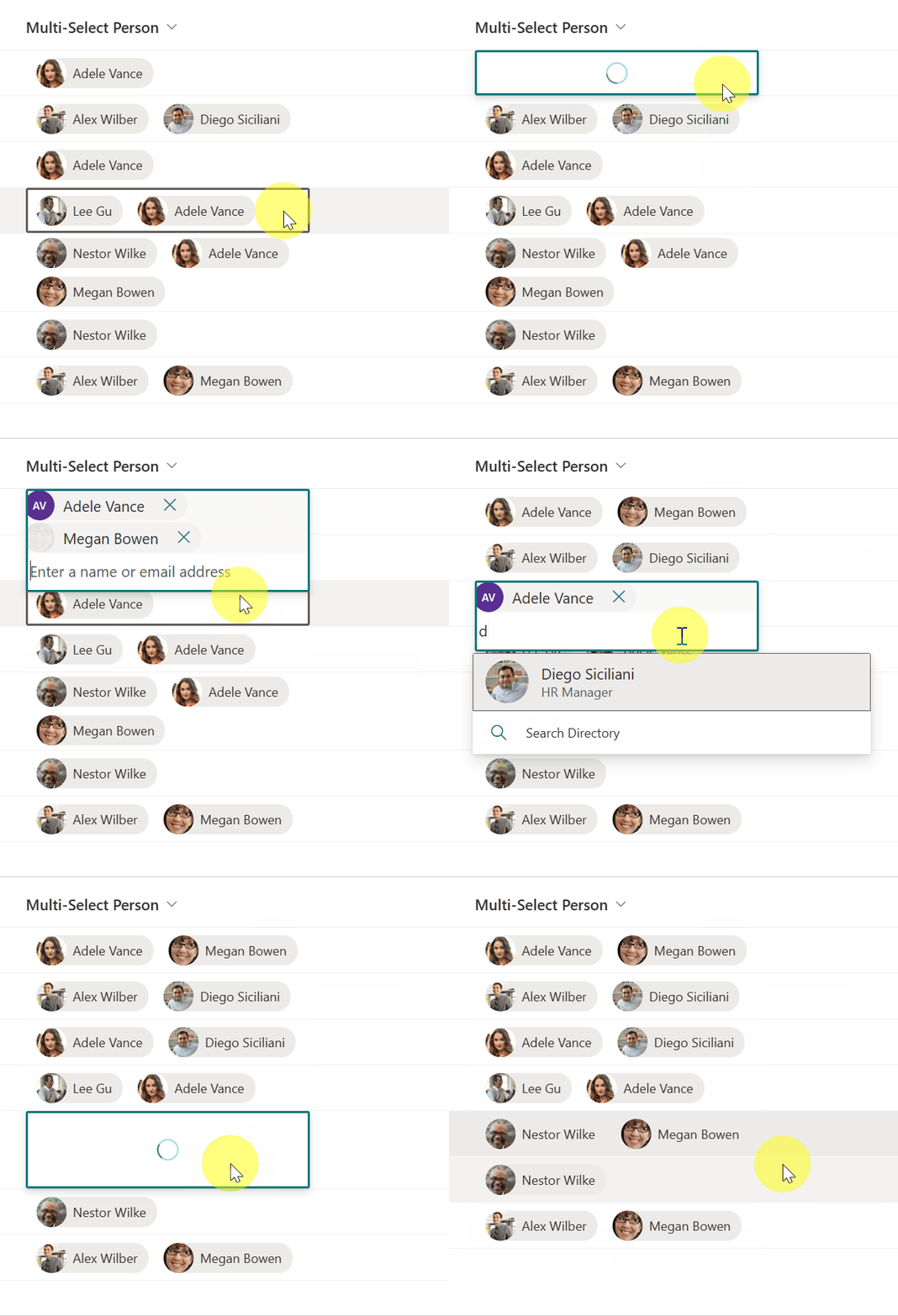
This sample provides a pill style for each person in a multi-select person field, whilst allowing inline edits.
View sample details →
Multi-Person Mail To Link preview
Column Formatting
Multi-Person Mail To Link
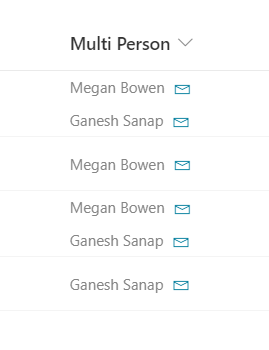
This column formatting sample demonstrates how to add a mailto: link for each person in a multiple selection person column.
View sample details →
Multi-Person Teams Chat Link preview
Column Formatting
Multi-Person Teams Chat Link
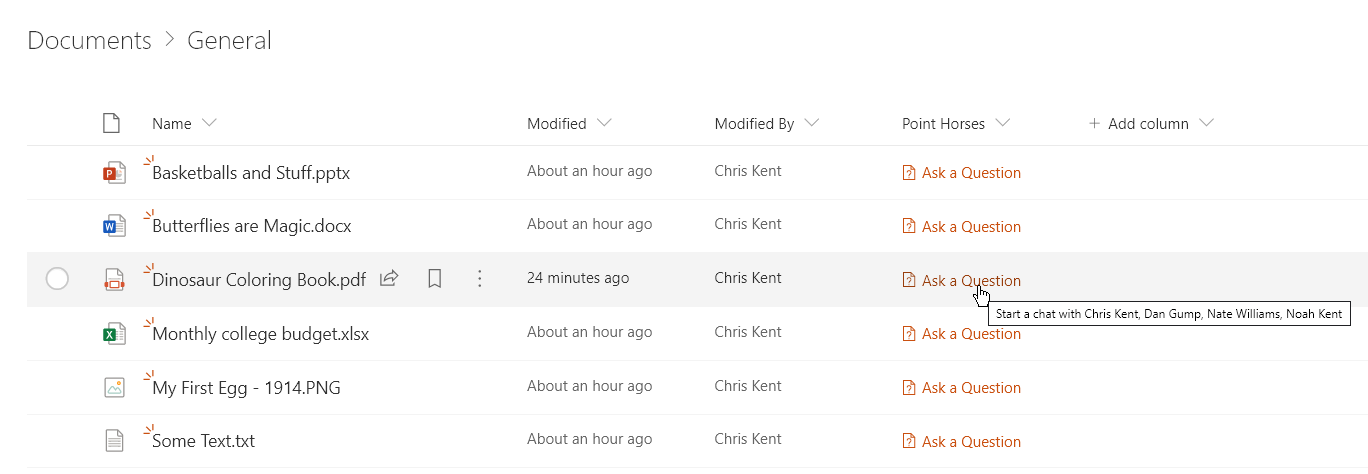
This sample demonstrates creating a deep link to a Microsoft Teams chat. This format works both within Microsoft Teams and within SharePoint Online.
View sample details →
Multiple Choice Country Flags preview
Column Formatting
Multiple Choice Country Flags
This sample demonstrates displaying flags of the counties selected in the multiple selection SharePoint choice column.
View sample details →
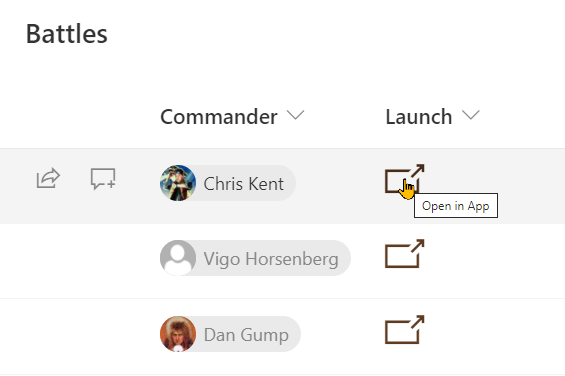
Number Circle in Circle preview
Column Formatting
Number Circle in Circle
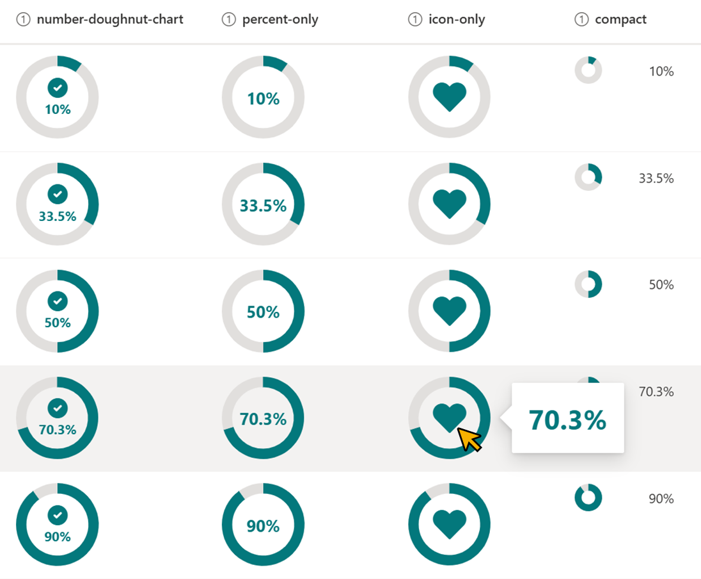
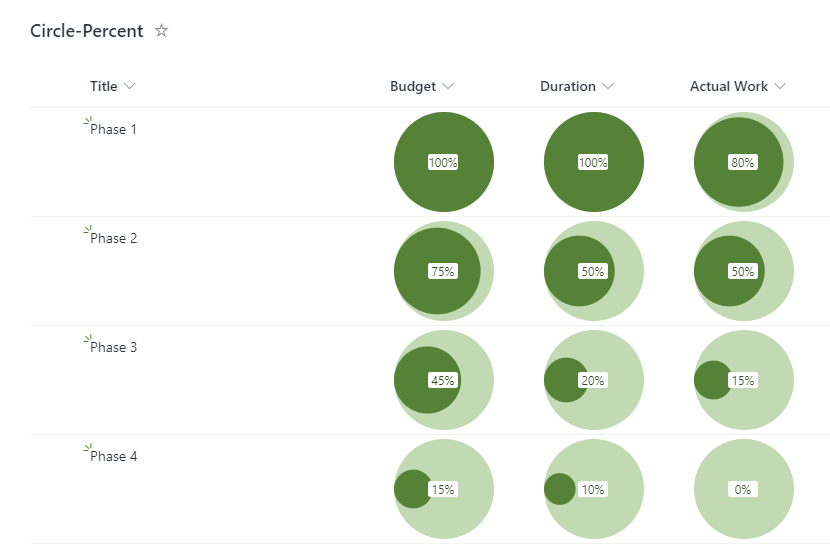
This sample shows how the percentage value in a column can be displayed as the area of a circle within another circle.
View sample details →
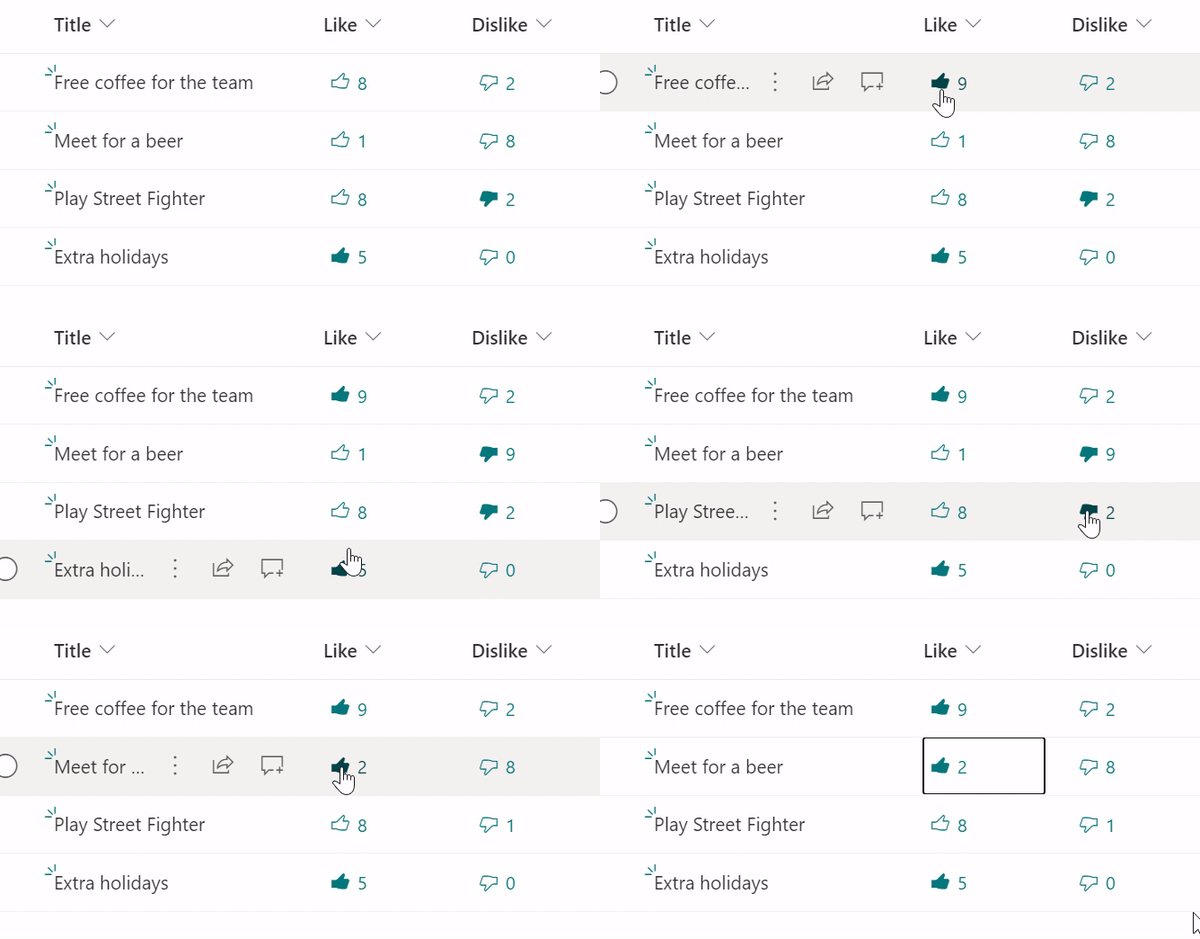
Number Gauge preview
Column Formatting
Number Gauge
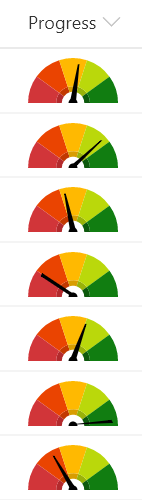
This sample demonstrates combining a fixed SVG (gauge background) with a dynamic SVG (needle). It makes understanding number columns (percent) very intuitive.
View sample details →
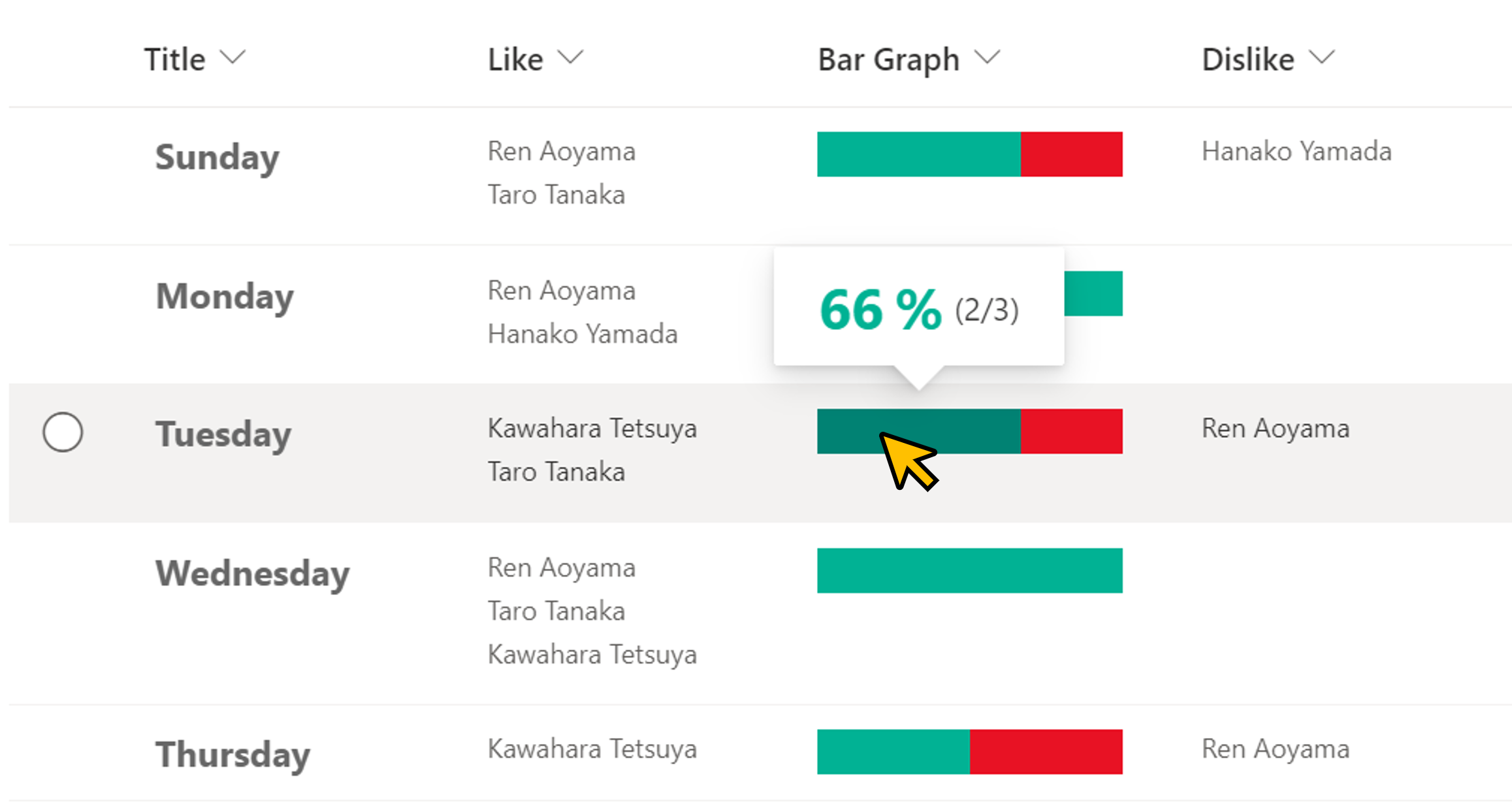
Number Level Bar preview
Column Formatting
Number Level Bar
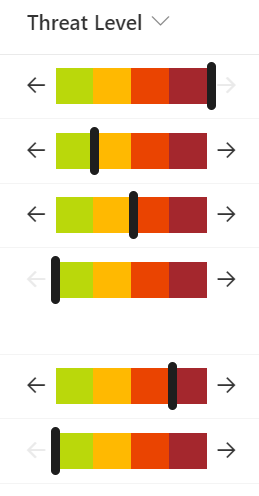
This sample demonstrates displaying a percentage across a bar. End users are able to edit the values by increasing/decreasing in 25% increments using arrow buttons.
View sample details →
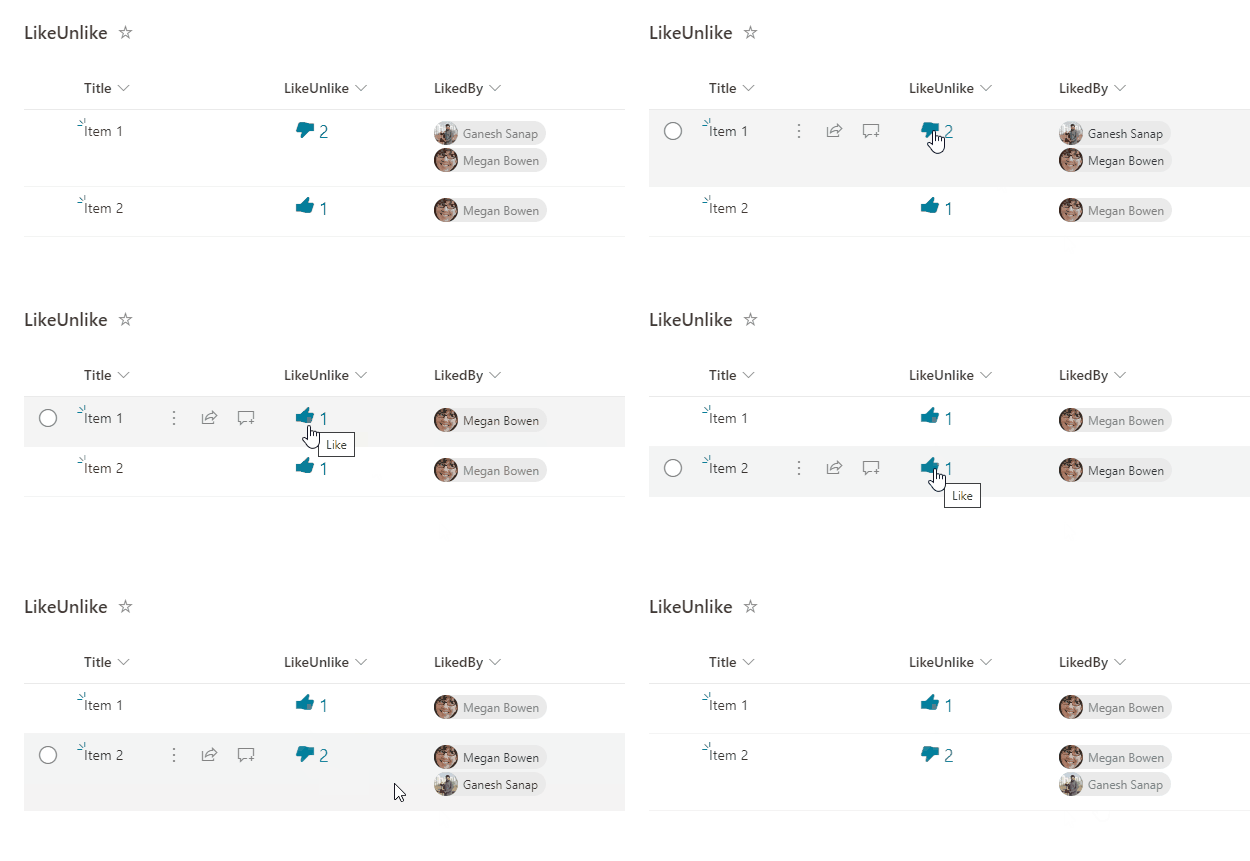
Number Localization preview
Column Formatting
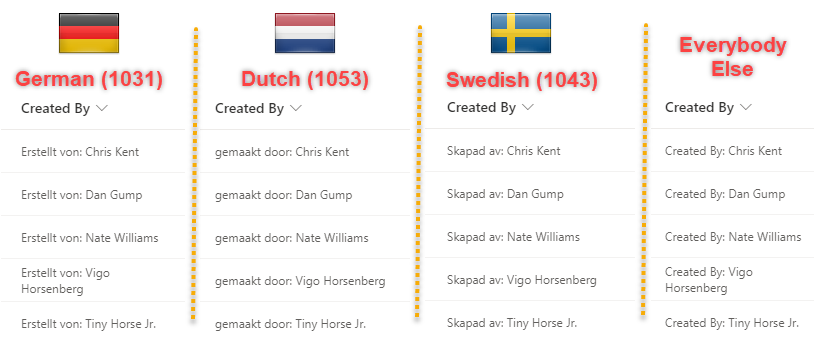
Number Localization
This sample demonstrates changing text output based on the @lcid token. This allows you to provide localized text within your format ensuring that users in various regions can use your formats without issue.
View sample details →
One Point Chart preview
Column Formatting
One Point Chart
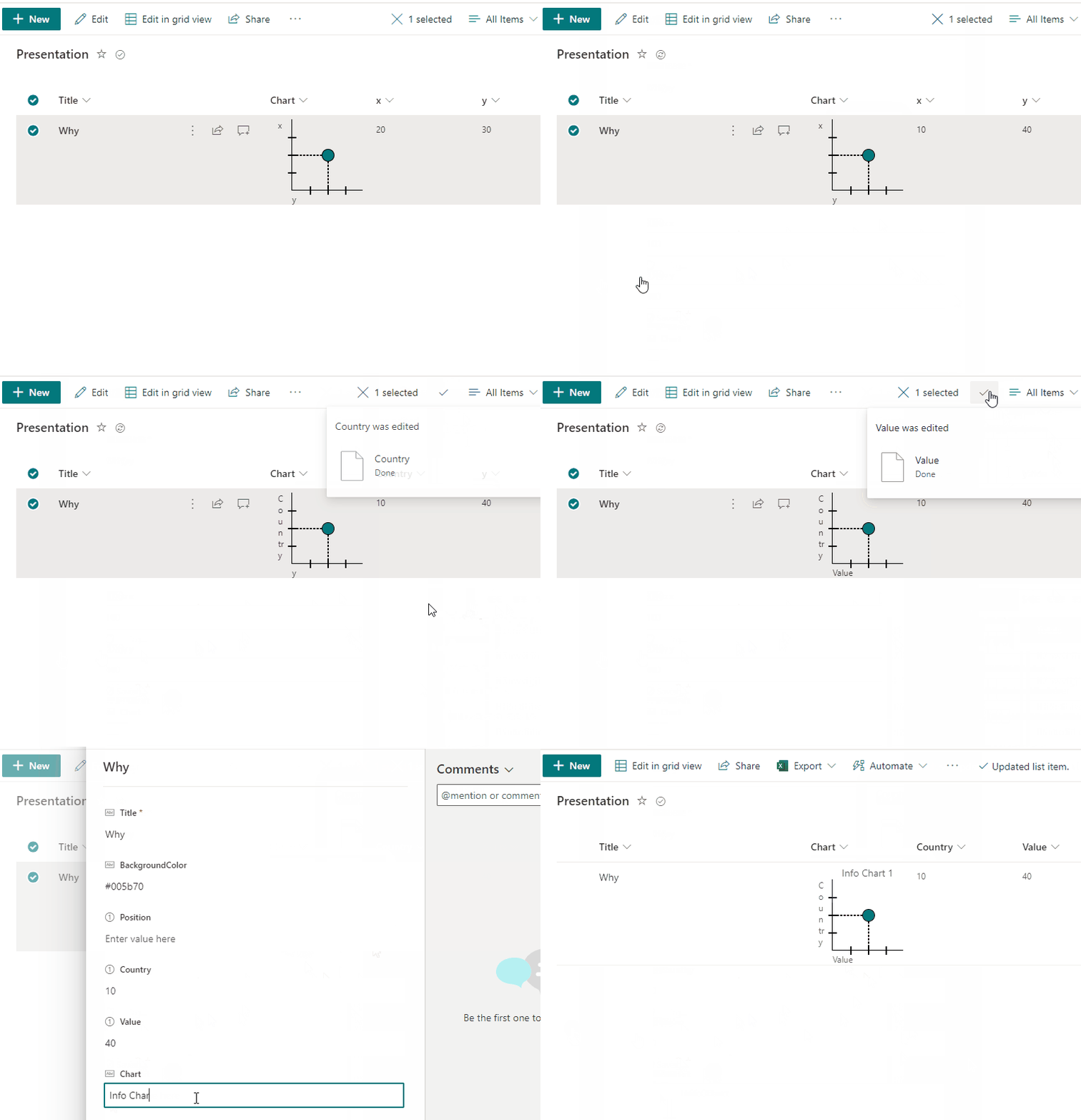
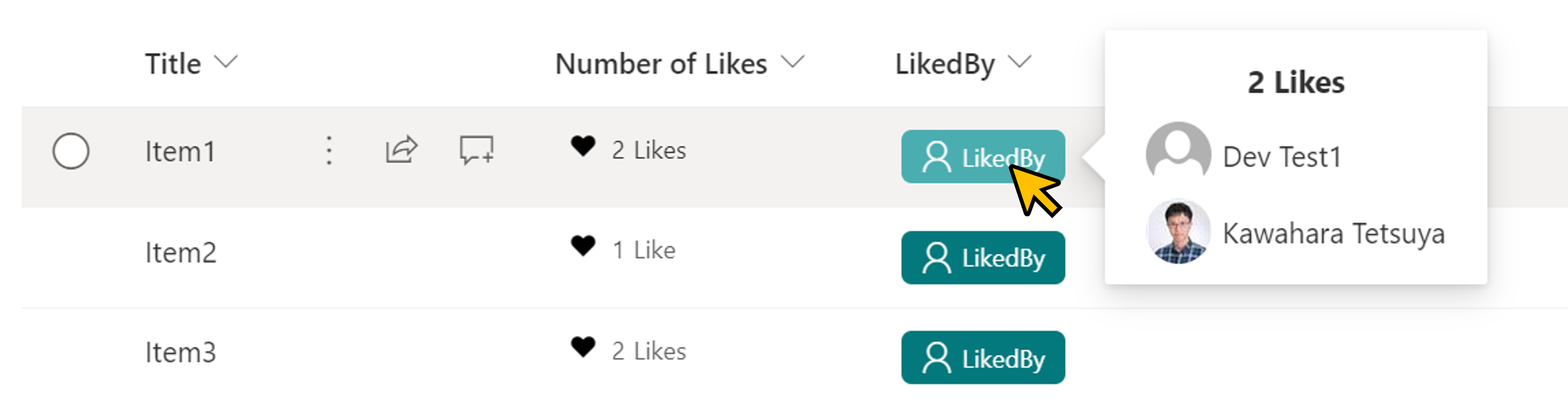
This sample demonstrates making one point chart with support of 2 numeric fields (x,y) with dialog description.
View sample details →
Open File as PDF preview
Column Formatting
Open File as PDF
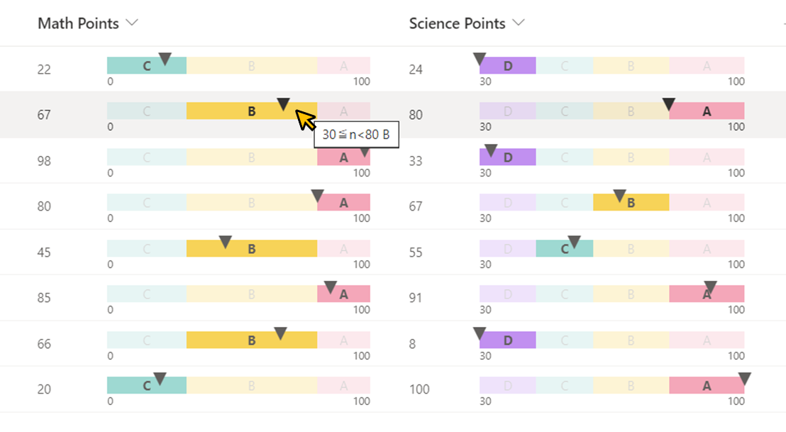
This sample can be applied to a column in a Document Library to render a link that will open an Office Document as a pdf.
View sample details →
Open Office Documents in View Mode preview
Column Formatting
Open Office Documents in View Mode
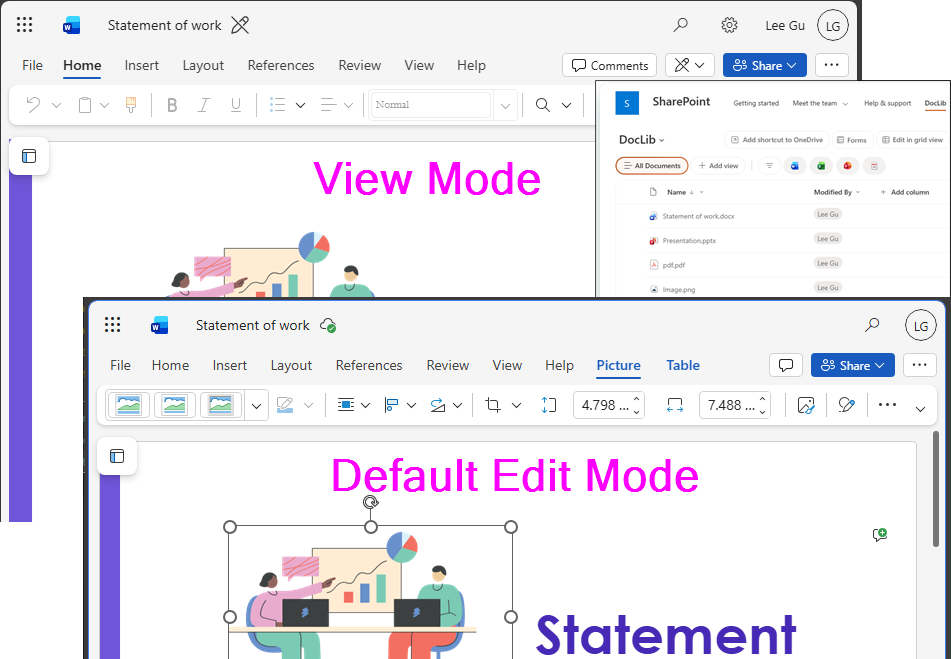
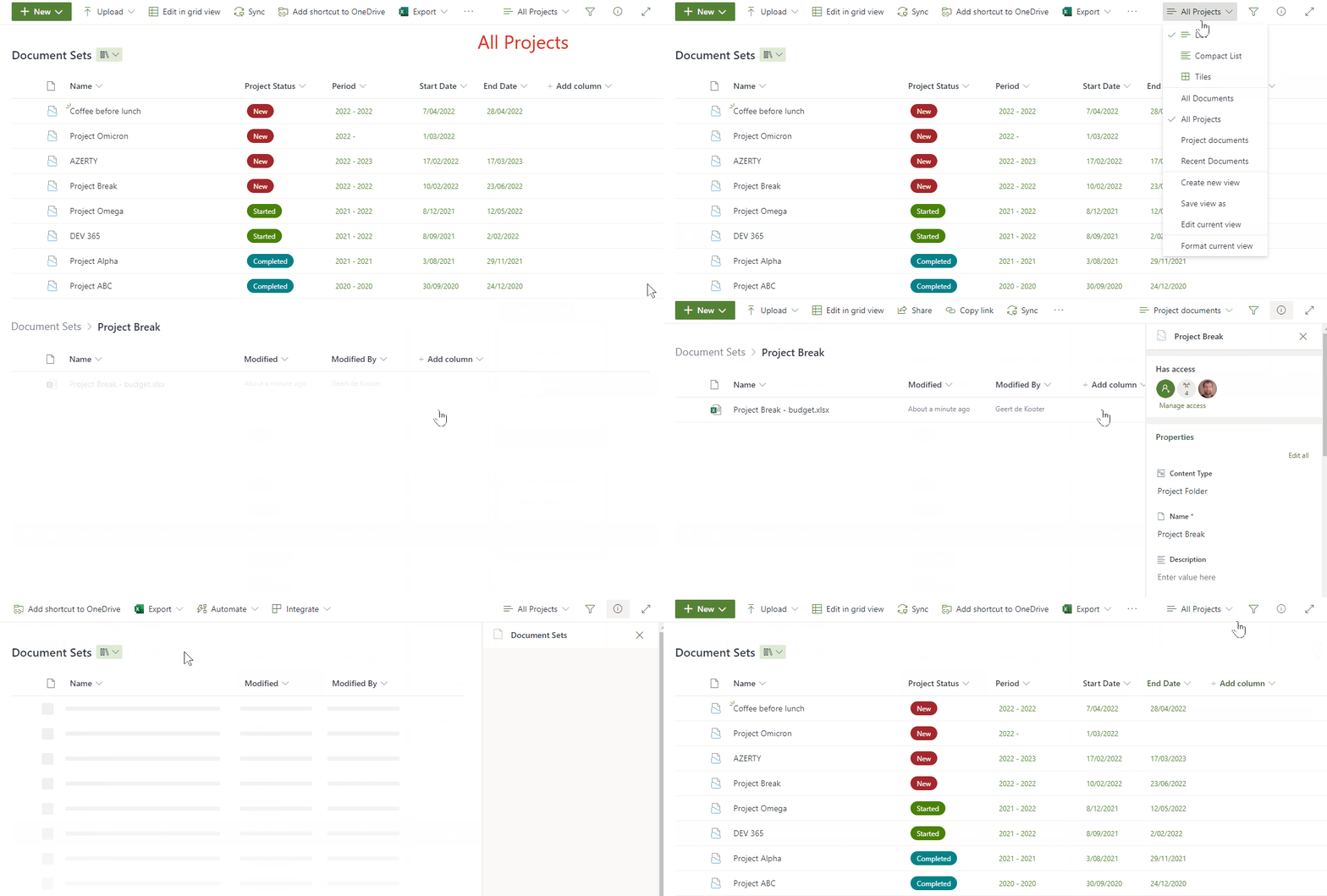
By default, office documents in a SharePoint document library open in Edit mode, switching the default open behaviour from Edit to View prevents common day-to-day issues.
by Watana
View sample details →
Overdue Date preview
Column Formatting
Overdue Date
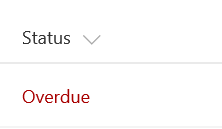
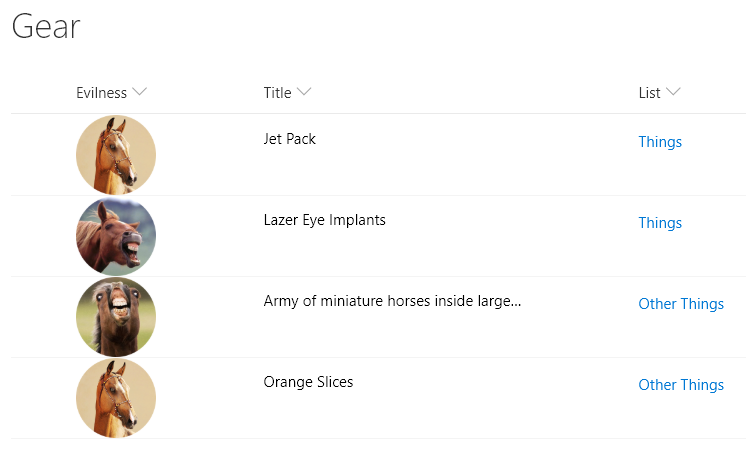
This example colors the current field red when the value inside an item's DueDate is before the current date/time. Unlike some of the previous examples, this example applies formatting to one field by looking at the value inside another field. Note that DueDate is referenced using the [$FieldName] syntax. FieldName is assumed to be the internal name of the field. This example also takes advantage of a special value that can be used in date/time fields - `@now`, which resolves to the current date/time, evaluated when the user loads the list view.
View sample details →
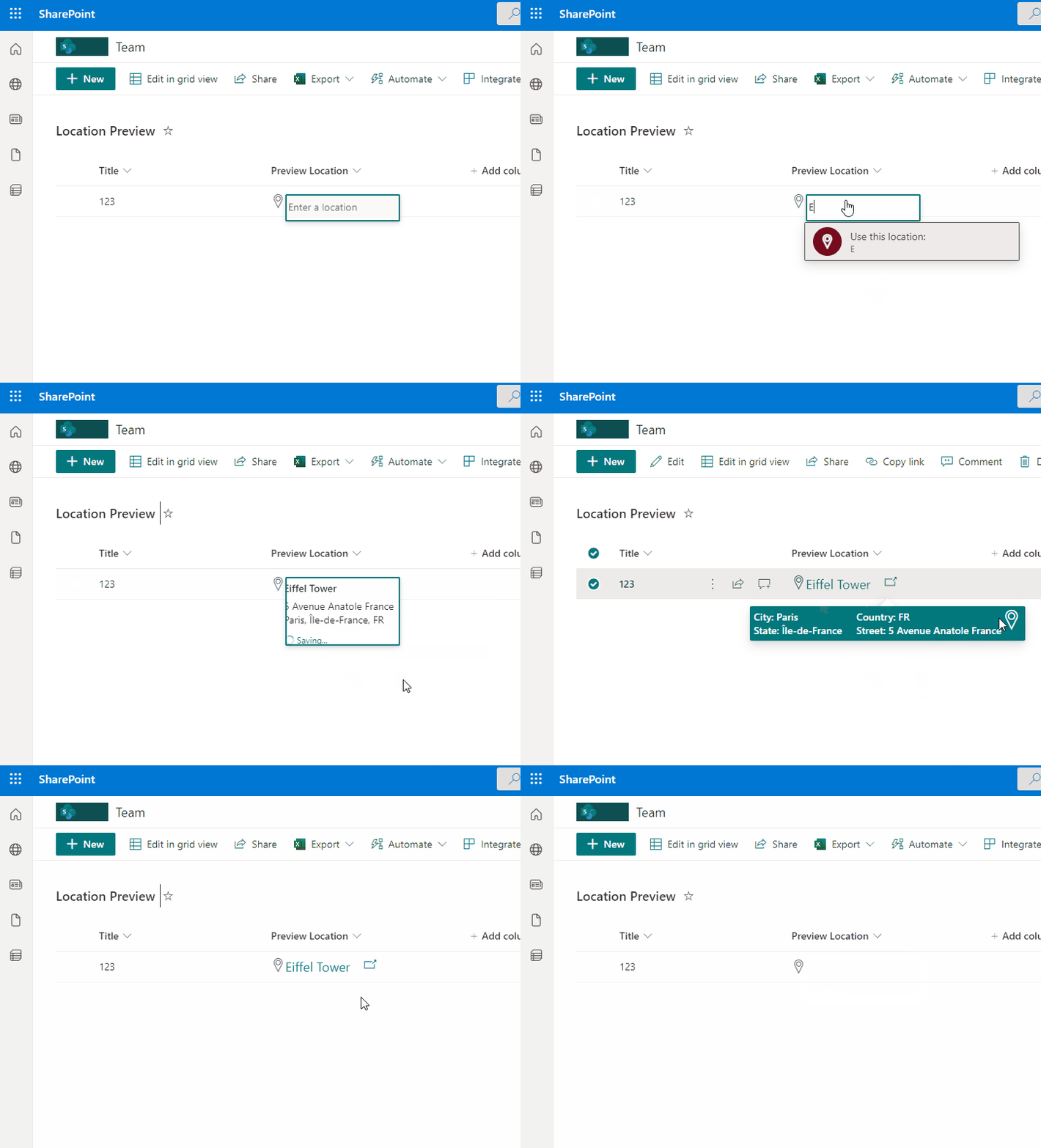
Page-a-day Calendar preview
Column Formatting
Page-a-day Calendar
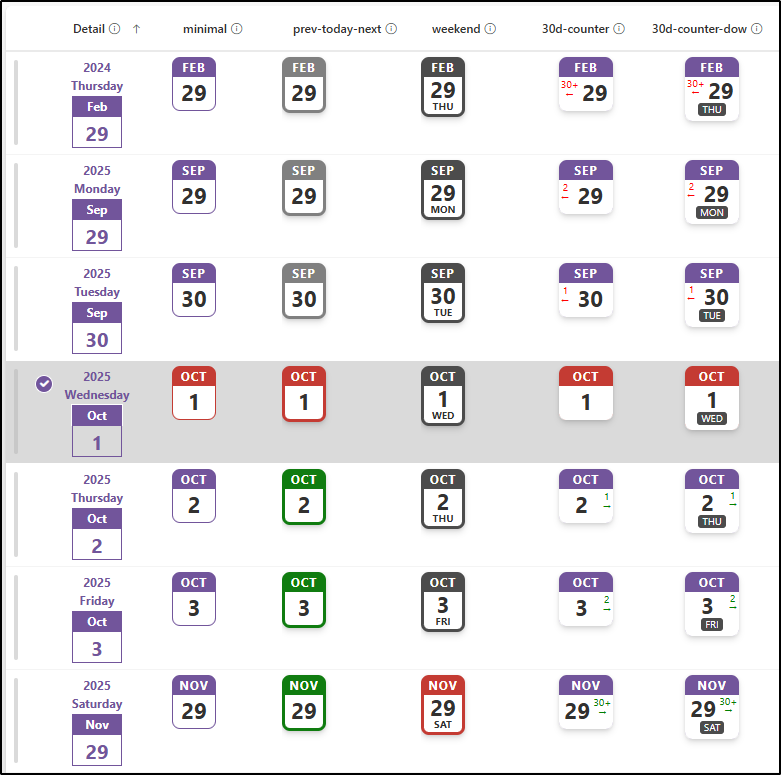
This sample customizes a date column to look like a page-a-day calendar. It does this by using the date part functions (`getDate`, `getMonth`, and `getYear`).
View sample details →
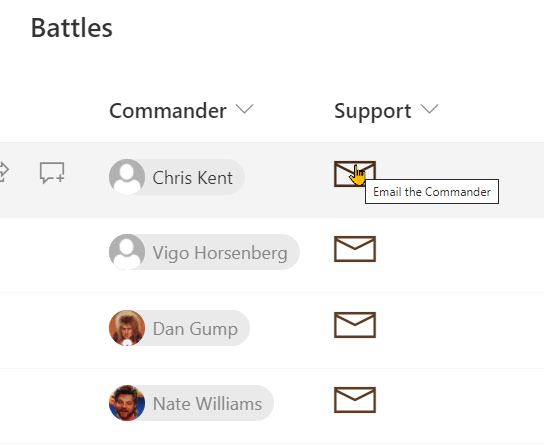
People Name Avatar Card preview
Column Formatting
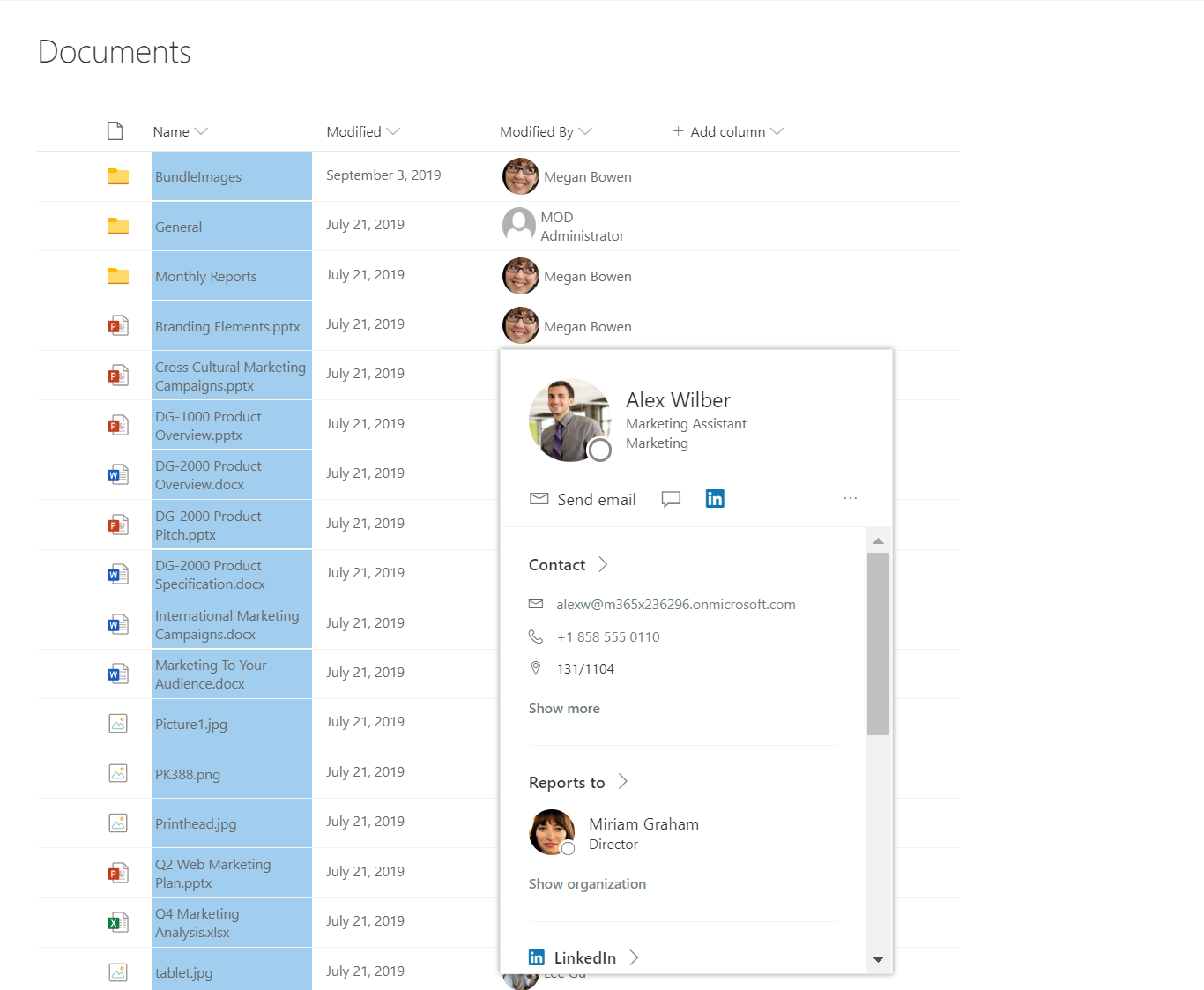
People Name Avatar Card
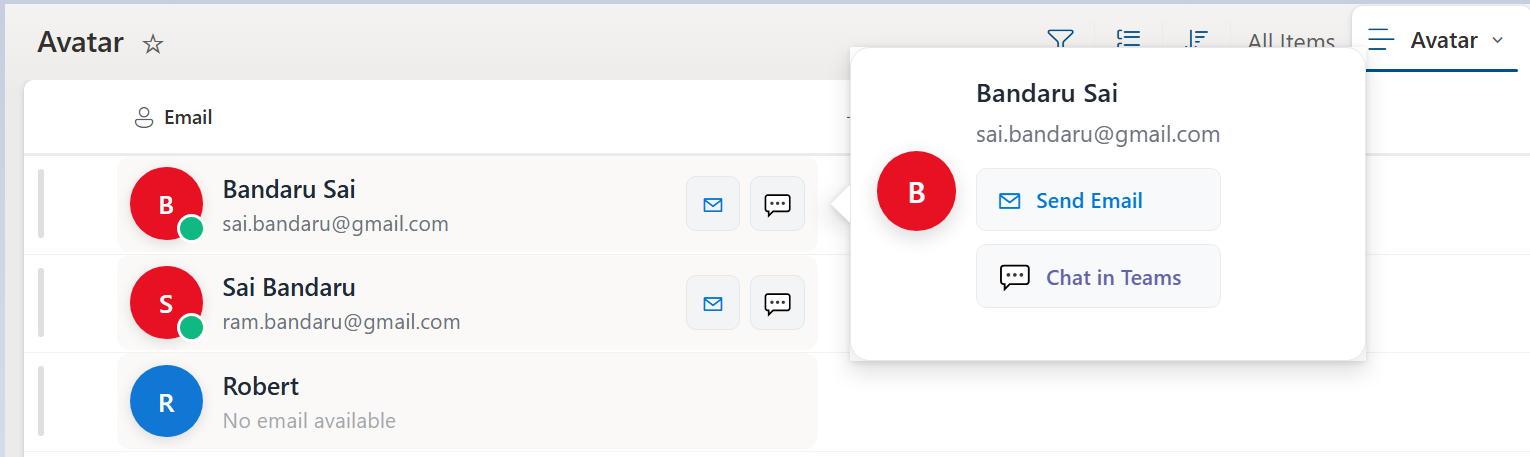
This SharePoint column formatting sample provides a modern, interactive People card for list items using JSON formatting.
View sample details →
Per 100 People Grid preview
Column Formatting
Per 100 People Grid
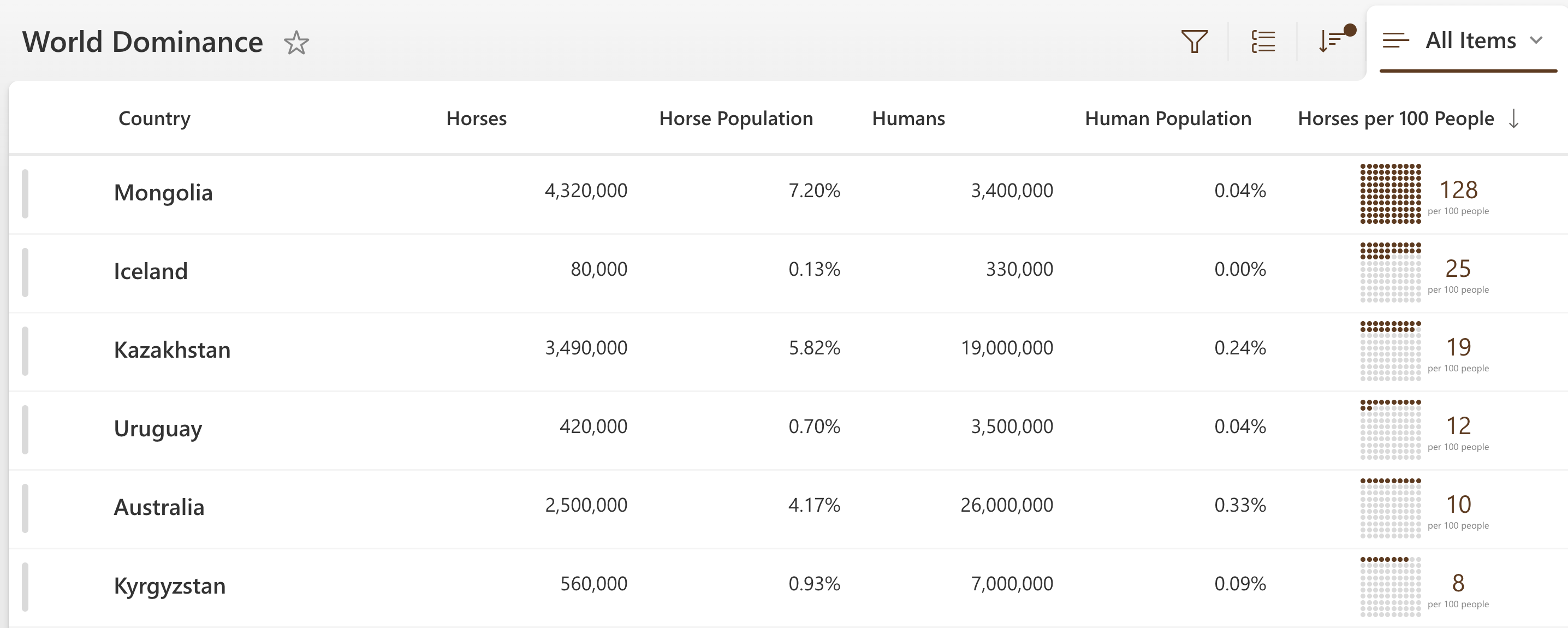
This sample demonstrates displaying a grid of 100 dots where dots are colored based on how many of something per 100 people.
View sample details →
Person Localization preview
Column Formatting
Person Localization
This sample demonstrates changing text output based on the @lcid token. This allows you to provide localized text within your format ensuring that users in various regions can use your formats without issue.
View sample details →
Person Mail To Link preview
Column Formatting
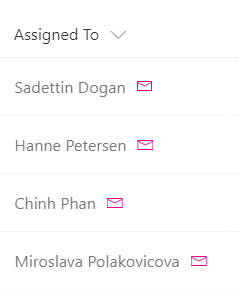
Person Mail To Link
You can use column formatting to render quick action links next to fields. This sample, intended for a person field, renders two elements inside the parent `<div />` element:
View sample details →
Pie Chart preview
Column Formatting
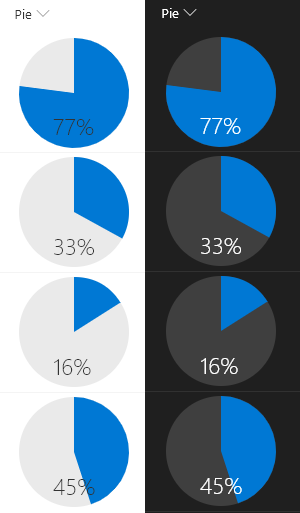
Pie Chart
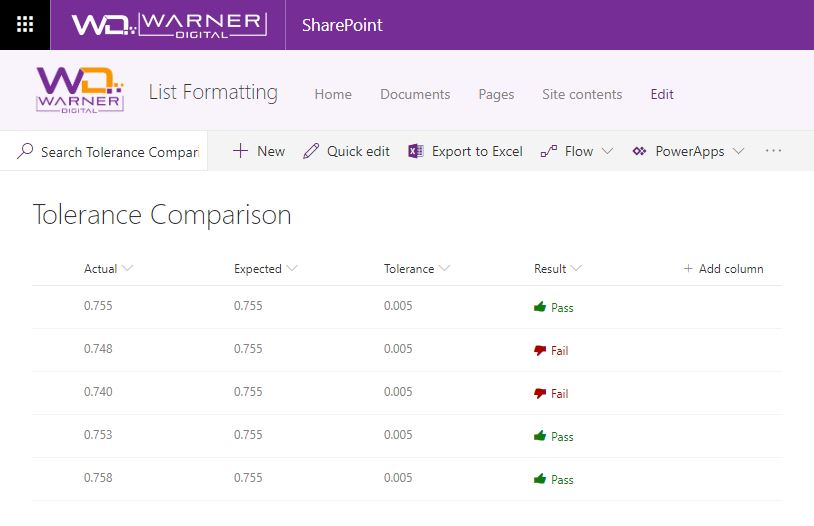
This example renders whole pie in neutralLight with radius 50 and the number% (column value) as a slice of the pie in blue using `<svg>` with `<path>` tags. The number% displayed at the bottom of the pie in neutralPrimary.
View sample details →
Pie Chart Column Formatter preview
Column Formatting
Pie Chart Column Formatter
This sample uses SharePoint column formatting to automatically generate pie charts visualizing task status distribution across To Do, In Progress, and Done states.
View sample details →
Publishing Status preview
Column Formatting
Publishing Status
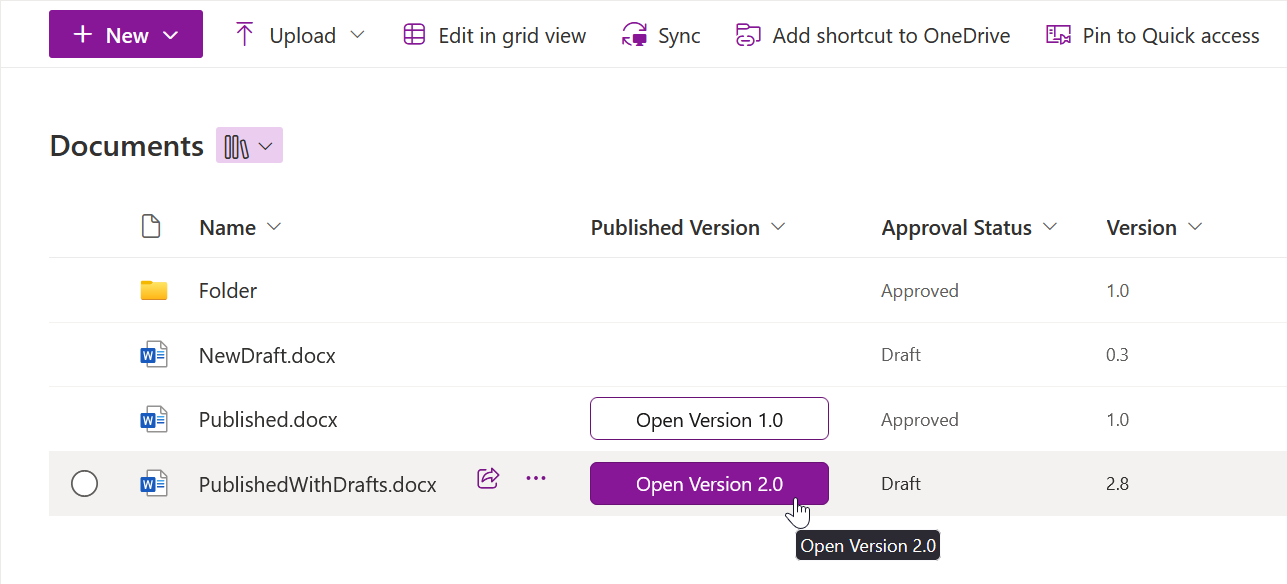
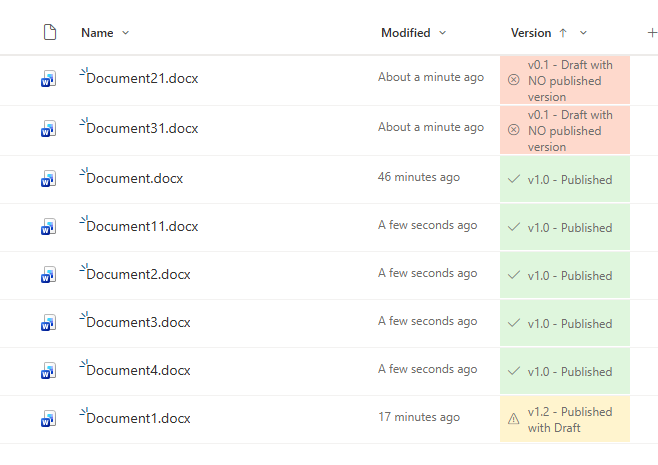
Sample contains an example of using the modulo math expression for highlighting 'published', 'published with draft' and 'draft with no published versions' of pages
View sample details →
Quick Charts preview
Column Formatting
Quick Charts
This sample uses SharePoint column formatting to automatically generate multiple chart types (pie, doughnut, out-labeled pie, and polar area) visualizing task status distribution across To Do, In Progress, and Done states.
View sample details →
Quick-View Issue Card preview
Column Formatting
Quick-View Issue Card
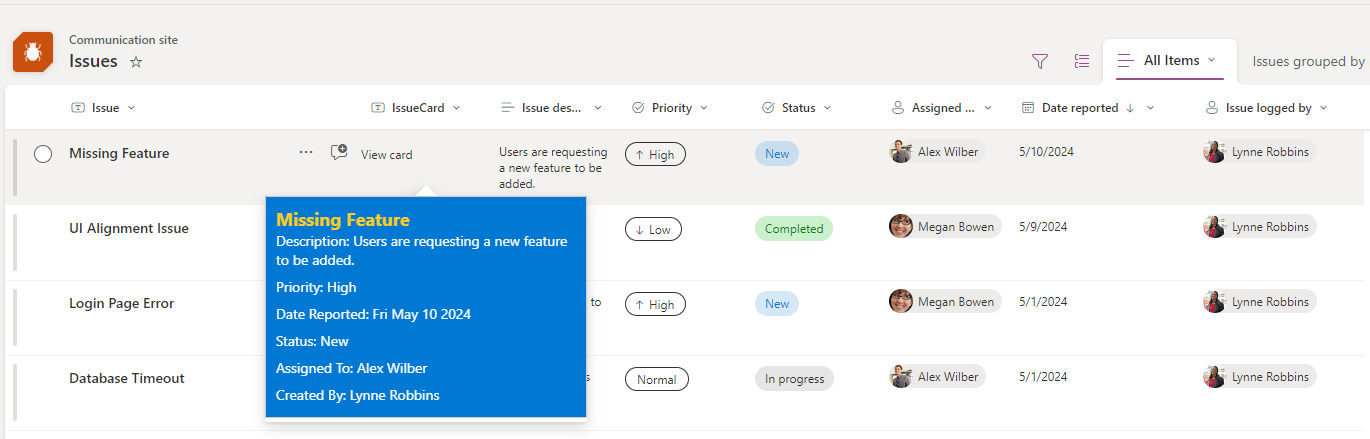
The Issue HoverCard Formatter is a SharePoint list Column JSON formatter component tailored to enhance user experience when interacting with issue data. It provides a streamlined approach to view essential information about issues through hover cards, offering quick insights in a card format.
View sample details →
Quiz Results with Emoji preview
Column Formatting
Quiz Results with Emoji
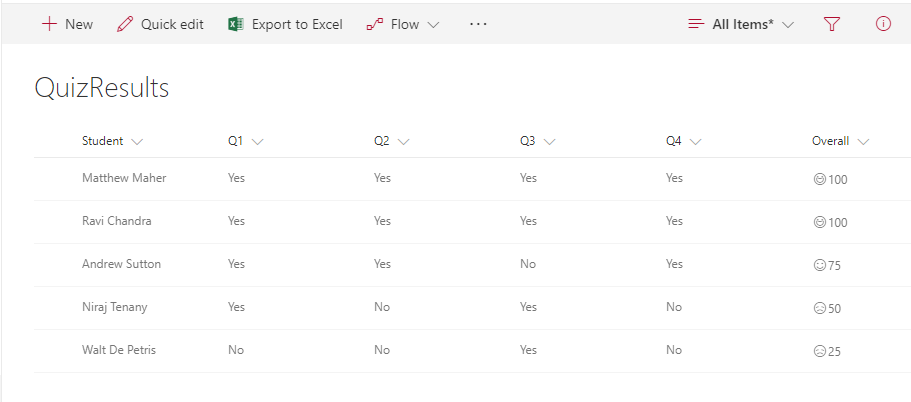
This allows teachers to show smiley faces next to quiz results similar to how they do it on paper. The number (based on a 0-100 score) will indicate if its a smiley or frown, which come from the Offie UI Fabric Icon set. If the number is above 90 the student gets a super smiley (`Emoji`), above 75 regular smile (`Emoji2`), above 60 neutral smiley (`EmojiNeutral`), below 60 a frown (`EmojiDisappointed`), and anything else gets an `Unknown`.
View sample details →
Red-Amber-Green (RAG) Bars Based on Date Ranges preview
Column Formatting
Red-Amber-Green (RAG) Bars Based on Date Ranges
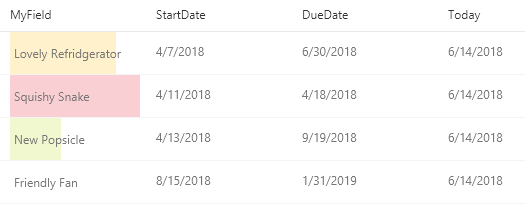
This example creates colored data bars on the current field based on `DueDate` and `StartDate` fields compared to the current date/time.
View sample details →
Reference a Local Image preview
Column Formatting
Reference a Local Image
This sample provides multiple formats to illustrate the options available to reference local image files. The primary purpose is to demonstrate the usage of `@currentWeb` (O365 only) to prevent issues with reusable formats or formats rendered outside of the main list view.
View sample details →
Right-Aligned Content preview
Column Formatting
Right-Aligned Content
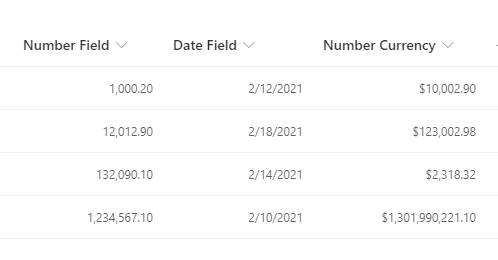
This sample shows how to right-align your content, while preserving the number or date format set using the SharePoint / Lists UI. Numbers and dates should typically be presented as right-aligned, for improved readability.
View sample details →
Row Actions preview
Column Formatting
Row Actions
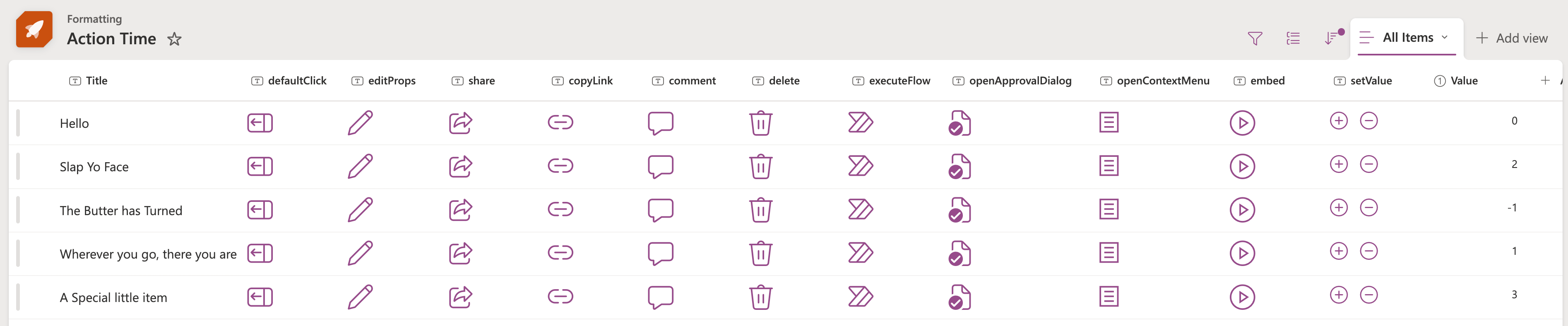
You can use column and view formatting to create buttons that perform pre-defined actions when clicked. This sample provides a quick format that demonstrates the use of each of the possible actions.
View sample details →
Row Index Drawing preview
Column Formatting
Row Index Drawing
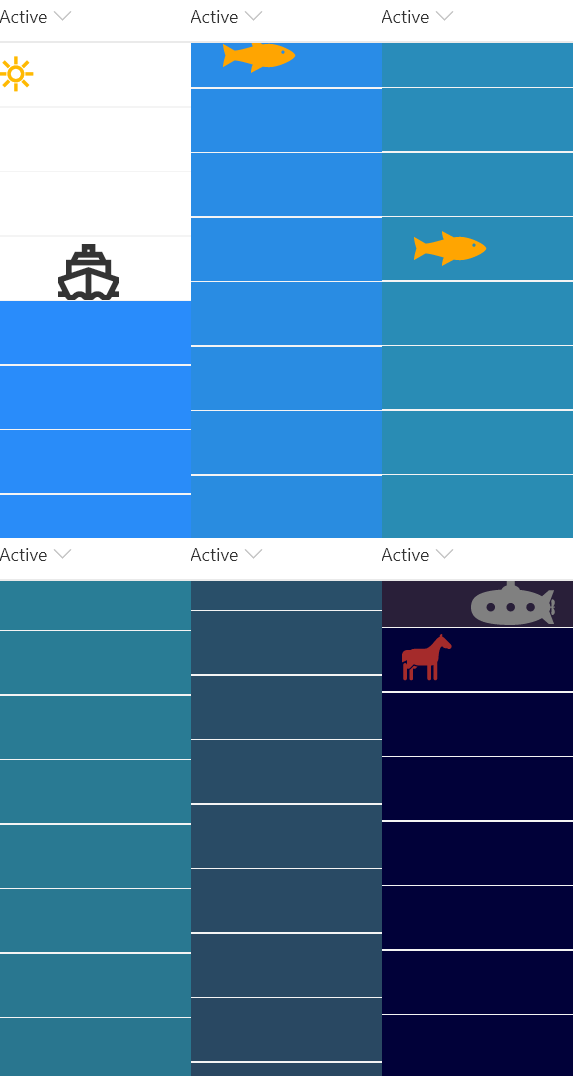
This is a silly format that draws a picture in your view using the @rowIndex token to adjust the colors and to determine when certain pictures (icons or SVG elements) should show up.
View sample details →
Scheduling Dialog Links to MS Teams and Outlook preview
Column Formatting
Scheduling Dialog Links to MS Teams and Outlook
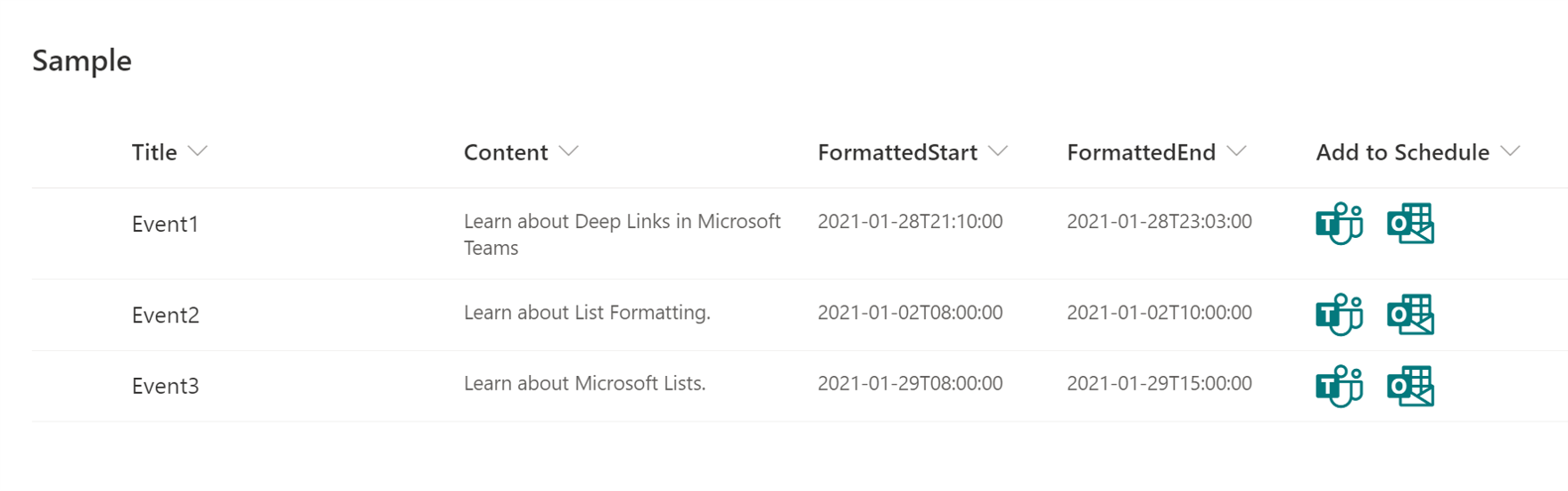
This sample demonstrates creating deep links to the scheduling dialog in Microsoft Teams and Microsoft Outlook.
View sample details →
Show trending up/trending down icons  preview
Column Formatting
Show trending up/trending down icons
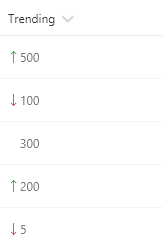
These formats rely on two number fields, Before and After, for which the values can be compared. They show the appropriate trending icon next to the value of the After field, depending on that field's value compared to the value in Before. The sp-field-trending--up class is used when After's value is higher; the sp-field-trending--down class is used when After's value is lower. No icon is shown when they are equal (padding is added to keep consistent alignment).
View sample details →
Social Media Profile Pics preview
Column Formatting
Social Media Profile Pics
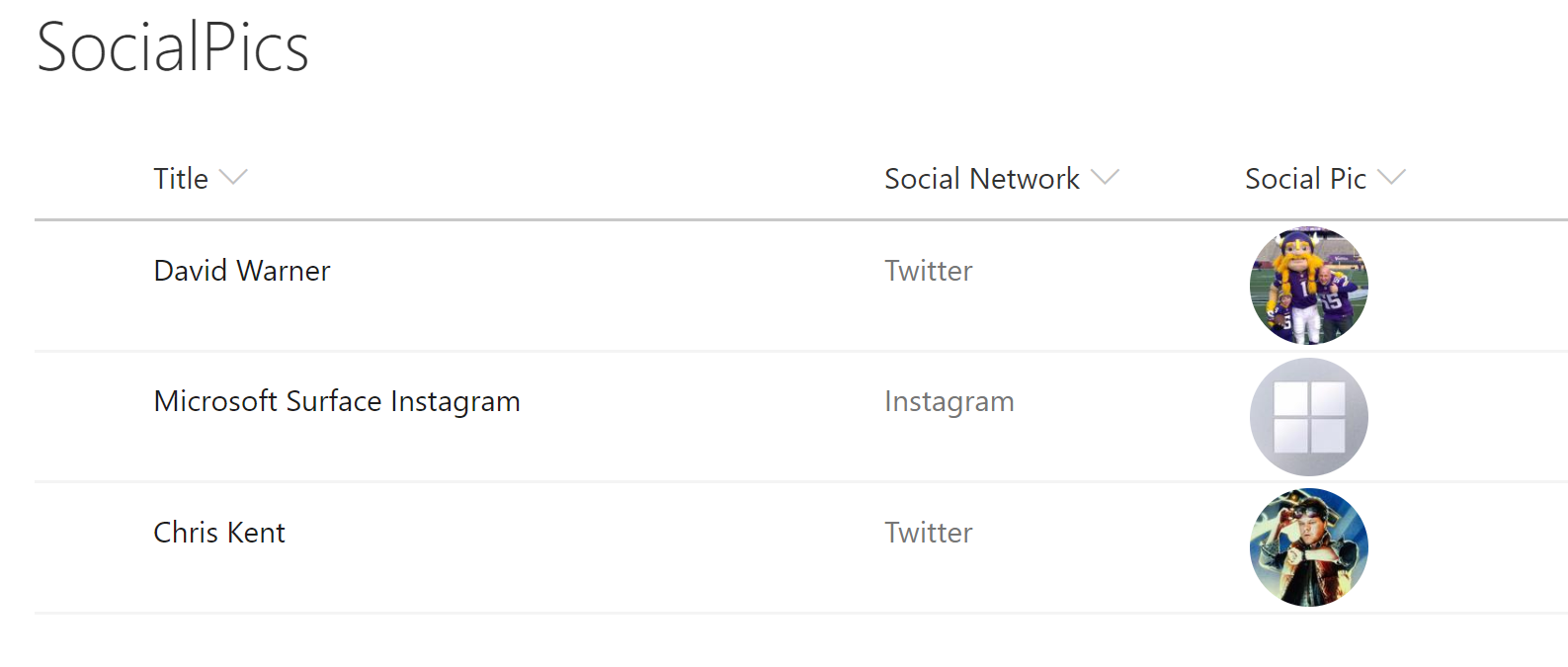
Social media profile pictures are displayed in a circle and clicking them will open the user's social media page in a new window..
View sample details →
Strikethrough on Completion preview
Column Formatting
Strikethrough on Completion
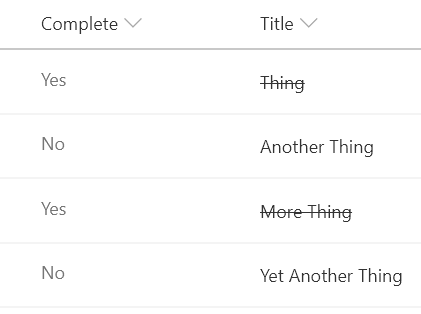
Classic task lists add a strikethrough style to the task name when the task is marked as completed. This sample shows how to achieve this in a modern list view.
View sample details →
Substring Status preview
Column Formatting
Substring Status
This format demonstrates using a combination of the substring and indexOf operations to 'split' a value and make style decisions based on portions of the value.
View sample details →
SVG icons preview
Column Formatting
SVG icons
The Fluent UI icons are easy to use in column formatting by simply specifying the name in the iconName attribute. However, the available selection of icons may not always meet your needs. Fortunately, you can use inline SVG elements with custom paths. This means you can use icons from sources like Font Awesome that provide SVG versions of their icons!
View sample details →
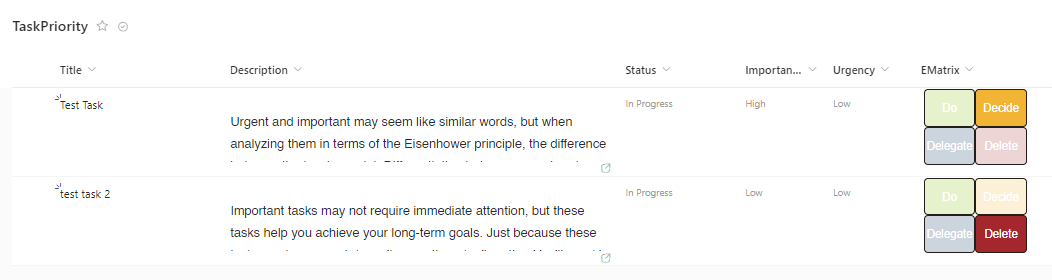
Task Matrix preview
Column Formatting
Task Matrix
The Eisenhower Matrix is like a map for managing your tasks. It helps you decide what needs to be done first, what can wait, what can be given to someone else, and what can be left aside.
View sample details →
Teams Call Format preview
Column Formatting
Teams Call Format
This sample uses Microsoft Teams deep links to create links from selected user that allow to make Microsoft Teams calls to user.
View sample details →
Teams Message Format preview
Column Formatting
Teams Message Format
This sample is using Microsoft Teams deep links to create a link that allows a user to send Microsoft Teams messages to the user in the column.
View sample details →
Text Contains preview
Column Formatting
Text Contains
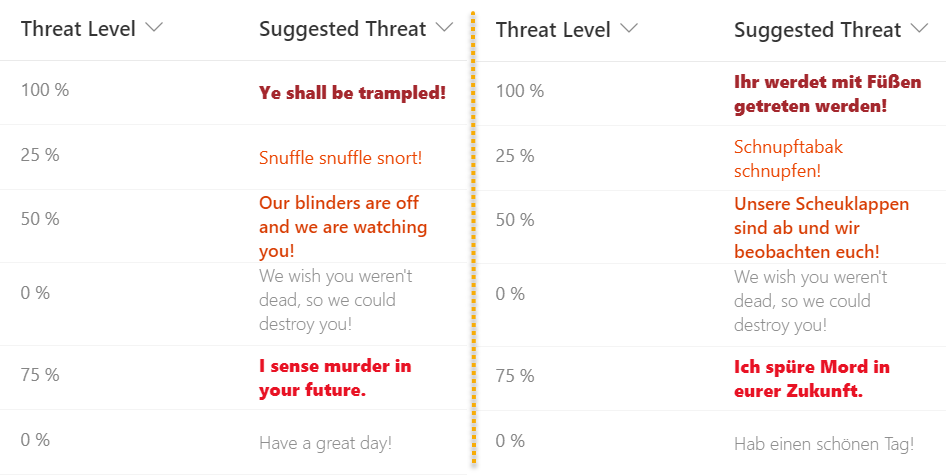
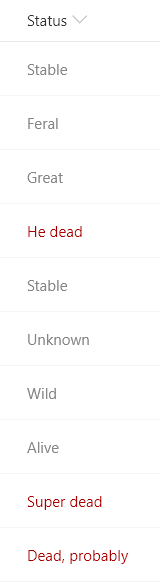
This sample demonstrates using the indexOf function (O365 only) to test if text contains a given value. The sample also uses the toLowerCase function to ensure the contains condition is case-insensitive. In this sample, if the text of the current field contains the word 'dead' a class is applied to turn the text red.
View sample details →
Text StartsWith Calling Codes preview
Column Formatting
Text StartsWith Calling Codes
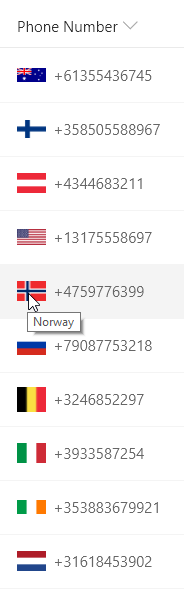
This sample demonstrates using the indexOf function (O365 only) to test if text starts with a given value. Using the international calling code at the start of a phone number, the correct country's flag is shown next to the phone number. The same nested conditionals are also used for the tooltip.
View sample details →
Timeline Format preview
Column Formatting
Timeline Format
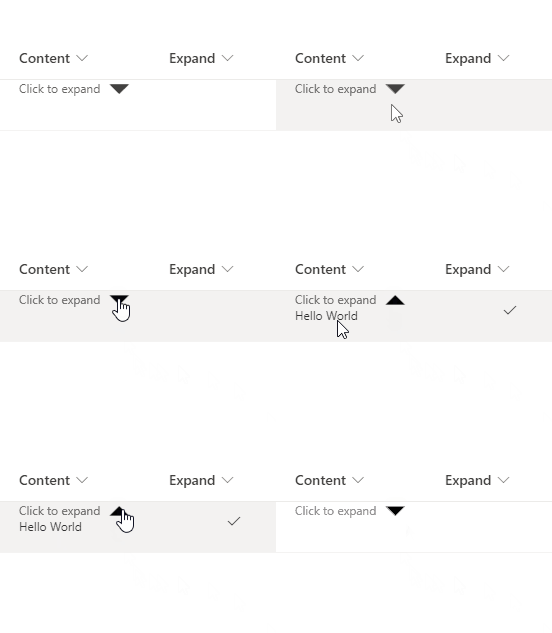
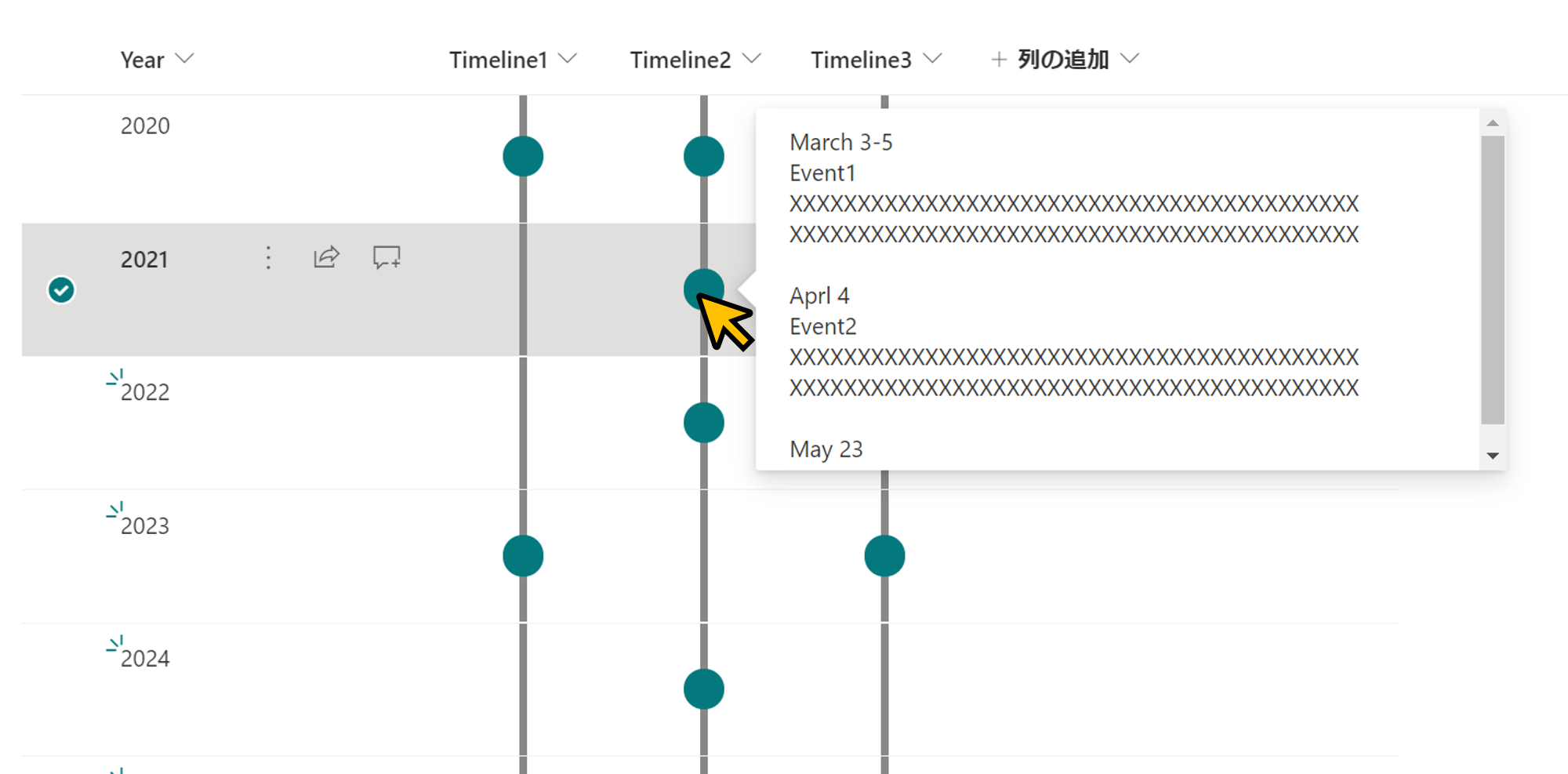
This sample demonstrates displaying a timeline in a column. If the column value is empty, no circle will be displayed. The content of the column will be shown in a popup when you click on the dot.
View sample details →
Traffic Light (Red-Yellow-Green) Status Indicator preview
Column Formatting
Traffic Light (Red-Yellow-Green) Status Indicator
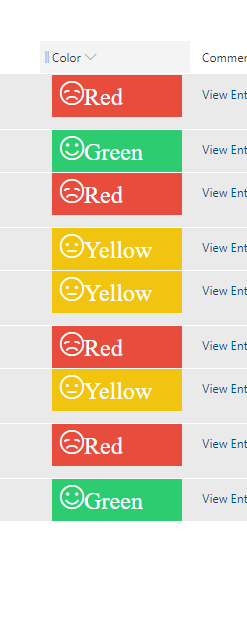
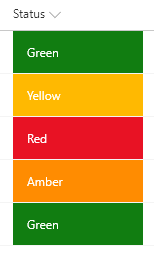
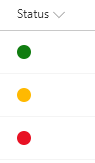
This sample displays a traffic light style (Red-Yellow-Green) status indicator based on the value of a choice/text column (to use a lookup column, switch all occurrences of `@currentField` to `@currentField.lookupValue`).
View sample details →
Traffic Light Style Column Formatting preview
Column Formatting
Traffic Light Style Column Formatting
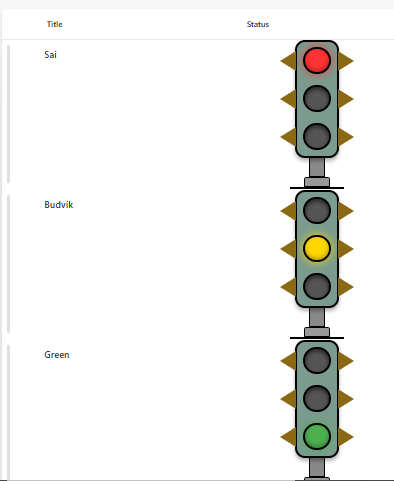
This sample demonstrates how to use SharePoint Column Formatting to display a realistic traffic light visual indicator based on status values.
View sample details →
Twitter Profile Pics preview
Column Formatting
Twitter Profile Pics
Using just the Twitter handle, Twitter profile pictures are displayed in a circle and clicking them will open the user's Twitter page in a new window. The handle is also displayed as a tooltip when hovering over the profile image.
View sample details →
Version Status and Approval Flow Button preview
Column Formatting
Version Status and Approval Flow Button
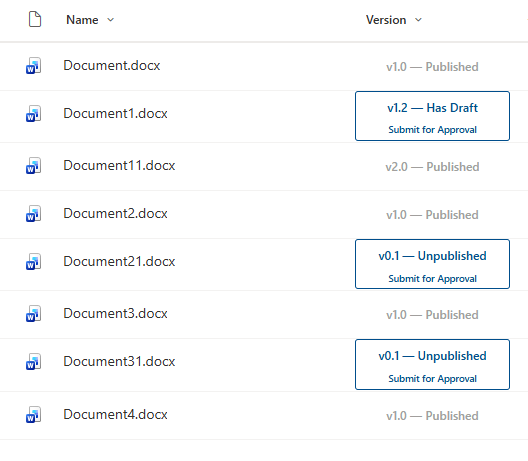
Formats the SharePoint Version column as a combined status badge and approval flow trigger. Major versions (published) display a greyed-out non-clickable card. Minor versions display version status and a Submit for Approval button that triggers a Power Automate flow.
View sample details →
Word Cloud Column Formatting preview
Column Formatting
Word Cloud Column Formatting
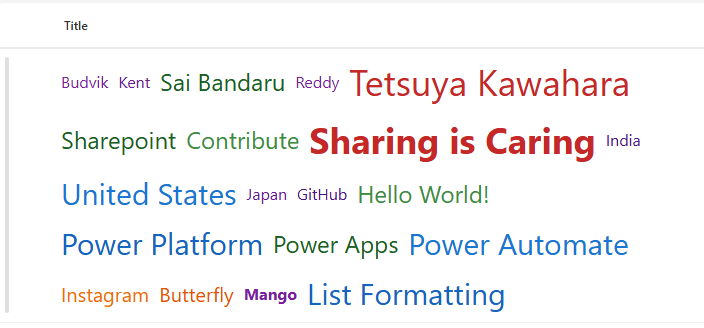
This sample demonstrates how to use SharePoint Column Formatting to generate a dynamic word cloud for list items.
View sample details →
Work Progress Category Pill  preview
Column Formatting
Work Progress Category Pill
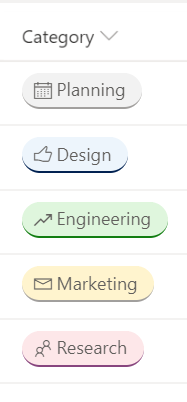
This JSON sample demonstrates how you can format the work progress category choices as pills found in the newly released Microsoft Lists Work progress tracker template.
View sample details →
Yes/No Checkmark preview
Column Formatting
Yes/No Checkmark
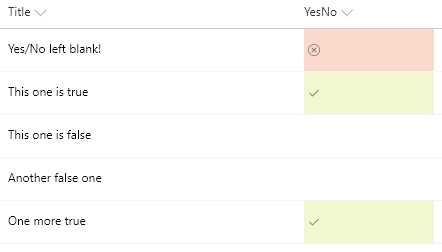
You can apply conditional formatting to Yes/No fields. This sample applies different classes depending on whether the value of the field is Yes (true), No (false), or Blank. This example applies one of the column formatting predefined classes (sp-field-severity--good, sp-field-severity--low, or sp-field-severity--blocked) to the root <div /> based on the field's value. This is what determines the element's background color. A class of `ms-fontColor-neutralSecondary` is always applied to ensure the text color is legible in both light and dark themes. Then, it outputs a <span /> element with an iconName attribute that shows a Fluent UI icon inside that element.
View sample details →
Yes/No Column Check Mark preview
Column Formatting
Yes/No Column Check Mark
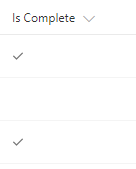
This example displays a check mark when the value of a Yes/No column is equal to Yes. This field uses the iconName attribute to display the CheckMark Fluent UI icon.
View sample details →
Yes/No Column Toggle preview
Column Formatting
Yes/No Column Toggle
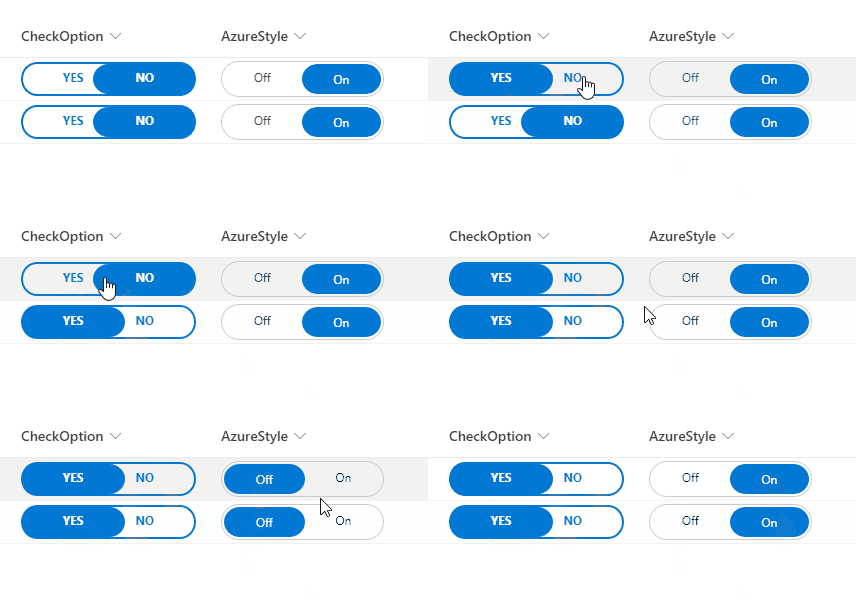
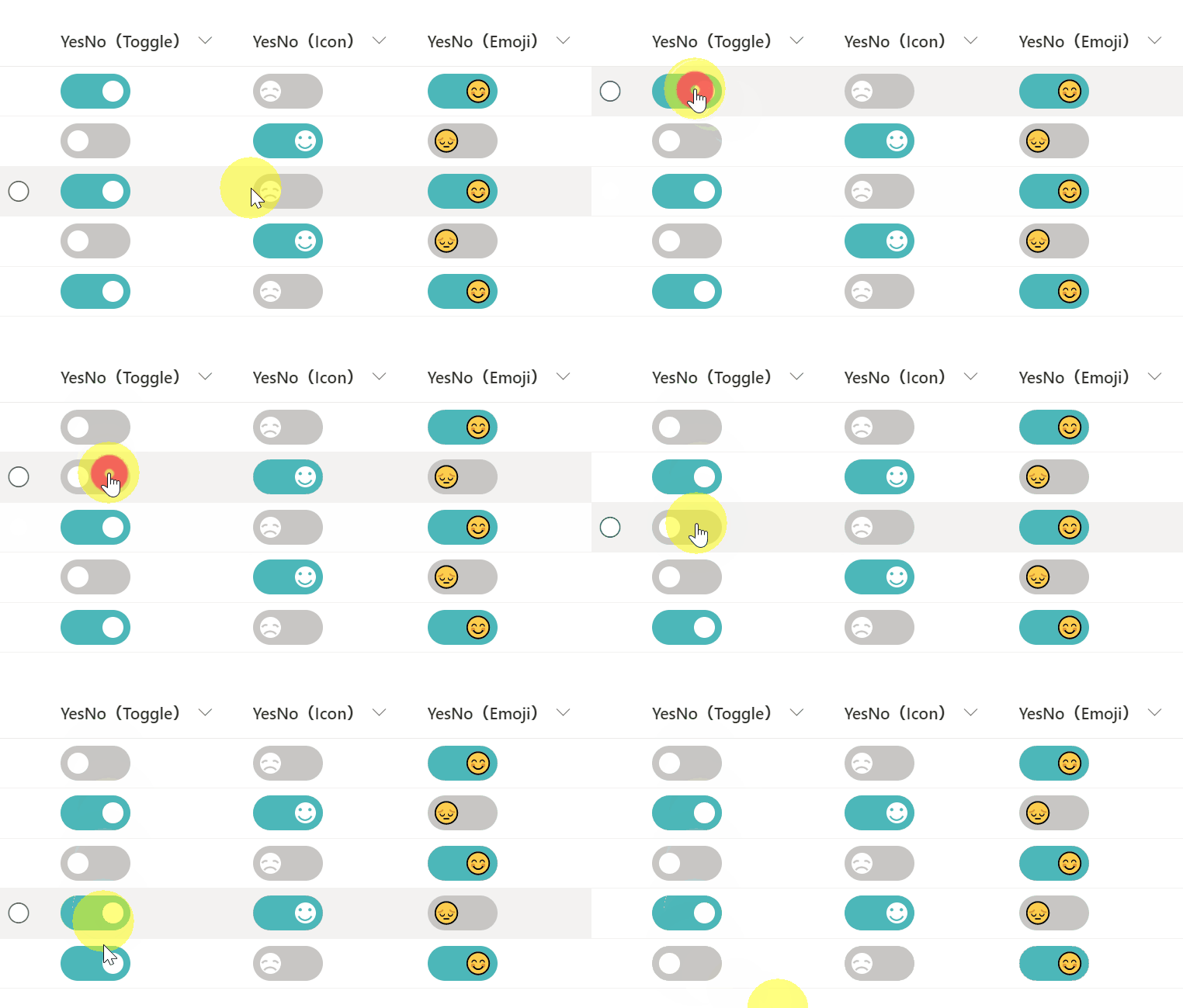
This sample demonstrates changing the value of the Yes/No column to a toggle. Three different versions of the sample are provided (Toggle, Icon, Emoji).
View sample details →