SharedSamples.org
Chris Kent
Community Contributor

Chris Kent

@thechriskent

73 samples featured.

73 Contributions
1 Collection
List Formatting Column Formatting: 45View Formatting: 25Form Formatting: 3
View Chris Kent on GitHub ↗

Contributions

Samples by Chris Kent currently indexed on SharedSamples.org.

Blank Header preview
Form Formatting
Blank Header
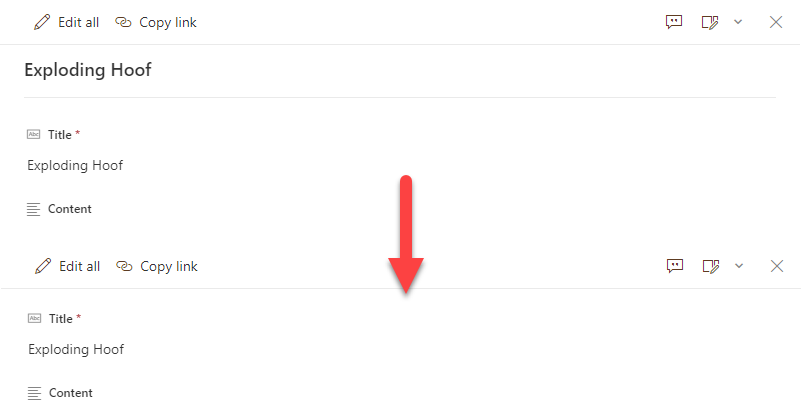
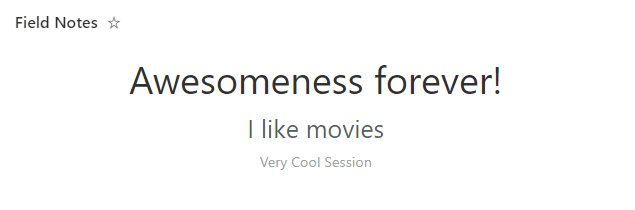
By default, uncustomized list forms display the Title field at the top. This is generally fine, but sometimes you may not want this (especially since the default is to repeat it as the first column). This very basic format removes the default Title display giving you a cleaner form.
View sample details →
Bulletin Board preview
View Formatting
Bulletin Board
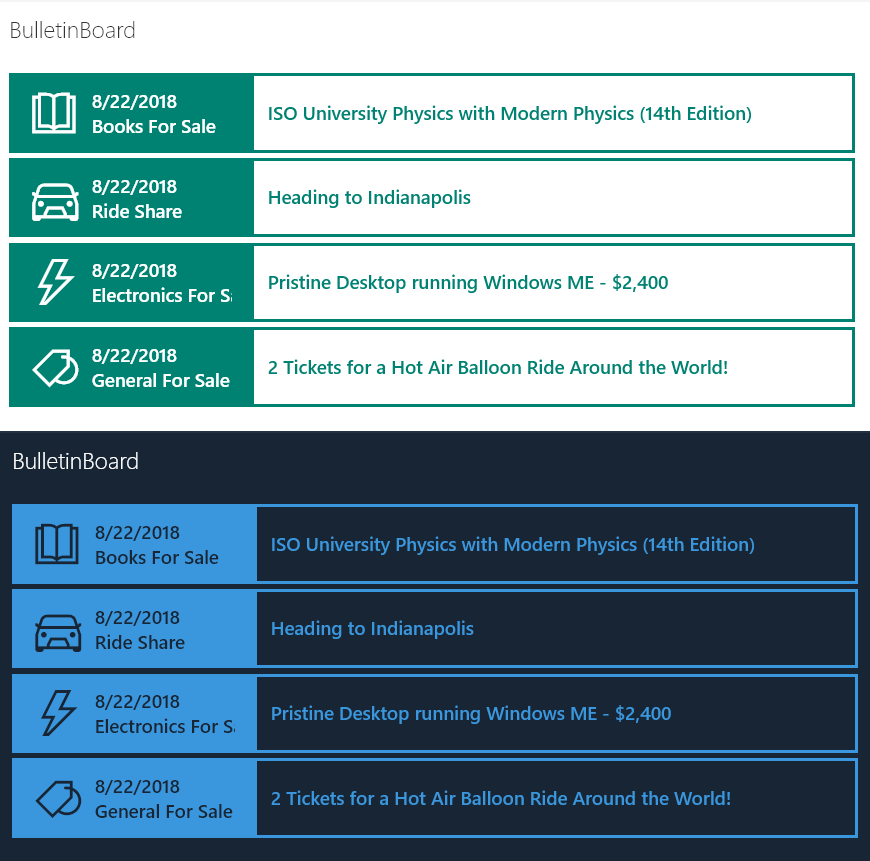
Provides an example of creating a simple bulletin board listing. The rowFormatter property is used to fully customize the display of rows to create a nice view of list items while easily allowing users to click on the item for additional details. The large size and use of icons makes this much more attractive than a simple table view and keeps the functionality simple for users.
View sample details →
Centered Content preview
Column Formatting
Centered Content
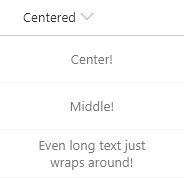
Demonstrates making your content be both vertically and horizontally centered (in the middle) within the cell.
View sample details →
Conditionally Launch Flow for Item preview
Column Formatting
Conditionally Launch Flow for Item
You can use column formatting to create buttons that, when clicked, run Flows on the corresponding list item. The Flow Launch Panel will be displayed after clicking the button allowing the user to specify any required data and then run the flow. This is demonstrated in the Generic-Start-Flow sample.
View sample details →
Contact Cards preview
View Formatting
Contact Cards
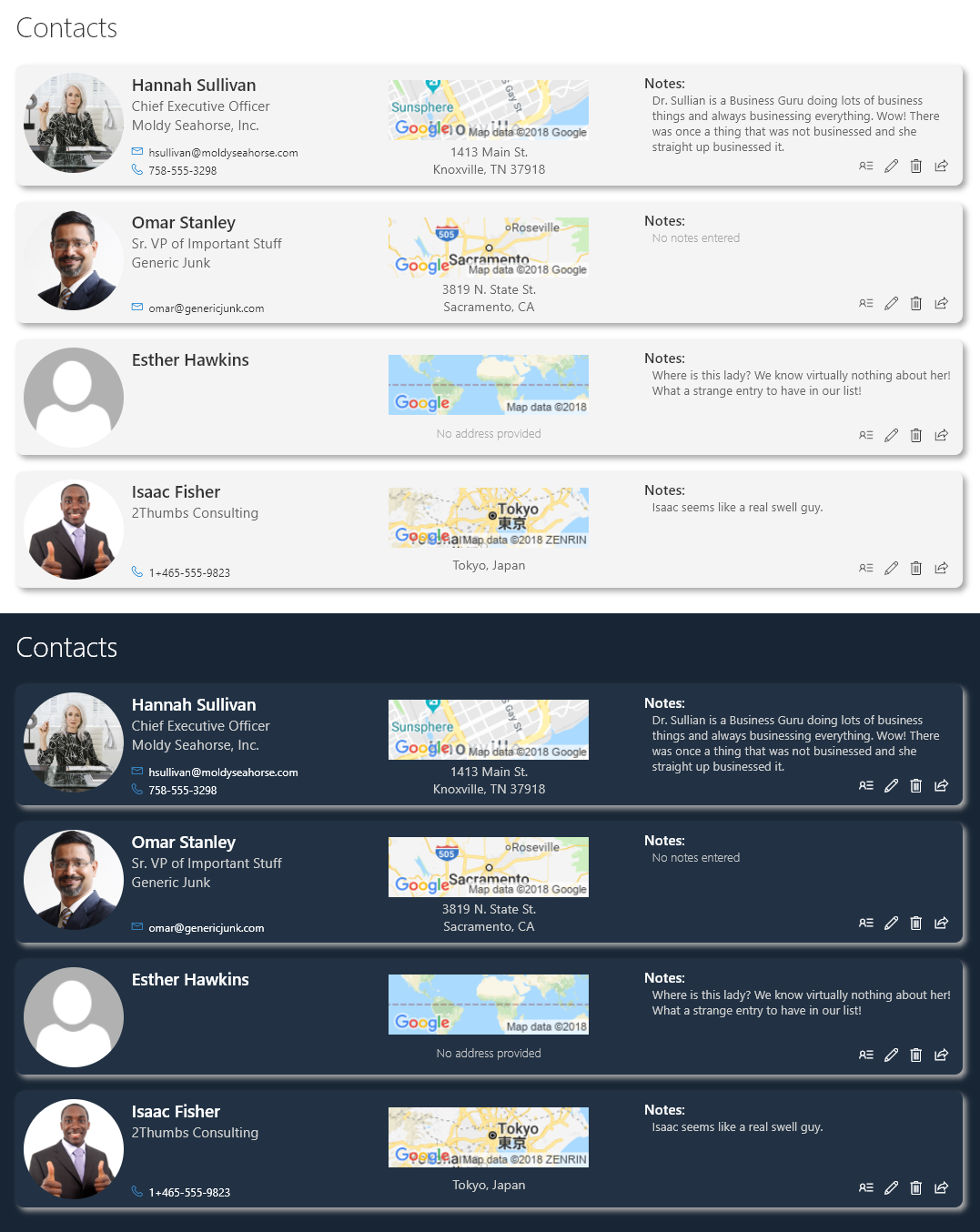
This is a sample of a complex format that customizes the entire display of a row. The goal is to illustrate several key principals including:
View sample details →
ContentType Variations preview
View Formatting
ContentType Variations
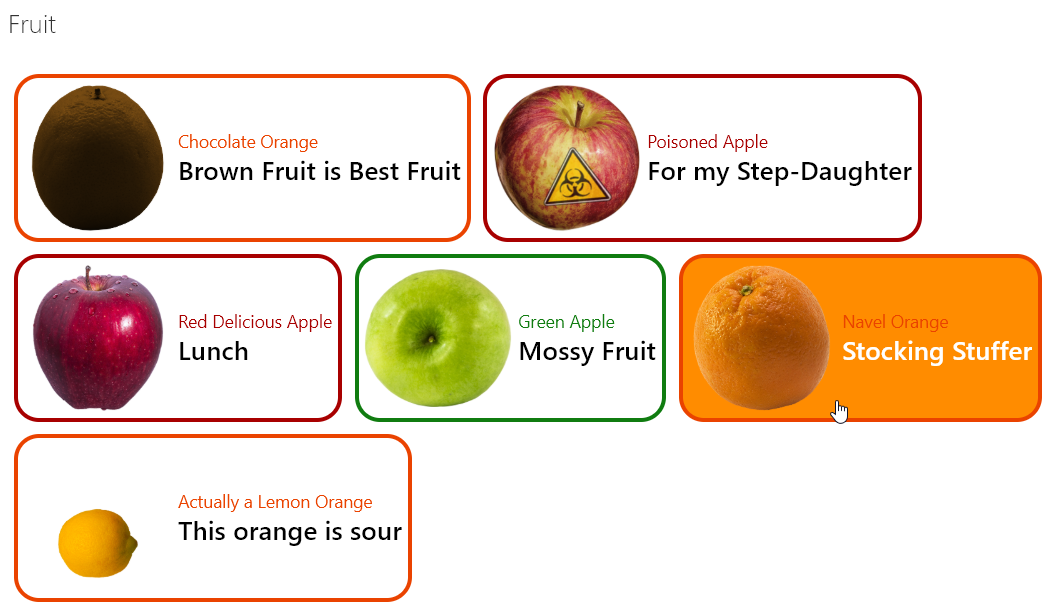
Provides an example of customizing your format based on the item's content type. When an item's ContentType is Apple and the apple type is Green then green is used in the format. If it's Apple with a different type, red is used. Otherwise, orange is used.
View sample details →
Current User's Rows preview
View Formatting
Current User's Rows
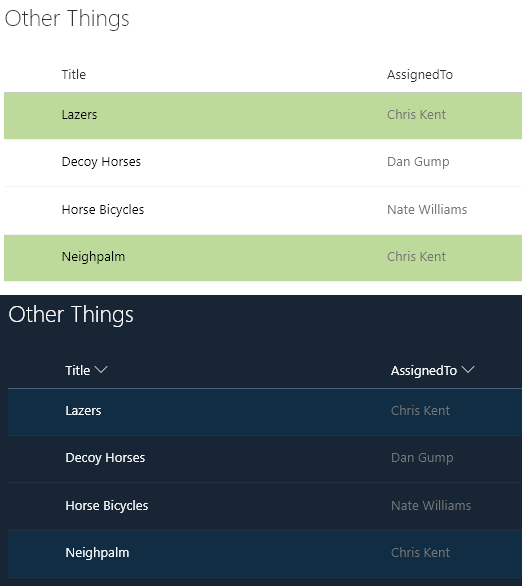
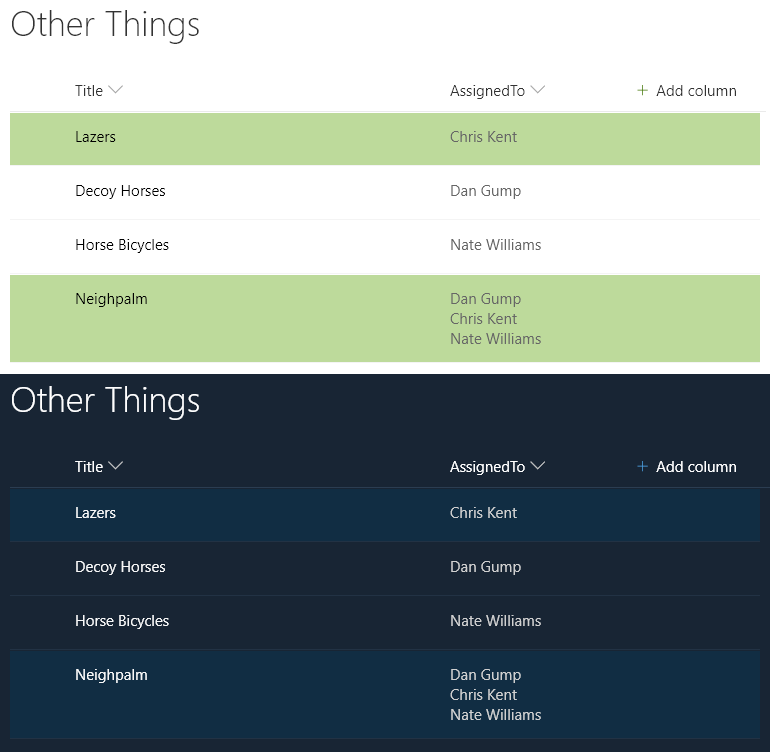
Highlights the entire row for any list items assigned to the current user (the user viewing the list view, not the author of the format). You can easily adjust this to use a different column like Author or Editor by changing the [$AssignedTo] portion of the expression.
View sample details →
Current User's Rows (Using a Multi-Person Column) preview
View Formatting
Current User's Rows (Using a Multi-Person Column)
Highlights the entire row for any list items where one of the assigned to users is the current user (the user viewing the list view, not the author of the format). You can easily adjust this to use a different person column by changing the `[$AssignedTo]` portion of the expression.
View sample details →
Current Year Row Class preview
View Formatting
Current Year Row Class
Demonstrates applying a class to rows where a value equals the current year. Can easily be updated to compare other portions of the date such as the month, hour, minute etc. by using the other date-part operators.
View sample details →
Custom Header preview
View Formatting
Custom Header
Sometimes it is necessary to remove the standard headers. In those cases, you may still want to show a custom header. This sample demonstrates creating a custom header and only showing it on the first row. The key to this technique is setting the `display` style attribute to `none` (hidden) whenever the `@rowIndex` is not 0 (first row).
View sample details →
Data Bar preview
Column Formatting
Data Bar
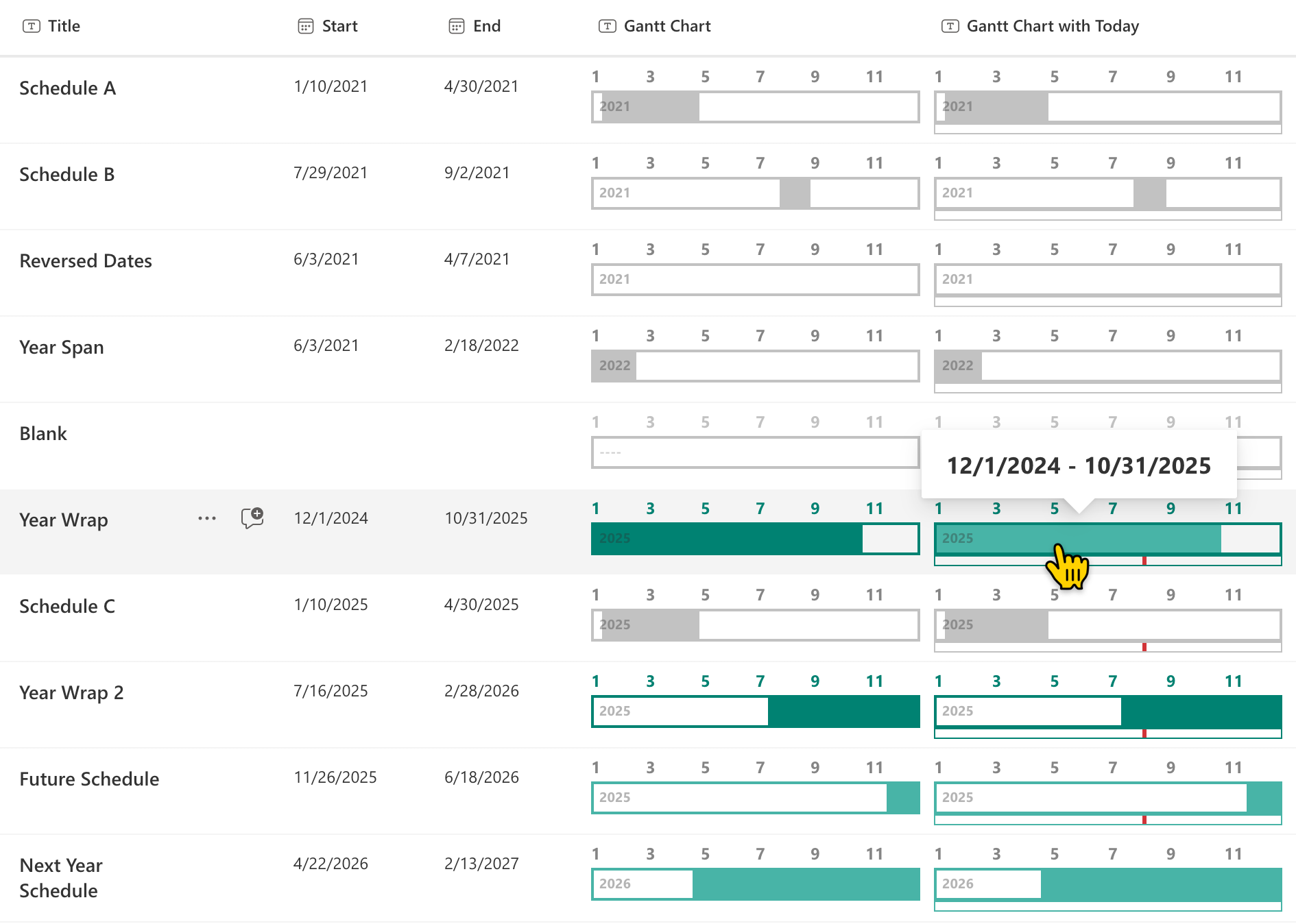
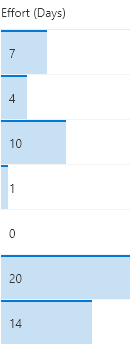
These formats apply background-color and border-top styles to create a data bar visualization of @currentField, which is a number field. These styles are applied using the special column formatting class sp-field-dataBars. The bars are sized differently for different values based on the way the width attribute of the main div is set.
View sample details →
Date Difference preview
Column Formatting
Date Difference
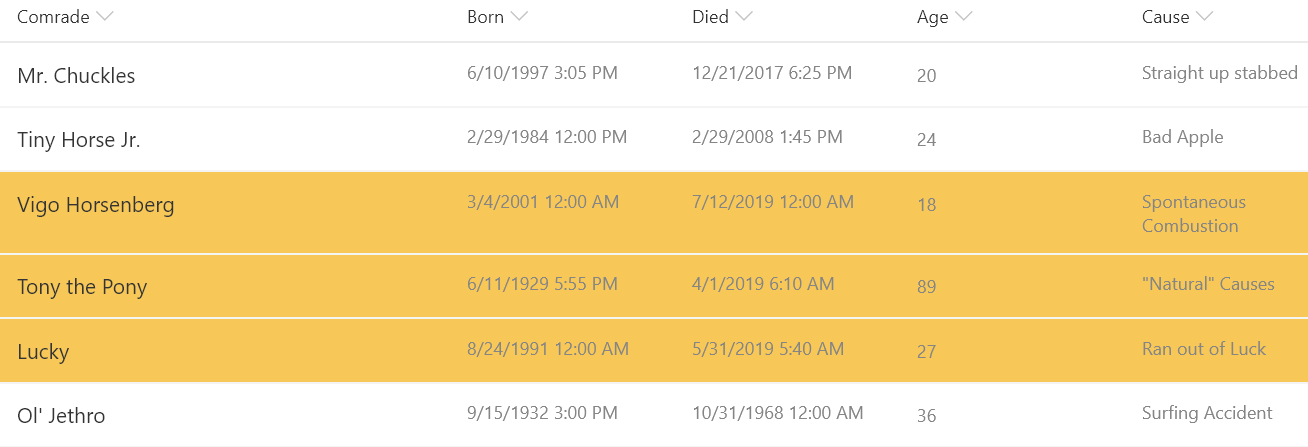
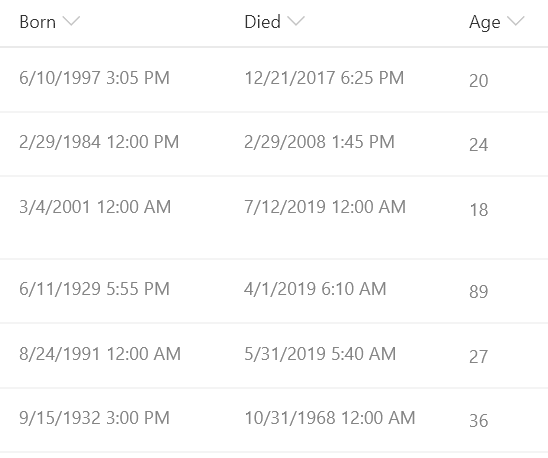
This sample demonstrates calculating the difference between 2 dates. In this sample the age in years is calculated based on the date of birth and the date of death. This format could easily be adjusted to calculate a different unit of time (months, days, hours, minutes, etc.) by adjusting the multiplier.
View sample details →
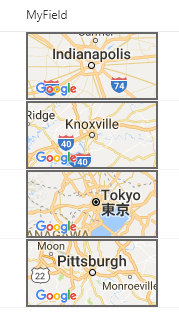
Display a Google Maps Image for a Location preview
Column Formatting
Display a Google Maps Image for a Location
This template takes advantage of Google Maps' staticmap API which generates an image using a parameterized URL.
View sample details →
Display a Person's Profile Picture in a Circle preview
Column Formatting
Display a Person's Profile Picture in a Circle
This sample applies styles to a parent div element and a child img element to show a person's profile picture in a circle.
View sample details →
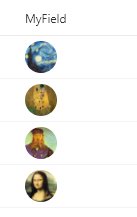
Display a Picture Column in a Circle preview
Column Formatting
Display a Picture Column in a Circle
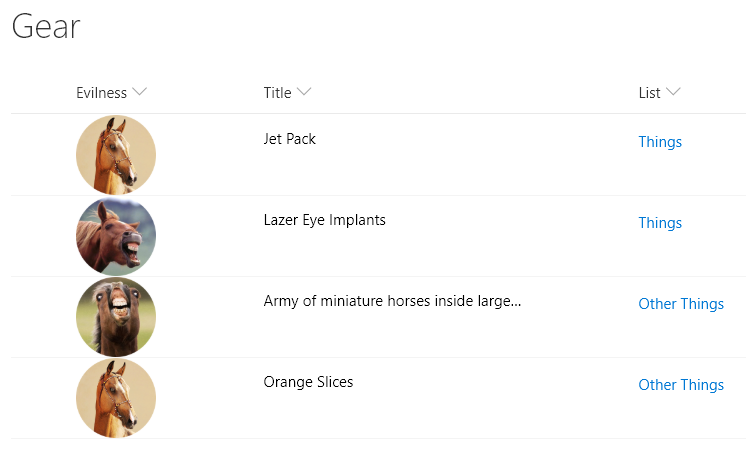
This sample applies styles to a parent div element and a child img element to show a picture column in a circle.
View sample details →
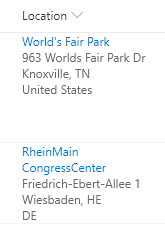
Display Location Address Details preview
Column Formatting
Display Location Address Details
Location columns provide several properties that can be accessed to provide more information to users. This sample pulls out sub properties to turn the standard Display Name only to a full address and provides a link to Bing Maps for a given location.
View sample details →
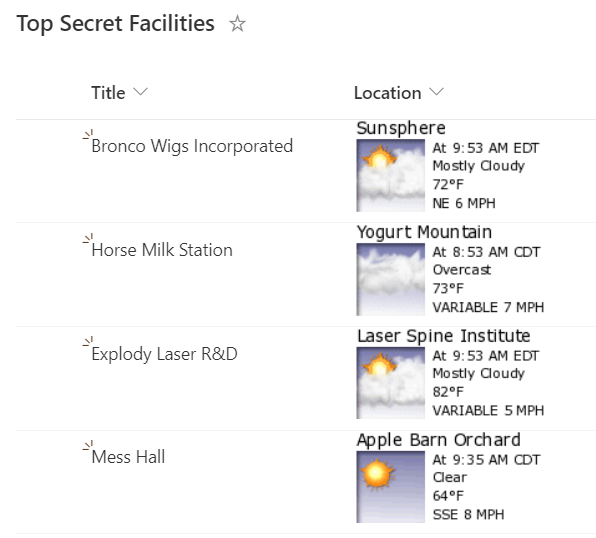
Display Location Weather Details preview
Column Formatting
Display Location Weather Details
This sample utilizes sub properties of a Location column to build an image that pulls weather from WeatherForYou.com
View sample details →
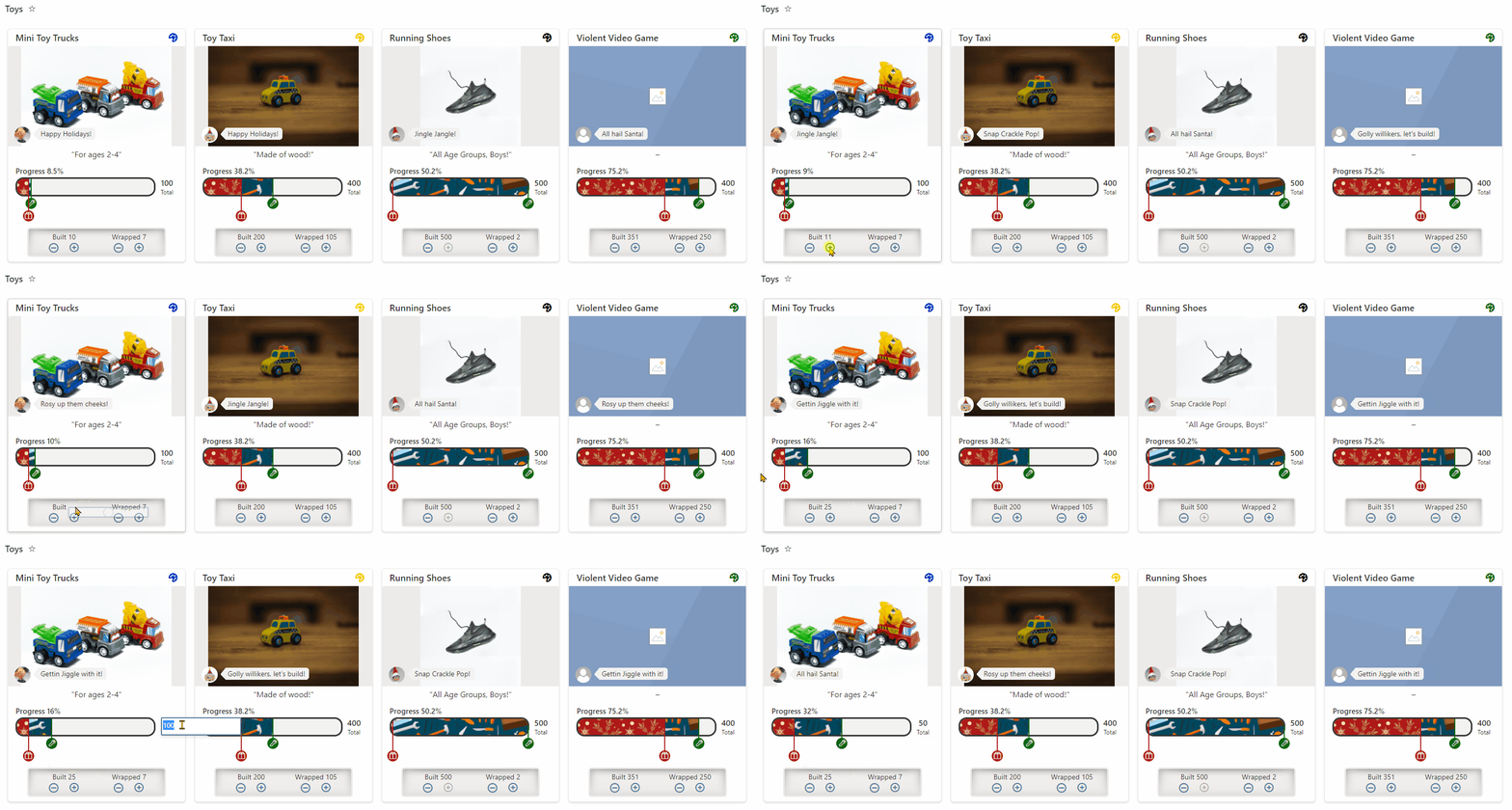
Elf Progress Board preview
View Formatting
Elf Progress Board
Demonstrates multi-level progress bars, randomization, handling image fields, setValue actions, and inlineEditField
View sample details →
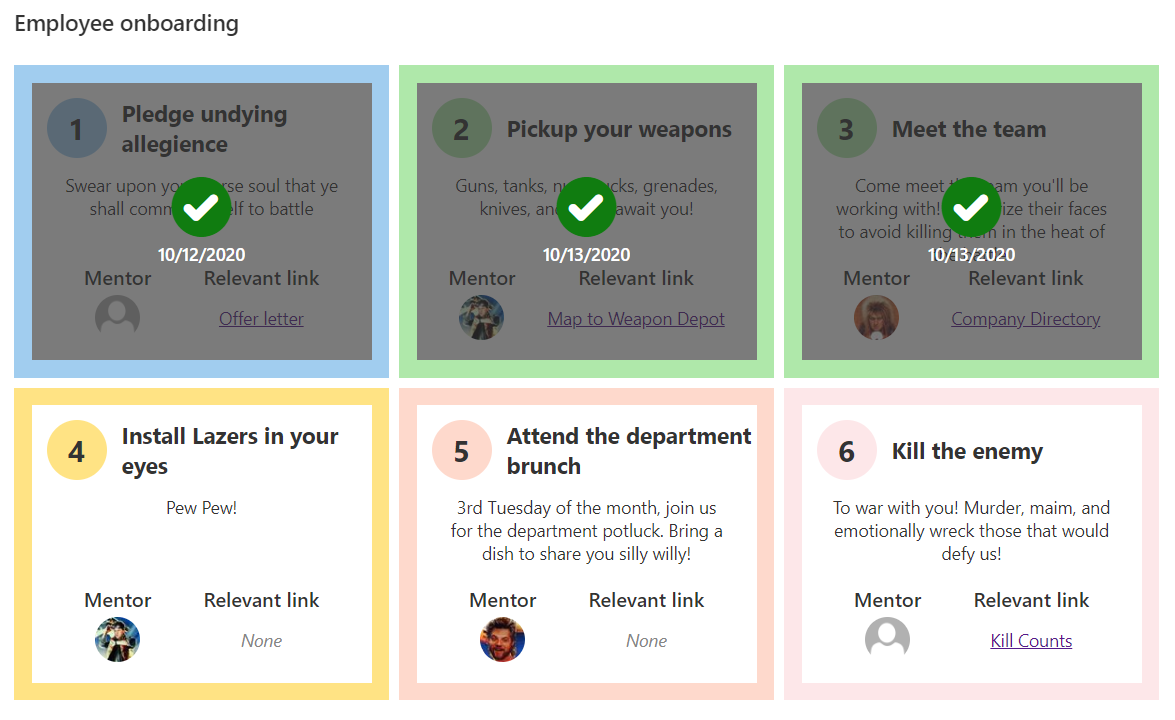
Employee Onboarding: Steps preview
View Formatting
Employee Onboarding: Steps
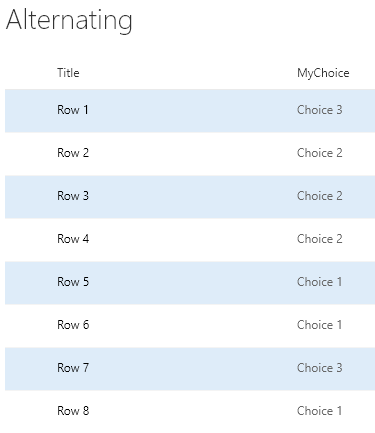
This sample is intended to be used in combination with the Employee Onboarding list template. The format restores the intended alternating rows but also adds a Tiles view that provides a more step based approach.
View sample details →
Flow Status preview
Column Formatting
Flow Status
This sample conditionally shows a button to launch a flow. Additional details are provided to customize the flow panel title and button. This provides context to users and is often far more meaningful than the default of 'Run Flow' which generally doesn't mean much to end users.
View sample details →
Generic Gauge preview
Column Formatting
Generic Gauge
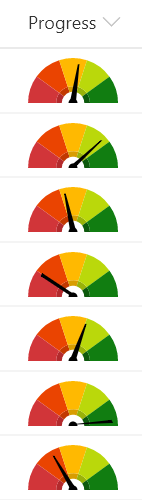
This sample demonstrates combining a fixed SVG (gauge background) with a dynamic SVG (needle). The values are based on text values (choice or text).
View sample details →
Generic Super Type preview
Column Formatting
Generic Super Type
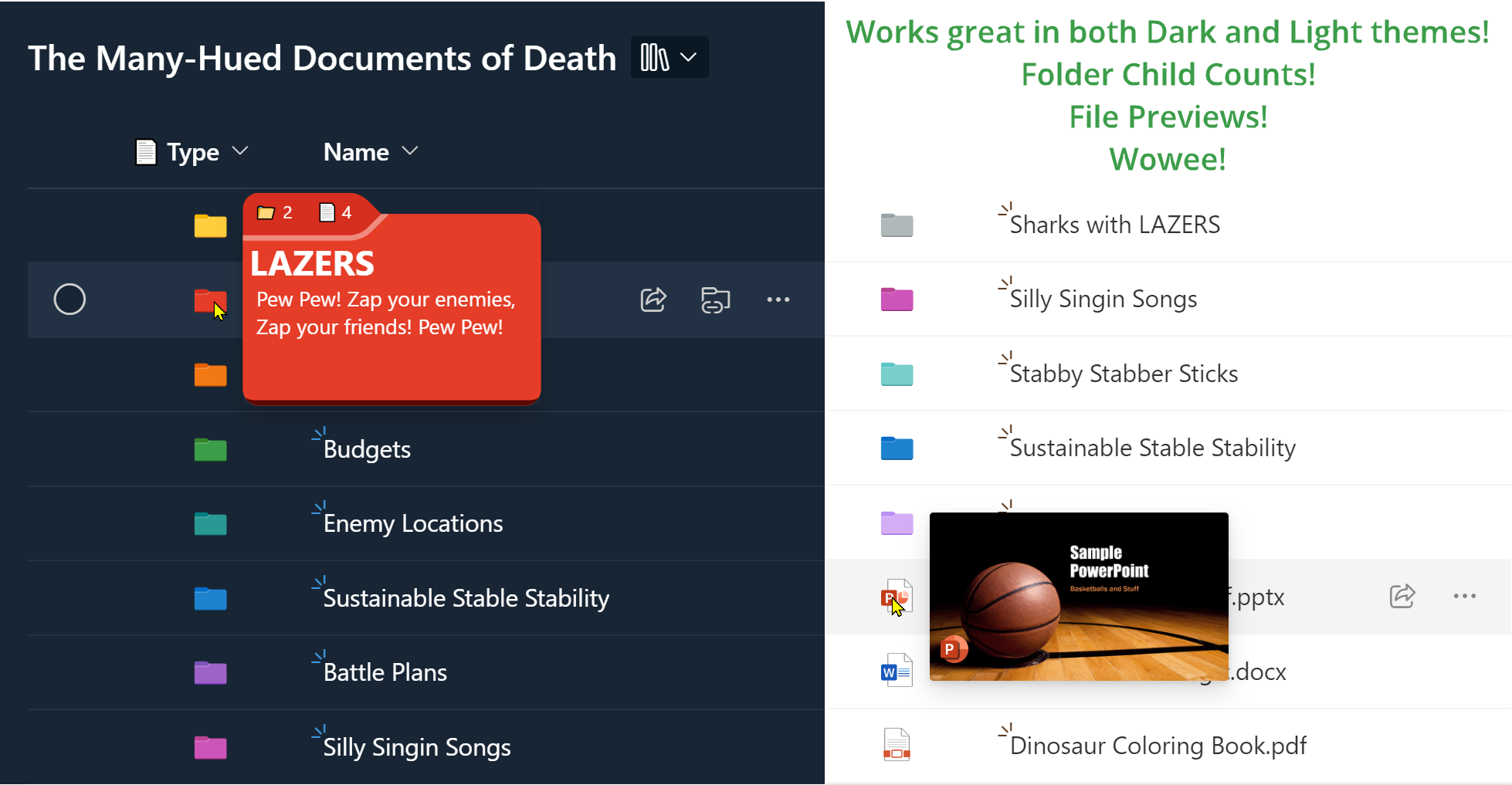
This sample demonstrates recreating the `Type` column (folder/file icons) and adds meaningful hover panels.
View sample details →
Highlight the Current User preview
Column Formatting
Highlight the Current User
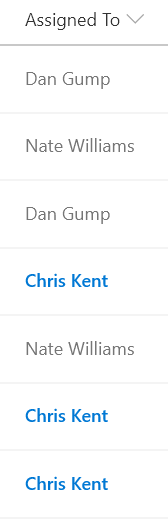
This sample uses the @me keyword to check if the person field is the current user and shows that person using a different color and weight. This is a dynamic check that will always highlight the user using the list (not the creater of the format). This template could easily be extended to apply different/additional styles or icons as desired by simply copying the same expression logic for other fields.
View sample details →
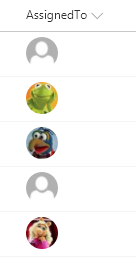
Highlight the Current User (Using a Multi-Person Column) preview
Column Formatting
Highlight the Current User (Using a Multi-Person Column)
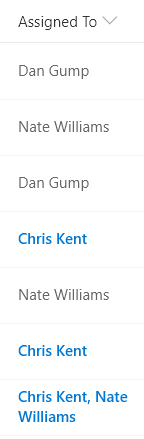
This sample uses the @me keyword to check if the person field contains the current user and shows that entry using a different color and weight. This is a dynamic check that will always highlight the user using the list (not the creater of the format). This template could easily be extended to apply different/additional styles or icons as desired by simply copying the same expression logic for other fields.
View sample details →
Horse Crests preview
View Formatting
Horse Crests
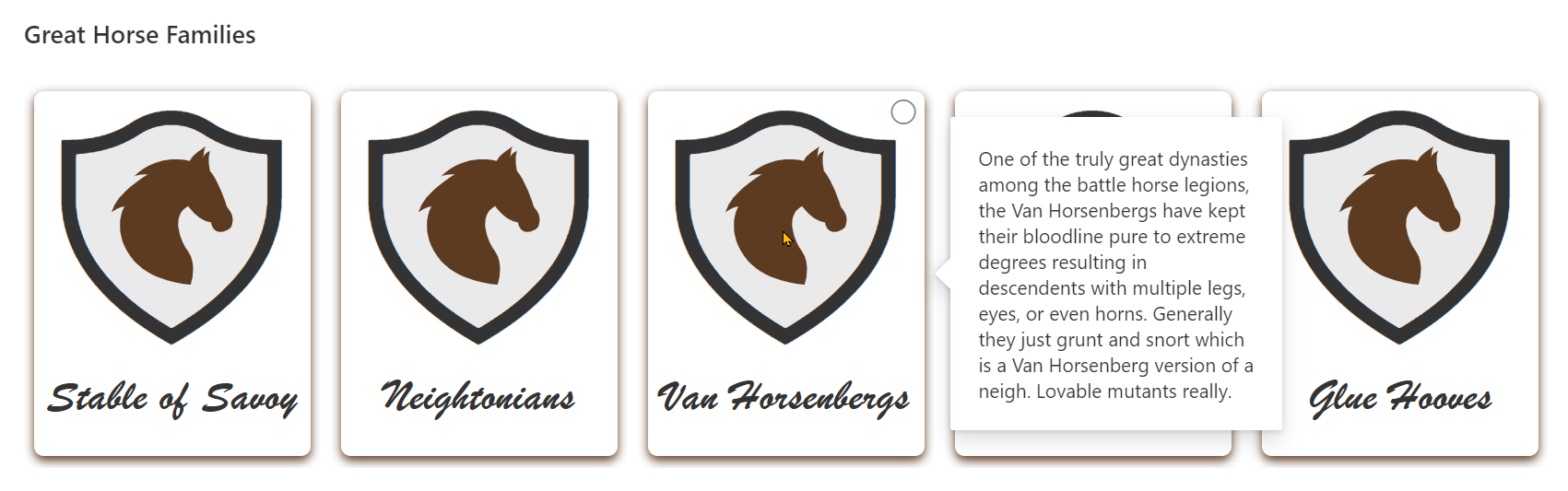
This sample illustrates some advanced techniques for applying theme colors to SVG elements, box-shadows, and borders. It also demonstrates using custom hover cards on complex elements (elements with children).
View sample details →
Icon Overlays preview
Column Formatting
Icon Overlays
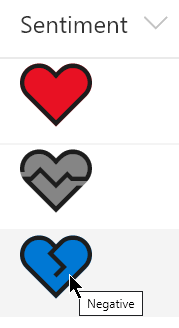
You can UI Fabric Icons within your column and view formats. This sample demonstrates combining multiple icons by overlaying to create colorful icons that can indicate more information than a single icon can.
View sample details →
In Memoriam Tiles preview
View Formatting
In Memoriam Tiles
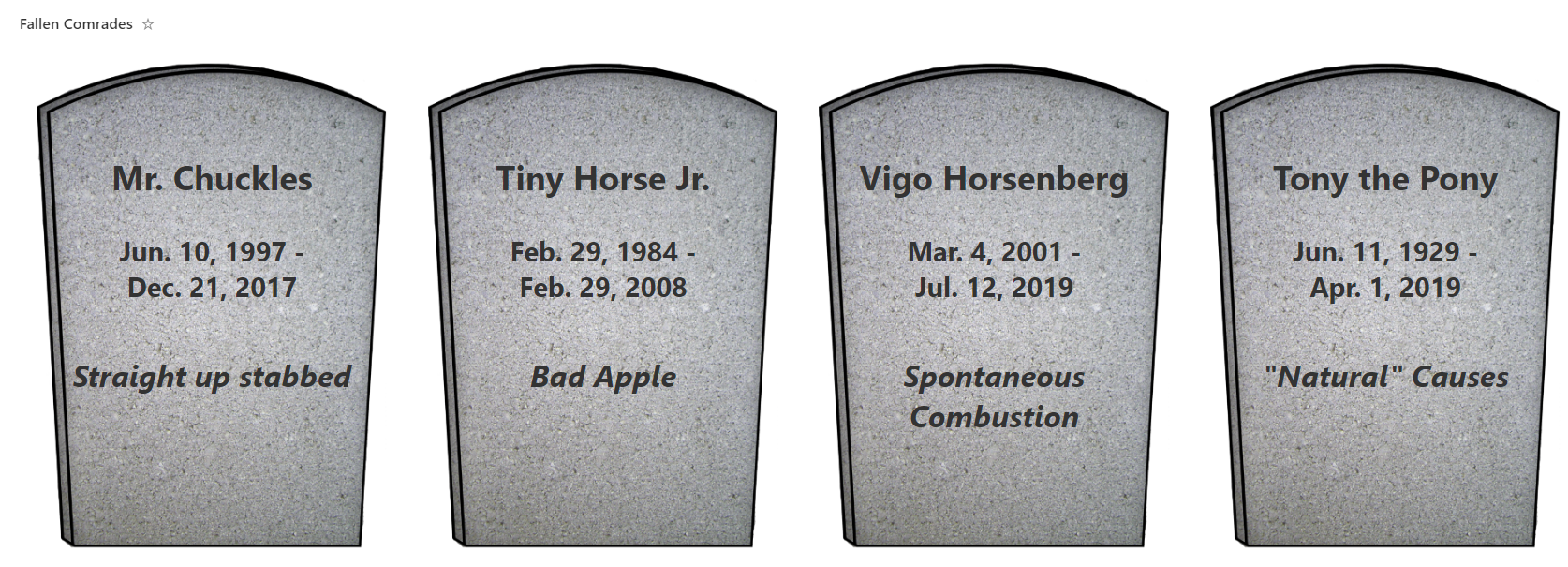
This is a silly sample that shows tombstones for items. It demonstrates custom date formatting, custom tiles (gallery) layout, and safe local image referencing.
View sample details →
Issue Tracker: Planner Cards preview
View Formatting
Issue Tracker: Planner Cards
This sample is intended to be used in combination with the Issue Tracker list template. The format keeps the row highlighting for blocked issues but also adds a Tiles view that provides a Microsoft Planner look and feel.
View sample details →
Launch Power App Button preview
Column Formatting
Launch Power App Button
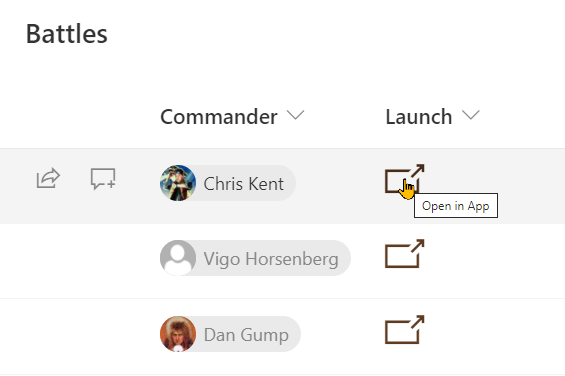
Providing a direct link to an item within Power Apps is easy to do using this sample. To use it follow the instructions below to get the link to your Power App (and replace that portion of the format).
View sample details →
Linking to a Local Resource preview
Column Formatting
Linking to a Local Resource
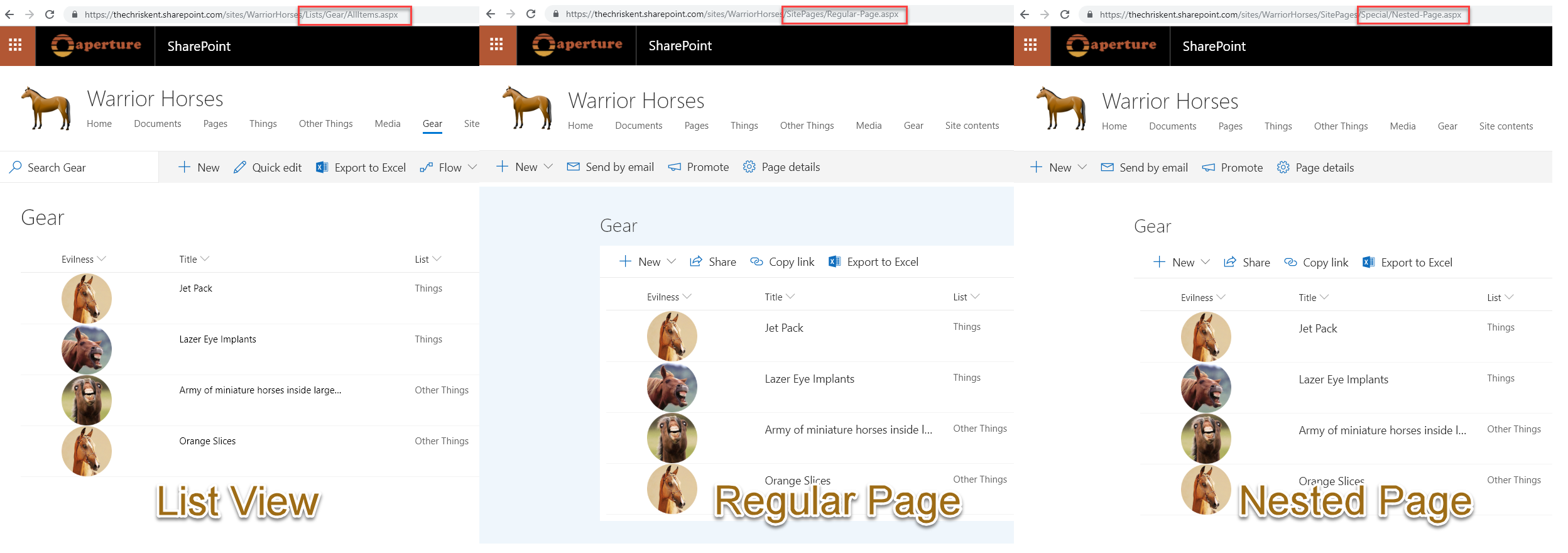
This sample provides multiple formats to illustrate the options available to link to local resources. The primary purpose is to demonstrate the usage of `@currentWeb` (O365 only) to prevent issues with reusable formats or formats rendered outside of the main list view. This format links to other lists, but this could just as easily be specific pages/files/etc. on a site.
View sample details →
MailTo Button preview
Column Formatting
MailTo Button
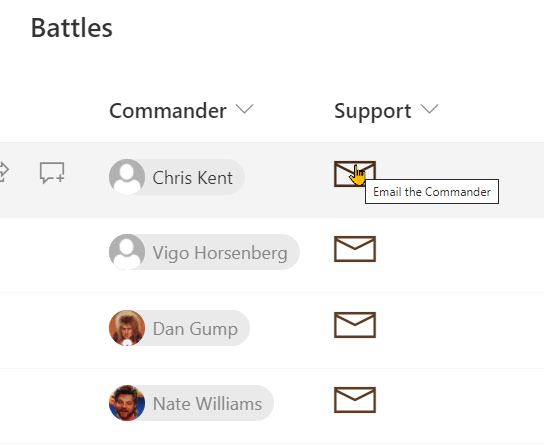
This sample demonstrates making a mailto link (opens email with prepopulated values) button that references a different field.
View sample details →
Modern Event Tiles preview
View Formatting
Modern Event Tiles
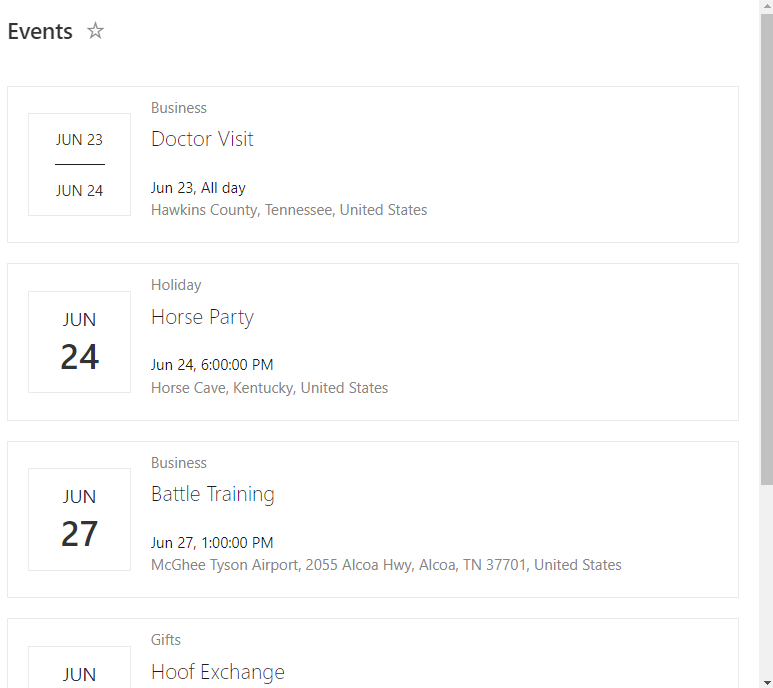
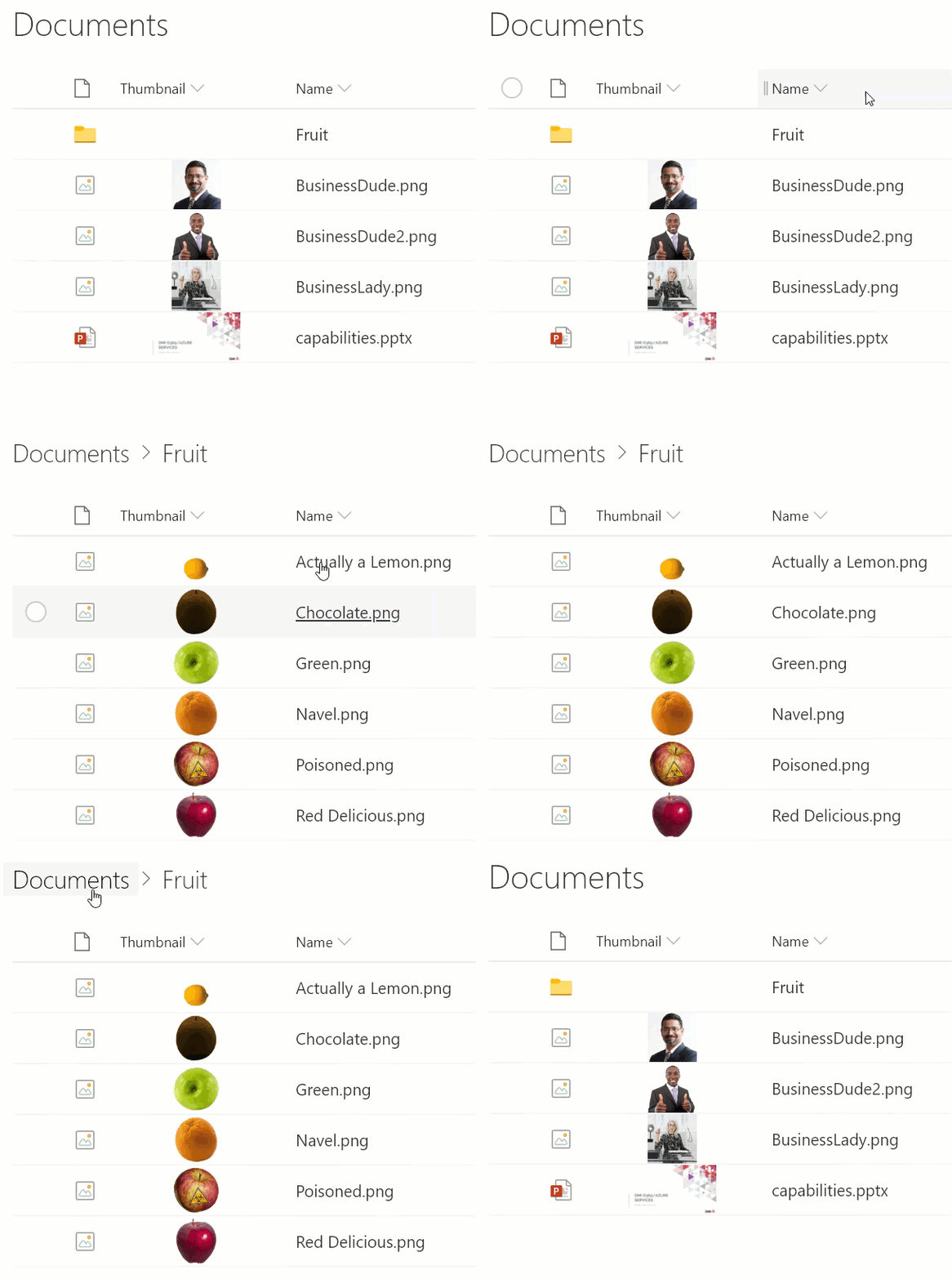
This sample demonstrates applying view formatting to an Events list to imitate the modern events webpart.
View sample details →
Multi-Choice forEach preview
Column Formatting
Multi-Choice forEach
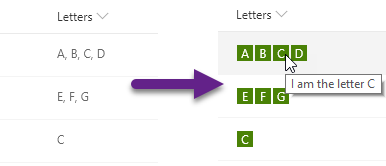
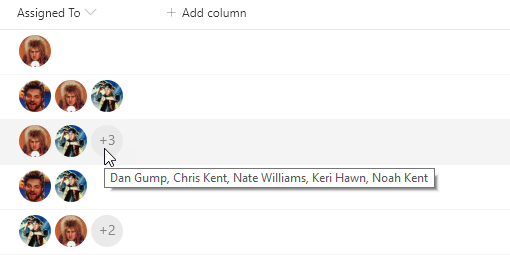
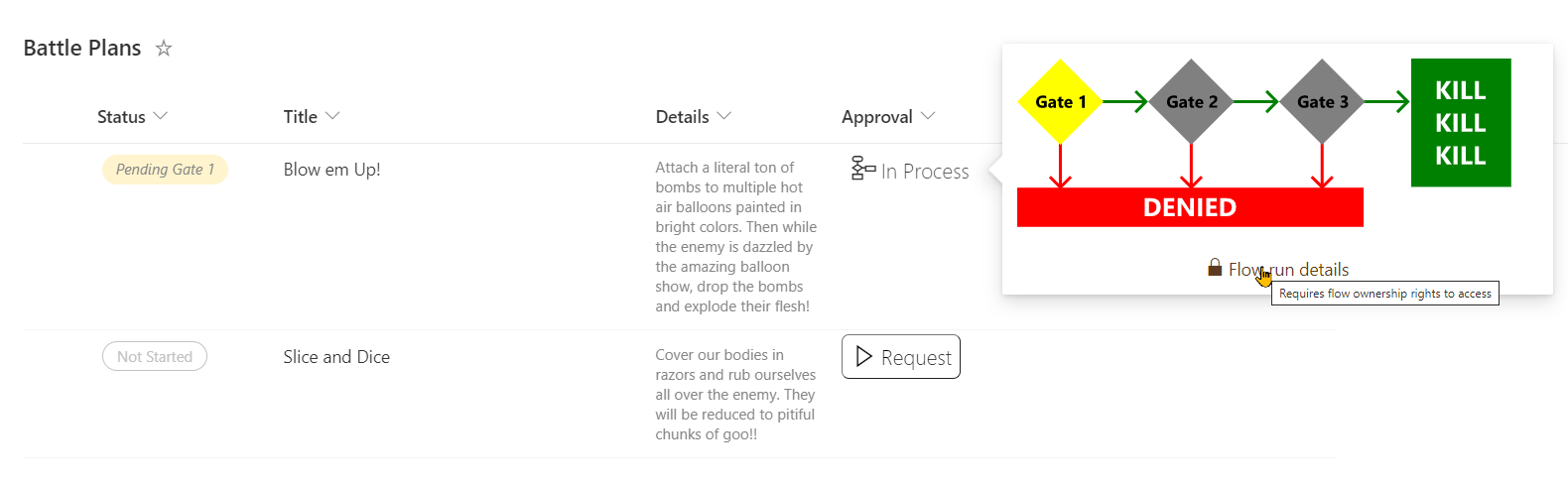
This sample demonstrates usage of the forEach property to create template elements applied to each choice in a multi-select choice field.
View sample details →
Multi-Choice Icons preview
Column Formatting
Multi-Choice Icons
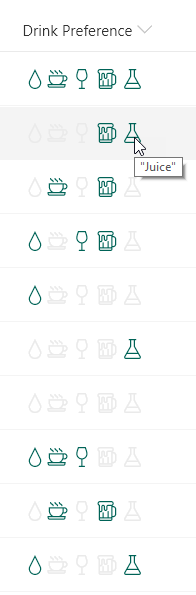
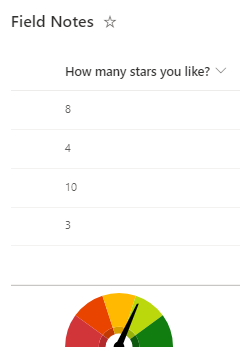
This sample demonstrates using the indexOf and join functions (O365 only) to test if a multi-select choice field has a selected choice. Providing icons of the known choices and applying themed colors based on if the given choice is selected or not creates an intuitive, easy to understand visualization that doesn't suffer from varying item order or text formatting issues.
View sample details →
Multi-lookup fields and projected fields preview
Column Formatting
Multi-lookup fields and projected fields
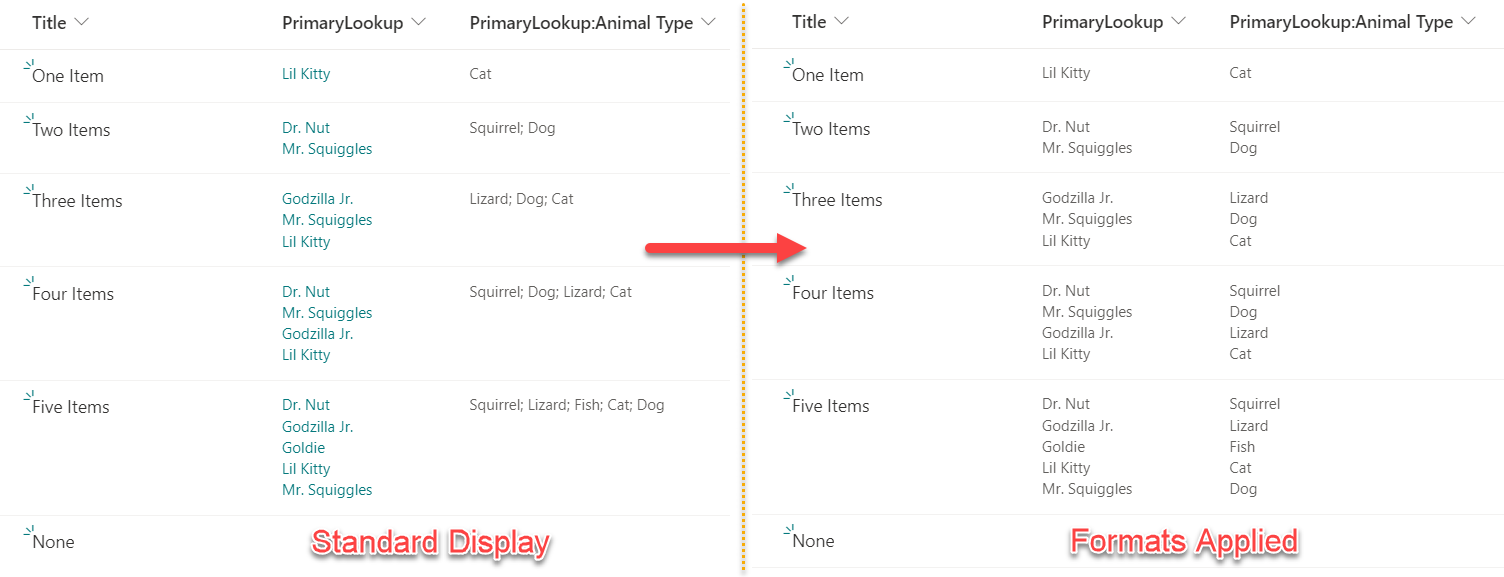
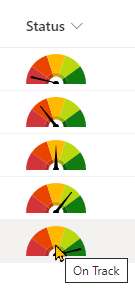
Lookup columns that support multiple values can be formatted using the advanced `forEach` property. Unfortunately, the way values are returned for any projected fields (additional columns associated to your lookup column) can present unique challenges. This sample provides two formats illustrating the difference in how these columns are formatted.
View sample details →
Multi-Person Teams Chat Link preview
Column Formatting
Multi-Person Teams Chat Link
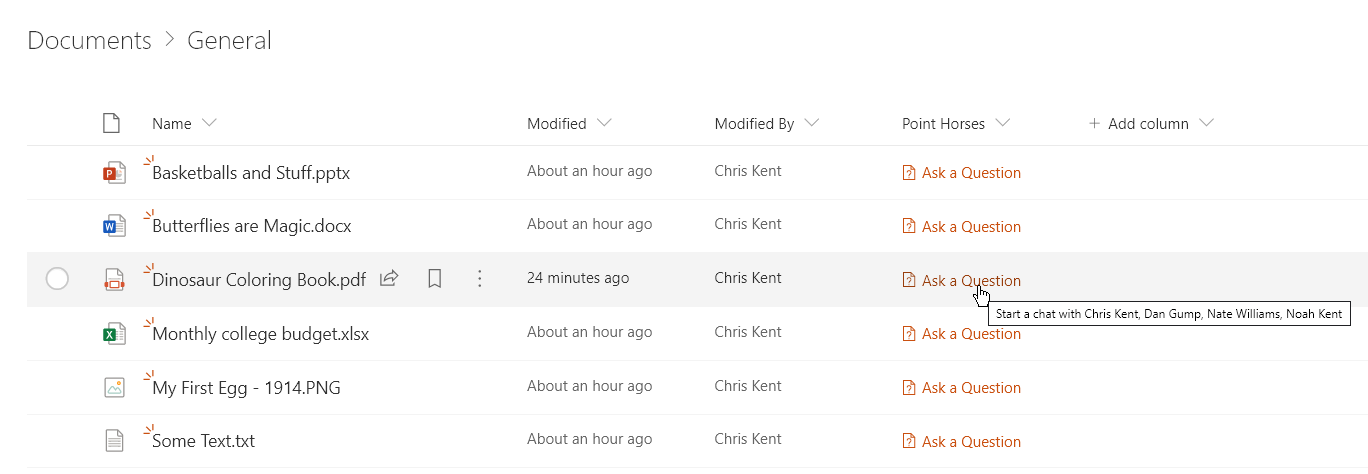
This sample demonstrates creating a deep link to a Microsoft Teams chat. This format works both within Microsoft Teams and within SharePoint Online.
View sample details →
Number Gauge preview
Column Formatting
Number Gauge
This sample demonstrates combining a fixed SVG (gauge background) with a dynamic SVG (needle). It makes understanding number columns (percent) very intuitive.
View sample details →
Number Level Bar preview
Column Formatting
Number Level Bar
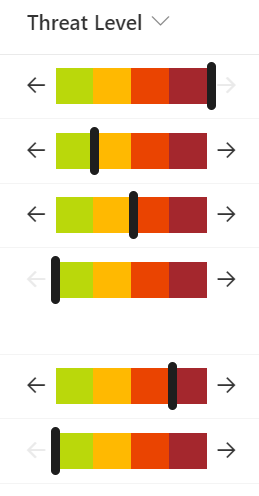
This sample demonstrates displaying a percentage across a bar. End users are able to edit the values by increasing/decreasing in 25% increments using arrow buttons.
View sample details →
Number Localization preview
Column Formatting
Number Localization
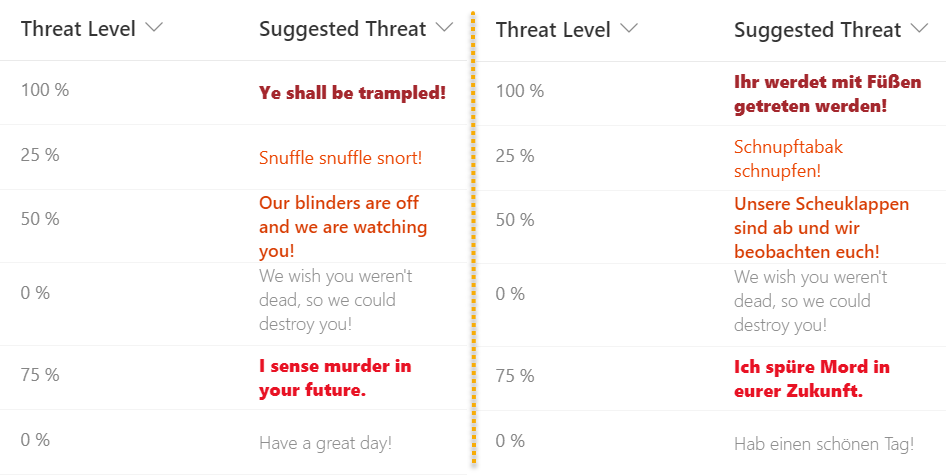
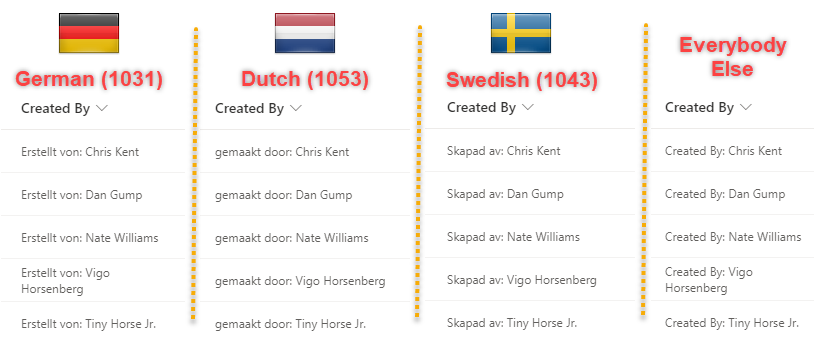
This sample demonstrates changing text output based on the @lcid token. This allows you to provide localized text within your format ensuring that users in various regions can use your formats without issue.
View sample details →
Per 100 People Grid preview
Column Formatting
Per 100 People Grid
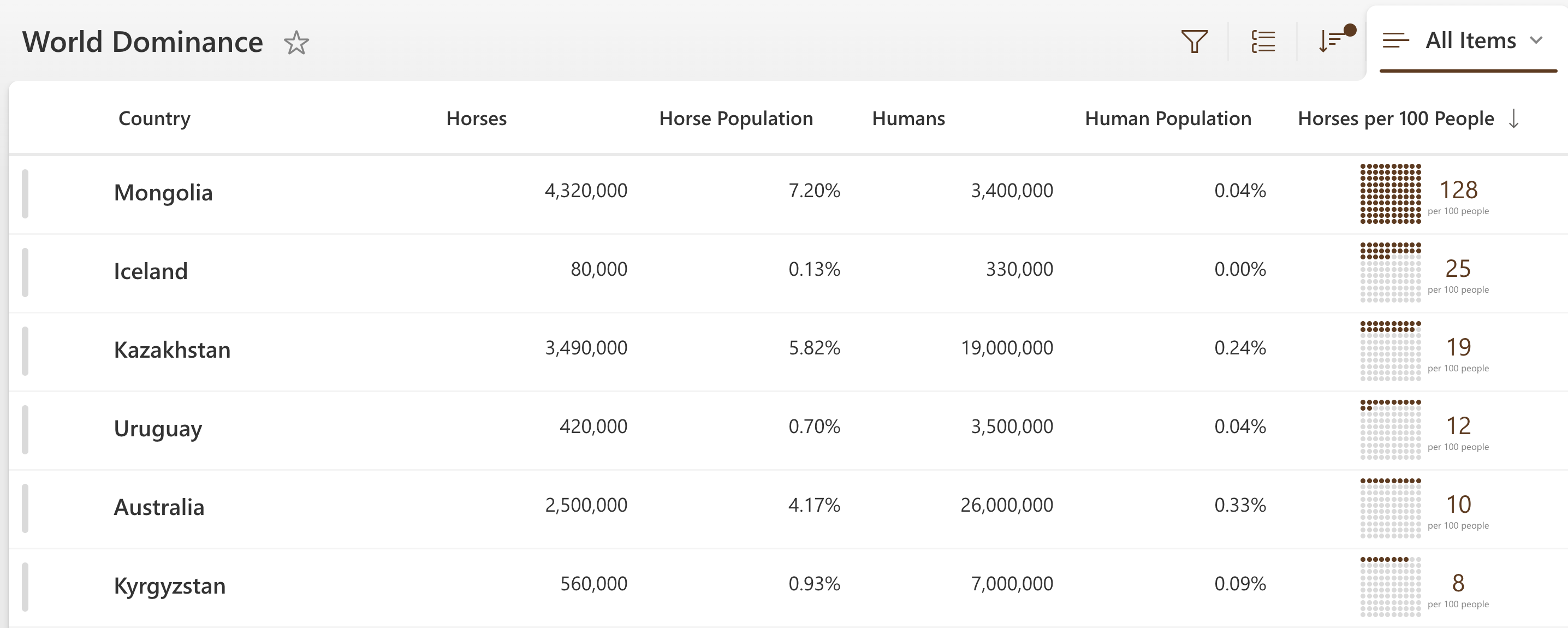
This sample demonstrates displaying a grid of 100 dots where dots are colored based on how many of something per 100 people.
View sample details →
Person Localization preview
Column Formatting
Person Localization
This sample demonstrates changing text output based on the @lcid token. This allows you to provide localized text within your format ensuring that users in various regions can use your formats without issue.
View sample details →
Pie Chart preview
Column Formatting
Pie Chart
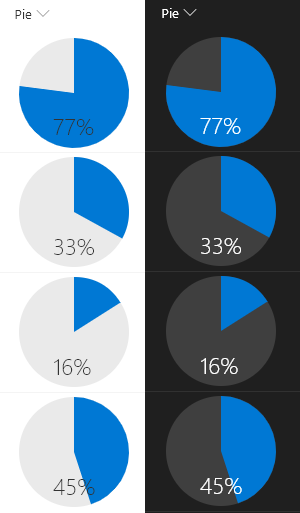
This example renders whole pie in neutralLight with radius 50 and the number% (column value) as a slice of the pie in blue using `<svg>` with `<path>` tags. The number% displayed at the bottom of the pie in neutralPrimary.
View sample details →
Random Item preview
View Formatting
Random Item
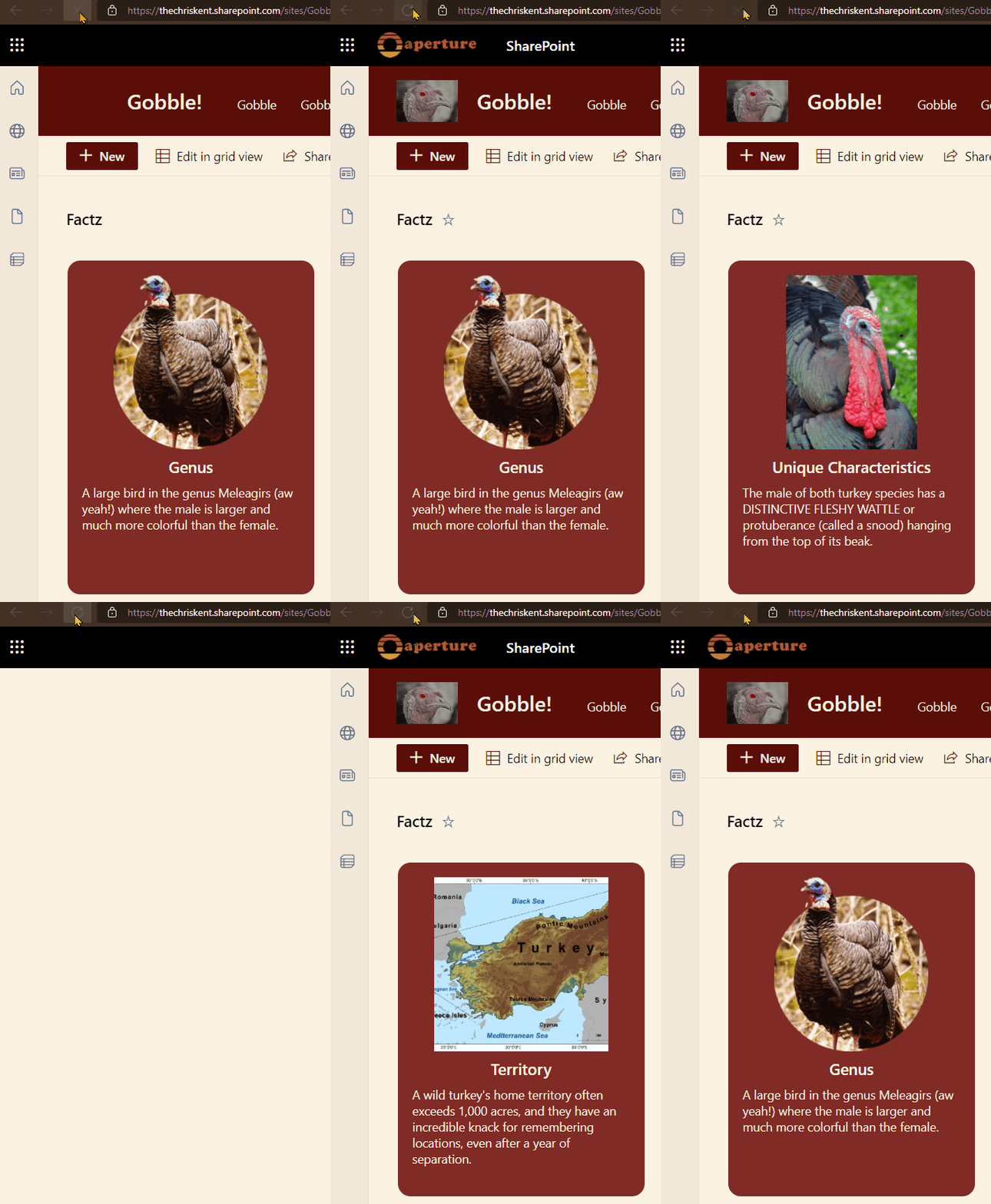
This sample demonstrates utilizing layering to draw all rows on top of each other and then the z-index is set to a randomized value to determine which row to draw on the very top.
View sample details →
Reference a Local Image preview
Column Formatting
Reference a Local Image
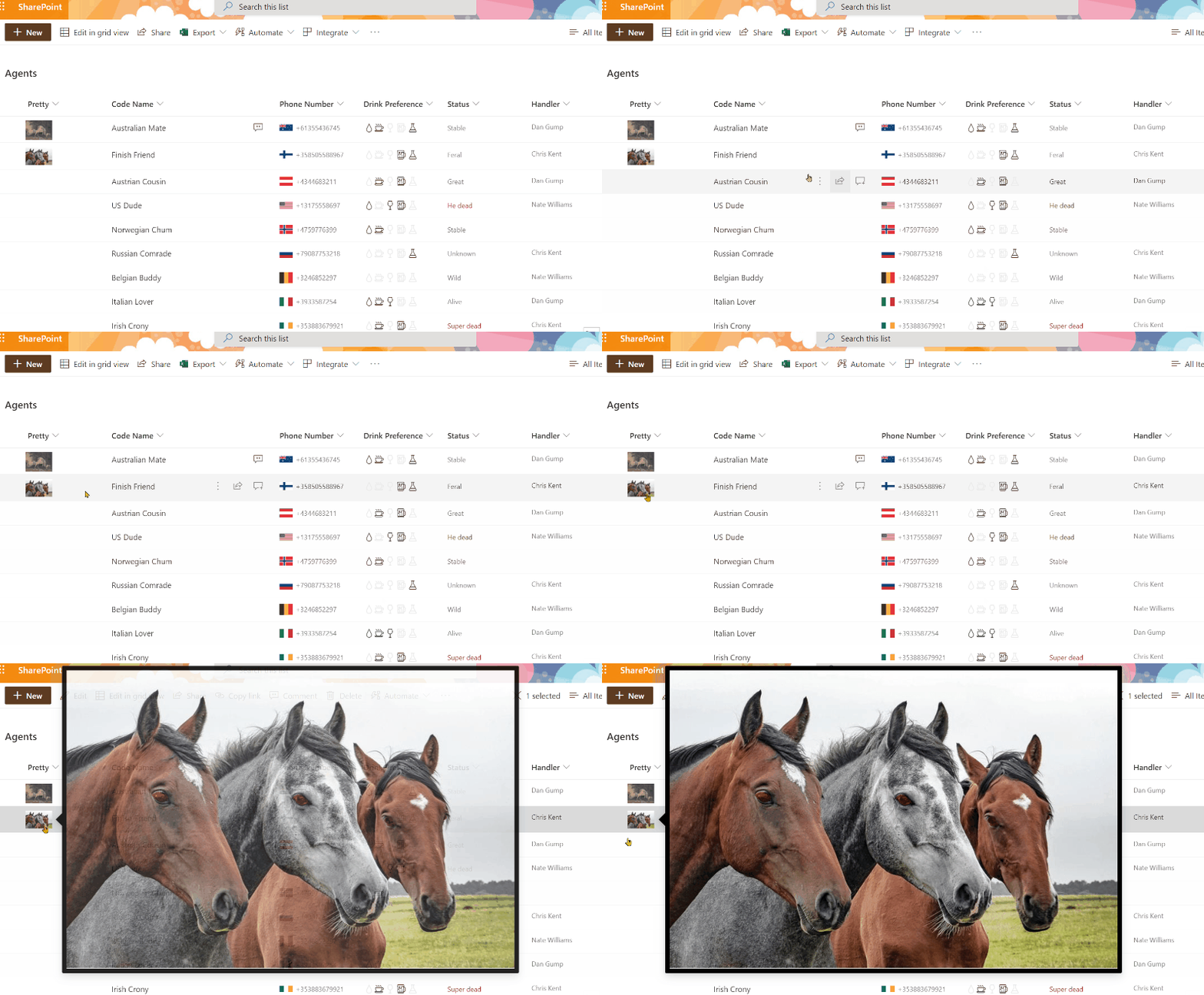
This sample provides multiple formats to illustrate the options available to reference local image files. The primary purpose is to demonstrate the usage of `@currentWeb` (O365 only) to prevent issues with reusable formats or formats rendered outside of the main list view.
View sample details →
Row Actions preview
Column Formatting
Row Actions
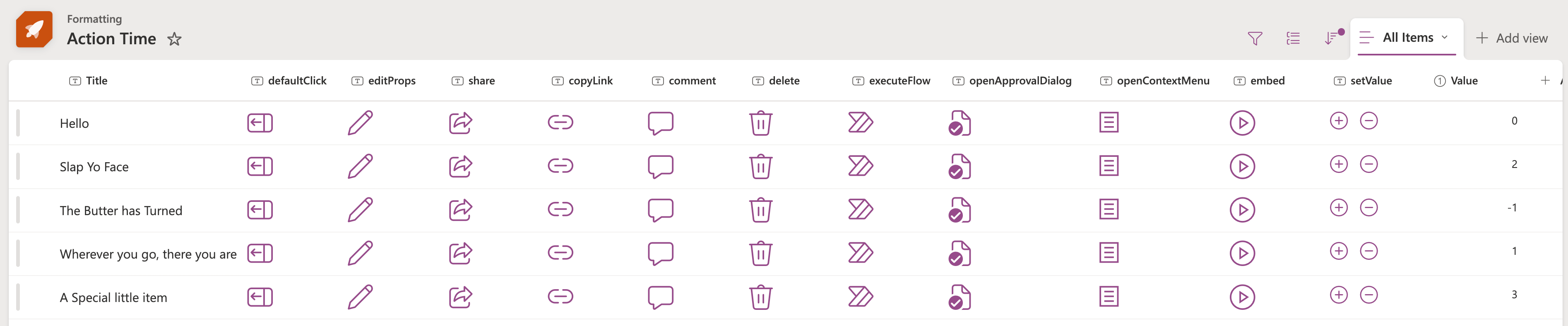
You can use column and view formatting to create buttons that perform pre-defined actions when clicked. This sample provides a quick format that demonstrates the use of each of the possible actions.
View sample details →
Row Index Drawing preview
Column Formatting
Row Index Drawing
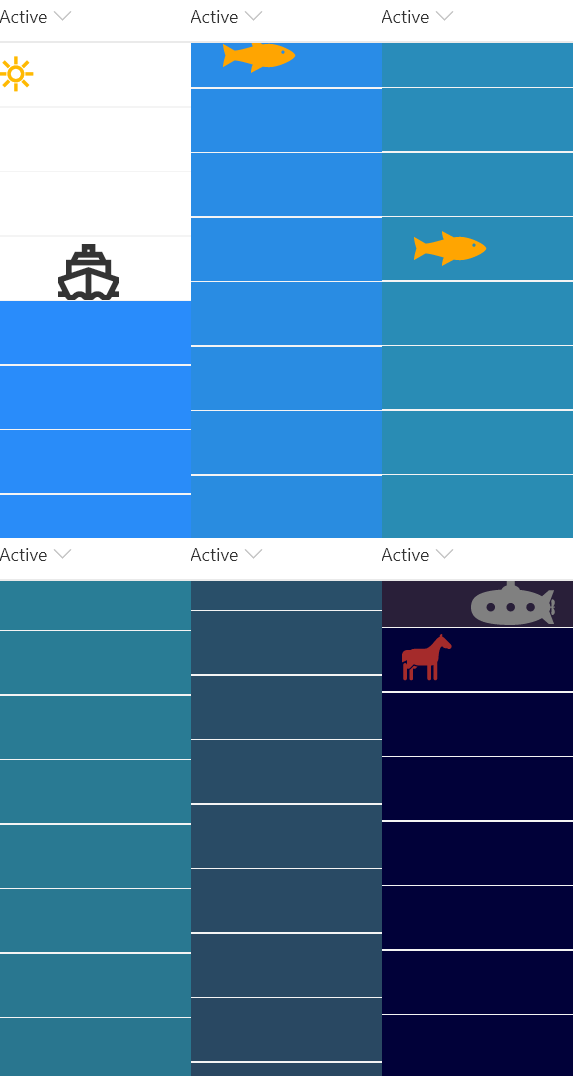
This is a silly format that draws a picture in your view using the @rowIndex token to adjust the colors and to determine when certain pictures (icons or SVG elements) should show up.
View sample details →
Status Header and Footer preview
Form Formatting
Status Header and Footer
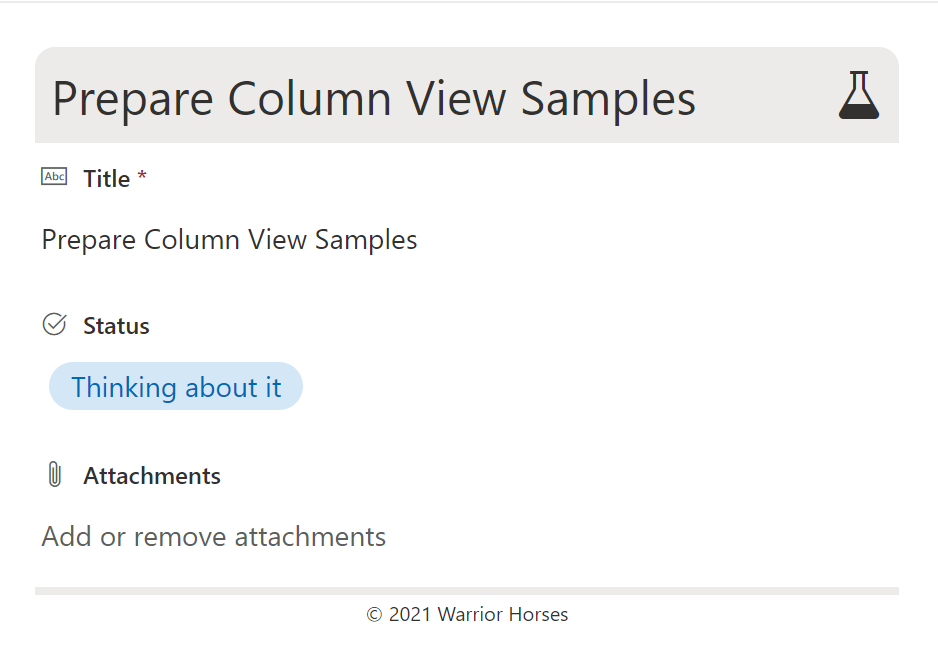
This sample shows a customized header and footer for a form with a Status column with possible values 'Thinking about it', 'Working on it', 'Done', and 'Nevermind'. This format is intended for the Header Format and Footer Format of the form body in the Configure Layout panel. Depending on the value of the Status column, a corresponding icon and colour scheme are used.
View sample details →
Strikethrough on Completion preview
Column Formatting
Strikethrough on Completion
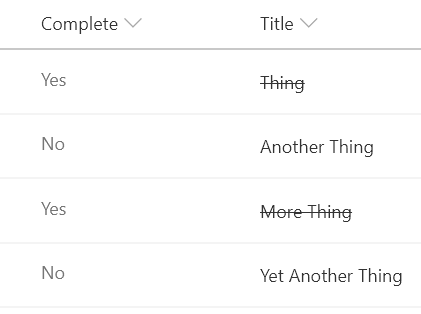
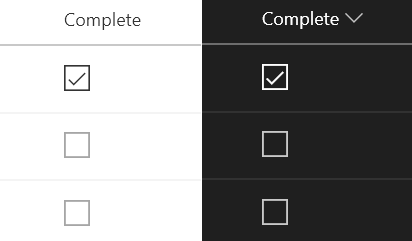
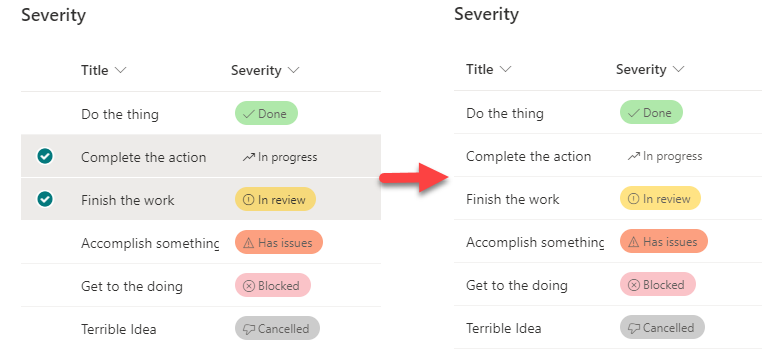
Classic task lists add a strikethrough style to the task name when the task is marked as completed. This sample shows how to achieve this in a modern list view.
View sample details →
Substring Status preview
Column Formatting
Substring Status
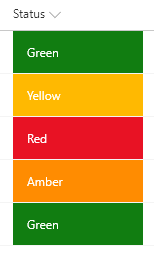
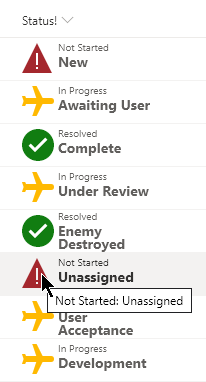
This format demonstrates using a combination of the substring and indexOf operations to 'split' a value and make style decisions based on portions of the value.
View sample details →
SVG icons preview
Column Formatting
SVG icons
The Fluent UI icons are easy to use in column formatting by simply specifying the name in the iconName attribute. However, the available selection of icons may not always meet your needs. Fortunately, you can use inline SVG elements with custom paths. This means you can use icons from sources like Font Awesome that provide SVG versions of their icons!
View sample details →
Team Poll preview
View Formatting
Team Poll
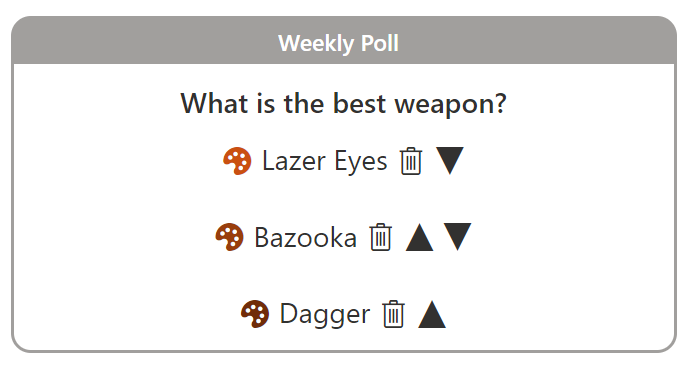
This sample combines a couple of lists and a few formats to demonstrate creating an application using view formatting. The end result is a configurable poll that end users can submit their choices too and view grouped results.
View sample details →
Text Contains preview
Column Formatting
Text Contains
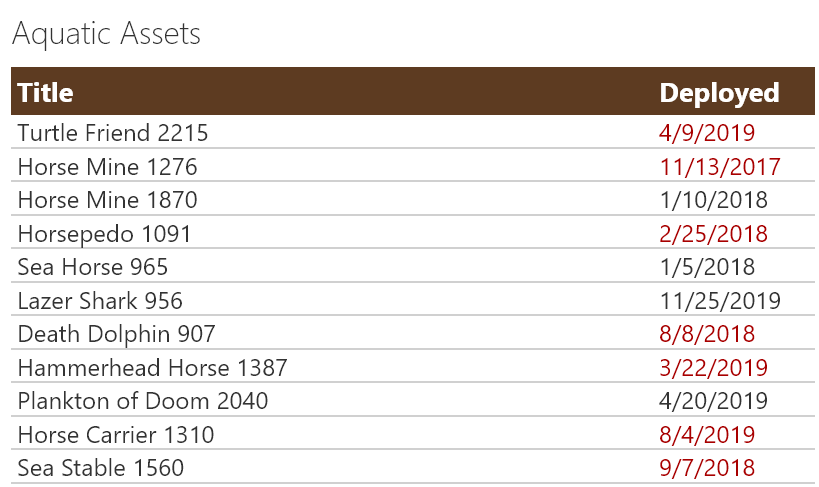
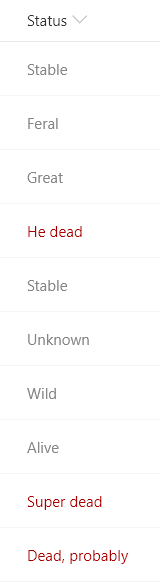
This sample demonstrates using the indexOf function (O365 only) to test if text contains a given value. The sample also uses the toLowerCase function to ensure the contains condition is case-insensitive. In this sample, if the text of the current field contains the word 'dead' a class is applied to turn the text red.
View sample details →
Text StartsWith Calling Codes preview
Column Formatting
Text StartsWith Calling Codes
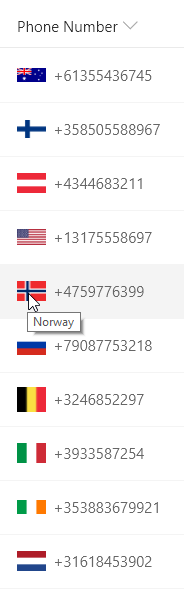
This sample demonstrates using the indexOf function (O365 only) to test if text starts with a given value. Using the international calling code at the start of a phone number, the correct country's flag is shown next to the phone number. The same nested conditionals are also used for the tooltip.
View sample details →
Twitter Profile Pics preview
Column Formatting
Twitter Profile Pics
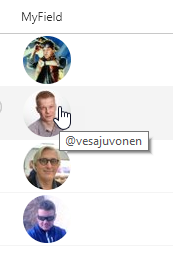
Using just the Twitter handle, Twitter profile pictures are displayed in a circle and clicking them will open the user's Twitter page in a new window. The handle is also displayed as a tooltip when hovering over the profile image.
View sample details →
Video Navigator preview
View Formatting
Video Navigator
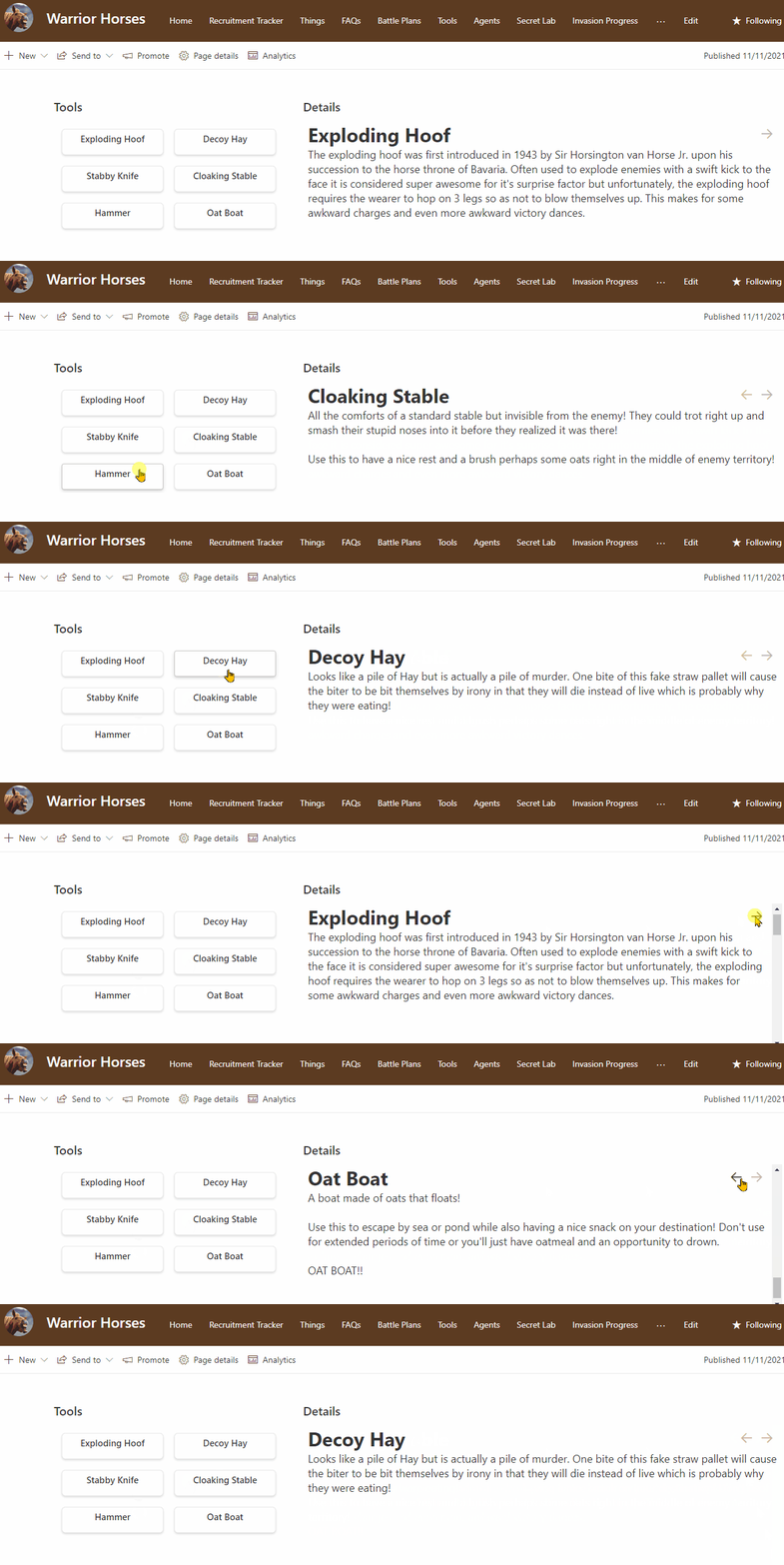
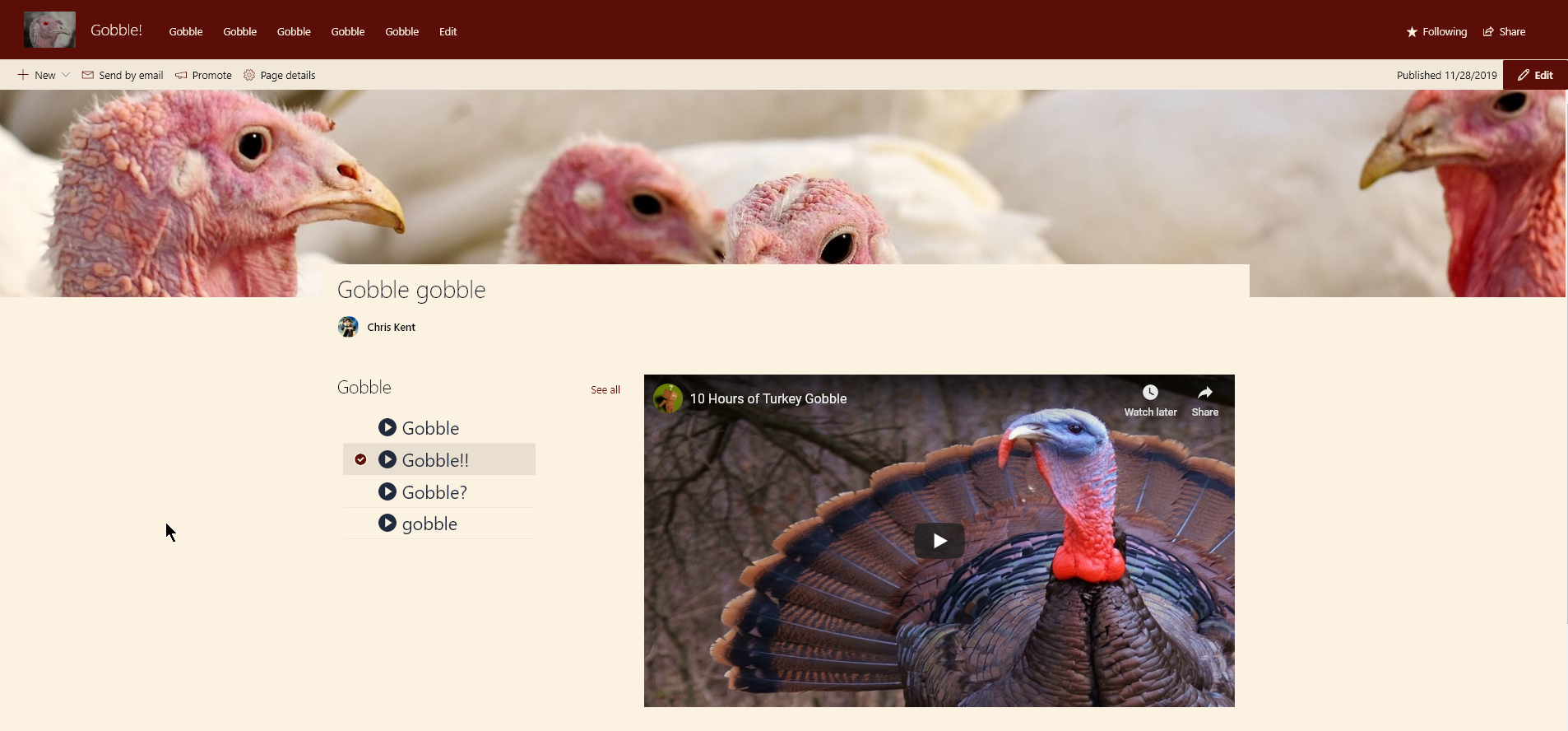
Demonstrates the use of dynamic connections in the list webpart while using a custom format. This results in a custom video selection application that changes the embeded video on the page.
View sample details →
Wrapped Form Body preview
Form Formatting
Wrapped Form Body
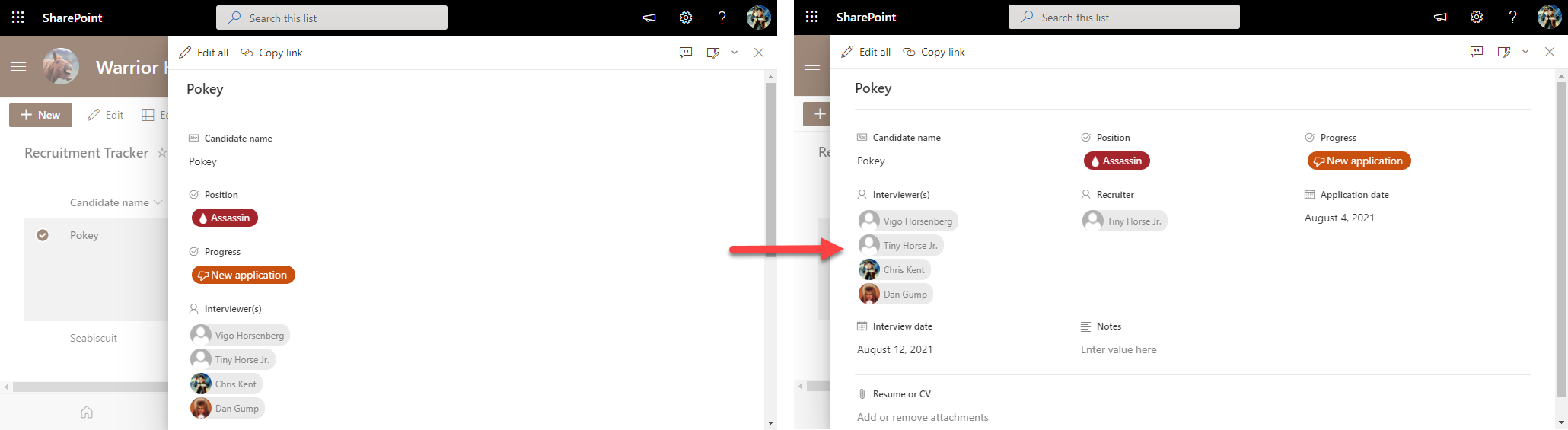
By default, uncustomized list forms display the fields in a single column. This is generally fine, but sometimes you may want to use more horizontal space and have your fields wrap. This is not technically a format but rather a body layout. No columns or sections are specified meaning that this can be applied to any form and it won't change the order of display or what columns are visible it simply adds the wrapping.
View sample details →