SharedSamples.org

View Formatting Samples

Visual examples that transform complete SharePoint and Microsoft Lists views.

178 samples
Announcements preview
View Formatting
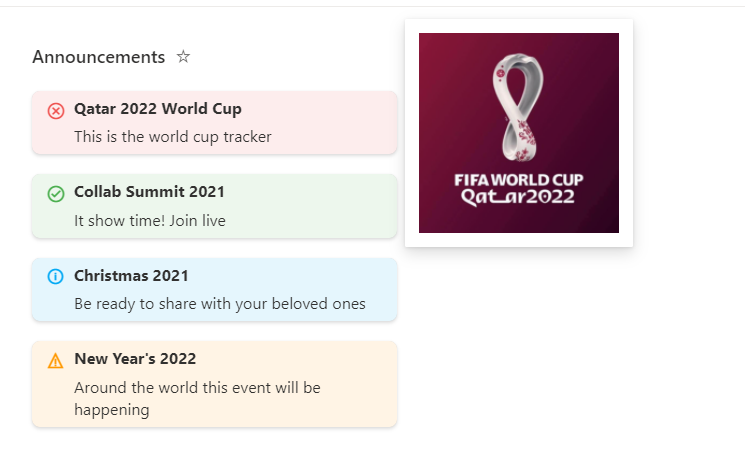
Announcements
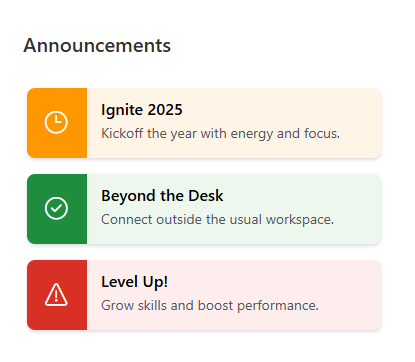
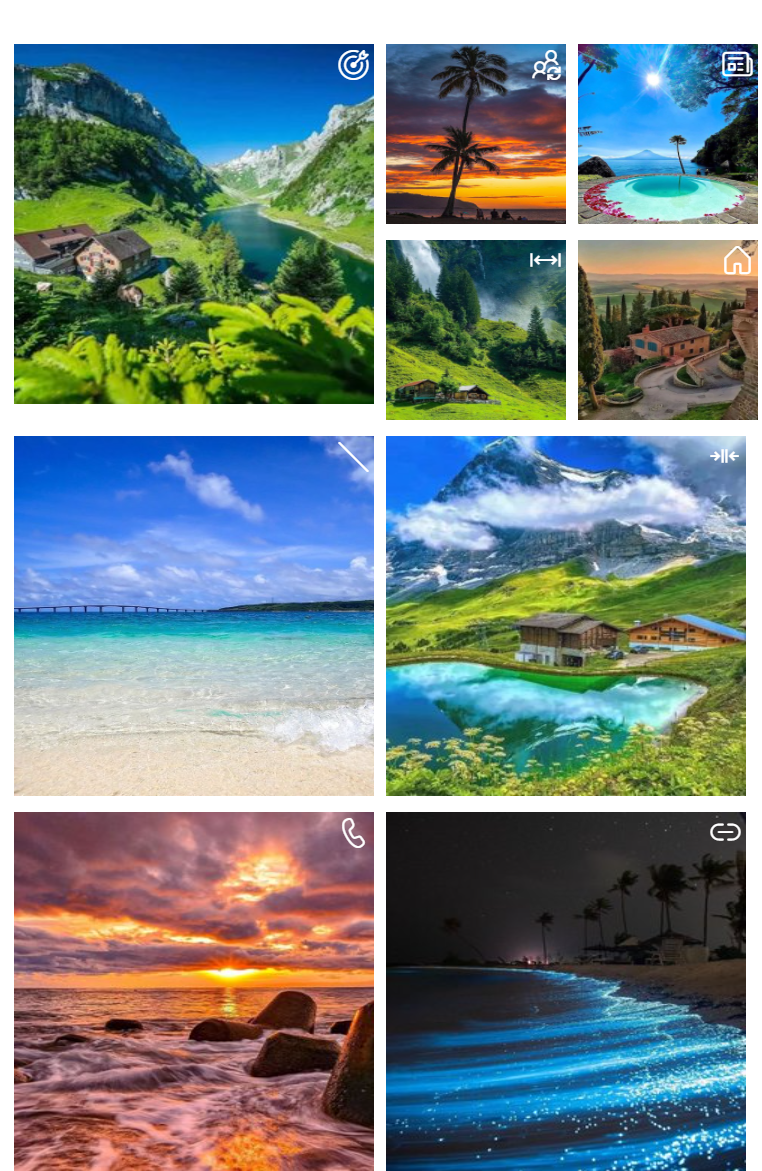
This sample formats your view to look like a Announcements card with a similiar style to Viva Connection Cards when on a SharePoint Page. In Microsoft Lists it will also show an image that you can connect with the Announcement.
View sample details →
Annual Performance Review preview
View Formatting
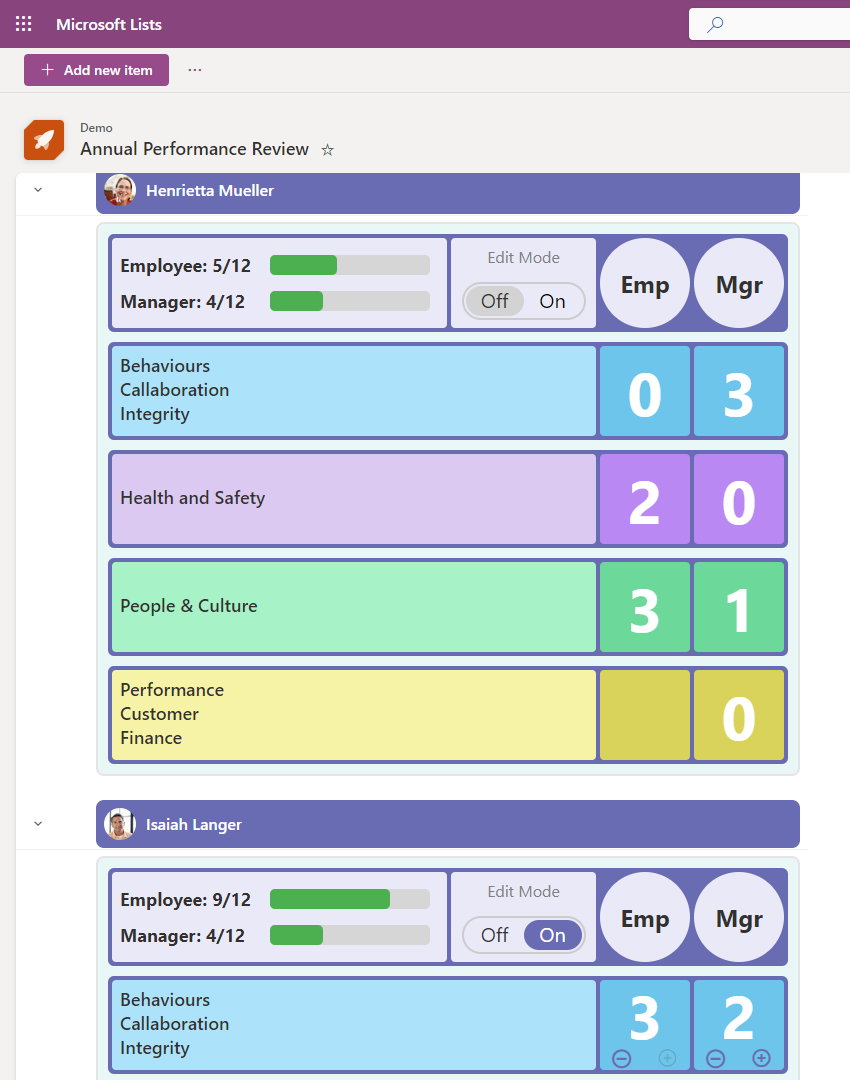
Annual Performance Review
This sample demonstrates how to change row data to column format for annual performance review form.
by Watana
View sample details →
Bar Code Row Formatter preview
View Formatting
Bar Code Row Formatter
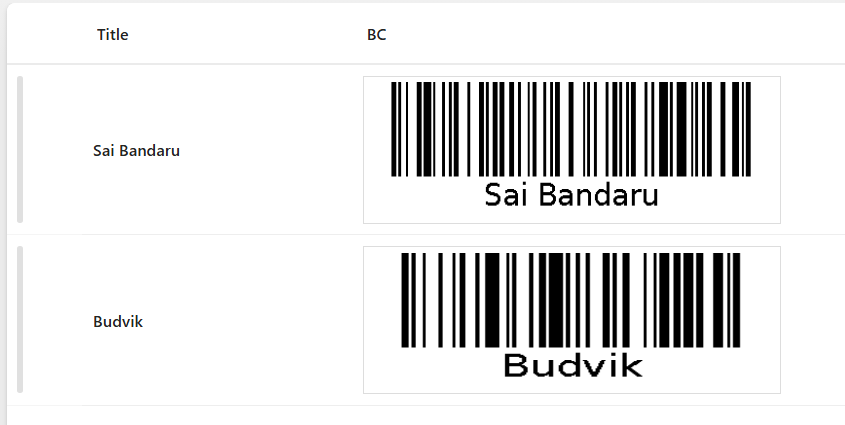
This sample uses SharePoint List Formatting to automatically generate Bar code for each list item based on the Title field.
View sample details →
Bar Option Picker preview
View Formatting
Bar Option Picker
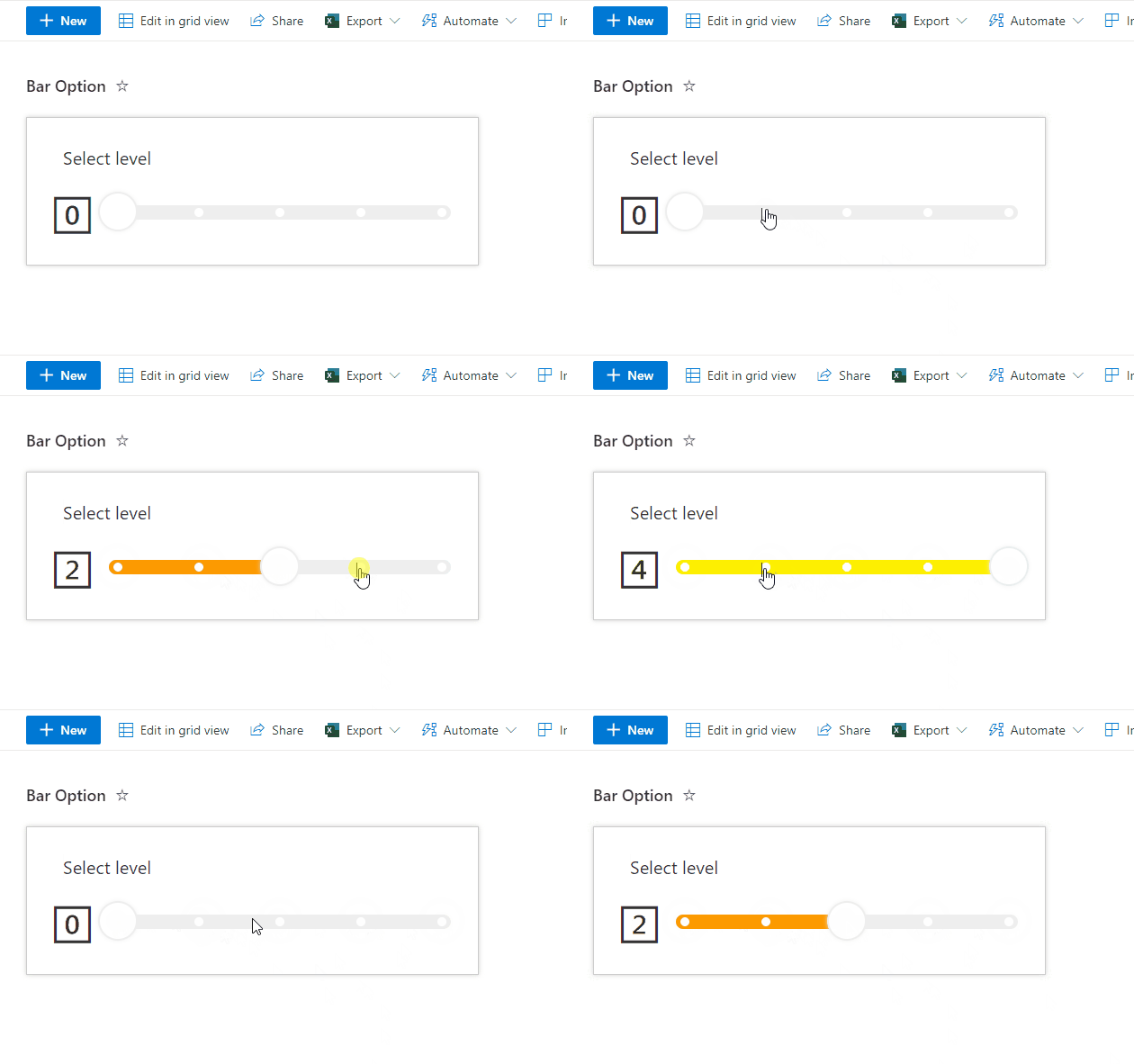
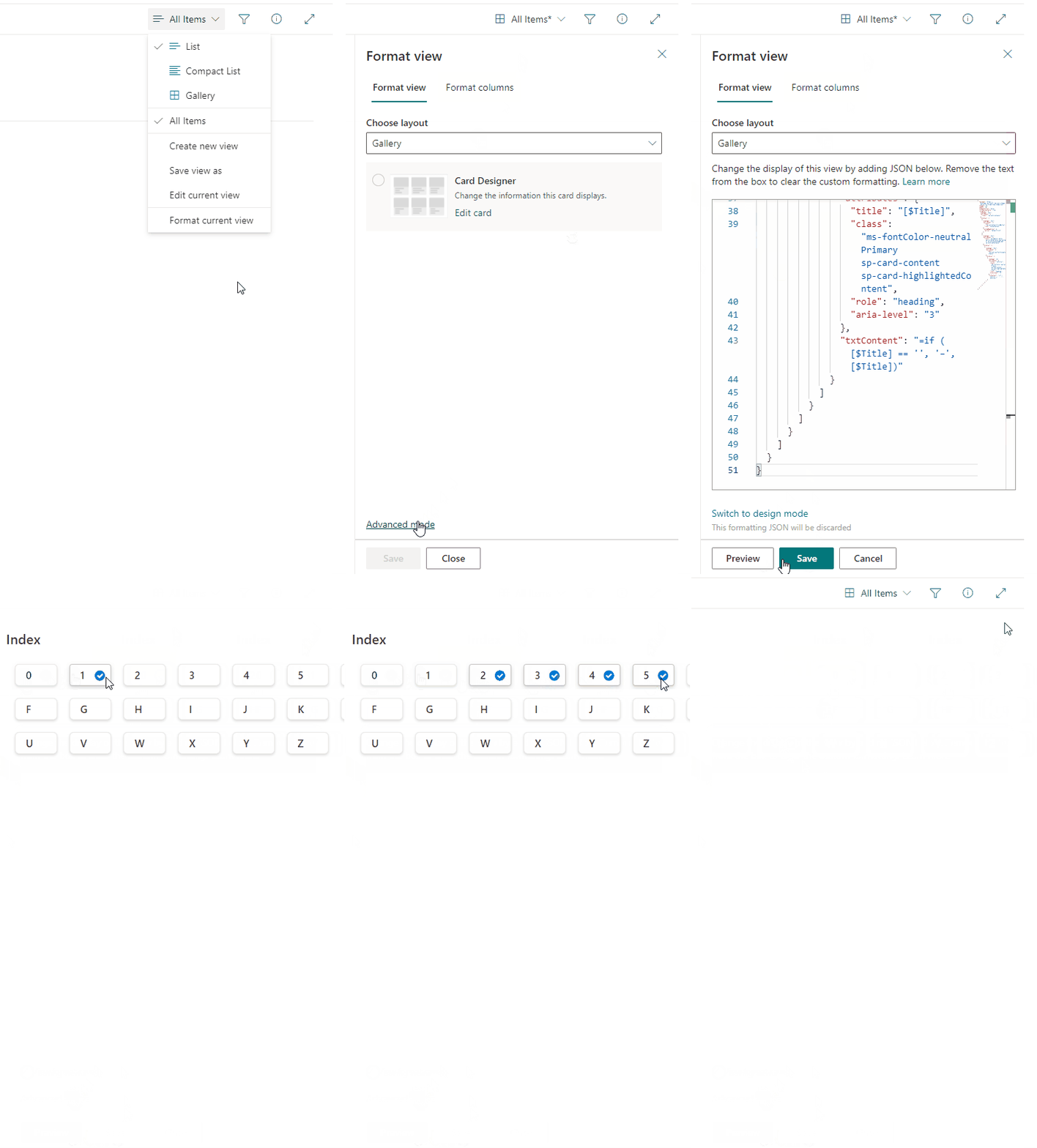
This sample displays a bar with multiple options. When an option on the bar is clicked, the Value column is updated to the corresponding value (0-4) using setValue.
View sample details →
Board Tags preview
View Formatting
Board Tags
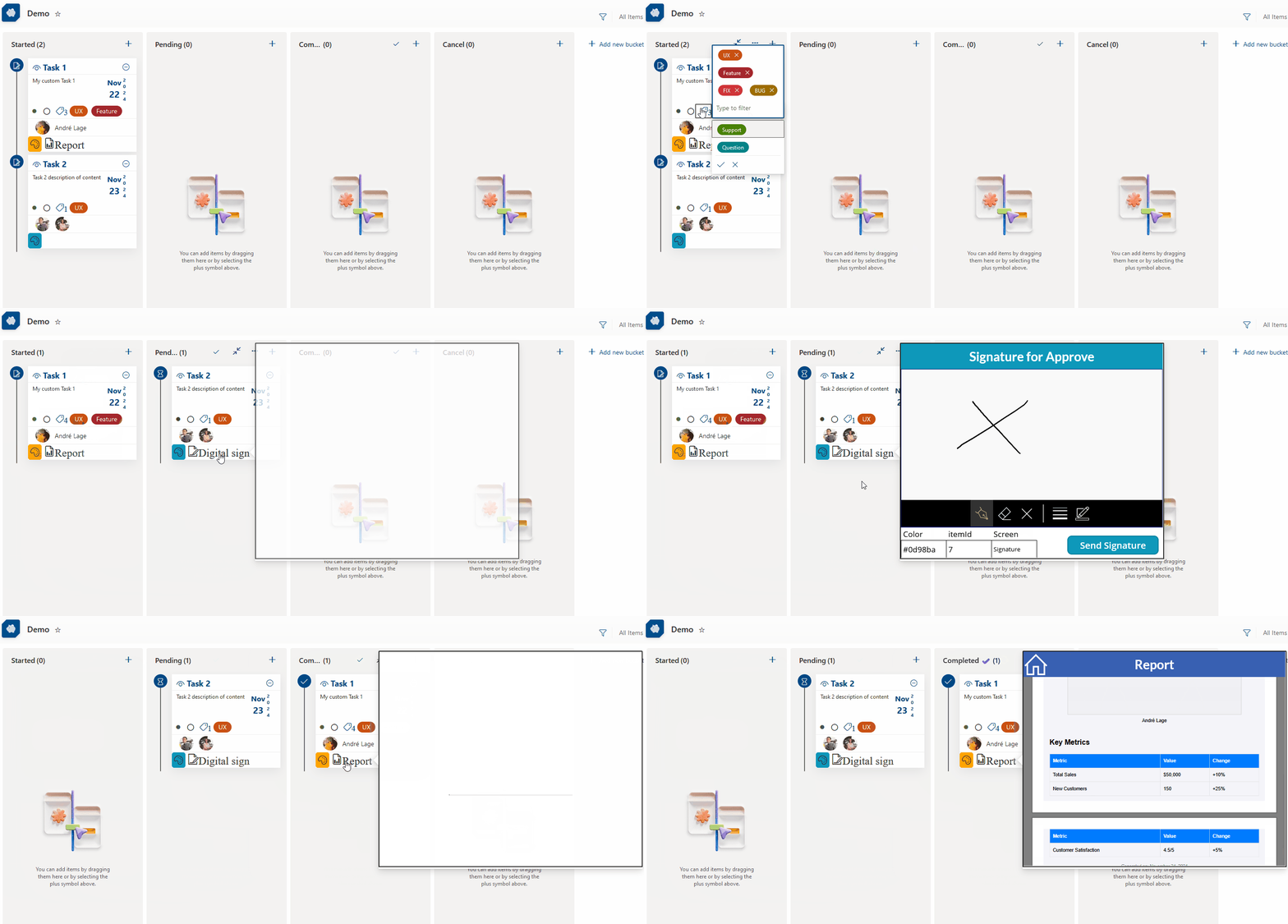
This sample displays a formatted card in a board view that enables tagging, updating card dates, menu options to reorder cards within their category, sharing links, flag (focus colors), assigning a user, and minimizing/expanding the card. This List format also uses embedded action to open custom Power Apps with parameters for digital signature of user and report generator.
View sample details →
Budget Tracker Sample preview
View Formatting
Budget Tracker Sample
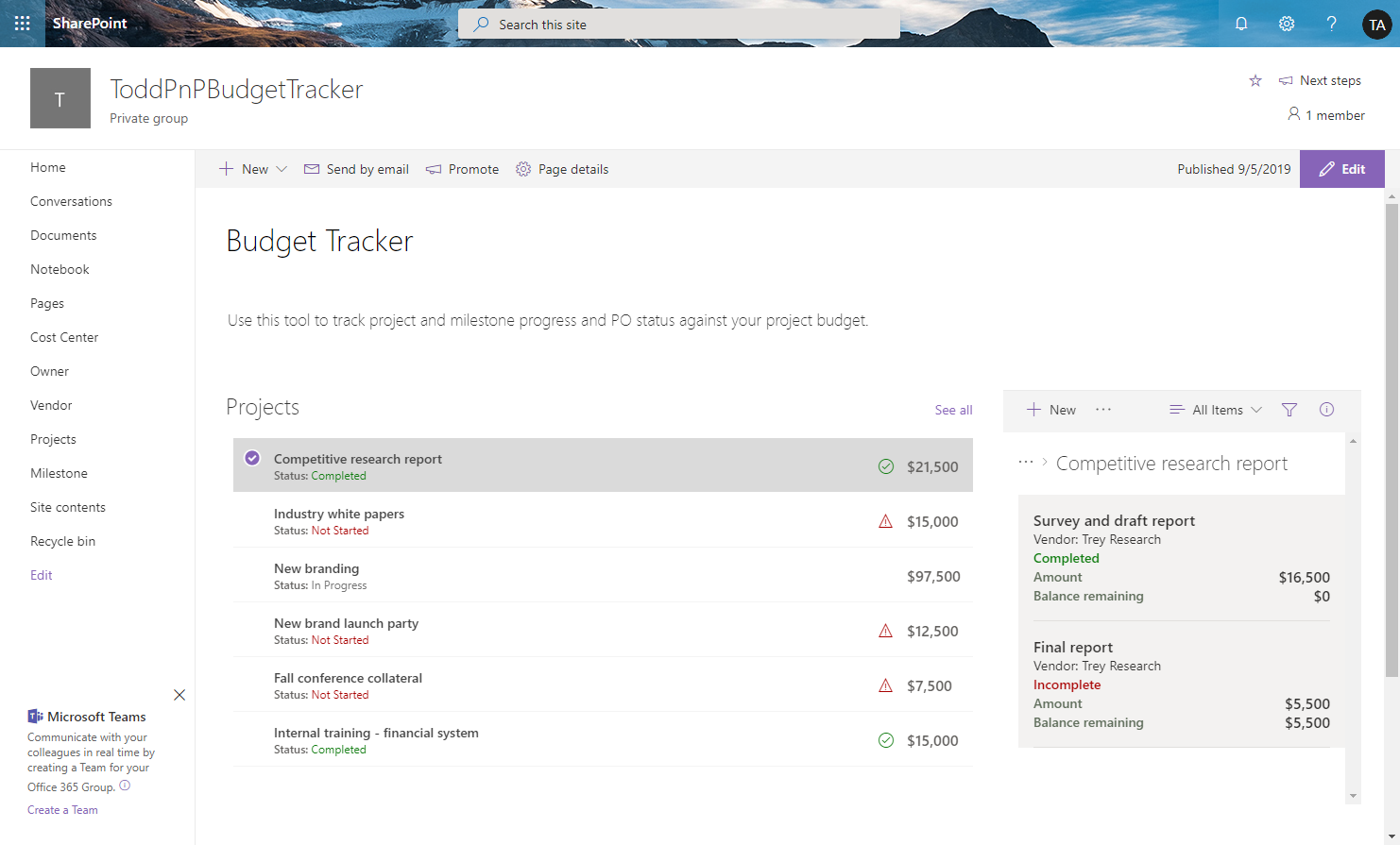
The budget tracker sample demonstrates how to use view formatting to format lists and display views of the lists inside connected web parts. This provides the ability to view the budget items associated with individual projects on a single page.
View sample details →
Bulletin Board preview
View Formatting
Bulletin Board
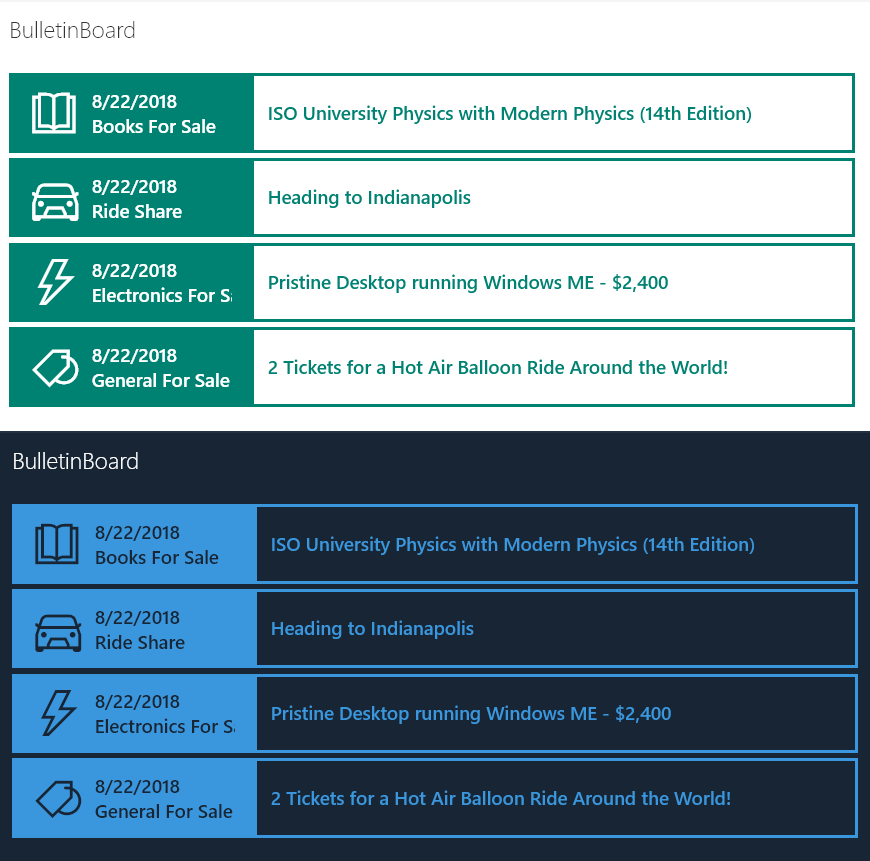
Provides an example of creating a simple bulletin board listing. The rowFormatter property is used to fully customize the display of rows to create a nice view of list items while easily allowing users to click on the item for additional details. The large size and use of icons makes this much more attractive than a simple table view and keeps the functionality simple for users.
View sample details →
Chevron shape format preview
View Formatting
Chevron shape format
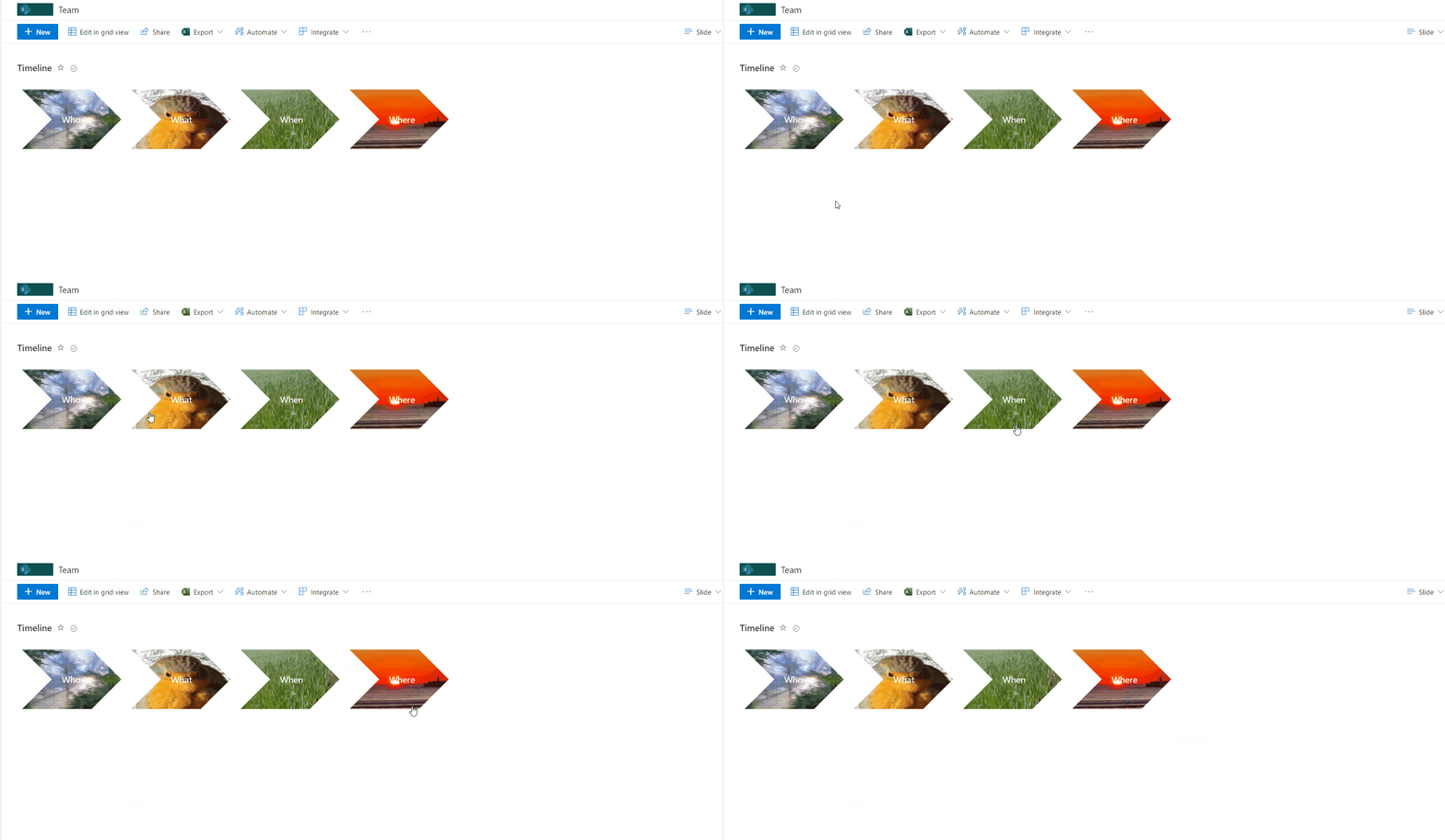
This sample how to create chevron style shape with background image. When mouse over image popups and display title and description.
View sample details →
Christmas Tree preview
View Formatting
Christmas Tree
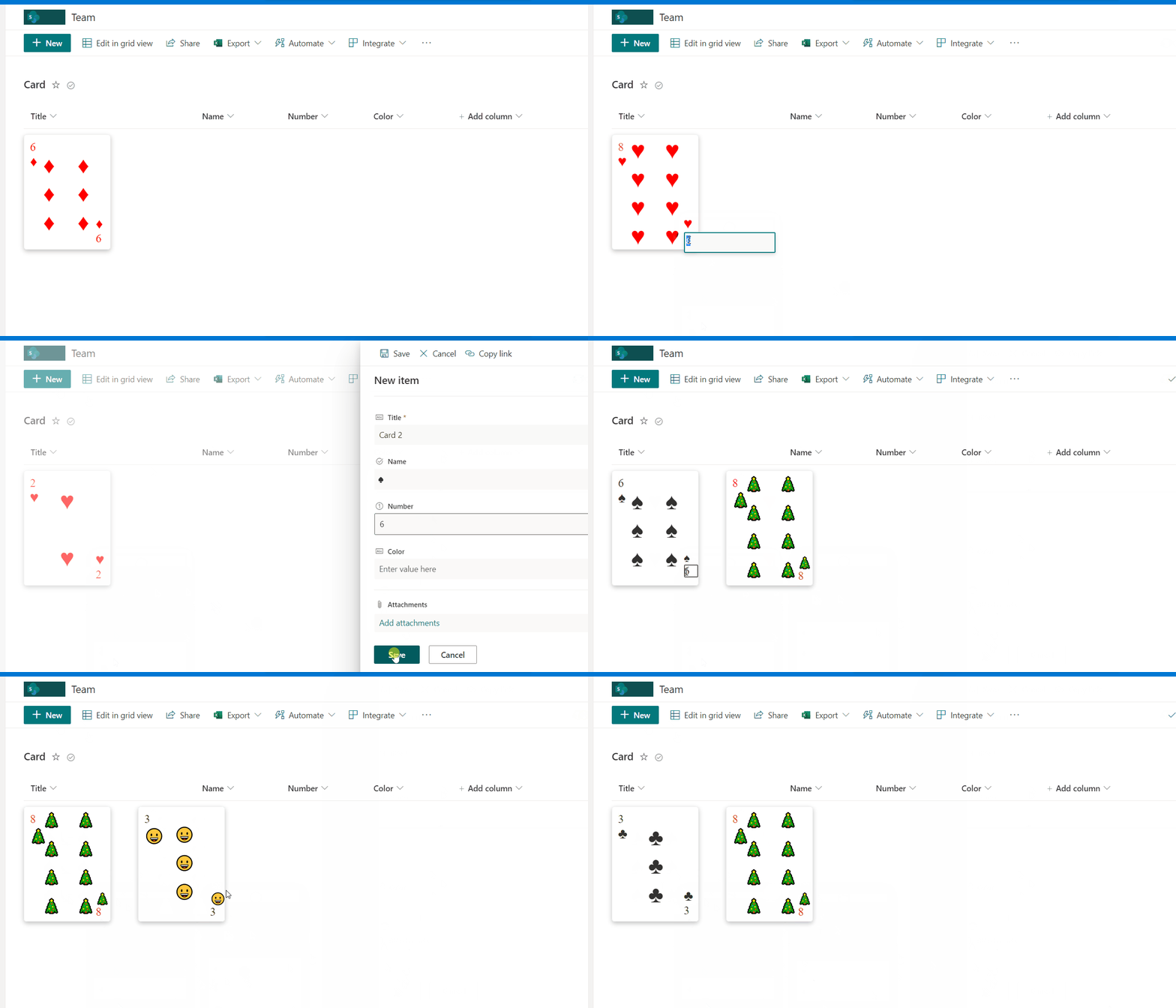
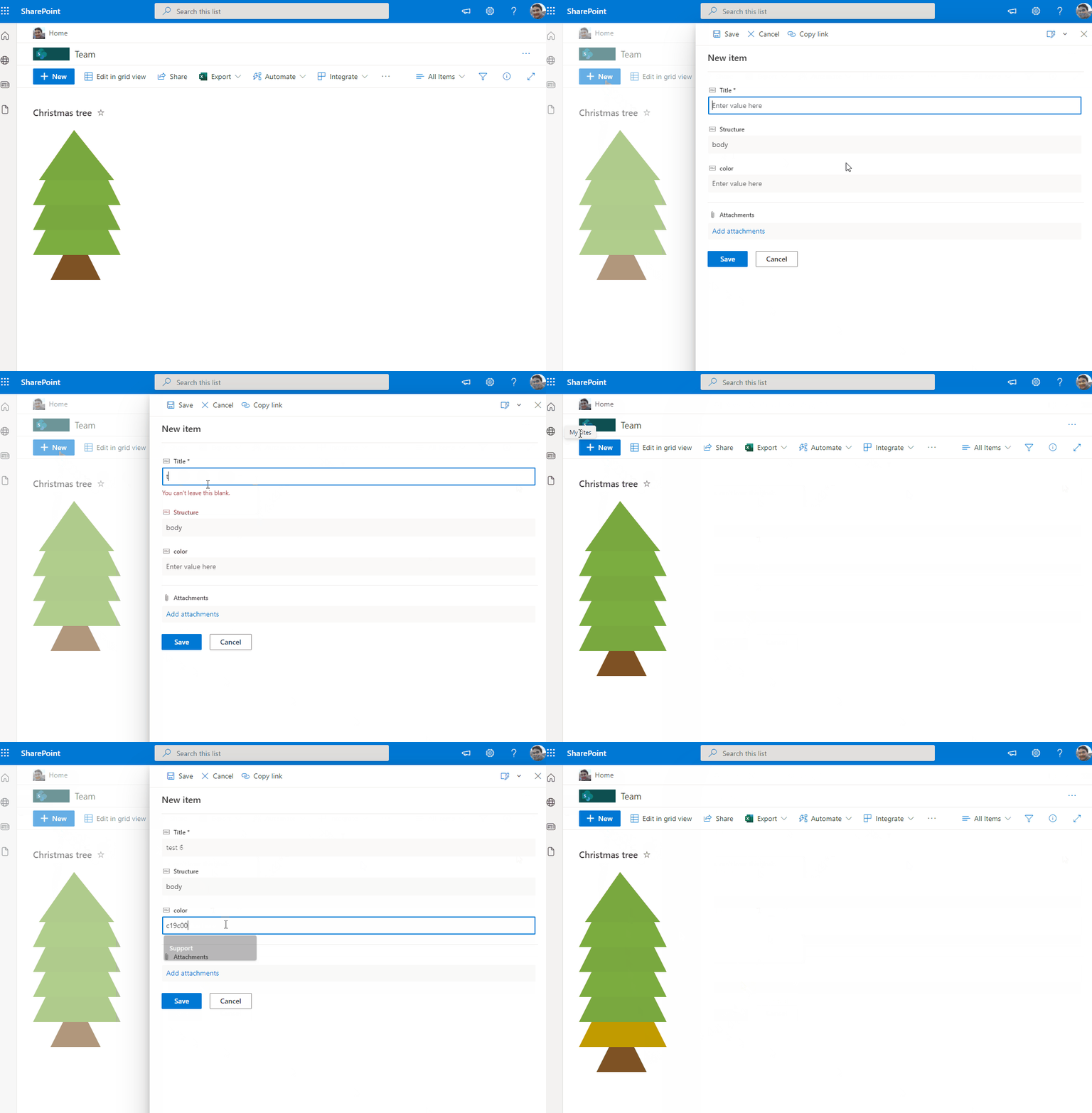
This sample draws a tree across rows in 3 different stages 'alt' as top, 'body' as tree and 'wood' as bottom. You can also include icons in the tree. The Title field will appear as a tooltip on the icons.
View sample details →
Clipboards preview
View Formatting
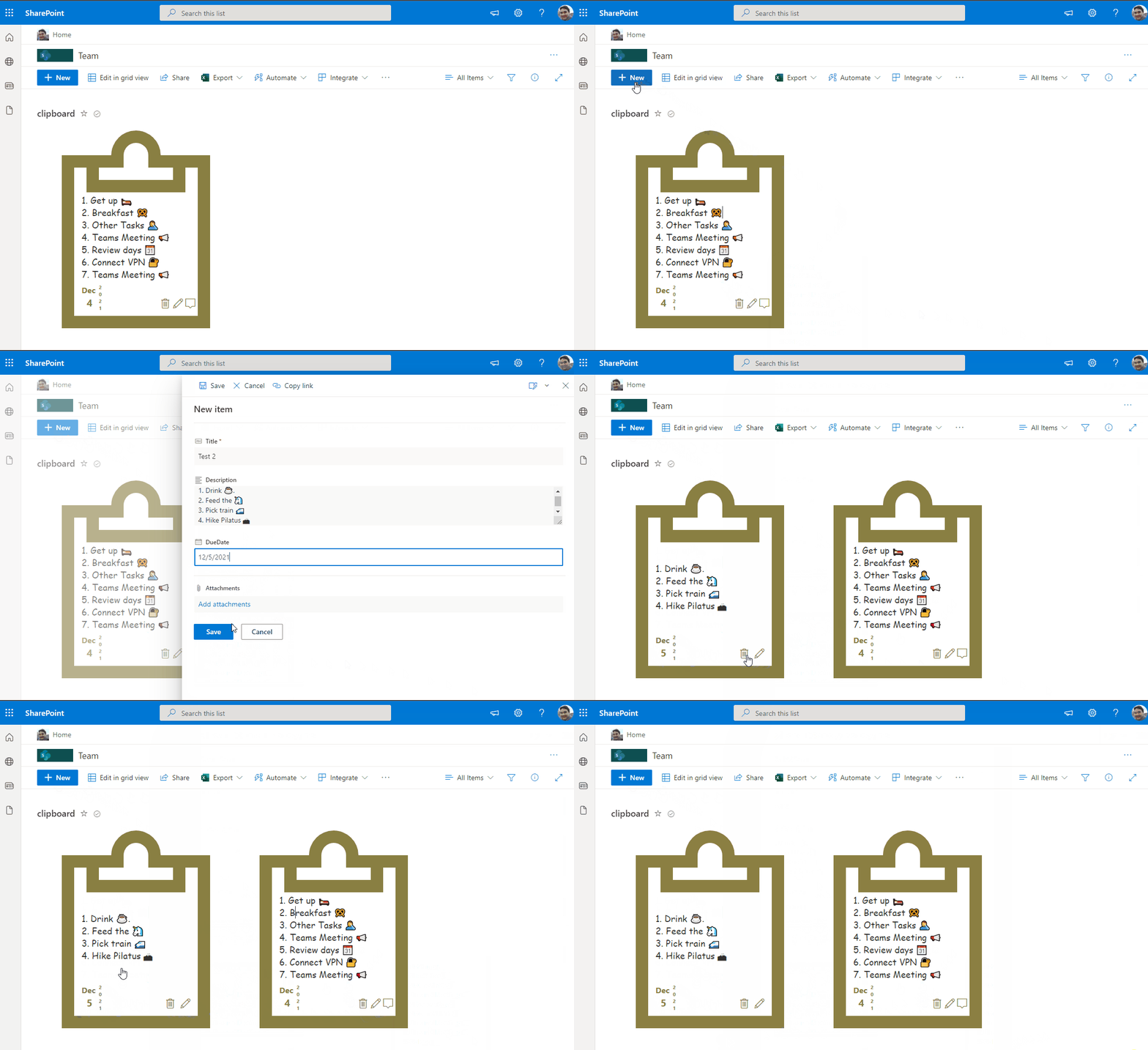
Clipboards
This sample displays a formatted card in a board view that enables tagging, updating card dates, menu options to reorder cards within their category, sharing links, flaging (focus colors), assigning a user, and minimizing/expaning the card.
View sample details →
Color Picker preview
View Formatting
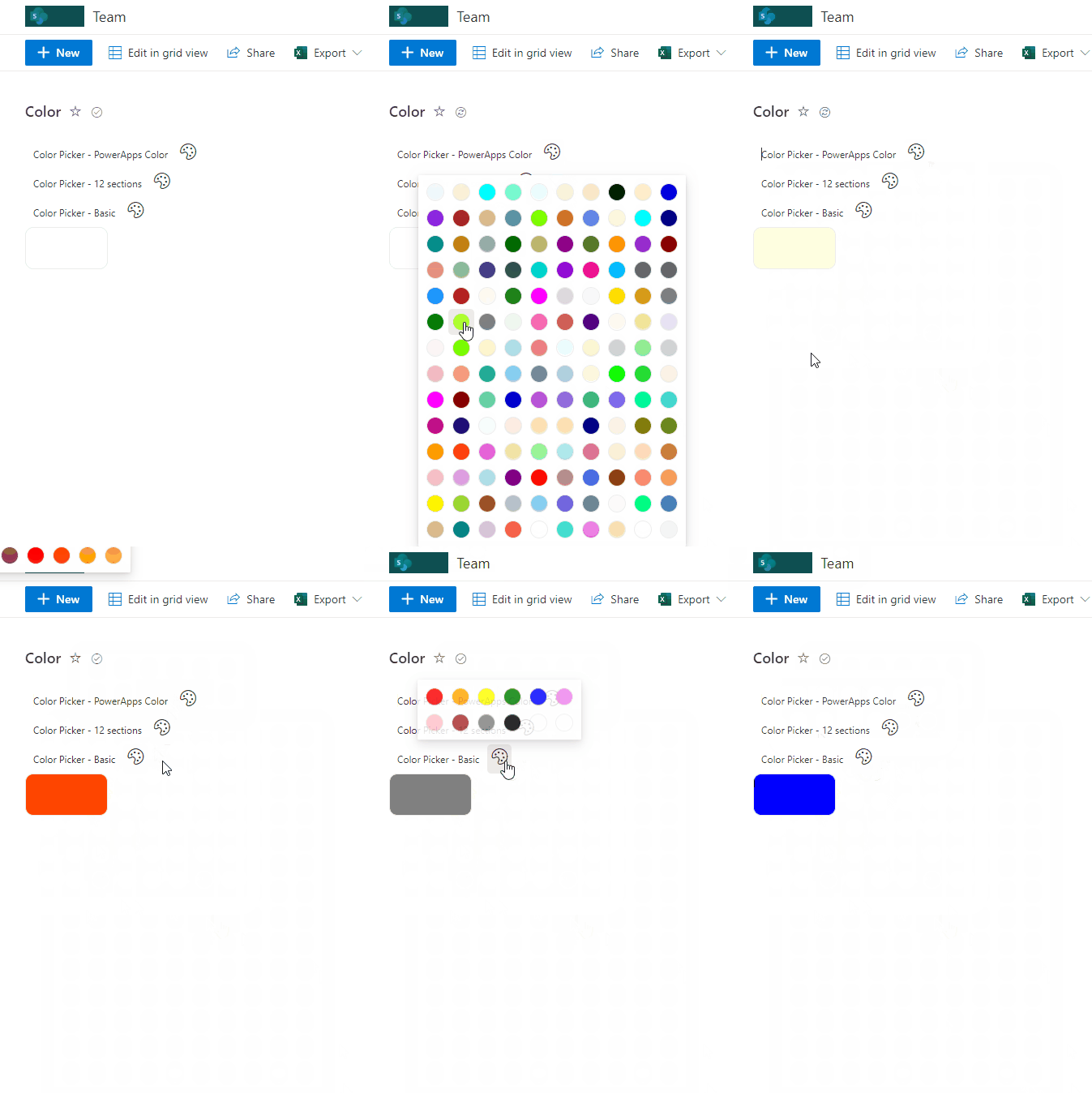
Color Picker
This sample contains pre-defined palettes of color (default matches Power Apps). These palettes are then made available as a color picker setting the value on selection.
View sample details →
Contact Cards preview
View Formatting
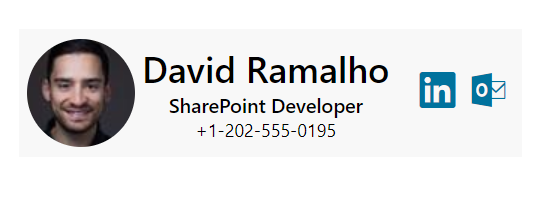
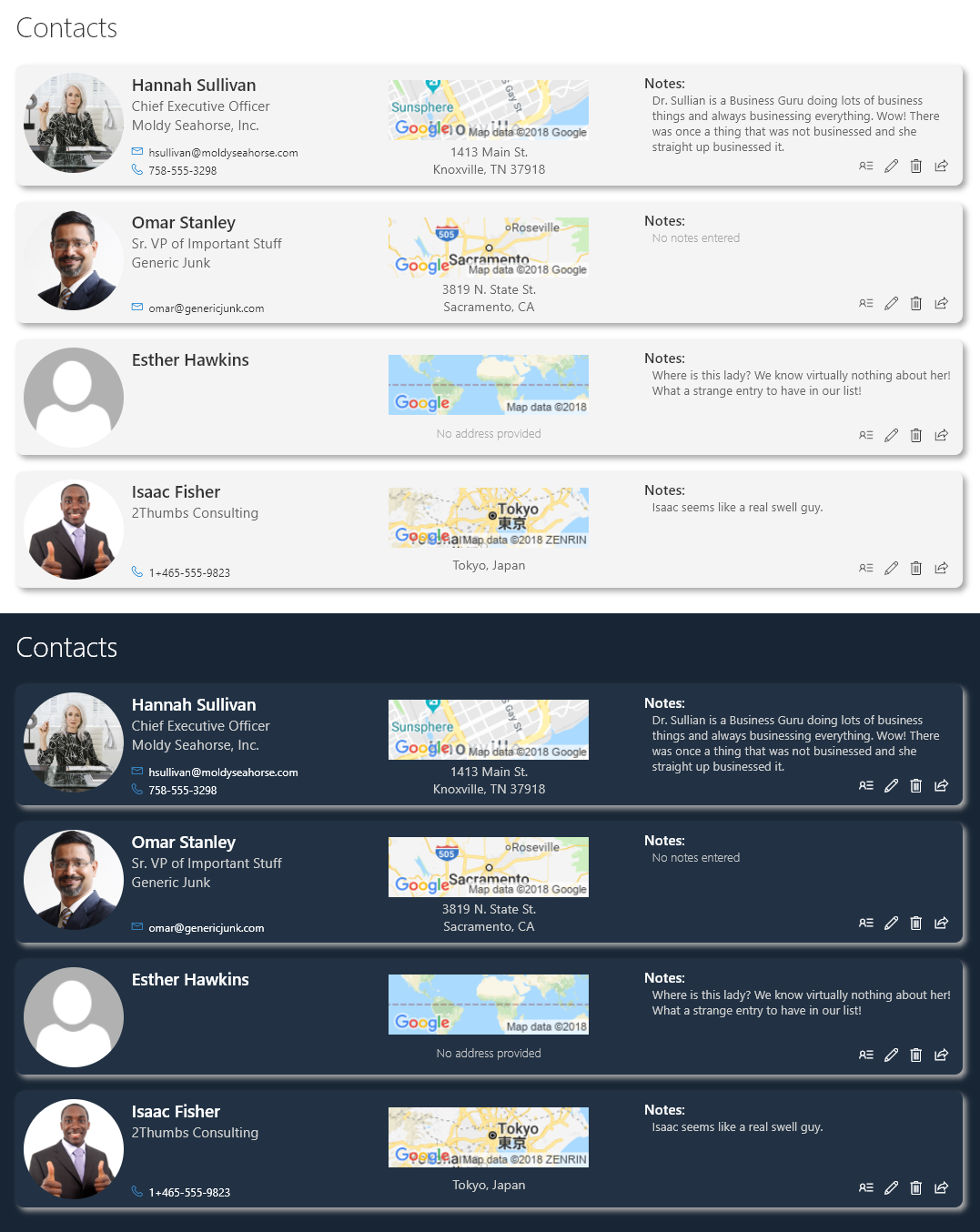
Contact Cards
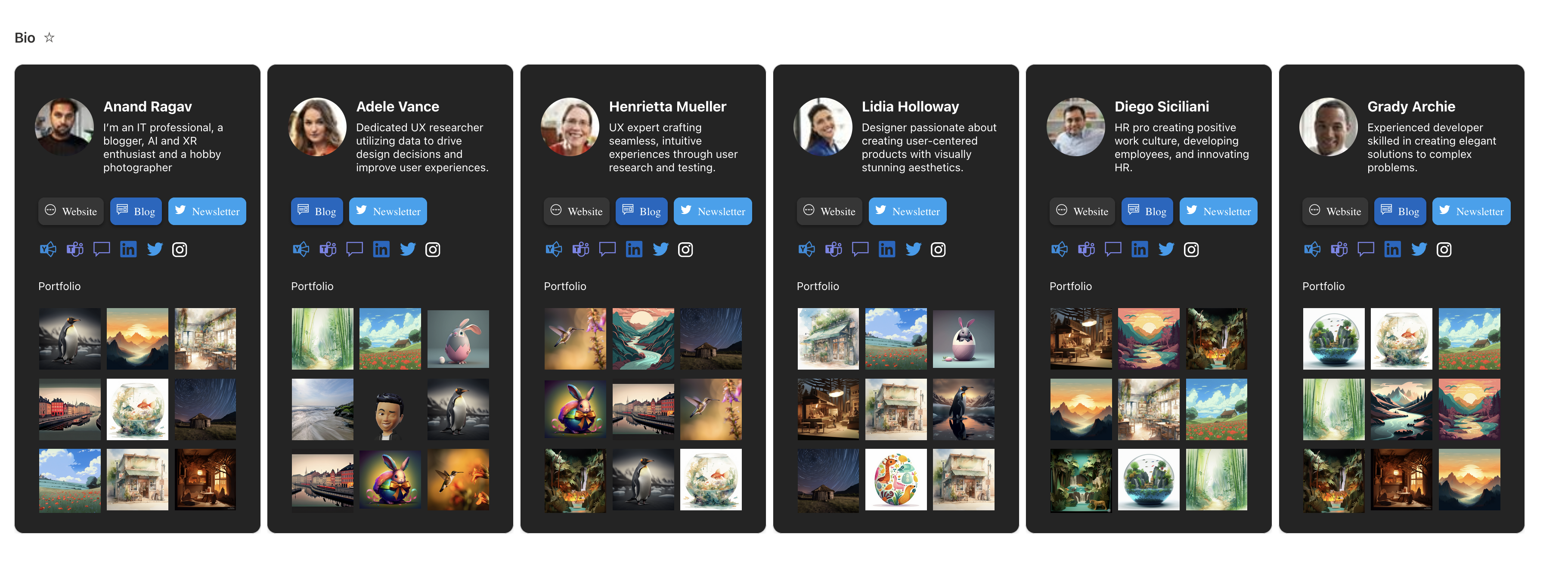
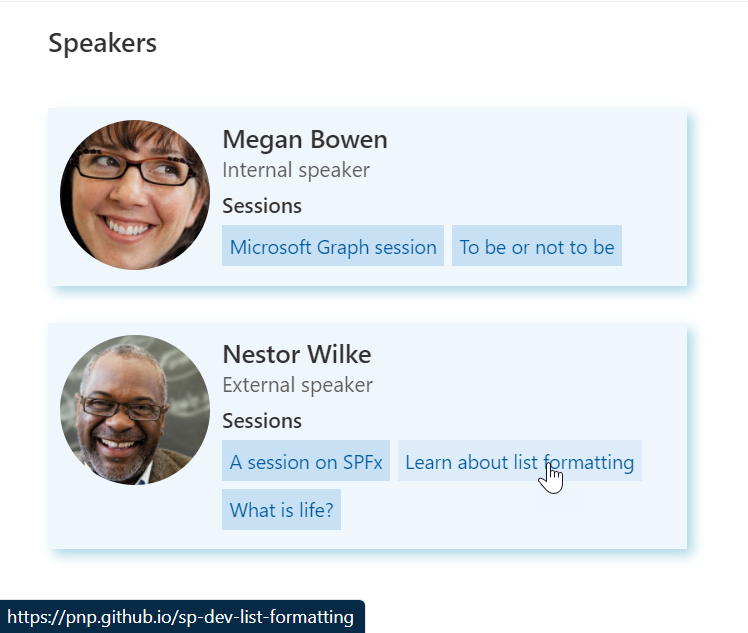
This is a sample of a complex format that customizes the entire display of a row. The goal is to illustrate several key principals including:
View sample details →
ContentType Variations preview
View Formatting
ContentType Variations
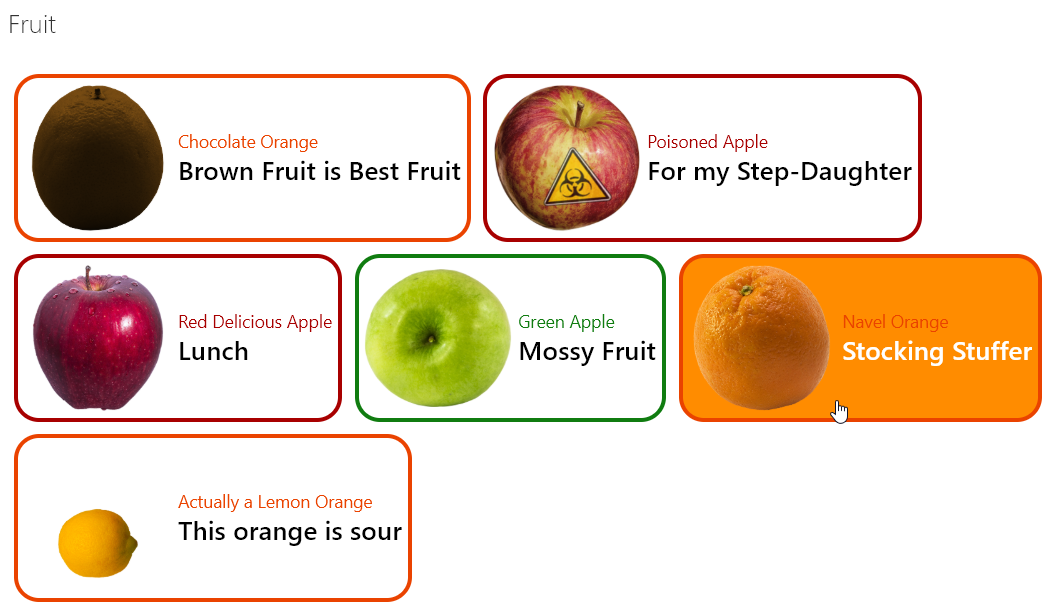
Provides an example of customizing your format based on the item's content type. When an item's ContentType is Apple and the apple type is Green then green is used in the format. If it's Apple with a different type, red is used. Otherwise, orange is used.
View sample details →
Course Training Tile Cards preview
View Formatting
Course Training Tile Cards
Modern tile card layout for displaying training courses with images, badges, and hover previews in SharePoint Gallery view.
View sample details →
Credit / Loyalty Card preview
View Formatting
Credit / Loyalty Card
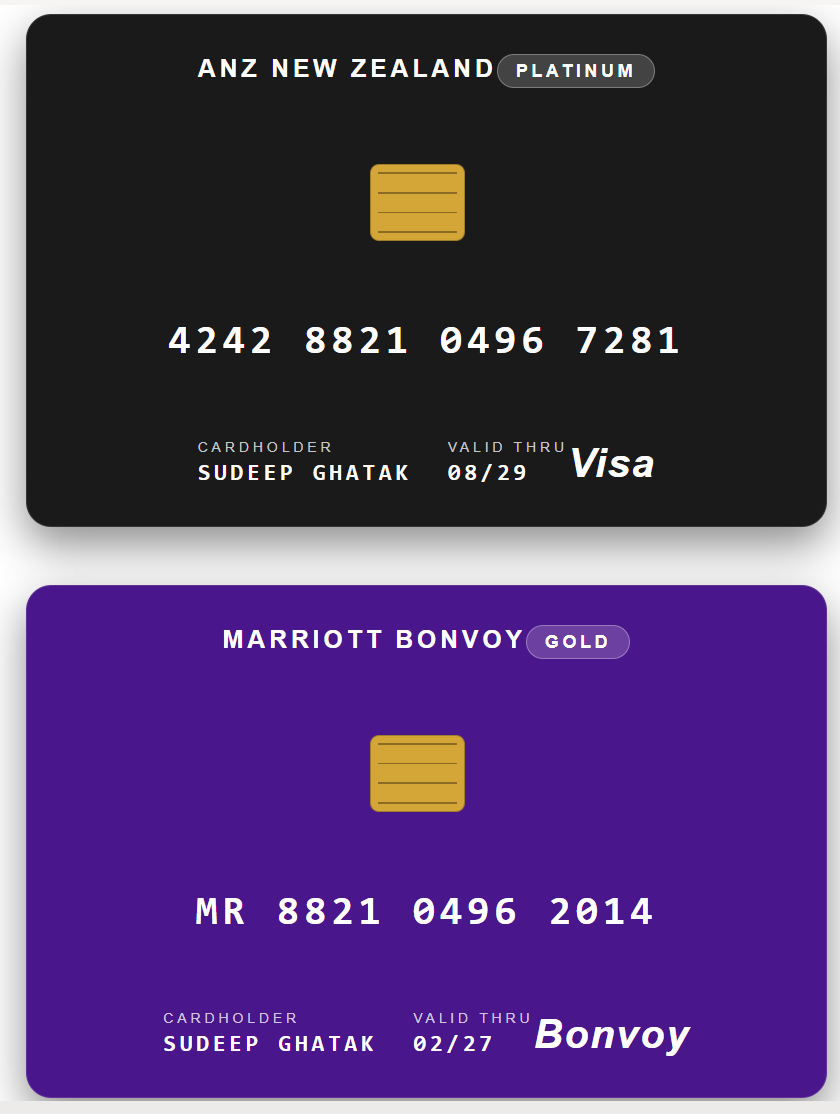
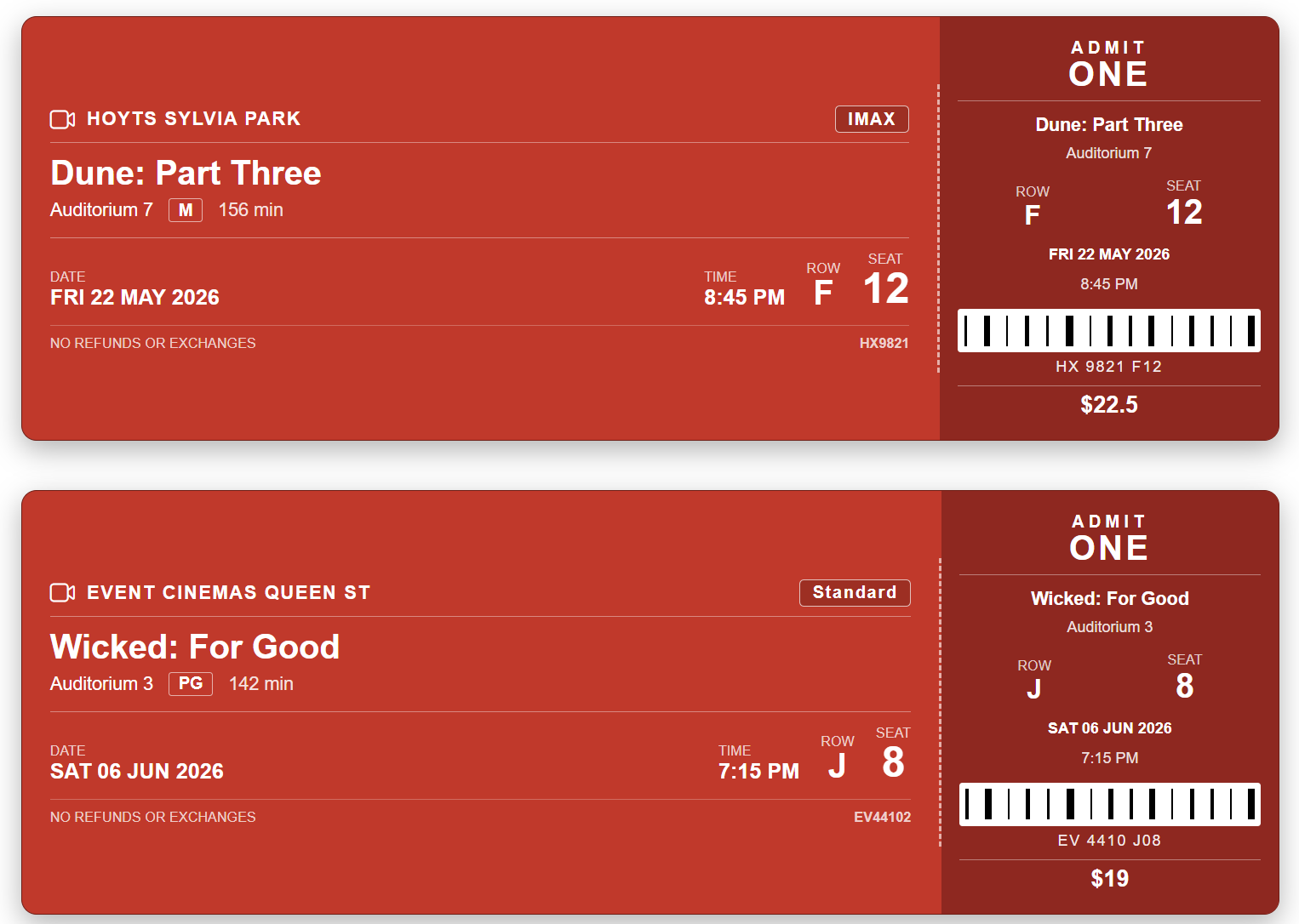
Transforms list items into realistic credit / loyalty cards with a brand name, tier pill, EMV chip, contactless symbol, embossed card number, cardholder, expiry, and network logo. The card colour is driven by the Tier value.
View sample details →
Current User's Rows preview
View Formatting
Current User's Rows
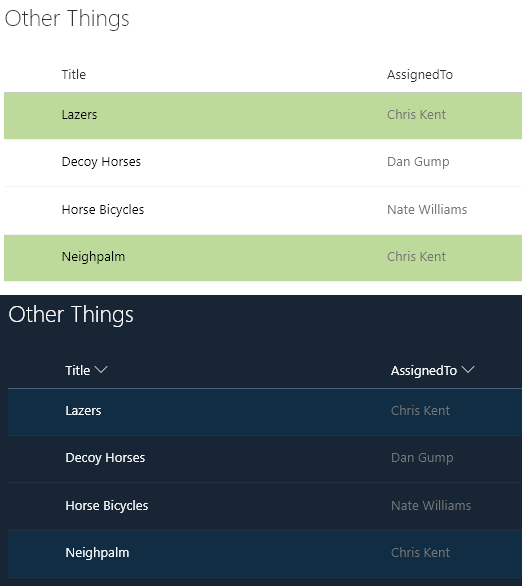
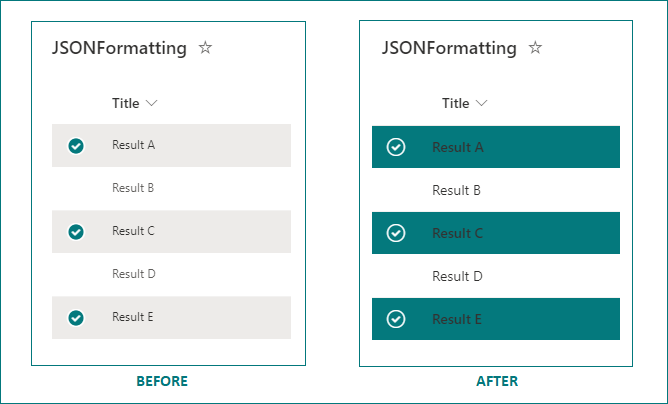
Highlights the entire row for any list items assigned to the current user (the user viewing the list view, not the author of the format). You can easily adjust this to use a different column like Author or Editor by changing the [$AssignedTo] portion of the expression.
View sample details →
Current User's Rows (Using a Multi-Person Column) preview
View Formatting
Current User's Rows (Using a Multi-Person Column)
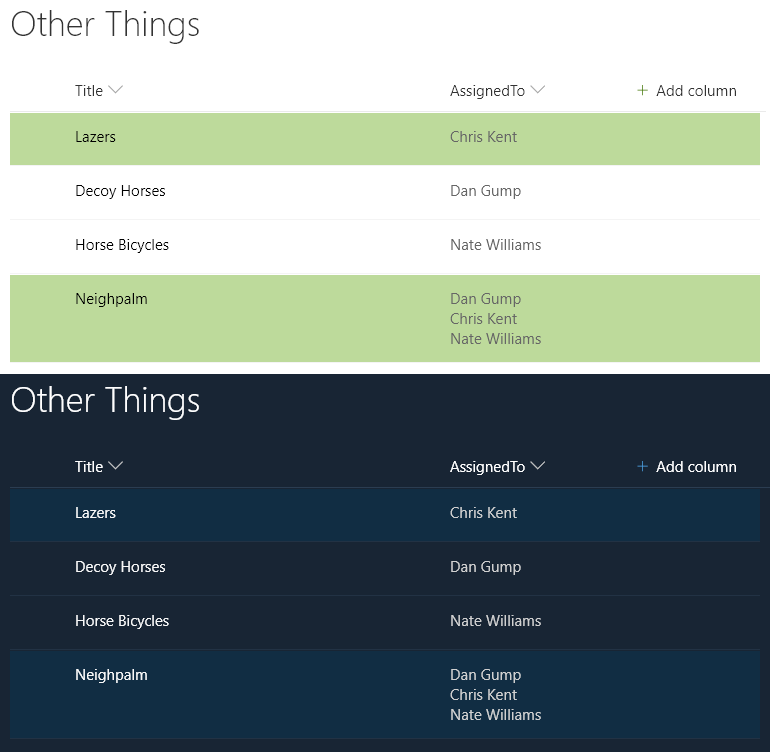
Highlights the entire row for any list items where one of the assigned to users is the current user (the user viewing the list view, not the author of the format). You can easily adjust this to use a different person column by changing the `[$AssignedTo]` portion of the expression.
View sample details →
Current Year Row Class preview
View Formatting
Current Year Row Class
Demonstrates applying a class to rows where a value equals the current year. Can easily be updated to compare other portions of the date such as the month, hour, minute etc. by using the other date-part operators.
View sample details →
Custom Charts preview
View Formatting
Custom Charts
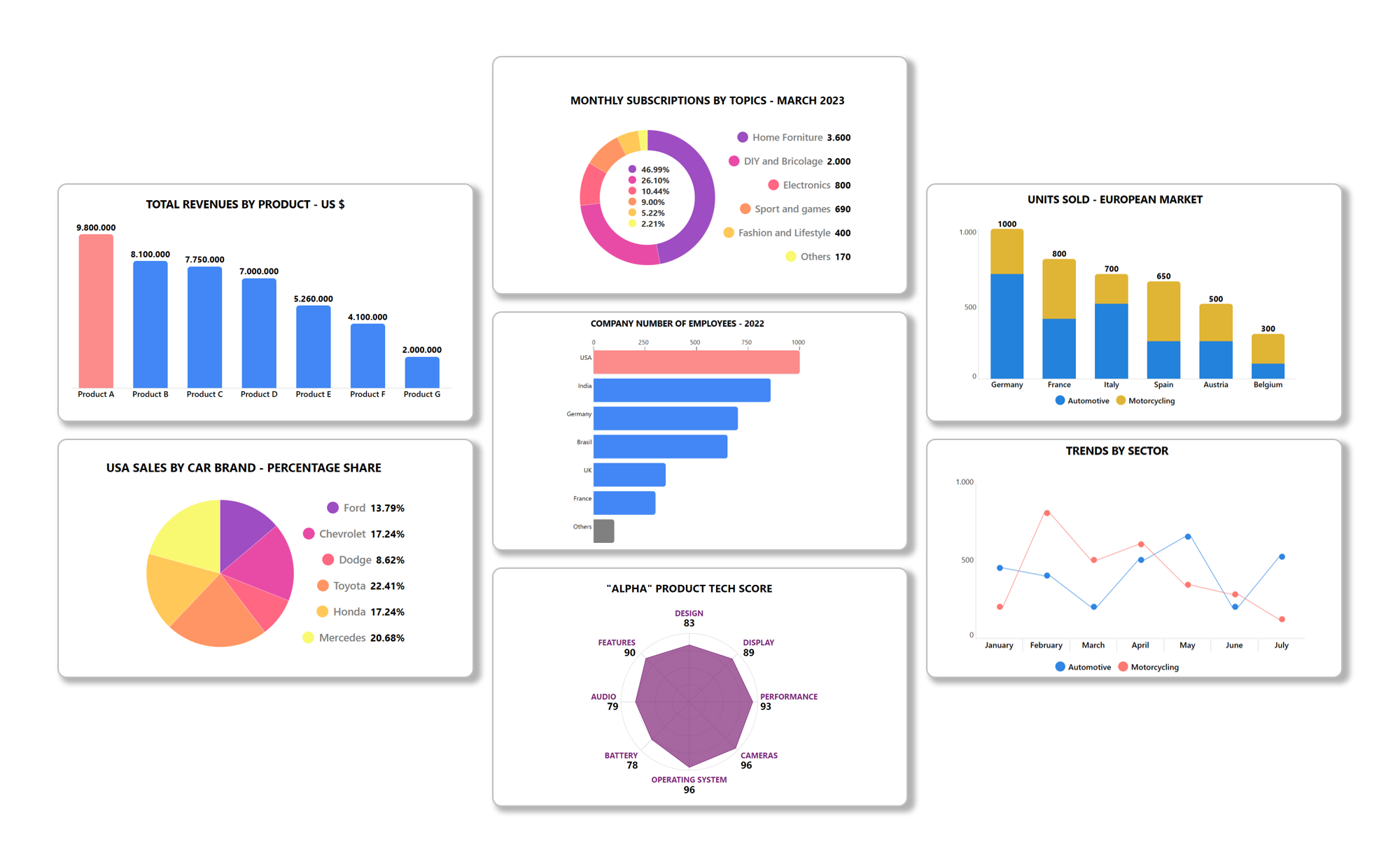
This templates package will allow you to quickly create 7 different types of charts, which you can organize into collections, share, and publish on SharePoint pages.
View sample details →
Custom Header preview
View Formatting
Custom Header
Sometimes it is necessary to remove the standard headers. In those cases, you may still want to show a custom header. This sample demonstrates creating a custom header and only showing it on the first row. The key to this technique is setting the `display` style attribute to `none` (hidden) whenever the `@rowIndex` is not 0 (first row).
View sample details →
Custom Hover Card (View) preview
View Formatting
Custom Hover Card (View)
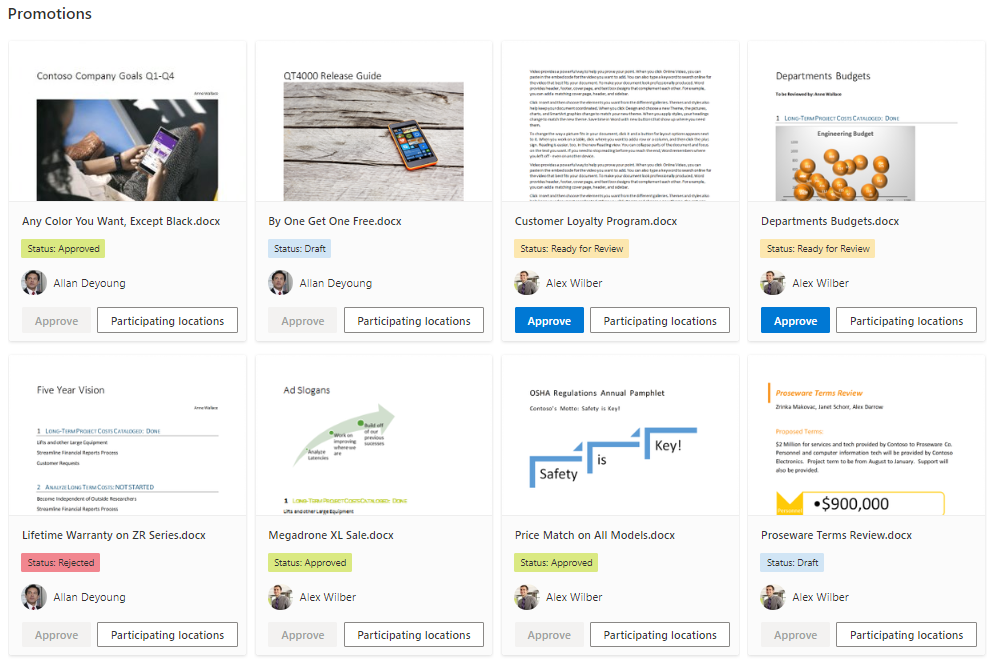
A custom card is shown on hover of an item. The hover card shows additional details about an item's status.
View sample details →
Default Hover Card preview
View Formatting
Default Hover Card
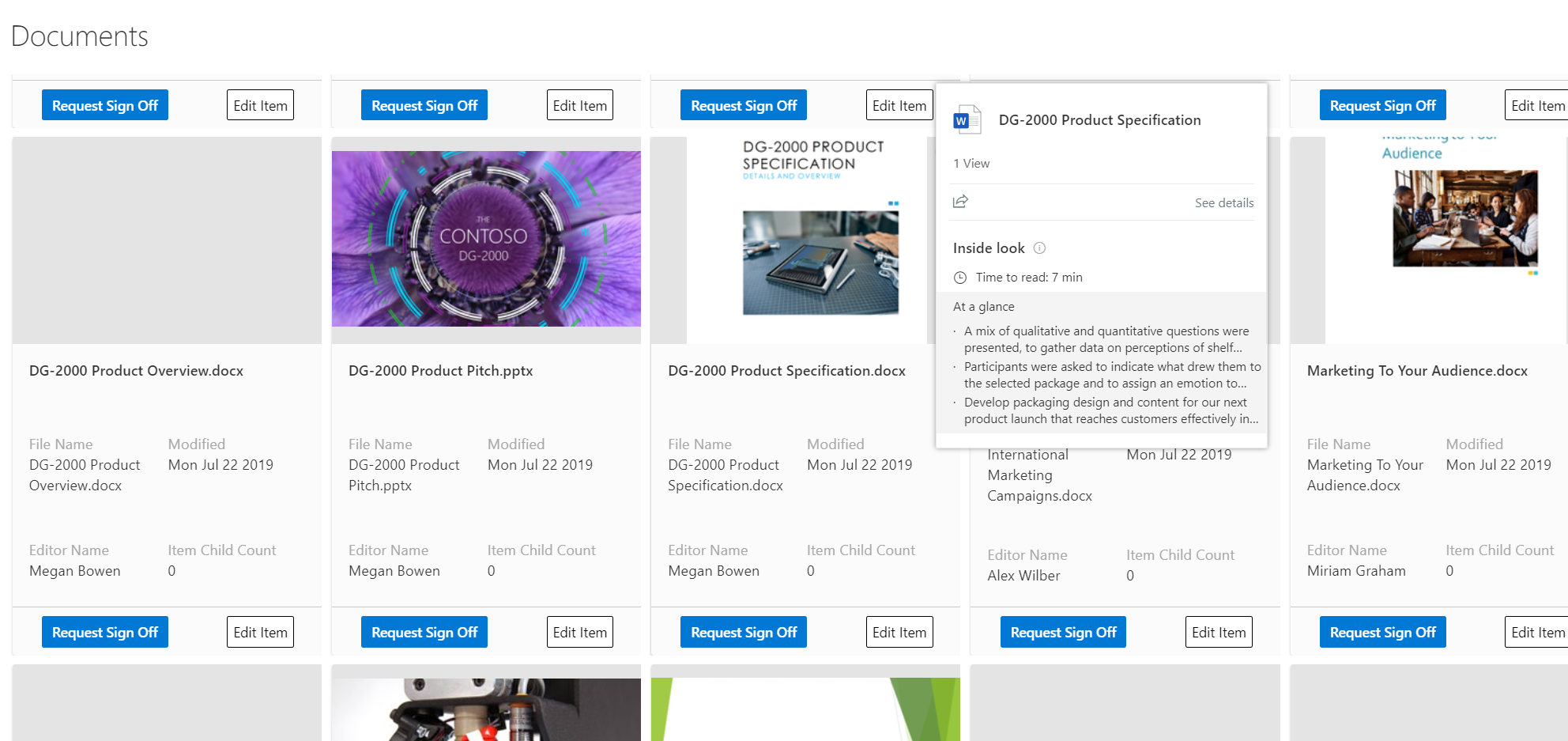
This sample demonstrates showing a default hover card in a document library. On hover in a formatted view on a file a file card is displayed. On hover in a formatted view on a person column a profile card is displayed.
View sample details →
Diet Plan Card Formatter preview
View Formatting
Diet Plan Card Formatter
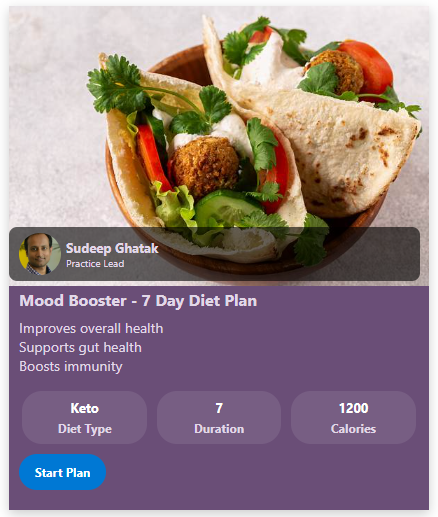
This SharePoint JSON view formatting sample transforms your list items into rich, visually appealing diet plan cards.
View sample details →
Disable default click action on a tile list view preview
View Formatting
Disable default click action on a tile list view
The sample list of items in a tile view where default click action is disabled. When item is clicked it is selected only.
View sample details →
Discussion Board preview
View Formatting
Discussion Board
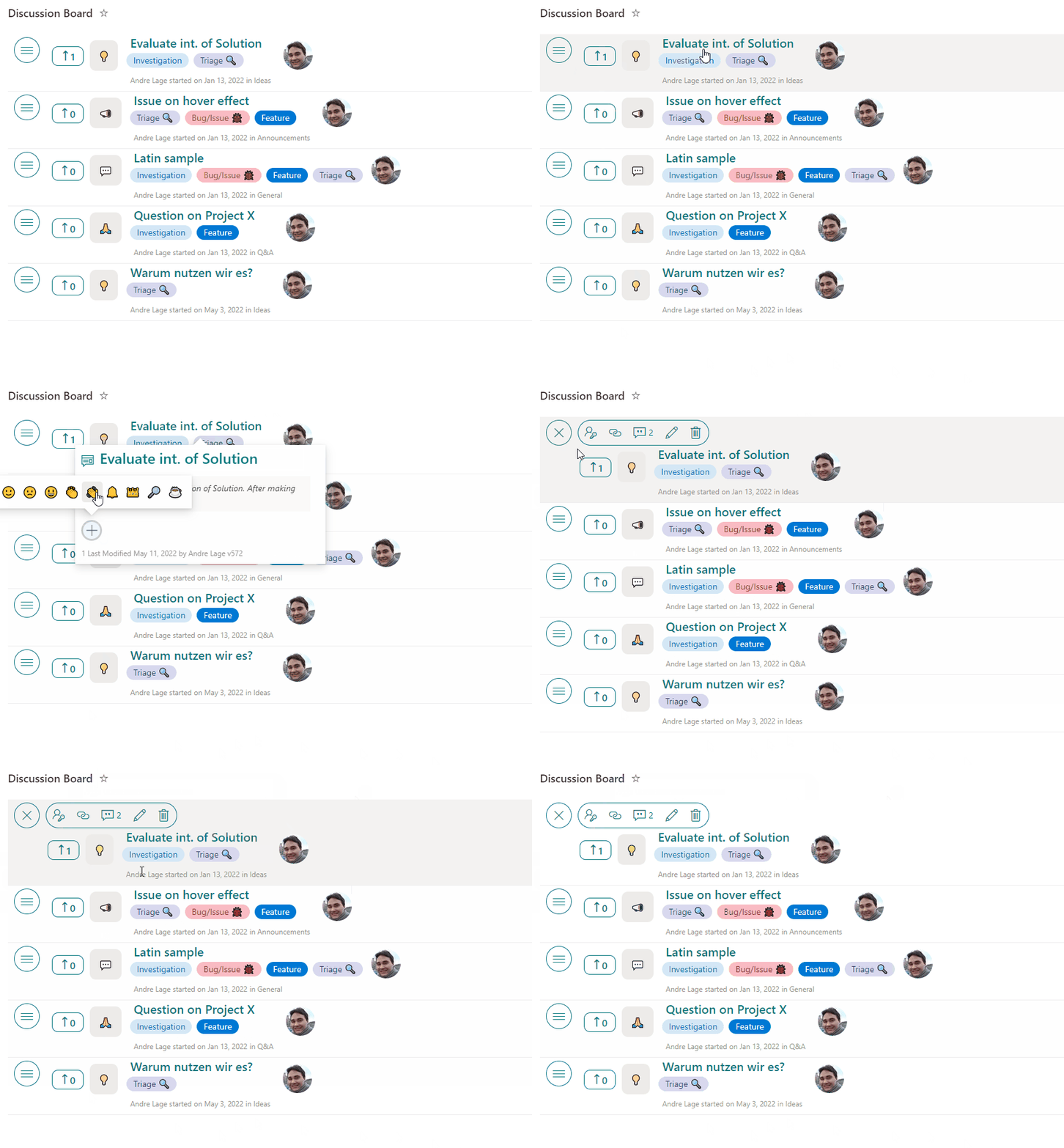
This sample transforms your list into a discussion board with title, desription, tags, and votes are available. Additionally, users can react, comment, and perform inline edits!
View sample details →
Display a User's Photo in Group Header preview
View Formatting
Display a User's Photo in Group Header
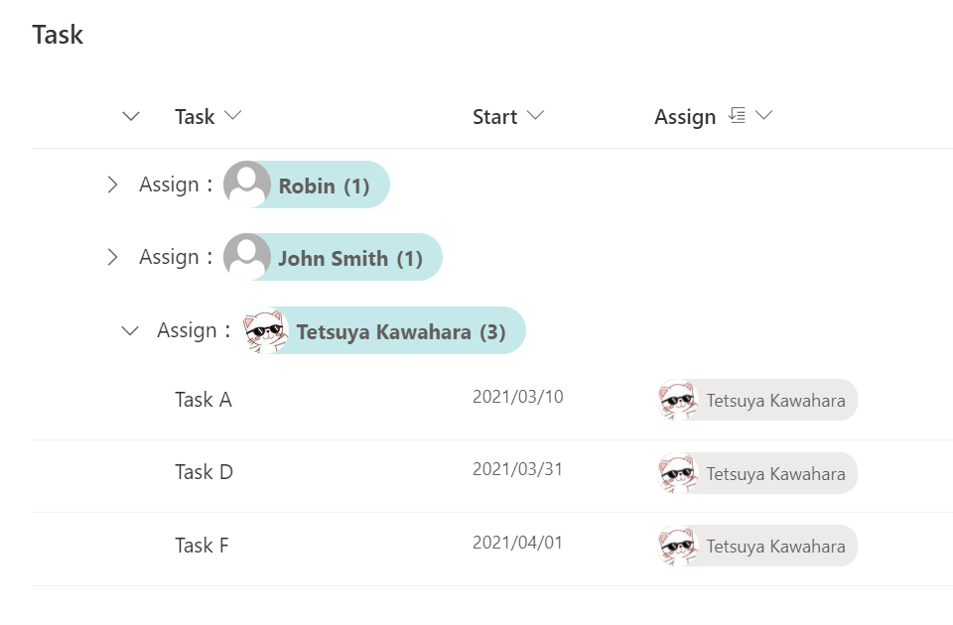
This is a sample of customizing the group header when grouping by user column. Display the user's picture as well as the user's name in the group header.
View sample details →
Display Edit in Grid View Button in the Command Bar preview
View Formatting
Display Edit in Grid View Button in the Command Bar
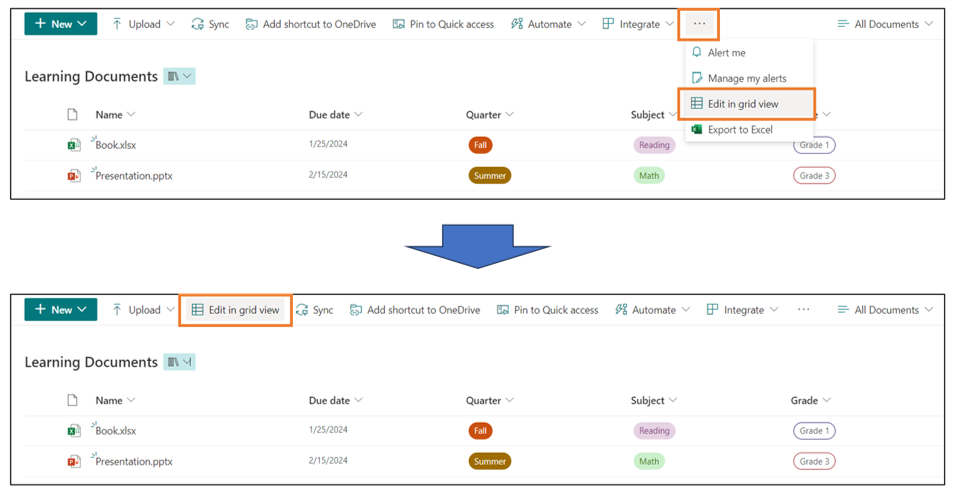
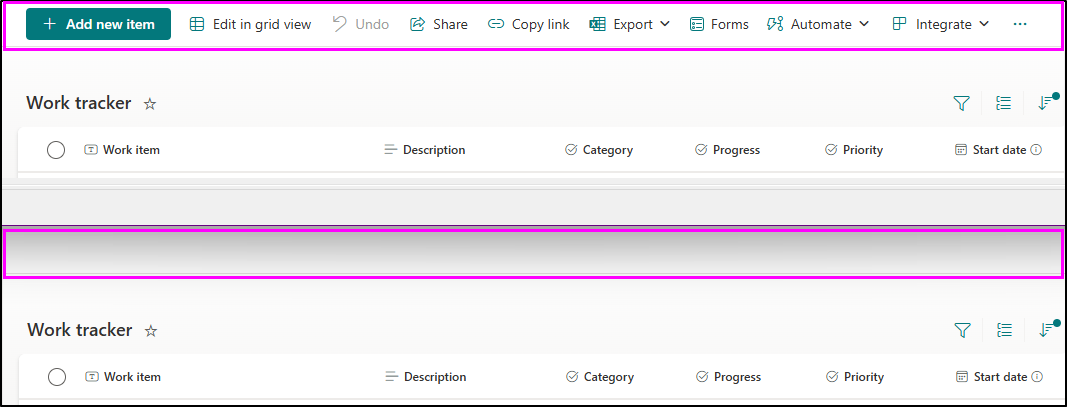
In the Document Library, the [Edit in grid view] button is hidden under the [...] button. This sample demonstrates displaying the [Edit in grid view] button on the command bar.
View sample details →
Display User Properties in the Group Header preview
View Formatting
Display User Properties in the Group Header
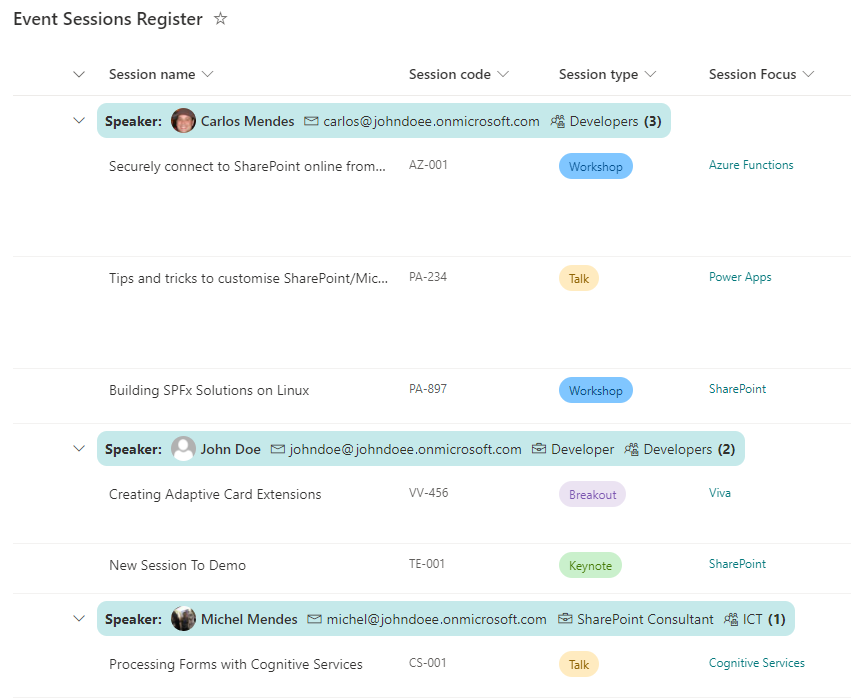
This sample demonstrates showing additional properties for a grouped user field in the group header. The user's picture, email, title, and department are all shown.
View sample details →
Elf Progress Board preview
View Formatting
Elf Progress Board
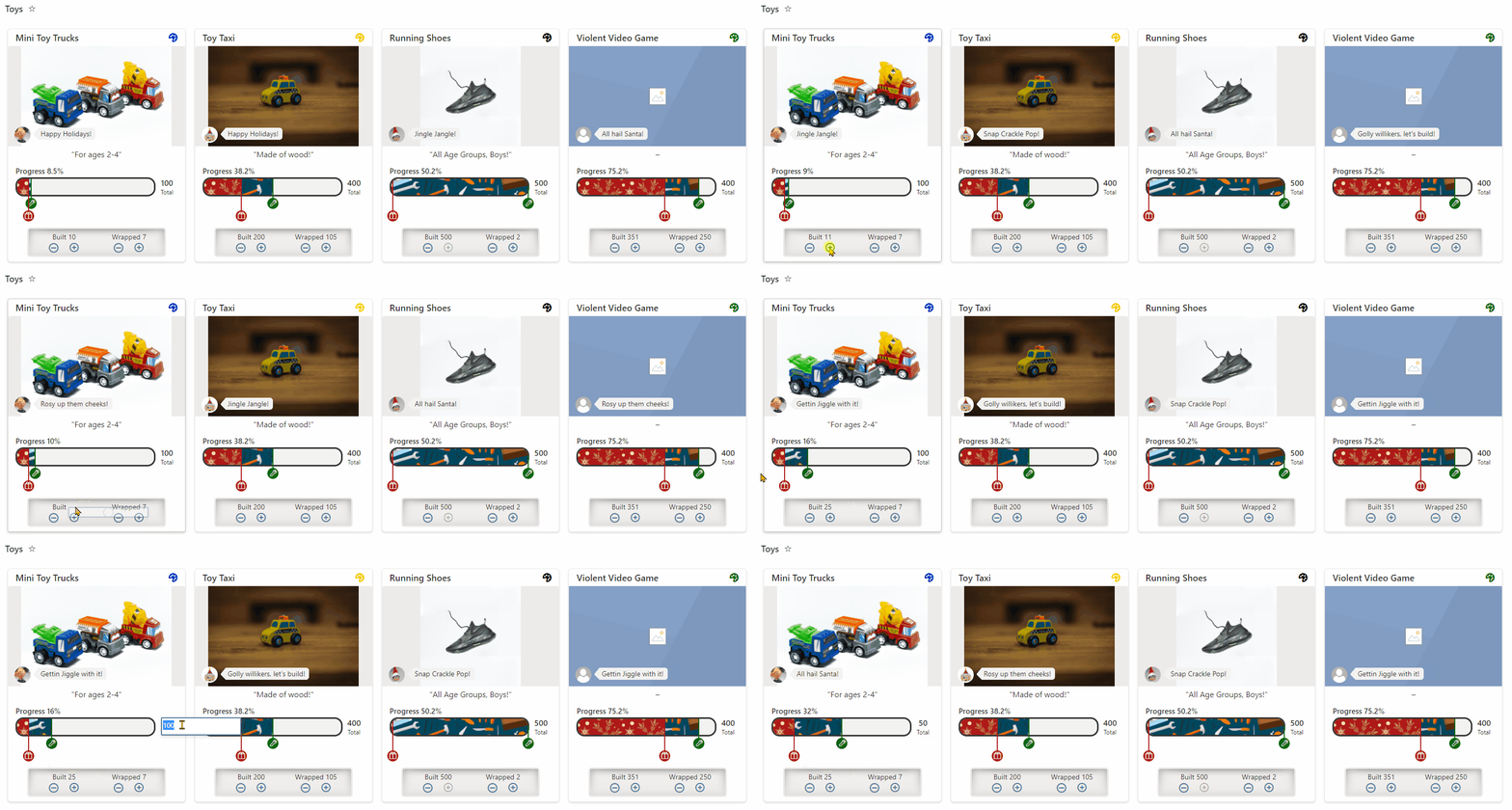
Demonstrates multi-level progress bars, randomization, handling image fields, setValue actions, and inlineEditField
View sample details →
Emoji Reactions preview
View Formatting
Emoji Reactions
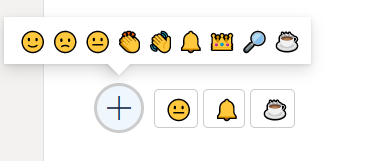
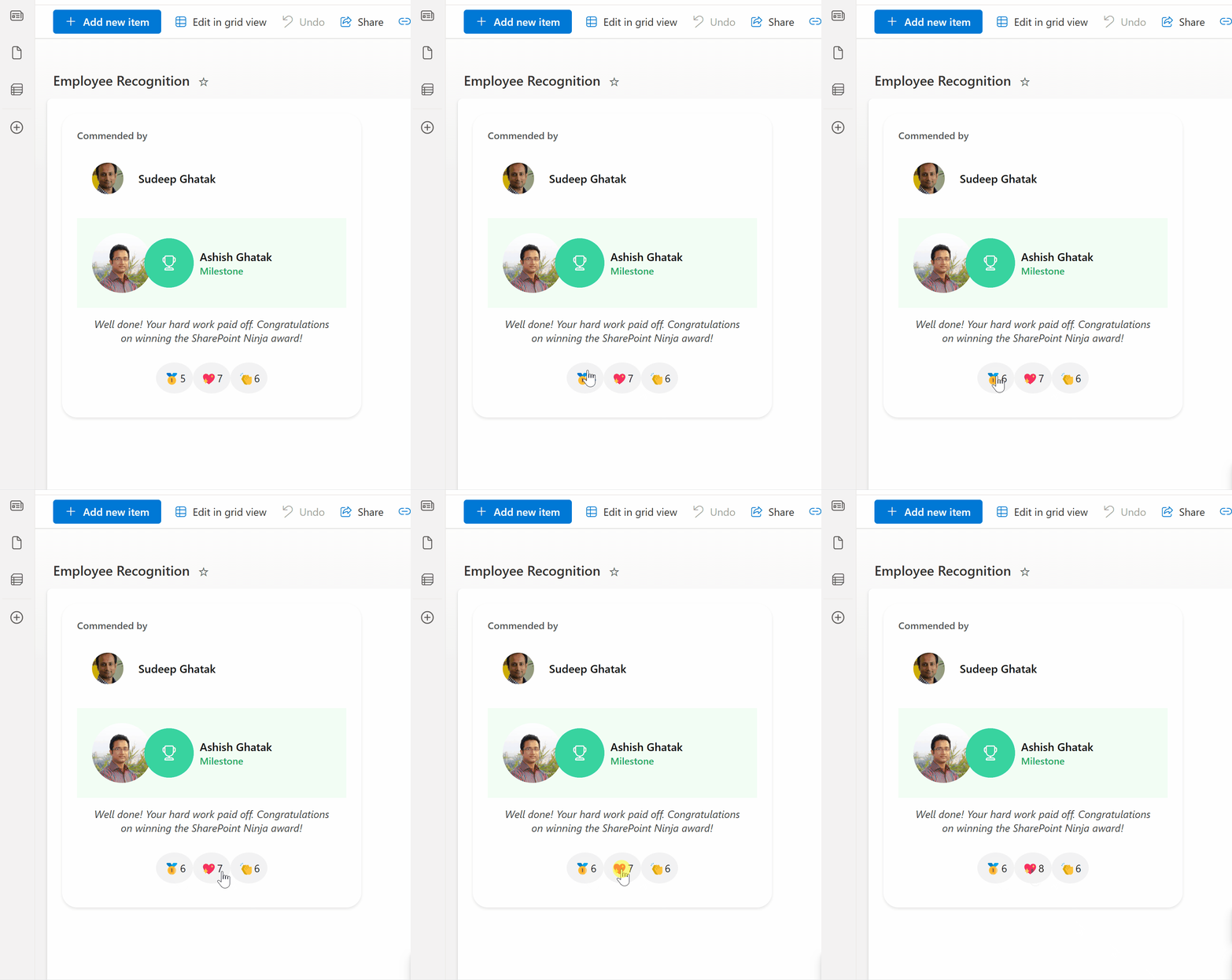
This sample demonstrates reacting with an emoji. Who reacted and the total counts per reaction are stored with the list item.
View sample details →
Employee Onboarding: Steps preview
View Formatting
Employee Onboarding: Steps
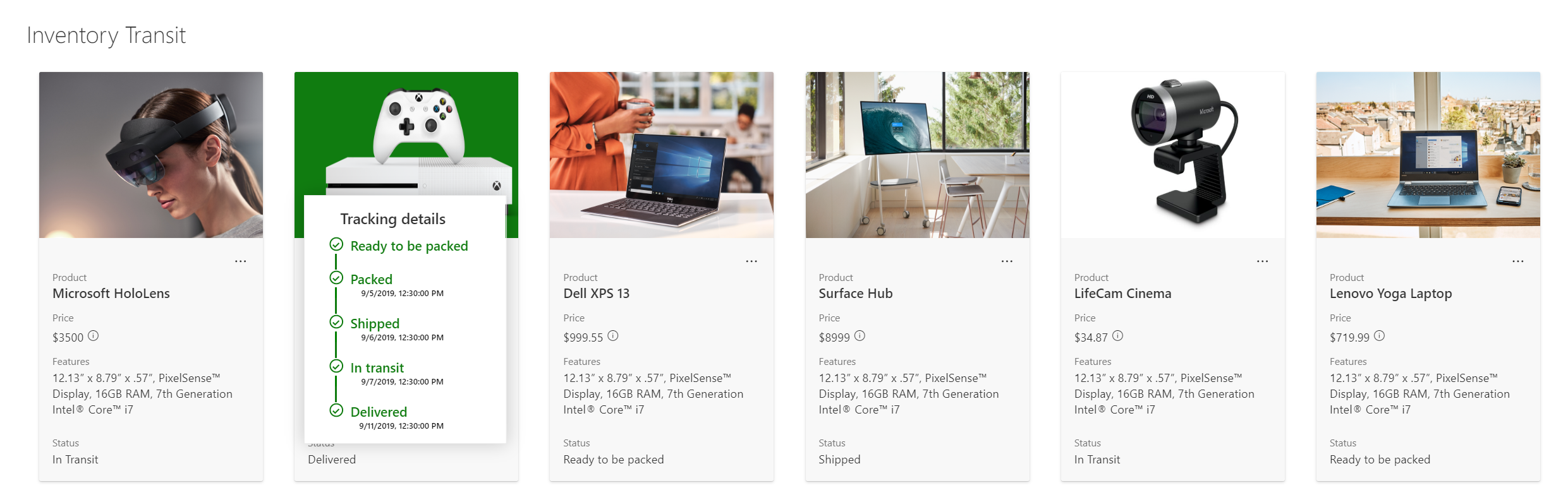
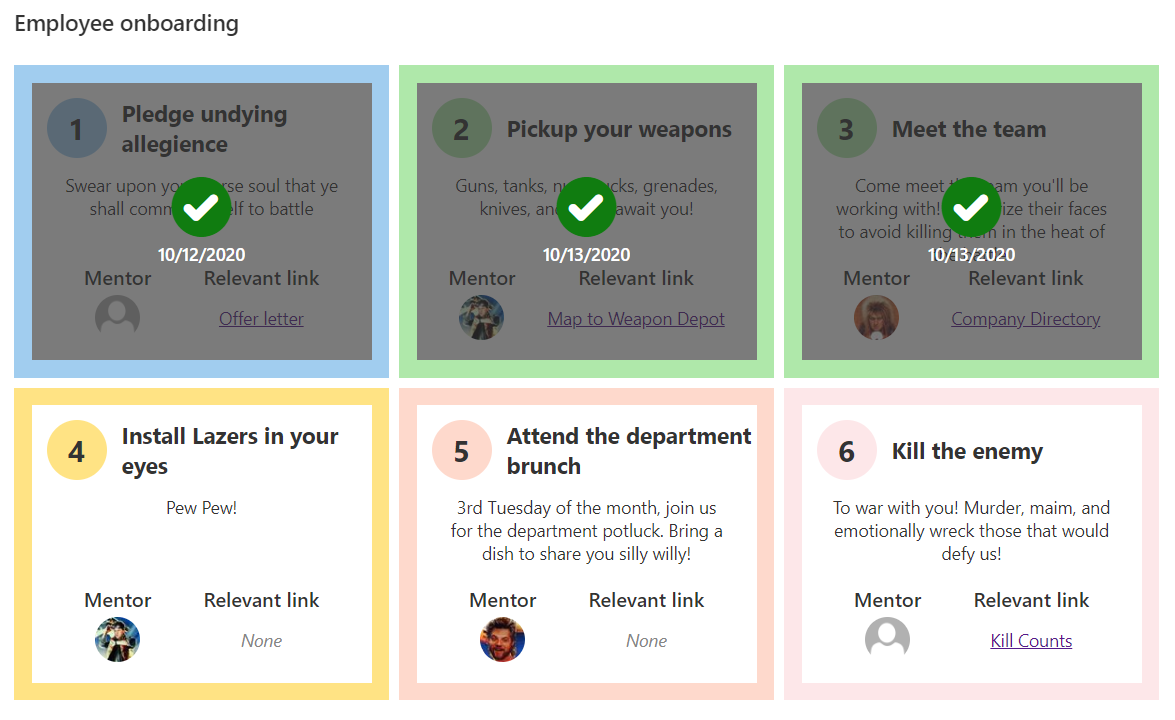
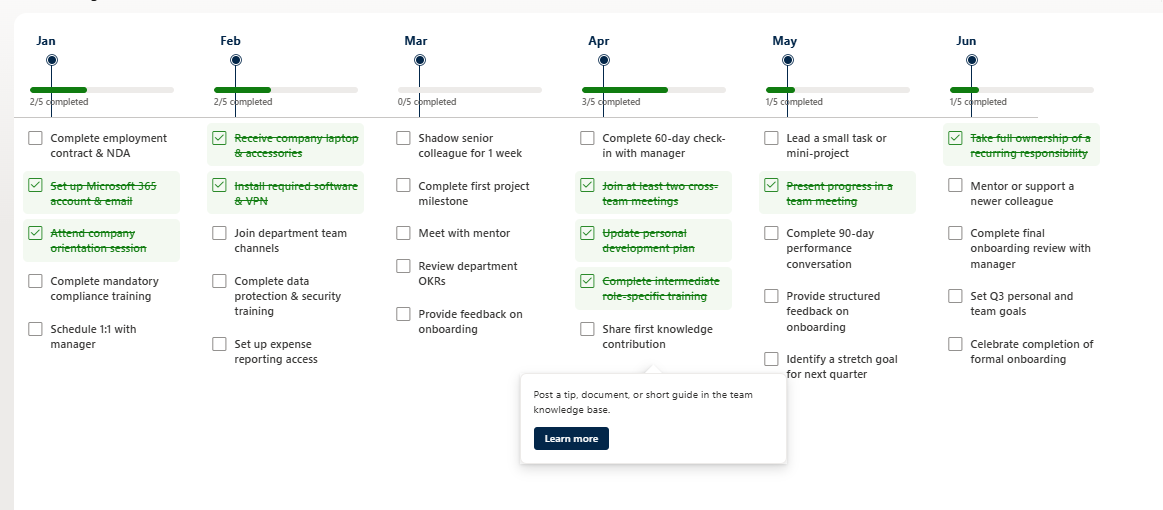
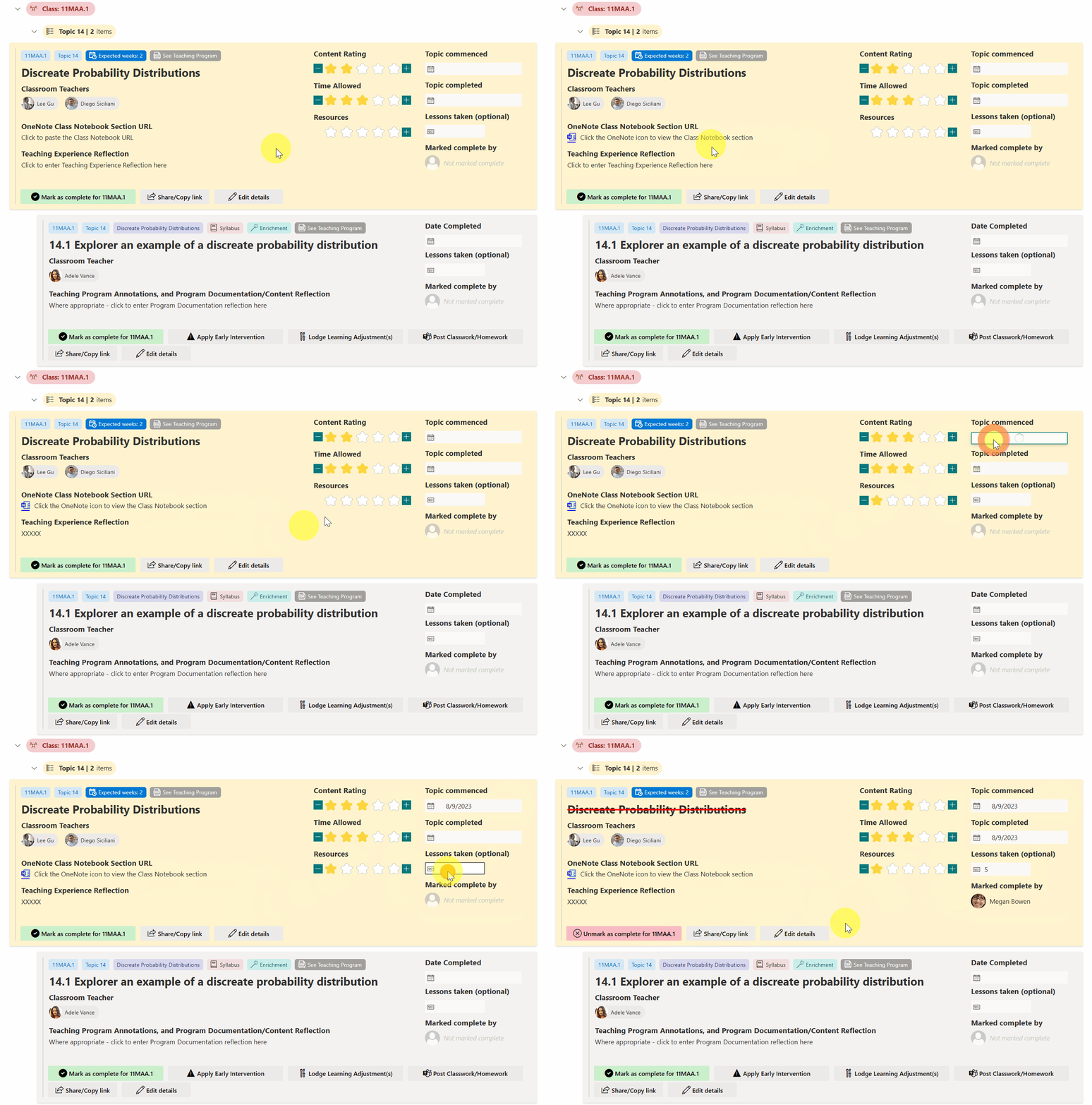
This sample is intended to be used in combination with the Employee Onboarding list template. The format restores the intended alternating rows but also adds a Tiles view that provides a more step based approach.
View sample details →
Employee Recognition Card preview
View Formatting
Employee Recognition Card
This sample acts as a digital shout-out board for your team, built right into SharePoint. It gives employees an easy way to recognize and appreciate each other's hard work. Colleagues can show their support by clicking on emojis to cast their votes.
View sample details →
Event Registration preview
View Formatting
Event Registration
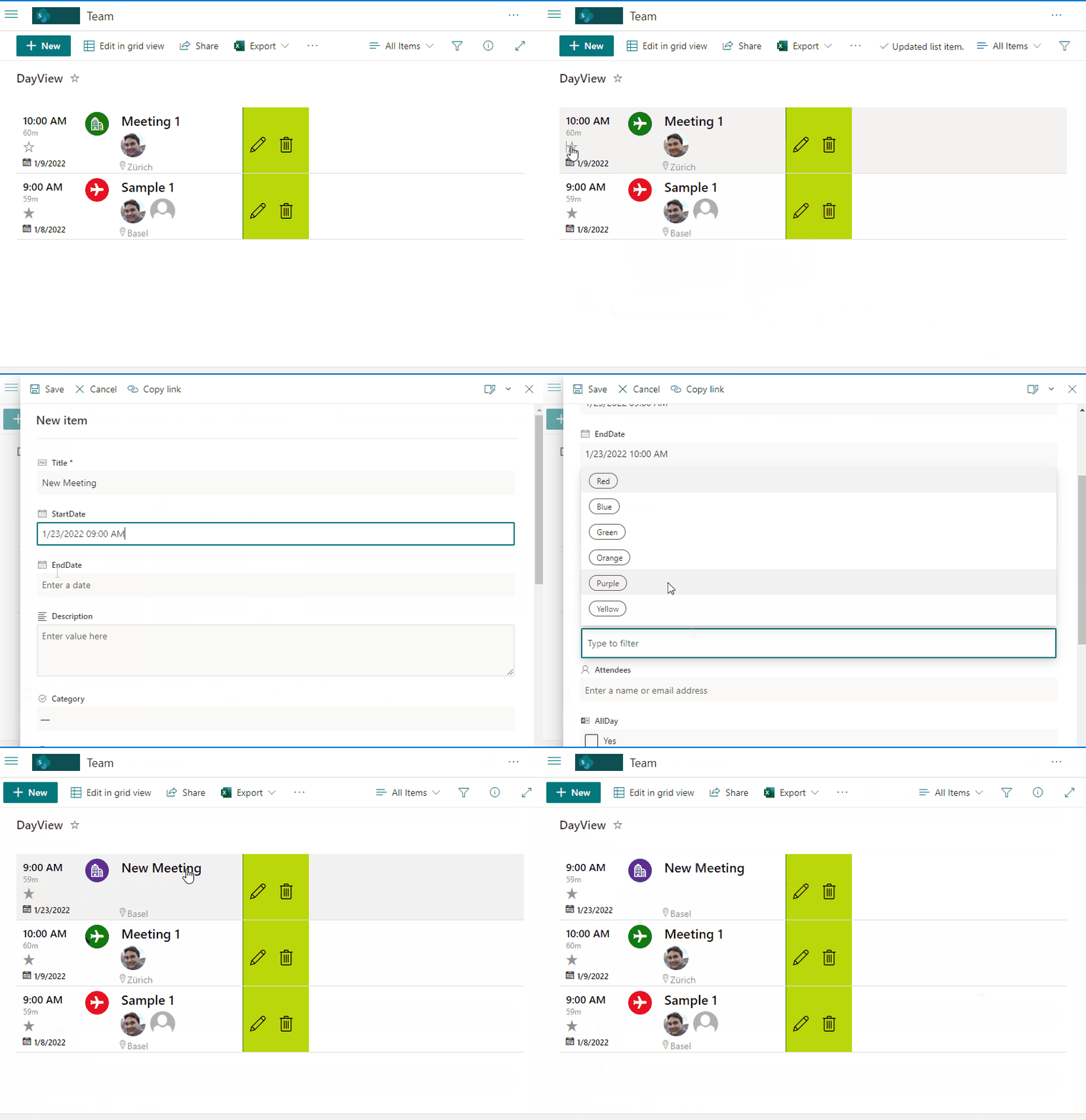
This sample provides Event registration with different capabilities such us Start and End dates, Category, Attendees, All Day option, Location, Team URL, and favoriting.
View sample details →
Feedback Sentiment Board preview
View Formatting
Feedback Sentiment Board
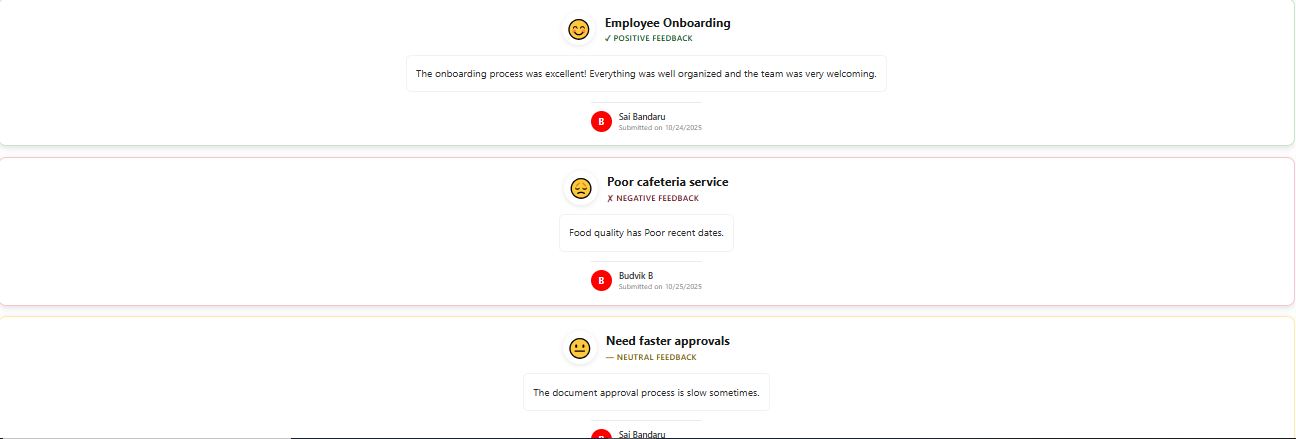
This sample uses SharePoint List Formatting to visualize feedback sentiment with keyword-based detection in a color-coded and emoji-enhanced card view.
View sample details →
Flashcards preview
View Formatting
Flashcards
This sample creates a set of flashcards from list items. A flashcard is a card bearing information on both sides, which is intended to be used as an aid in memorization. Each flashcard bears a question on one side and an answer on the other. Flashcards are often used to memorize vocabulary, historical dates, formulas or any subject matter that can be learned via a question-and-answer format.
View sample details →
Flight Card preview
View Formatting
Flight Card
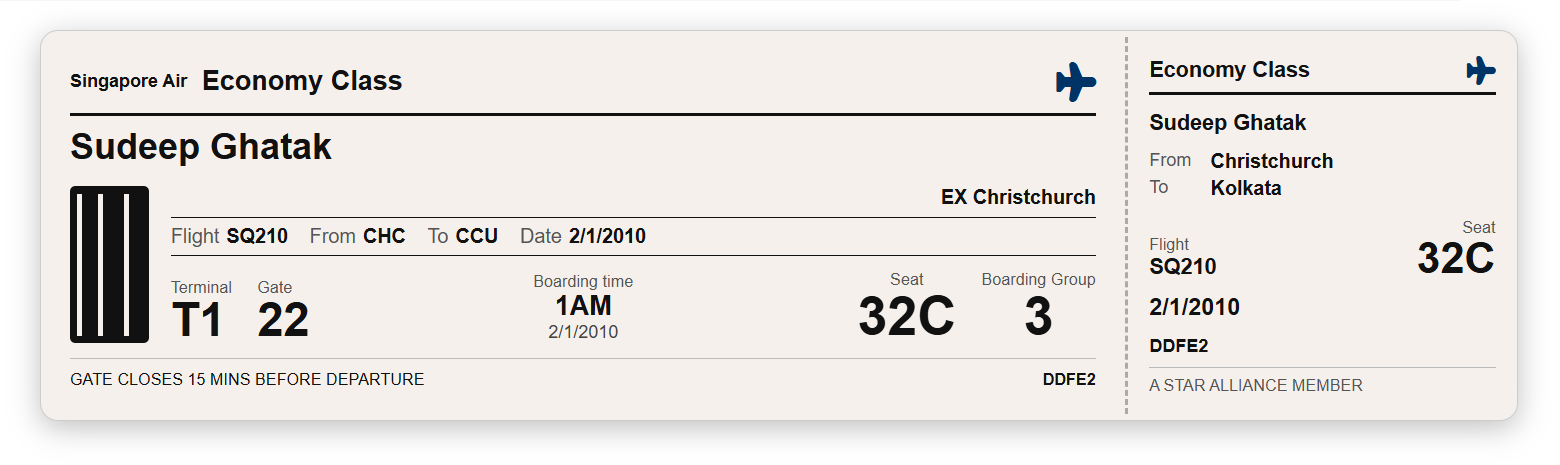
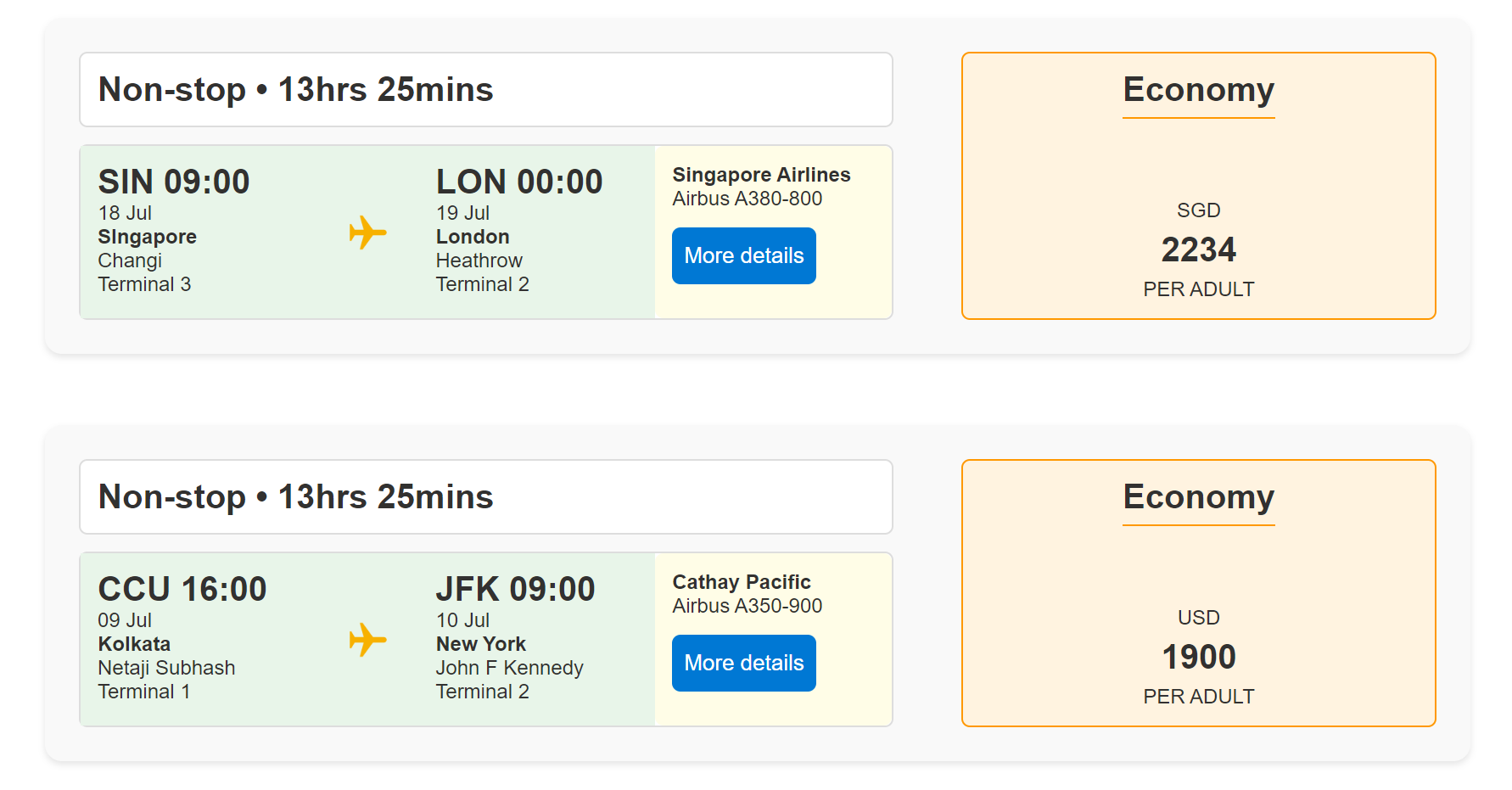
This sample transforms list items into cards formatted with flight information layouts. To ensure the view functions correctly, make sure all specified columns are included. The icons are referenced from Fluent UI Icons.
View sample details →
Funnel Chart preview
View Formatting
Funnel Chart
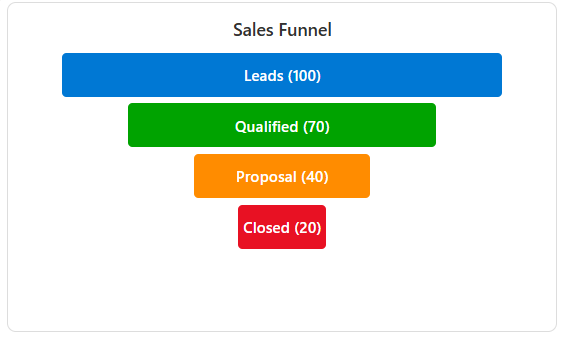
This sample displays funnel chart stages in a modern dashboard-style tile card with proportional widths and customizable colors.
View sample details →
Group Header Status Icon and Color preview
View Formatting
Group Header Status Icon and Color
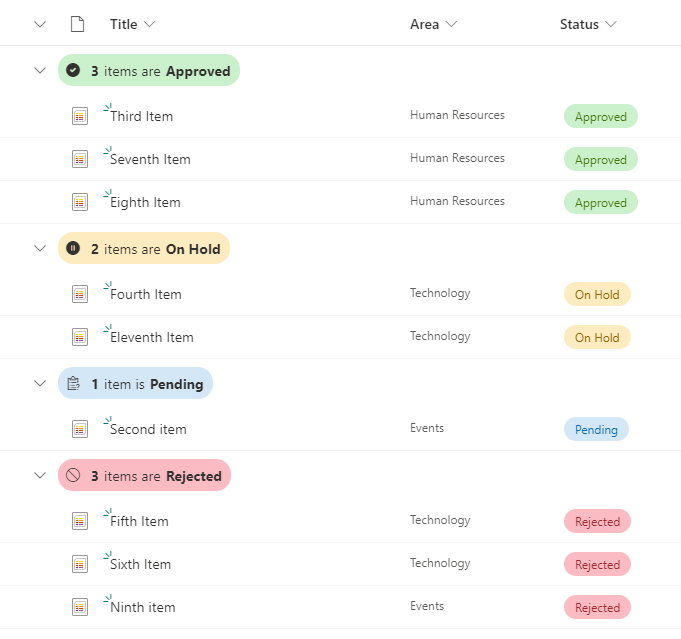
This is a sample of customizing the group header when grouping by a Status column. This format displays a different color and icon according to the Status.
View sample details →
Head of Business Unit Overview preview
View Formatting
Head of Business Unit Overview
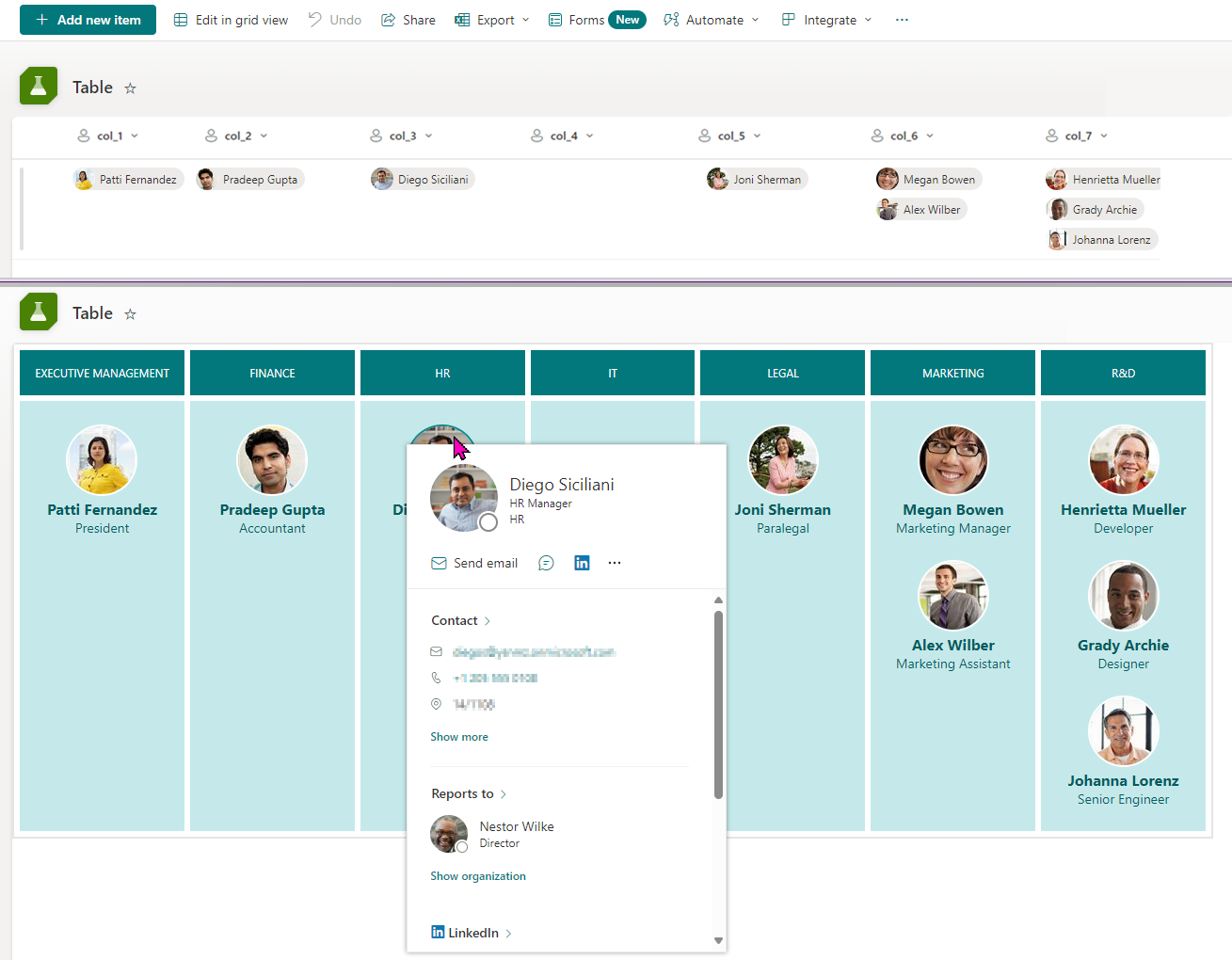
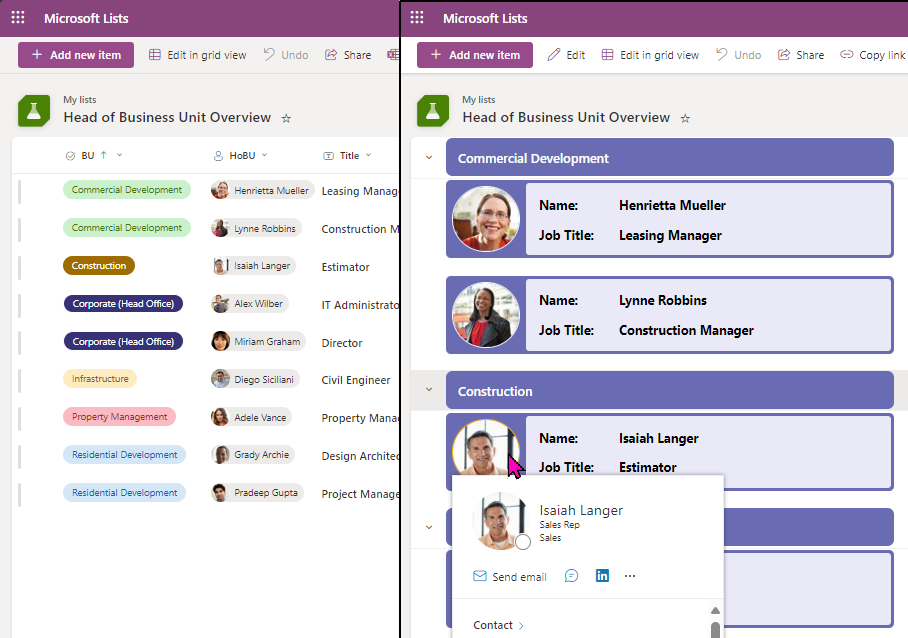
A visually appealing overview of business unit leaders to display key information at a glance.
by Watana
View sample details →
Horse Crests preview
View Formatting
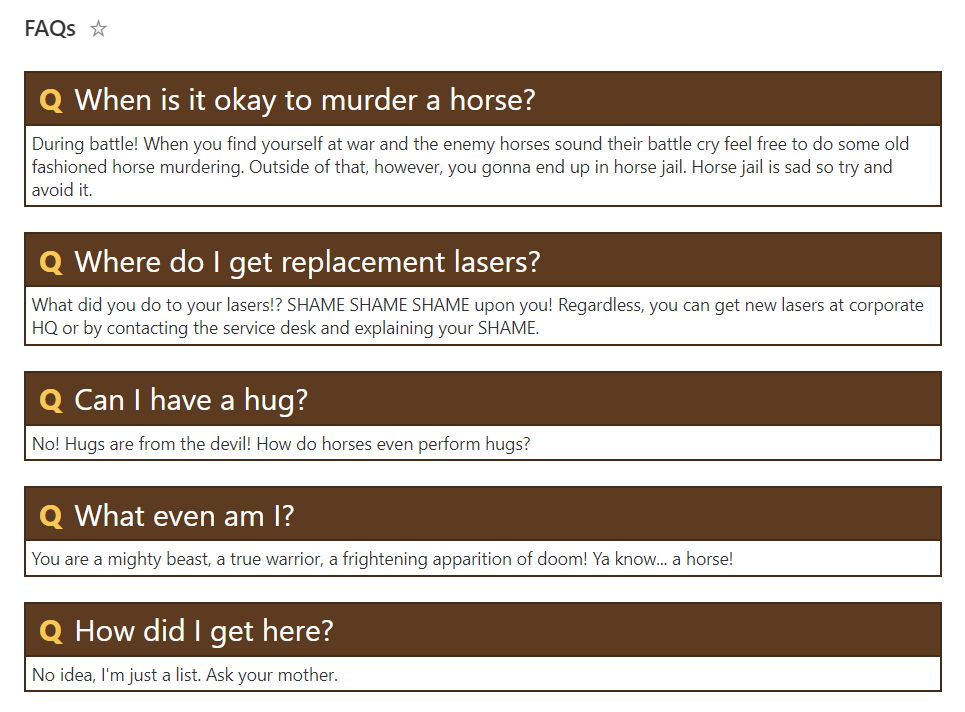
Horse Crests
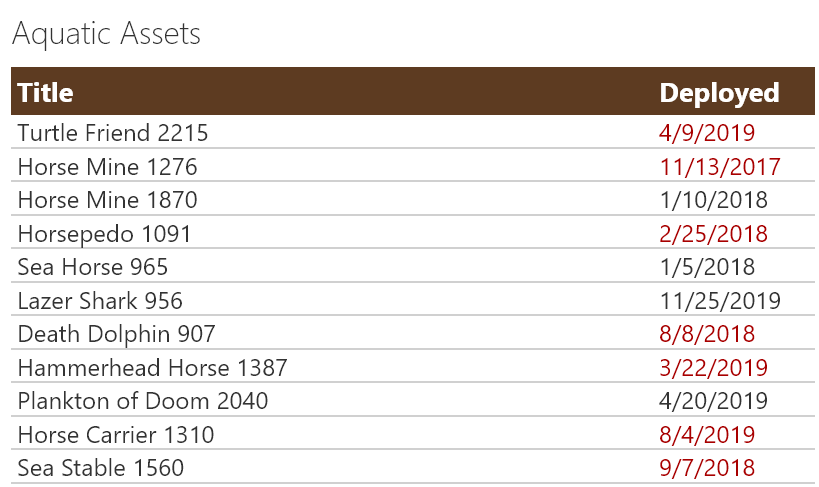
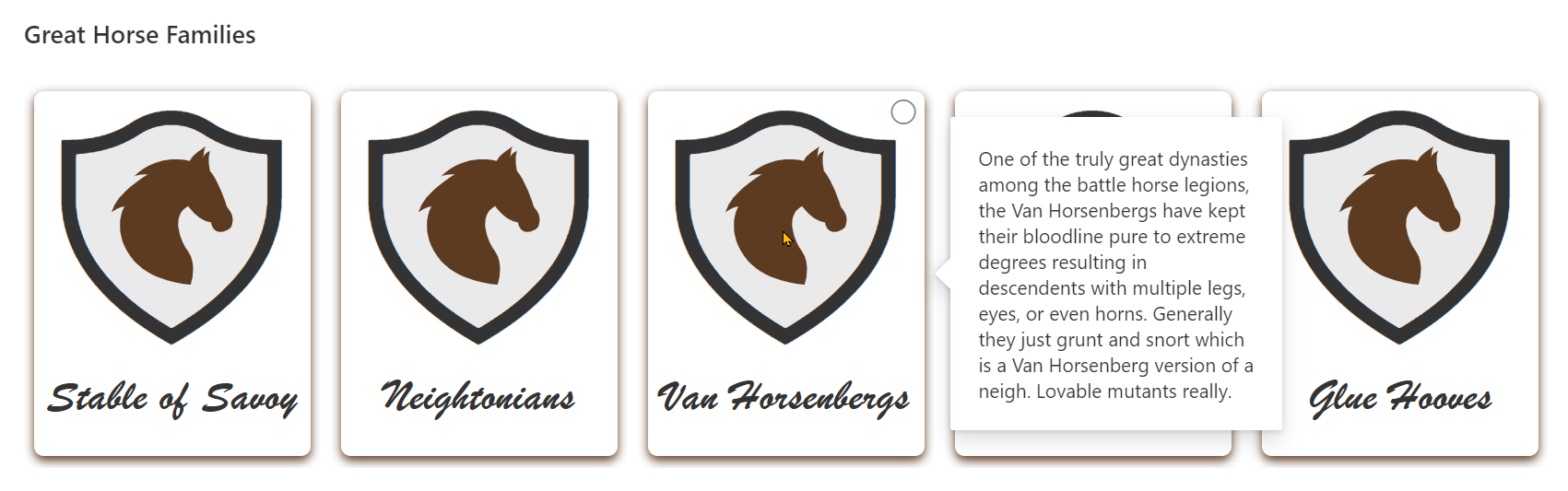
This sample illustrates some advanced techniques for applying theme colors to SVG elements, box-shadows, and borders. It also demonstrates using custom hover cards on complex elements (elements with children).
View sample details →
Icon Link Tiles preview
View Formatting
Icon Link Tiles
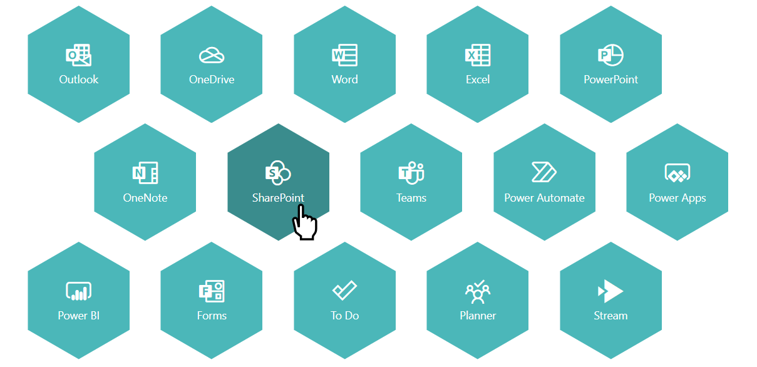
This sample uses tileProps element to create tile layout on the view. This layout allow users to see the list as the promoted links app (including the power the security trimming on the items). This sample uses the Icons from the Microsoft UI Fabric. The name of the icon is referenced through an Icon field.
View sample details →
Image Slider preview
View Formatting
Image Slider
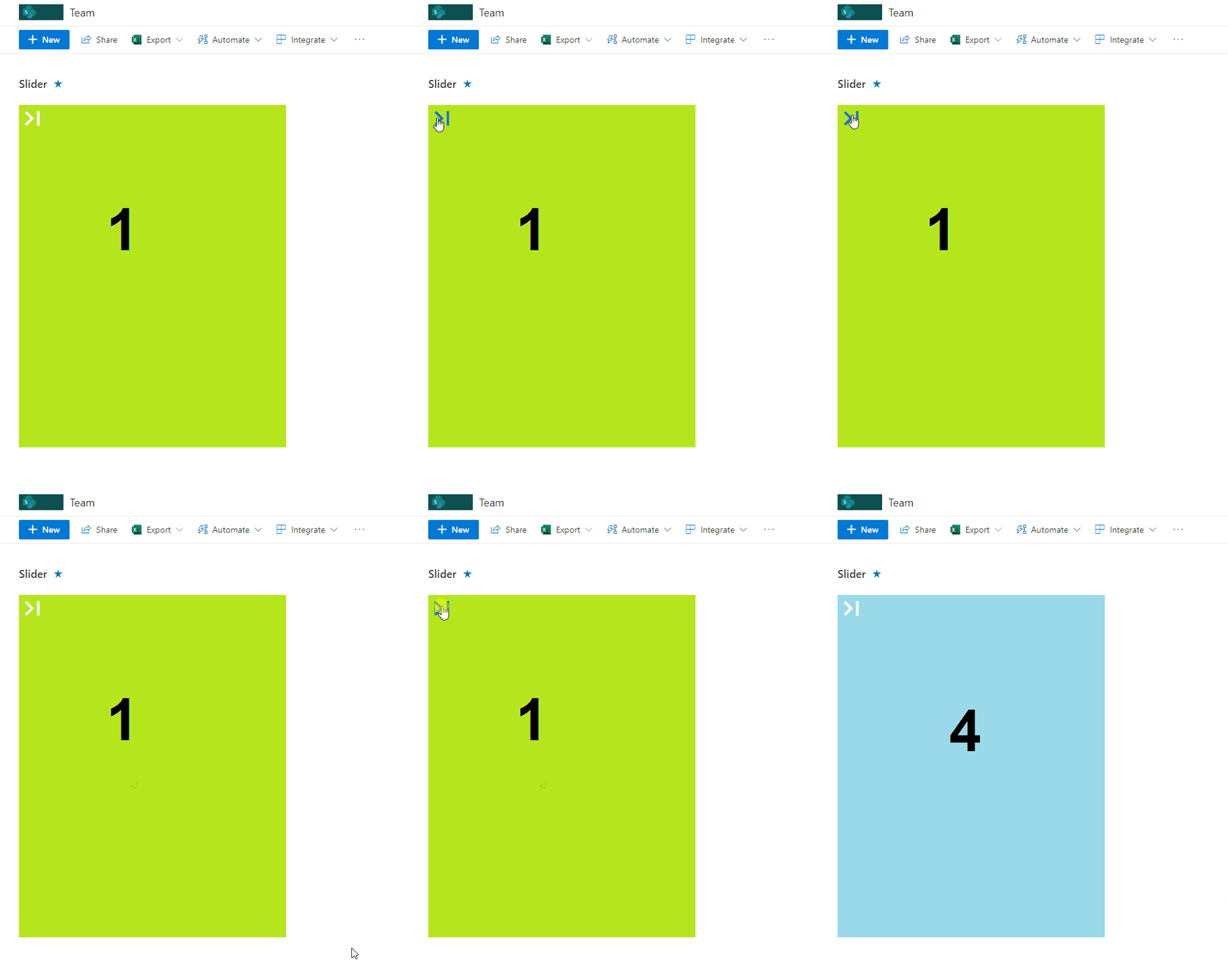
This sample includes format to display images in Lists as slider moving to next clicking the icon on top left of image.
View sample details →
Image with Overlay Buttons preview
View Formatting
Image with Overlay Buttons
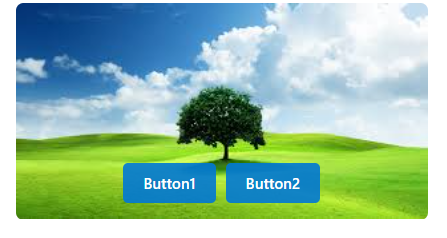
This sample displays images with action buttons overlaid on the bottom of each image in a compact tile format.
View sample details →
IMDb Card preview
View Formatting
IMDb Card
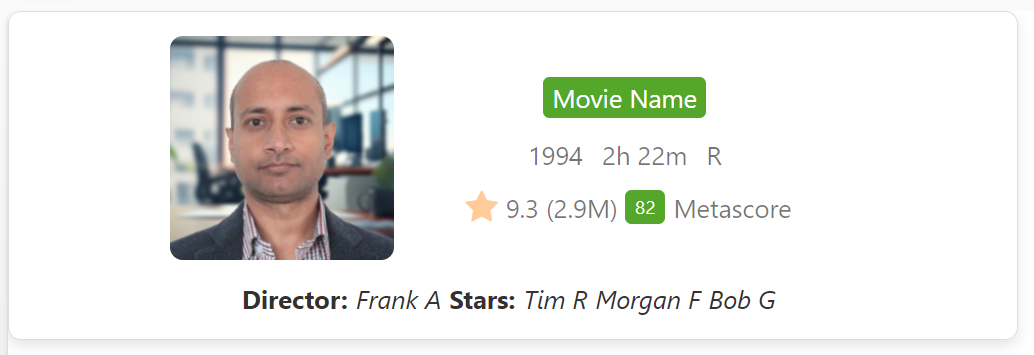
This sample transforms list items into cards formatted with IMDb (Internet Movie Database) Movie listing layout. To ensure the view functions correctly, make sure all specified columns are included. The icons are referenced from Fluent UI Icons.
View sample details →
In Memoriam Tiles preview
View Formatting
In Memoriam Tiles
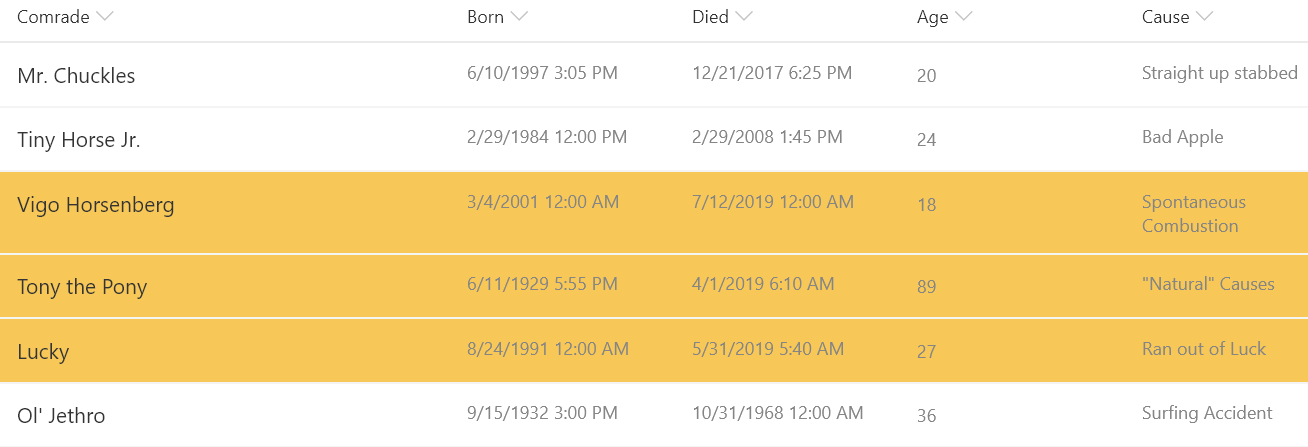
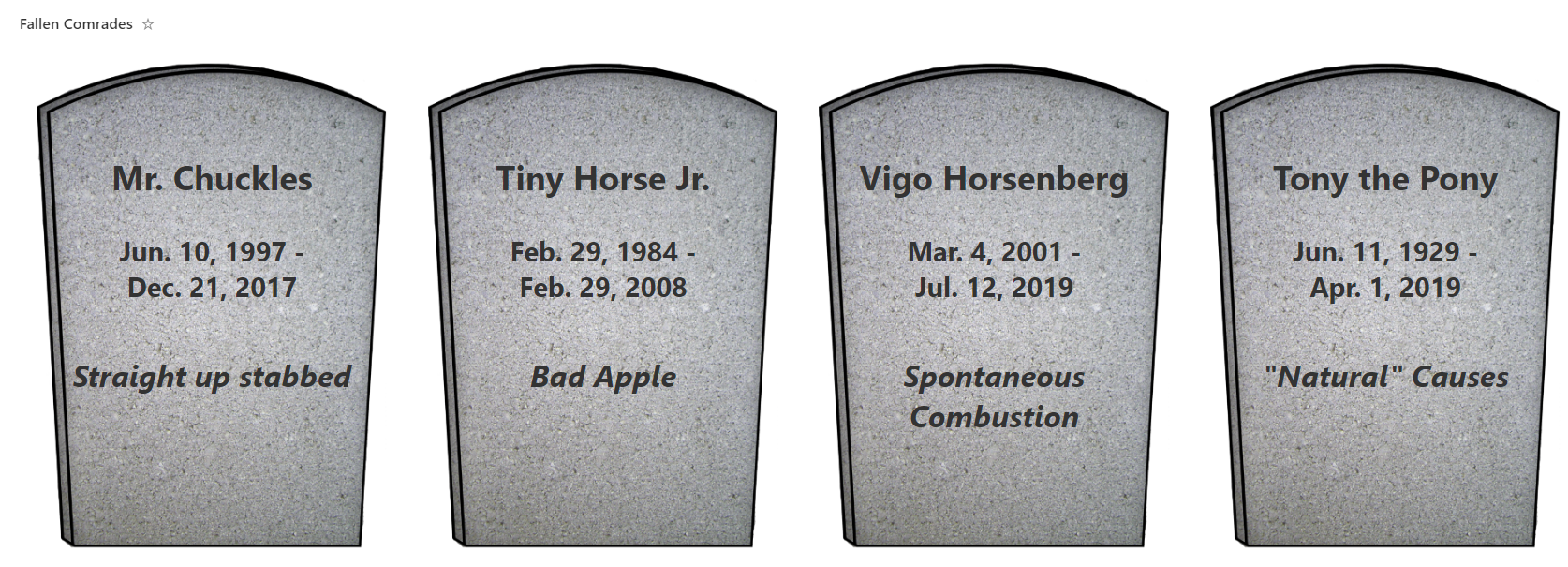
This is a silly sample that shows tombstones for items. It demonstrates custom date formatting, custom tiles (gallery) layout, and safe local image referencing.
View sample details →
Interactive Content Card with Button preview
View Formatting
Interactive Content Card with Button
This sample uses SharePoint List Formatting to display list items as modern card tiles with image header, icon overlay, and call-to-action button.
View sample details →
Issue Tracker: Planner Cards preview
View Formatting
Issue Tracker: Planner Cards
This sample is intended to be used in combination with the Issue Tracker list template. The format keeps the row highlighting for blocked issues but also adds a Tiles view that provides a Microsoft Planner look and feel.
View sample details →
Link Collection using Emojis preview
View Formatting
Link Collection using Emojis
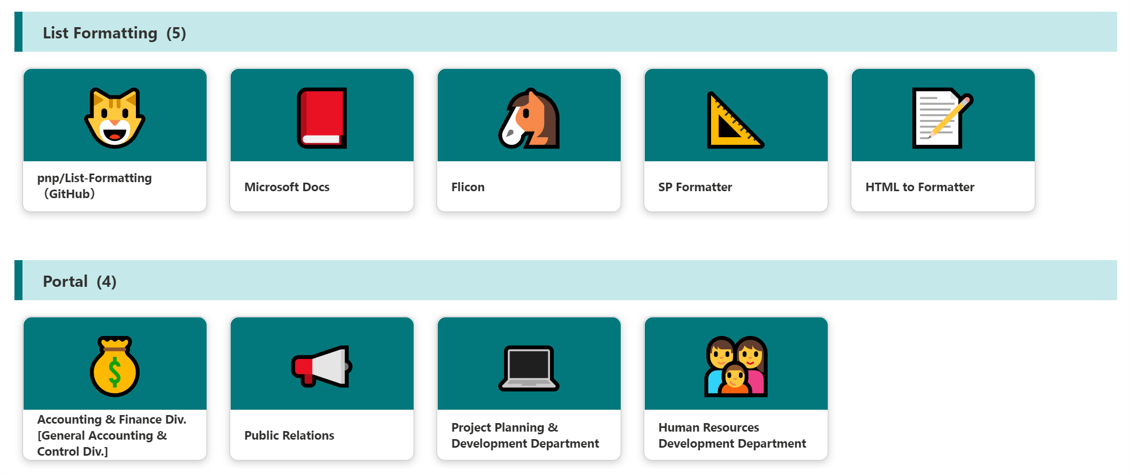
This sample demonstrates a link collection using Emoji and is a customization of the Gallery layout. Additionally, this sample combines group customization with a tile format.
View sample details →
Linkinbio preview
View Formatting
Linkinbio
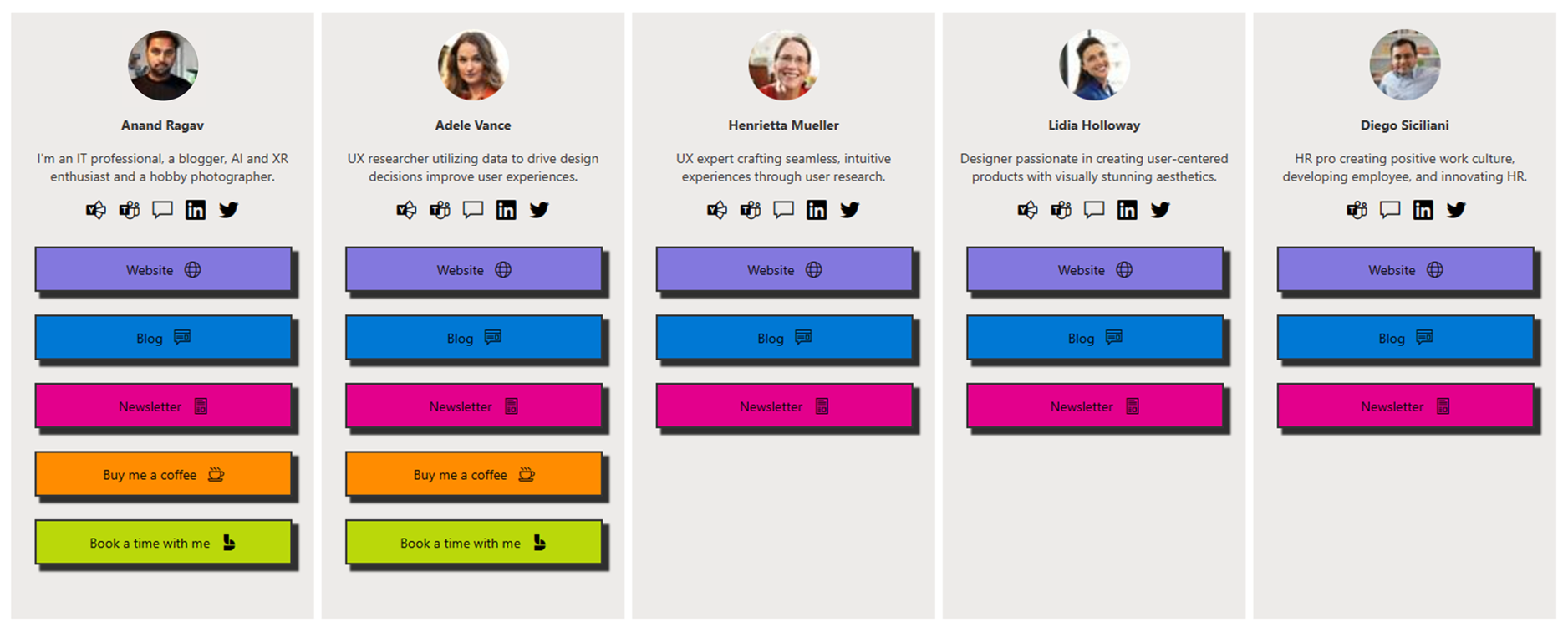
This sample creates a link in bio card for users. A Link in bio is important for people to have because it provides a centralized location where they can direct their followers or potential customers to access more information about them, their products, or their services.
View sample details →
Links to Search Page preview
View Formatting
Links to Search Page
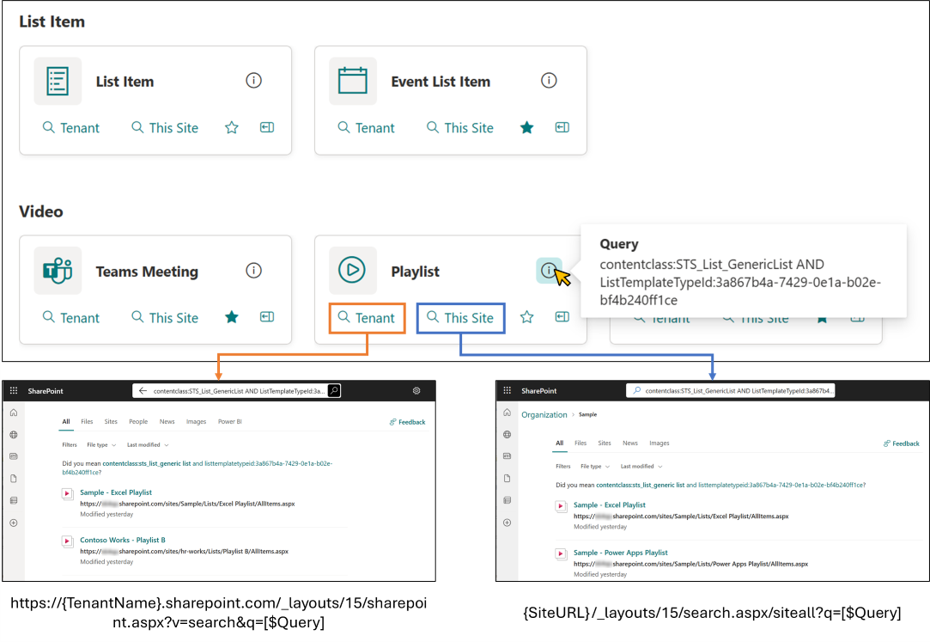
This sample demonstrates displaying links to the search page. When you open the search page, it displays the search results where the query registered in the Query column of the item has been executed.
View sample details →
London Underground Line Status preview
View Formatting
London Underground Line Status
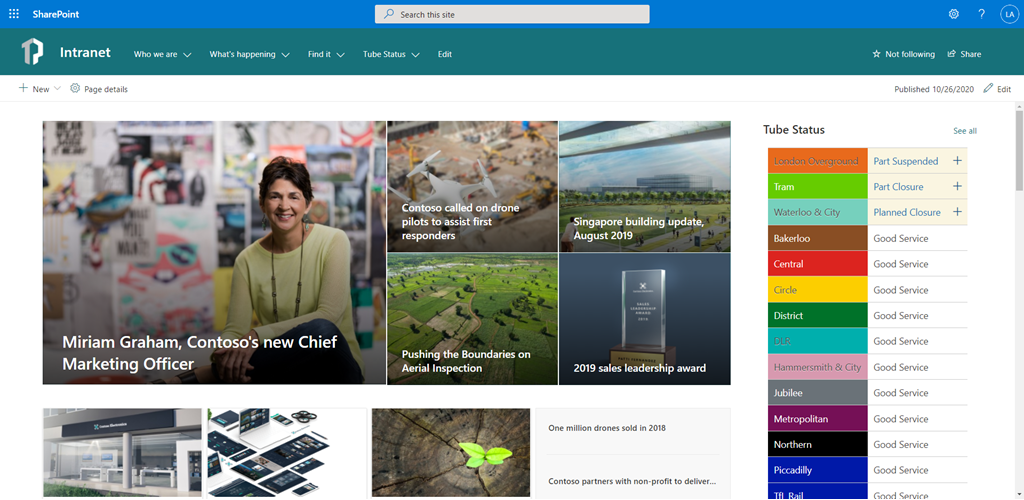
Display on the homepage of your SharePoint intranet a continually updated feed of London Underground line statuses using the publicly available Transport for London (TFL) API.
View sample details →
Menu Link button preview
View Formatting
Menu Link button
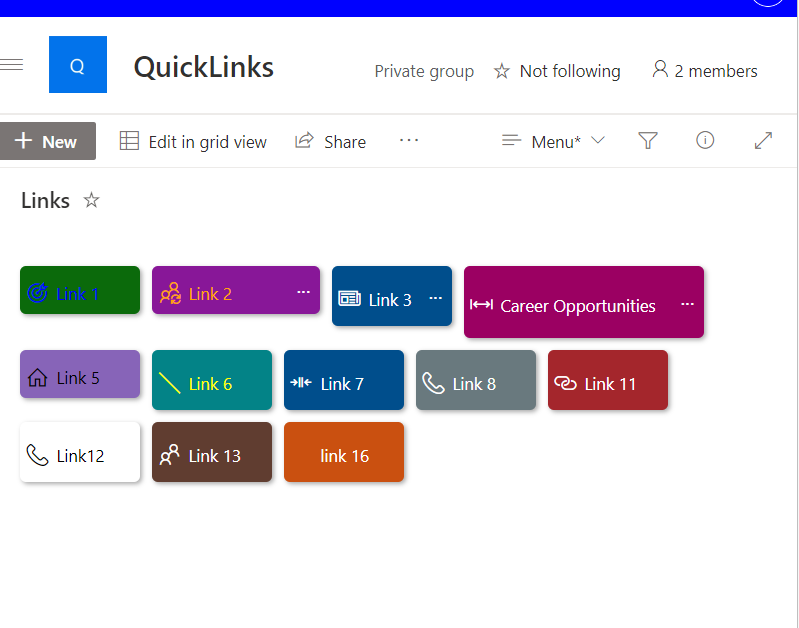
This sample allows for the creation of quick links through the use of buttons with additional features. These features include the ability to configure the button using size and color.
View sample details →
Menu Link Tiles preview
View Formatting
Menu Link Tiles
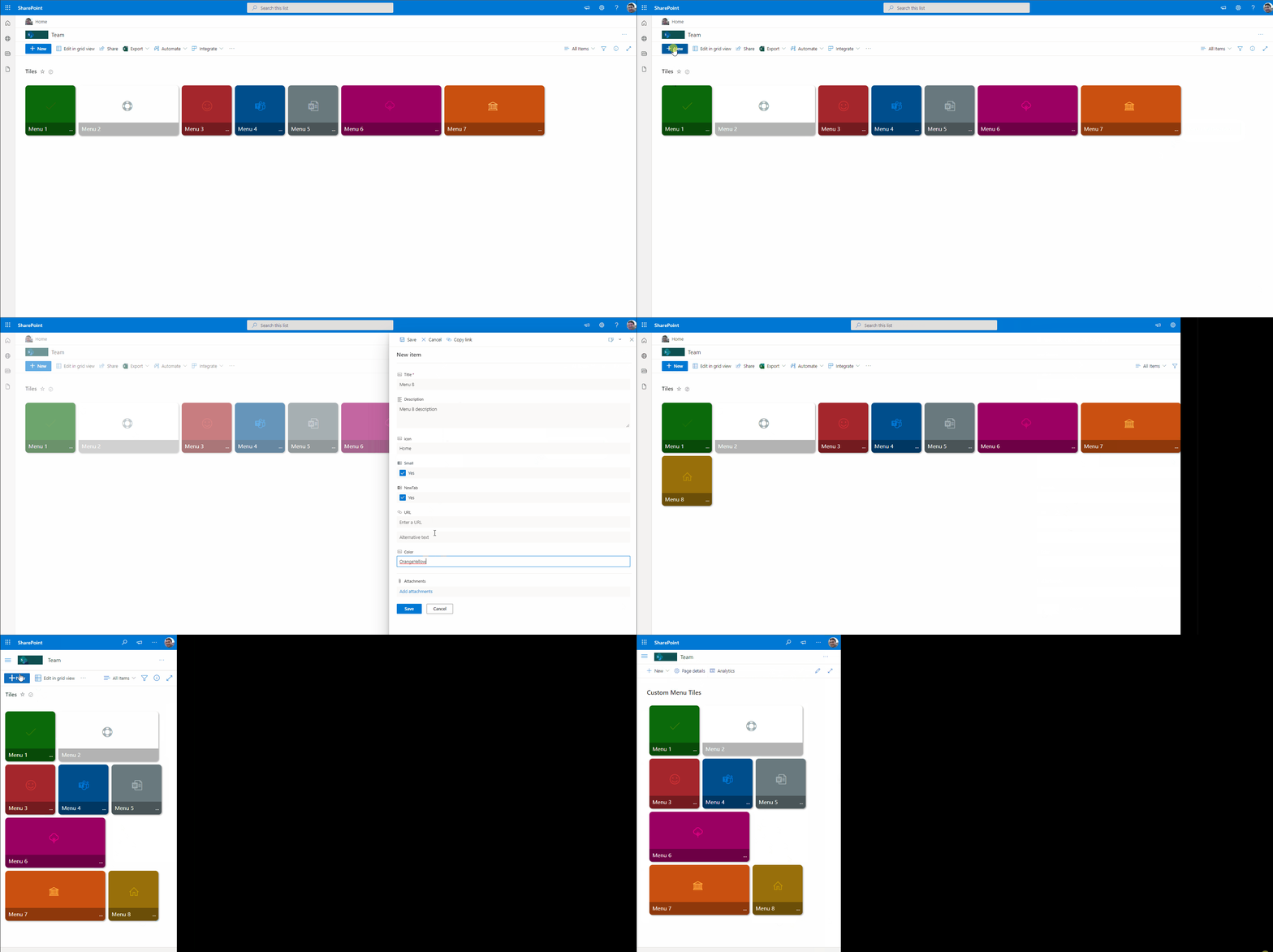
This sample includes a Metro tiles style menu with additional features such us configuration of tiles using size and color, option to favorite a tile using setValue, and also includes customCardProps to show a custom hover card with the description of a tile.
View sample details →
Message Chat Bubbles preview
View Formatting
Message Chat Bubbles
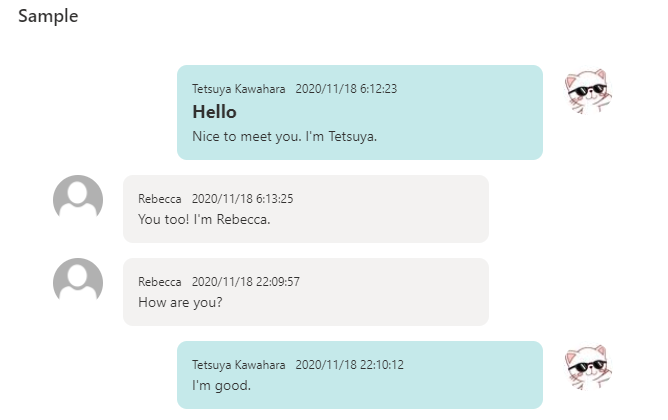
This sample formats your SharePoint list view to look like message chat bubbles! If the Author is the current user, the message will be displayed on the right.
View sample details →
Modern Event Cards preview
View Formatting
Modern Event Cards
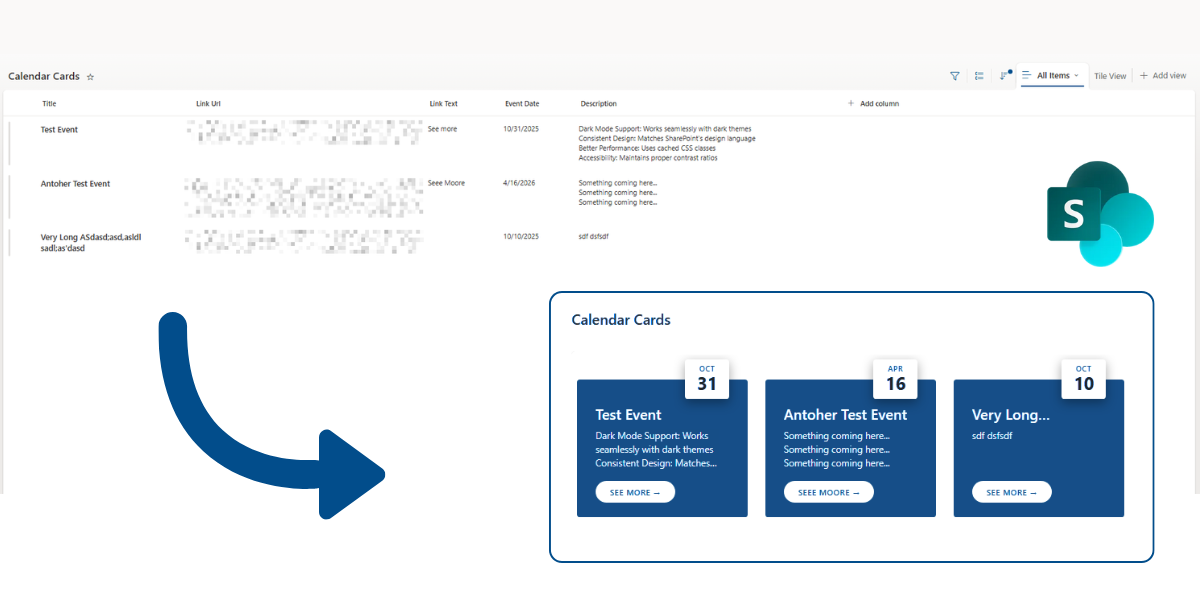
This sample turns list items into modern event cards with calendar-style date badges. Each card shows the event date with the month and day number in a nice visual format. The cards also display the event title, description, and an optional link button.
View sample details →
Modern Event Tiles preview
View Formatting
Modern Event Tiles
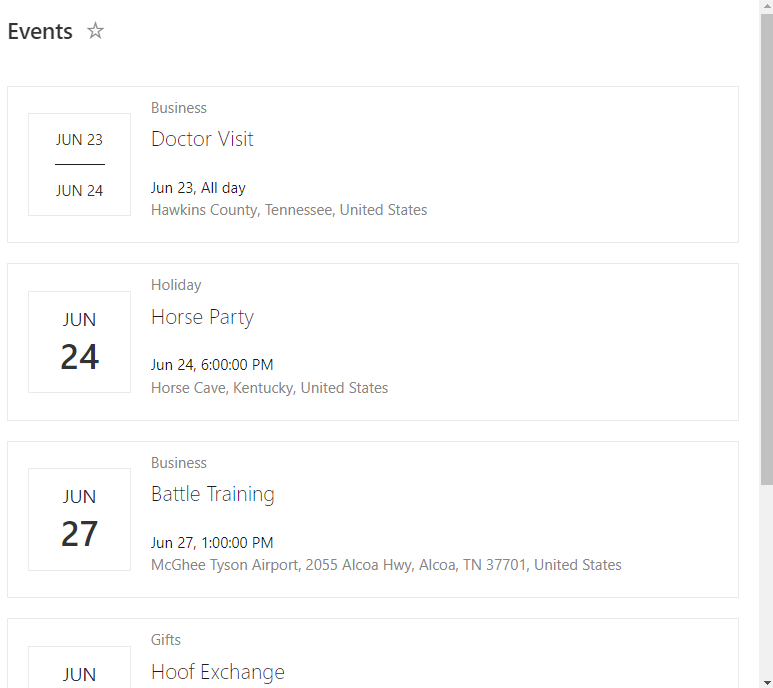
This sample demonstrates applying view formatting to an Events list to imitate the modern events webpart.
View sample details →
Multi-line View preview
View Formatting
Multi-line View
This sample demonstrates showing fields on separate rows, conditionally showing a button based on the current user, and how to use the defaultClick rowaction.
View sample details →
Multi-Person Displays preview
View Formatting
Multi-Person Displays
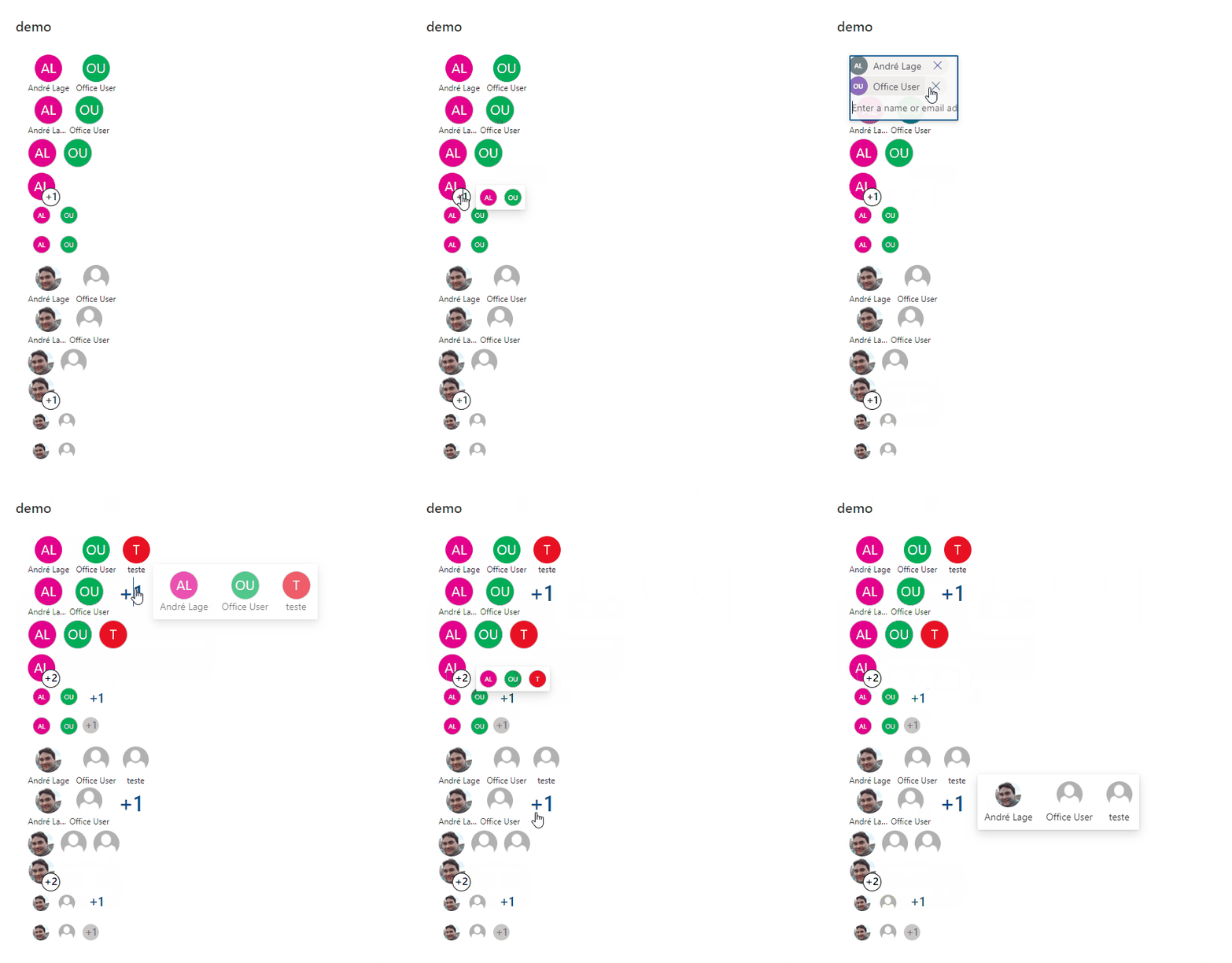
This sample provides multiple formats illustrating different ways multi-person field display and inline editing can occur. The field is rendered multiple times to show different options.
View sample details →
Numbered List Card preview
View Formatting
Numbered List Card
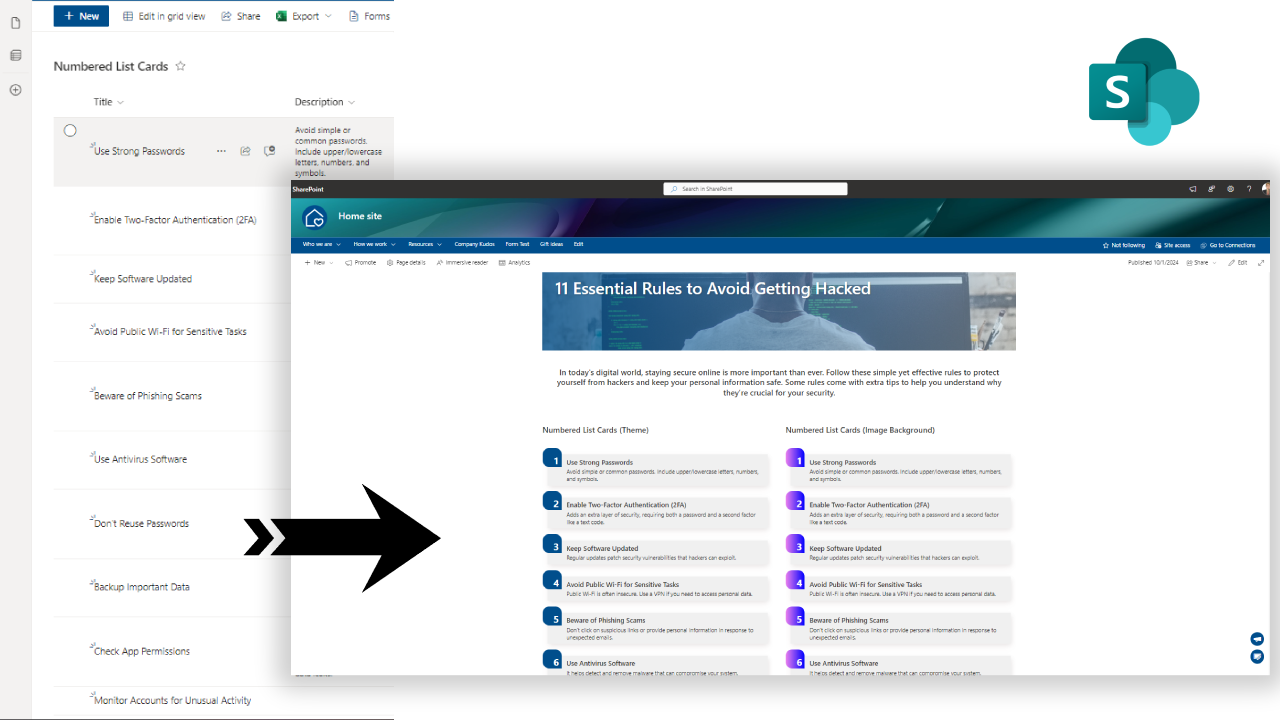
This sample converts list items into numbered list cards. The numbering is done using @rowIndex JSON formatting value.
View sample details →
Numeric Average Comparison preview
View Formatting
Numeric Average Comparison
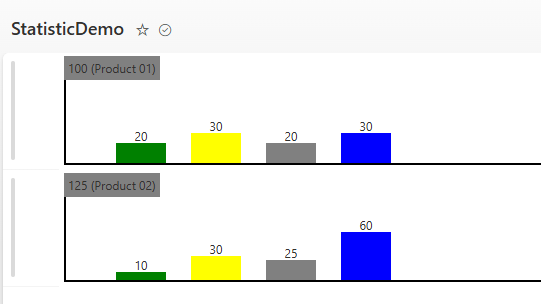
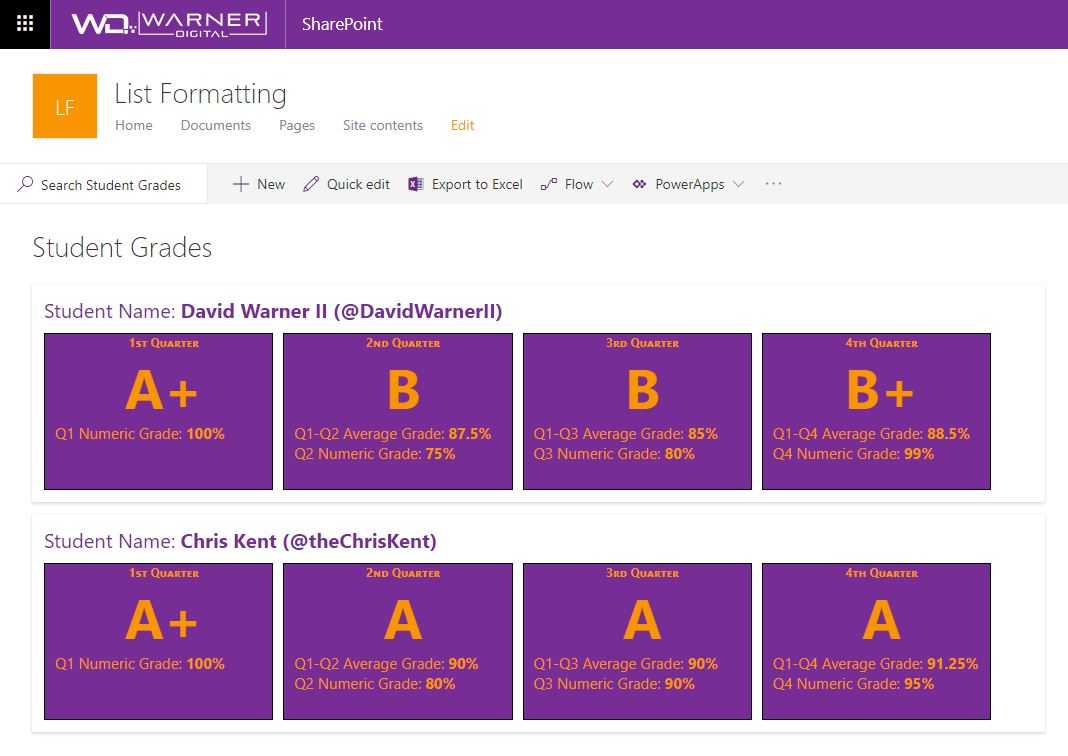
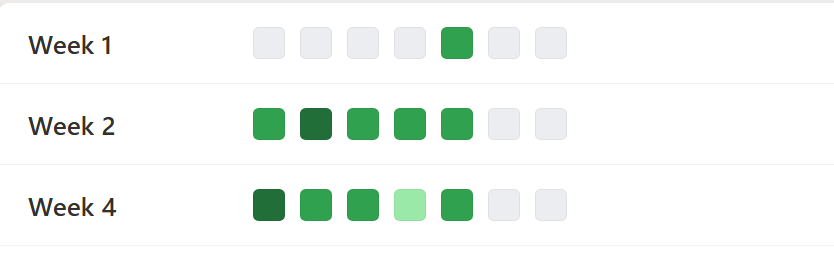
Provides an example of comparing numeric values across time periods. In this example, we are using grades for students across 4 quarters, though the principle can be applied to any repetitive numeric values.
View sample details →
Payments preview
View Formatting
Payments
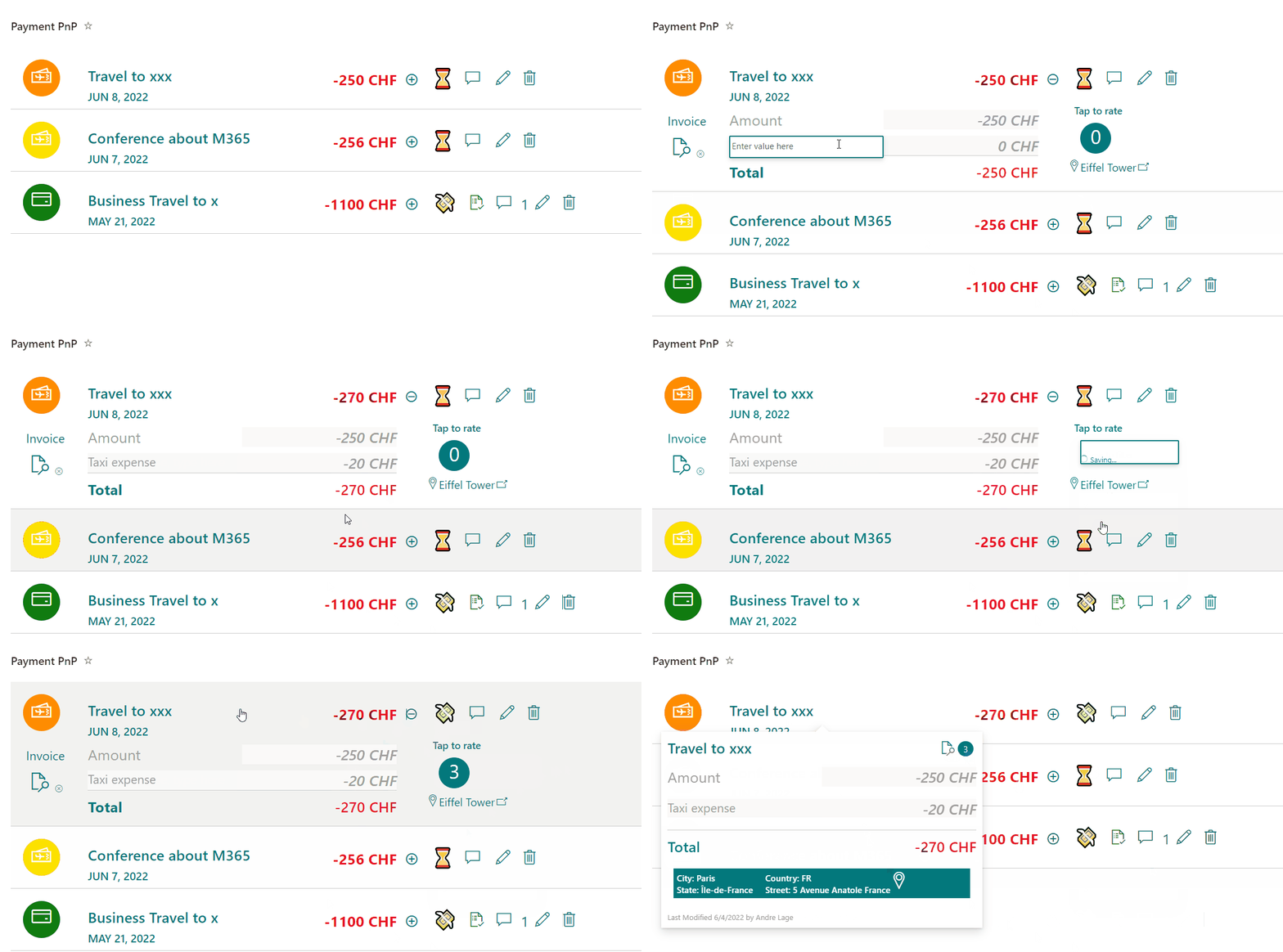
This sample provides a payment list format to register daily expenses, currency, status, rate option, comments and categorization of payment. Solution has 3 formats Desktop, Mobile and Group by Category.
View sample details →
Percent Chart format preview
View Formatting
Percent Chart format
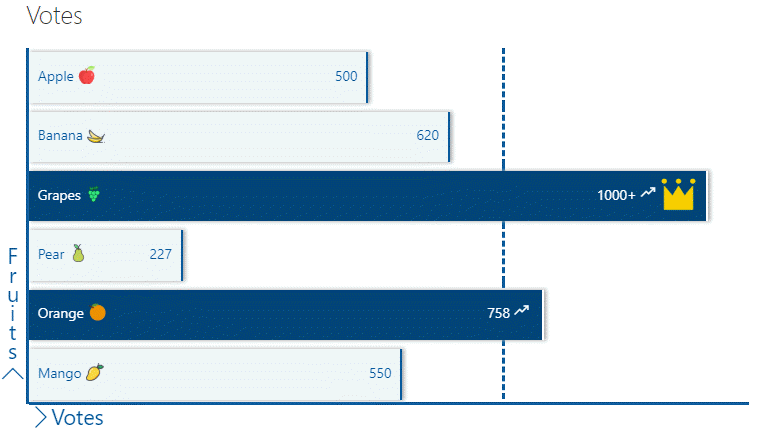
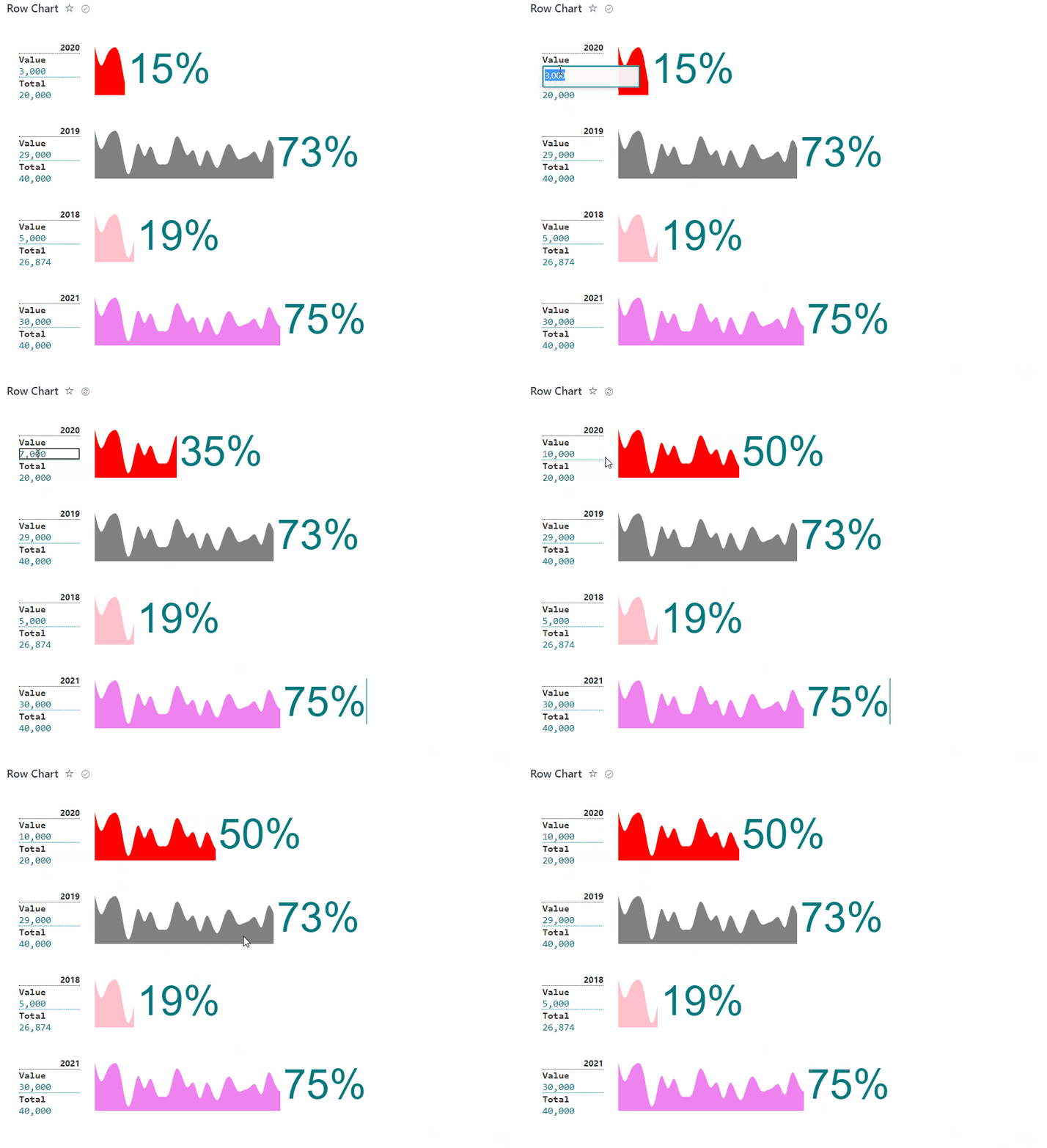
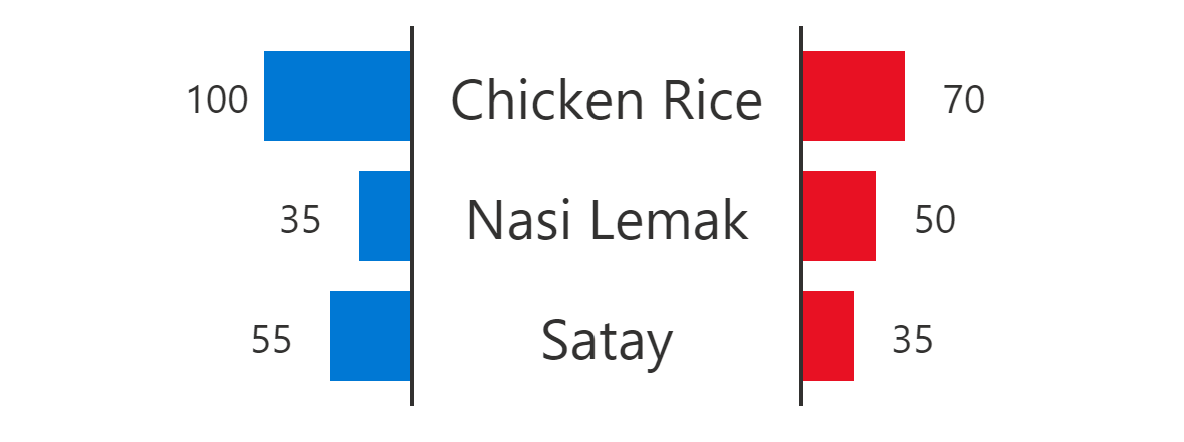
This sample display formatted percent chart row based on icon/emoji/svg and associated result number, used is able to manage to total and used items for percent calculation.
View sample details →
Person Quote Card preview
View Formatting
Person Quote Card
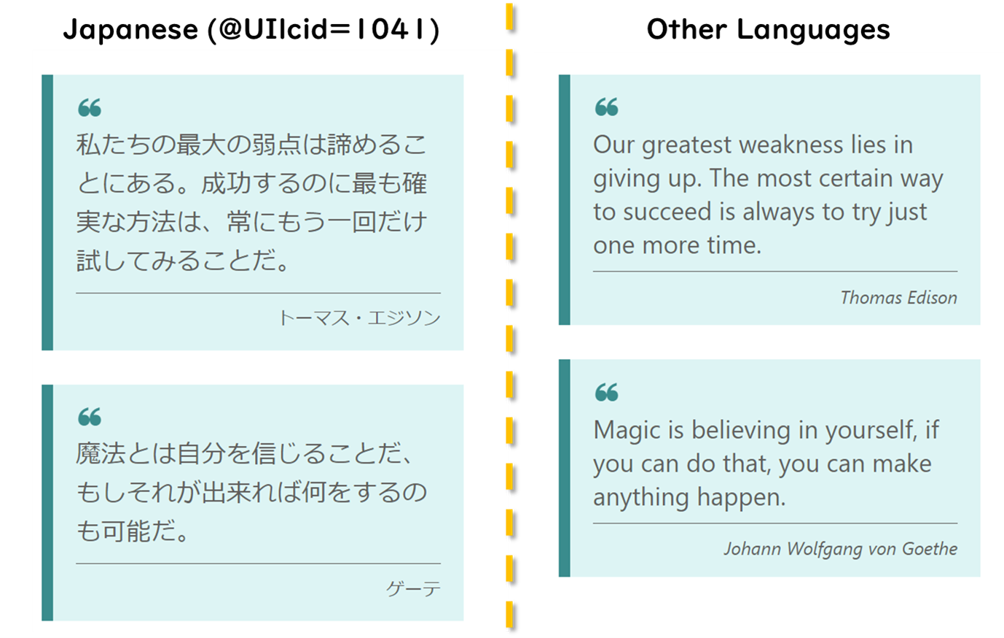
This sample transforms list items into a template that displates quotes from People with a link to their Twitter (X) handle.
View sample details →
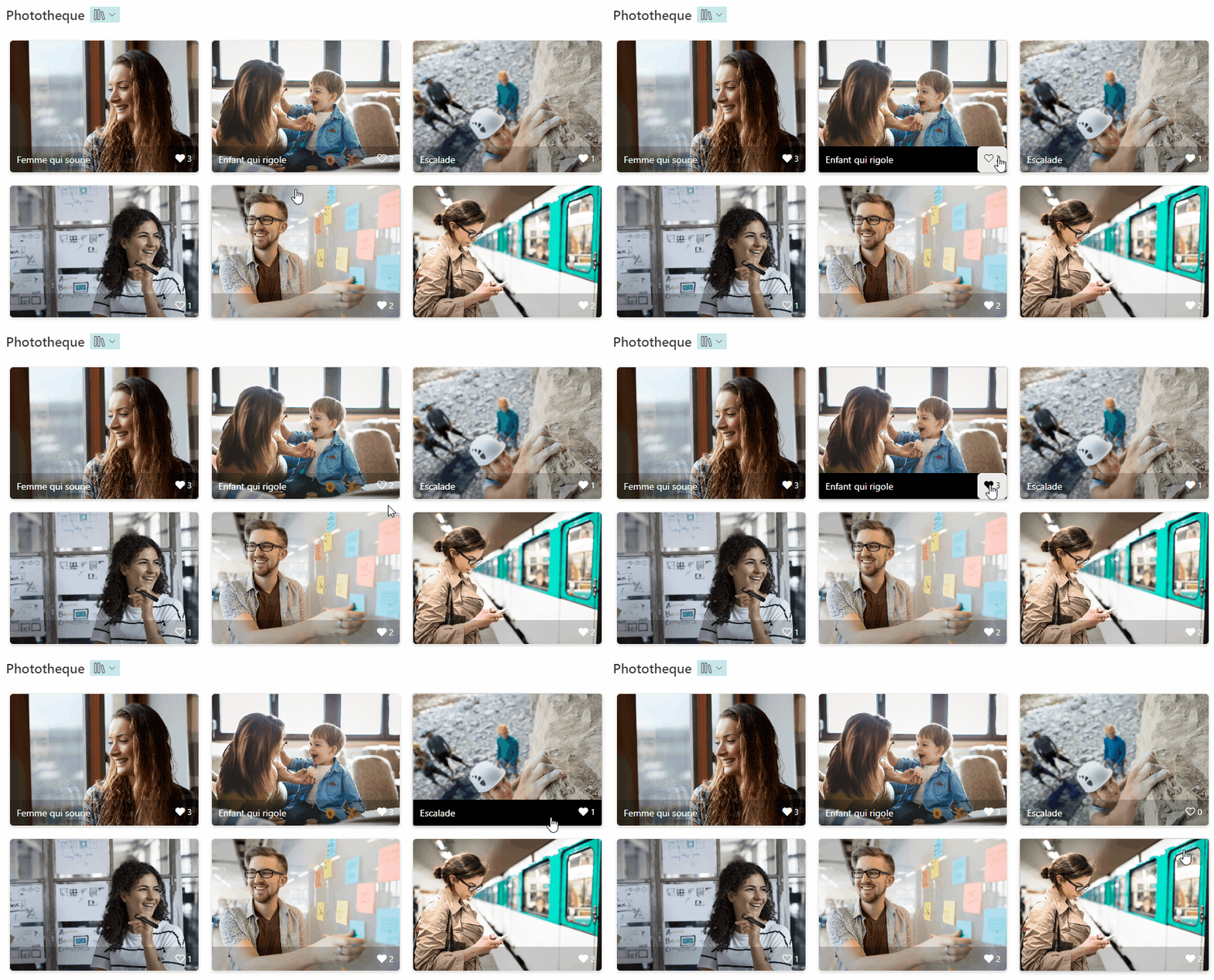
Photo Gallery with Description, Link and Likes preview
View Formatting
Photo Gallery with Description, Link and Likes
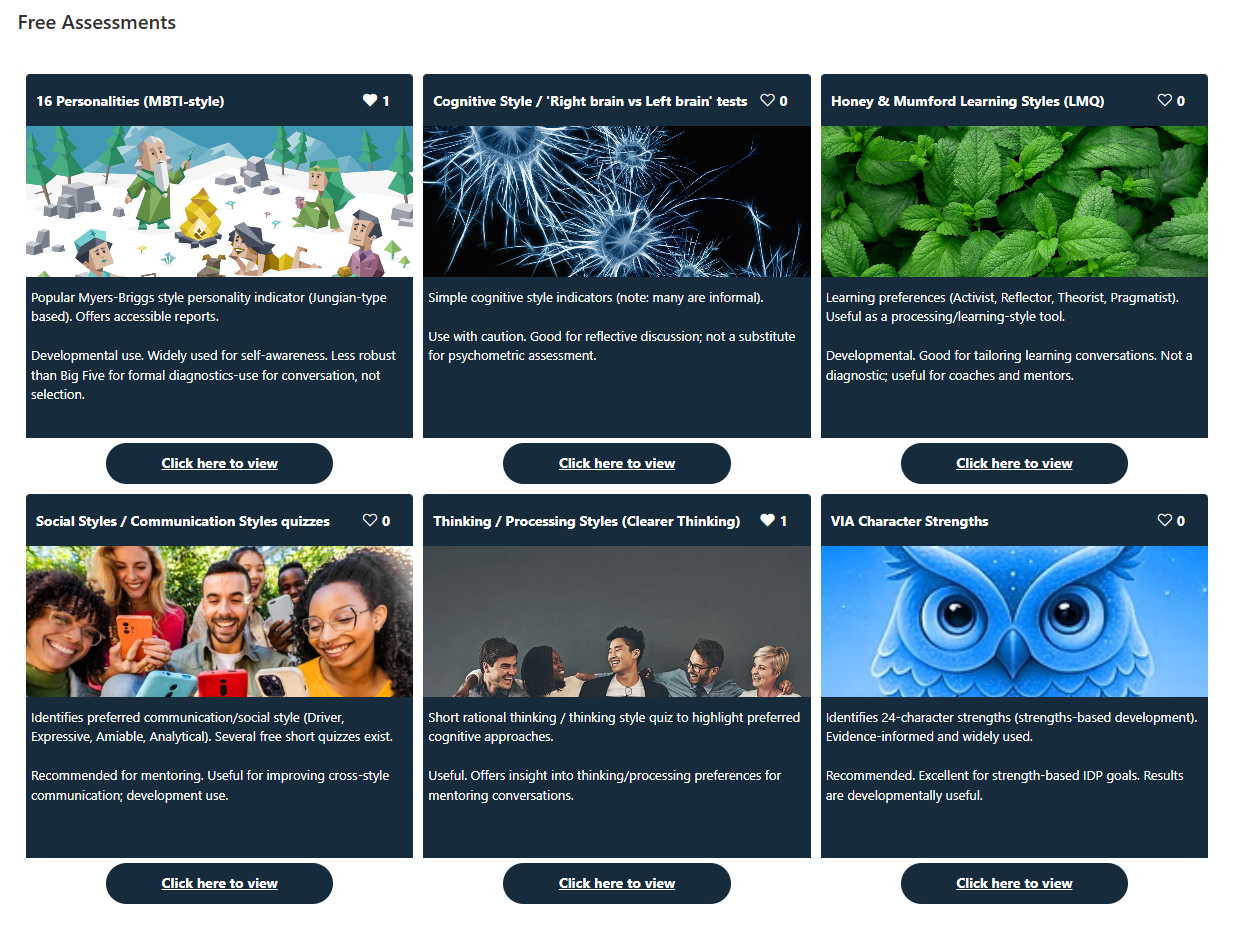
This sample demonstrates formatting a document library gallery view into a photo gallery showing title, description, hyperlink and likes.
View sample details →
photo-gallery-with-likes preview
View Formatting
photo-gallery-with-likes
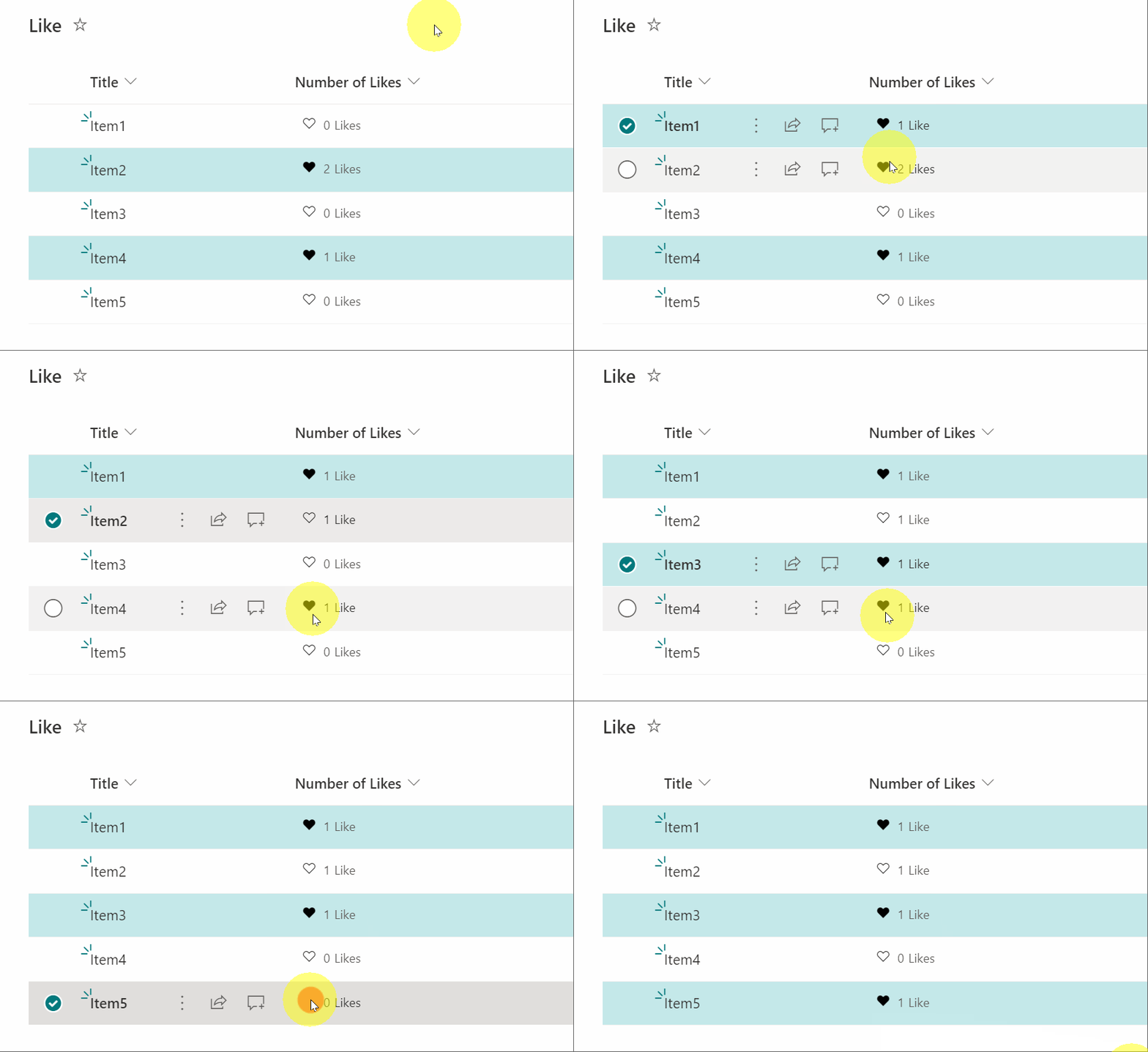
This sample demonstrates formatting a document library gallery view into a photo gallery showing title and likes.
by Lou-i3
View sample details →
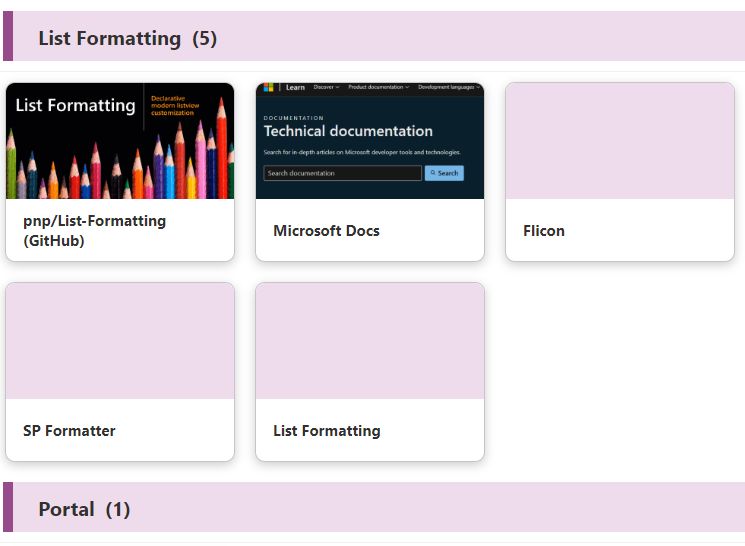
Picture Link Tiles preview
View Formatting
Picture Link Tiles
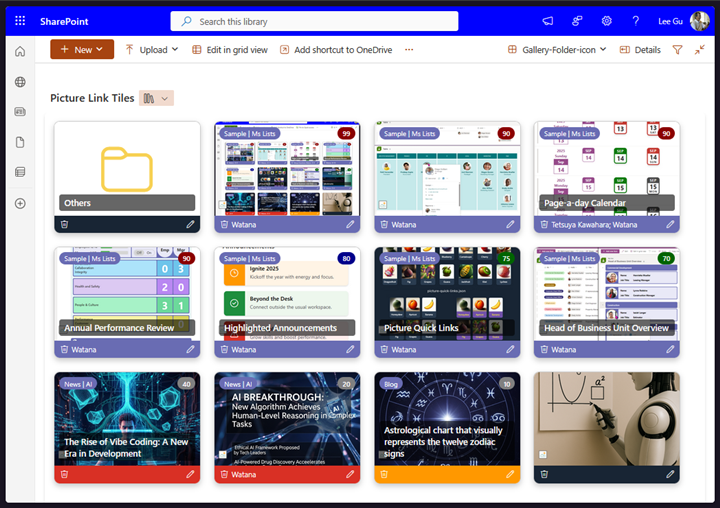
This sample demonstrates a link collection using picture and is a customization of the Gallery layout. Additionally, this sample combines group customization with a tile format.
View sample details →
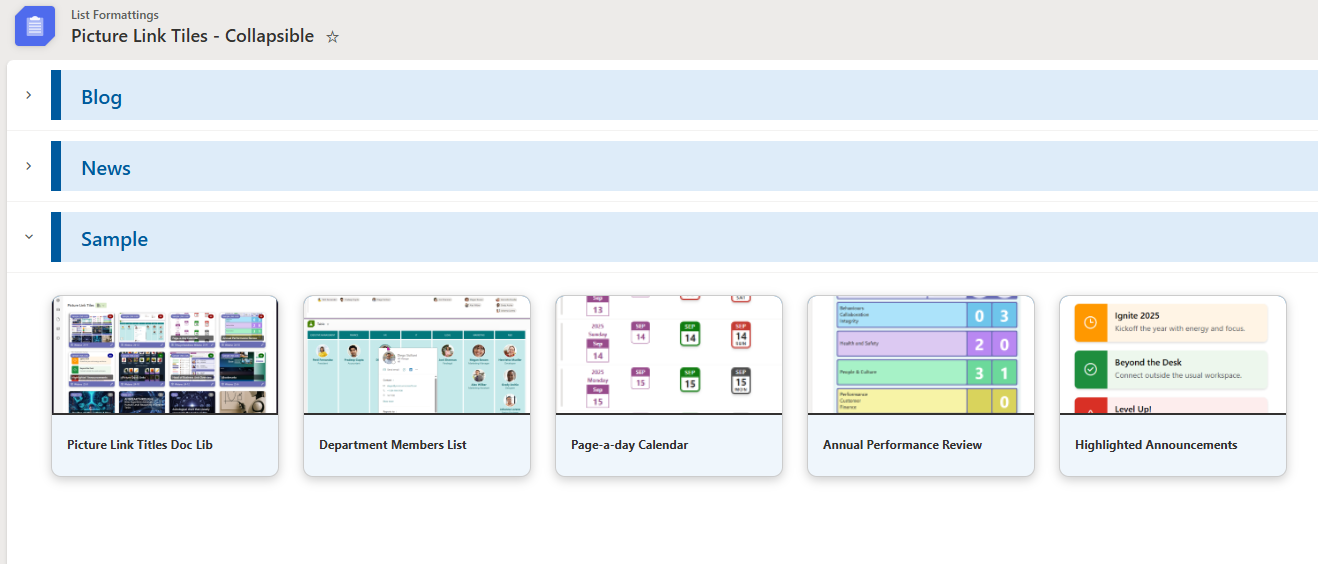
Picture Link Tiles - Collapsible preview
View Formatting
Picture Link Tiles - Collapsible
Creates a card-style tile view in a SharePoint list with expand and collapse functionality.
by Watana
View sample details →
Picture Link Tiles Doc Lib preview
View Formatting
Picture Link Tiles Doc Lib
Creates a card-style tile view in a SharePoint Document Library with file previews, badges, titles, and a footer with actions.
by Watana
View sample details →
Picture Quick Links preview
View Formatting
Picture Quick Links
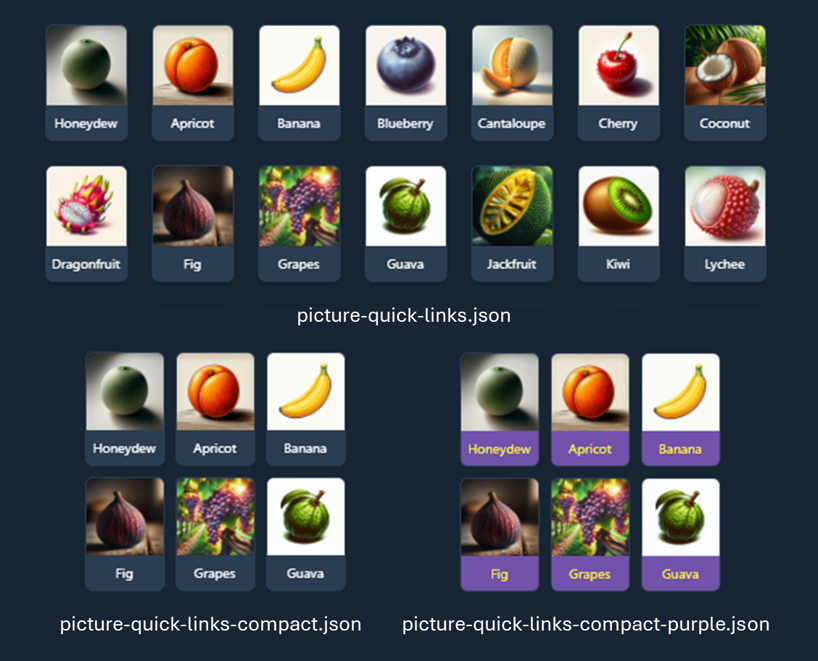
This sample shows custom quick links for adding to a vertical section in a SharePoint page.
by Watana
View sample details →
Planner Inspired Task Cards preview
View Formatting
Planner Inspired Task Cards
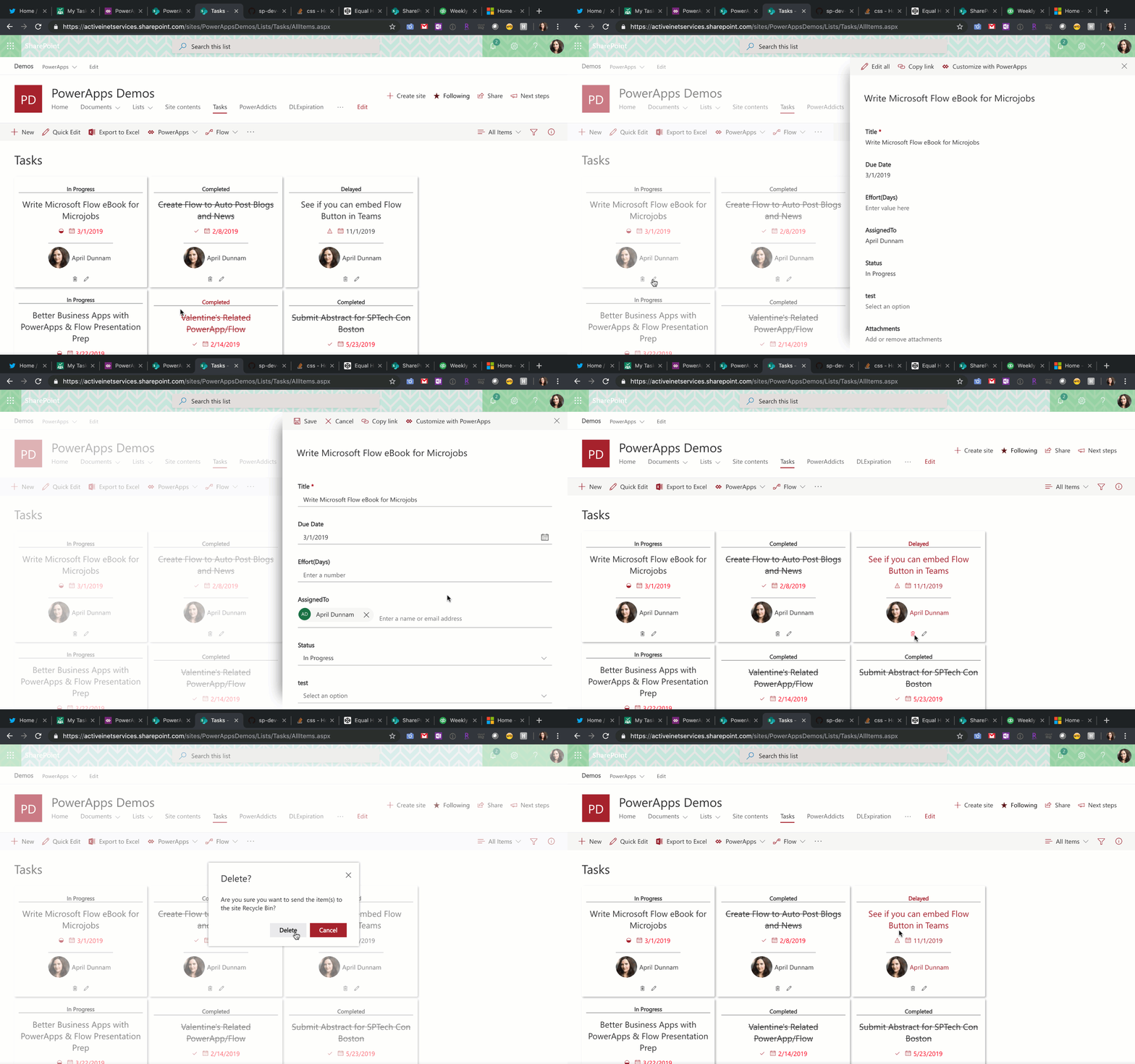
Formats Task List Items in a Planner Inspired Card View. Uses Fluent UI Icons to designate In Progress, Completed, and Delayed Statuses. Automatically strikes out text for Completed items.
View sample details →
Praise Cards preview
View Formatting
Praise Cards
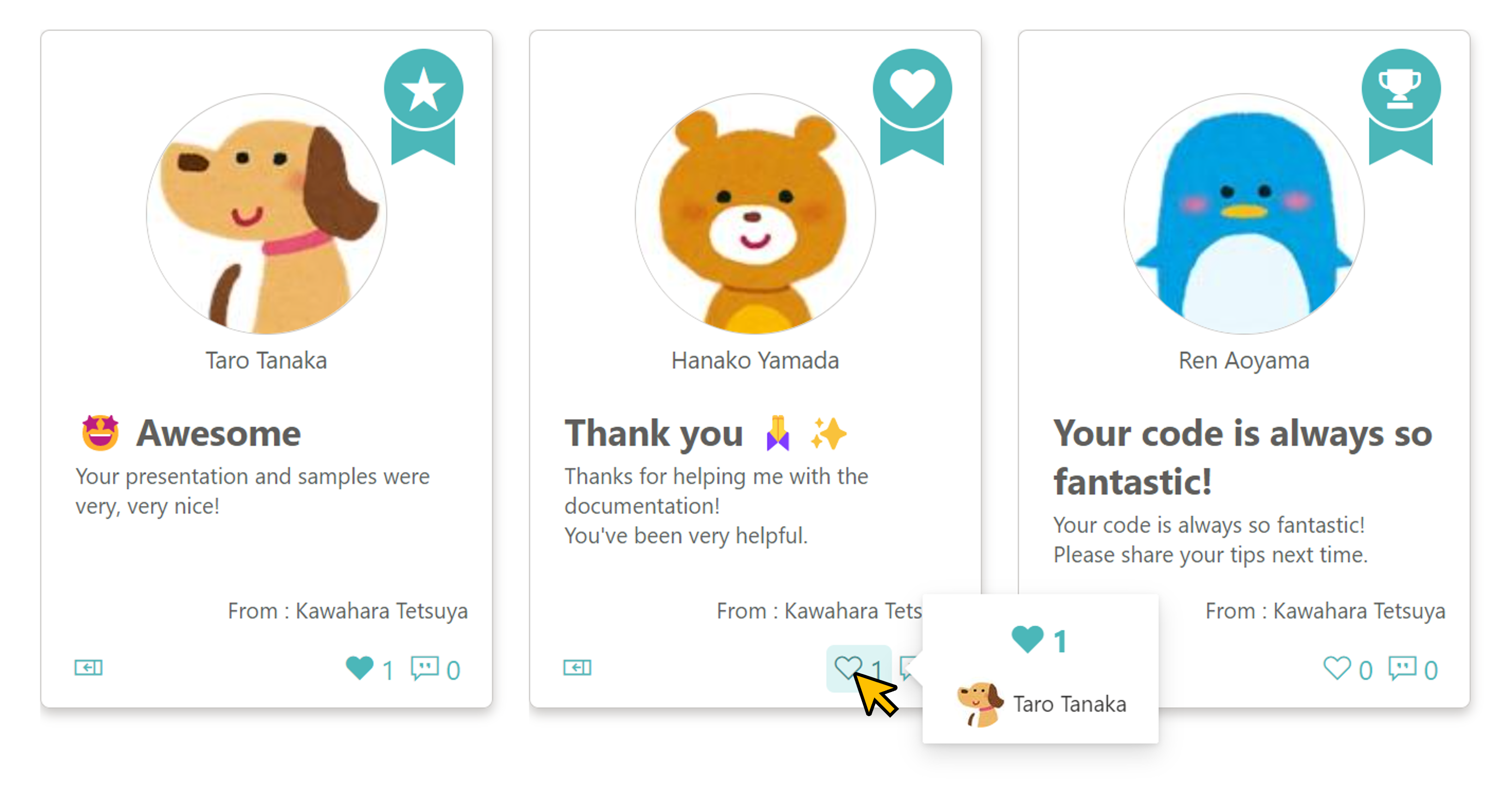
This sample demonstrates how to display Praise Cards. By creating a Praise Card, you can express your appreciation and admiration to others for their daily cooperation and actions!
View sample details →
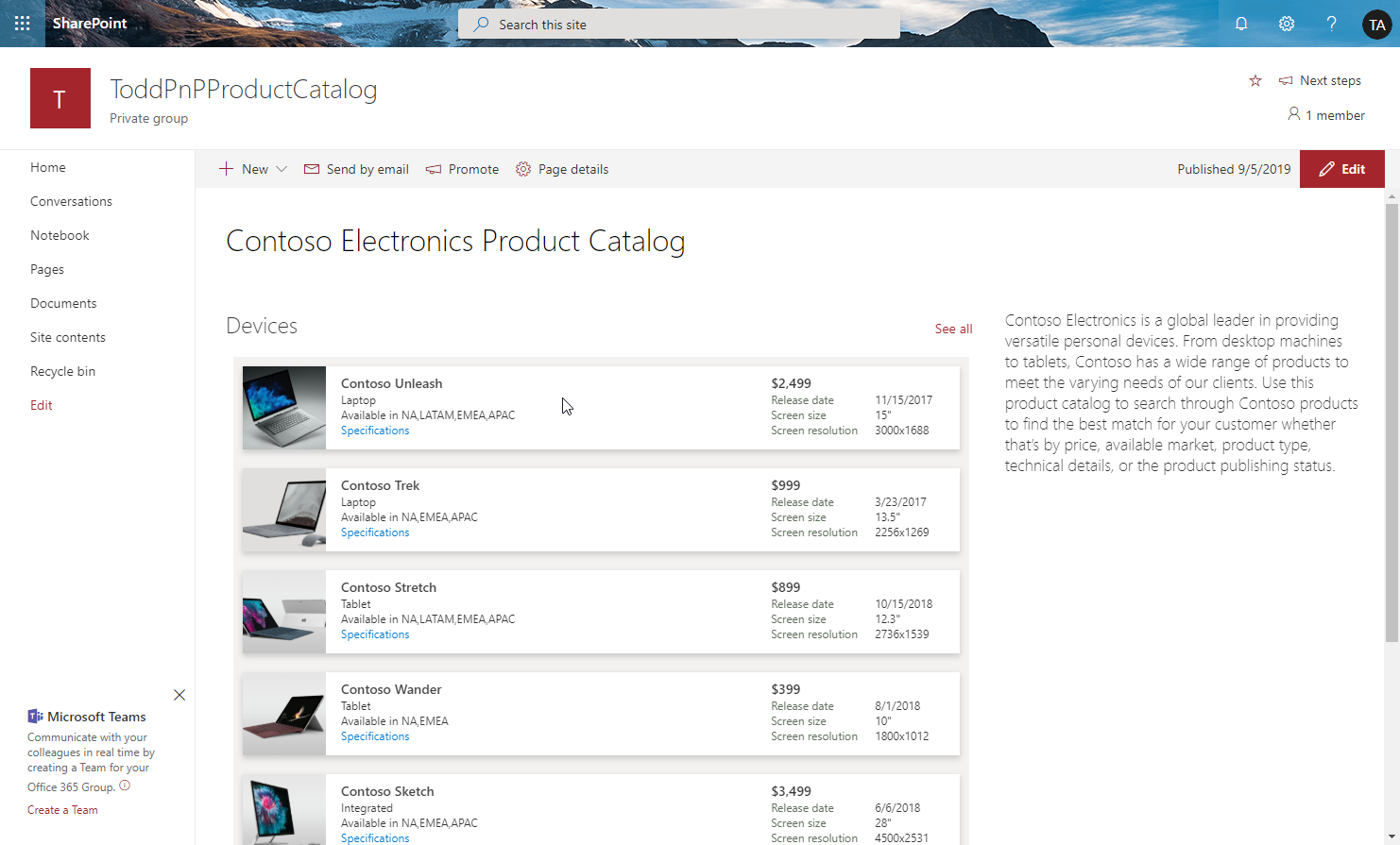
Product Catalog preview
View Formatting
Product Catalog
The product catalog sample demonstrates how to use view formatting to format lists and display views of the lists inside web parts. It also demonstrates how to create links to download documents from the SharePoint Document libraries.
View sample details →
Project Gantt Chart preview
View Formatting
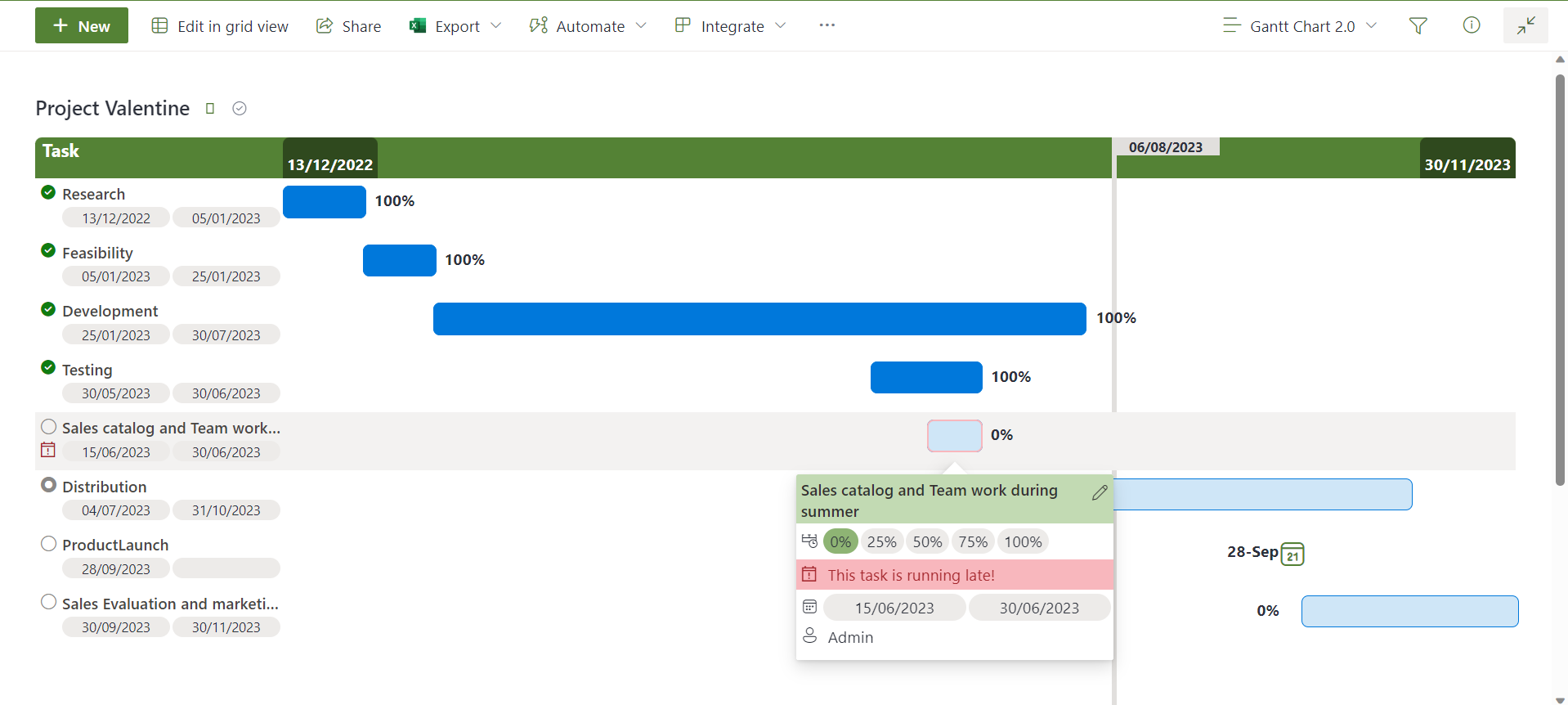
Project Gantt Chart
This project Gantt Chart sample demonstrates how to show a list of high level tasks in a Gantt chart. It is mainly useful for top-level views.
View sample details →
Project Health Dashboard preview
View Formatting
Project Health Dashboard
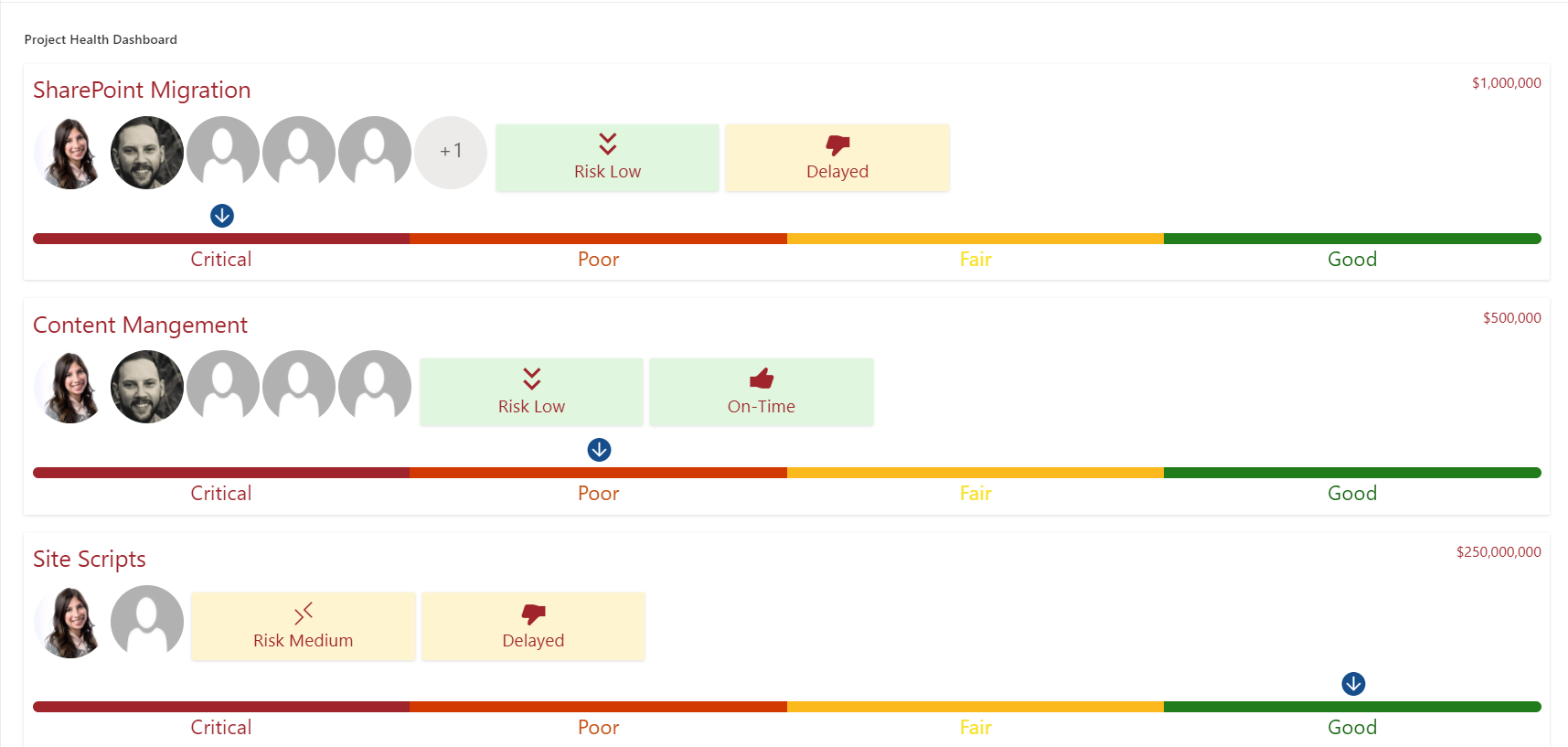
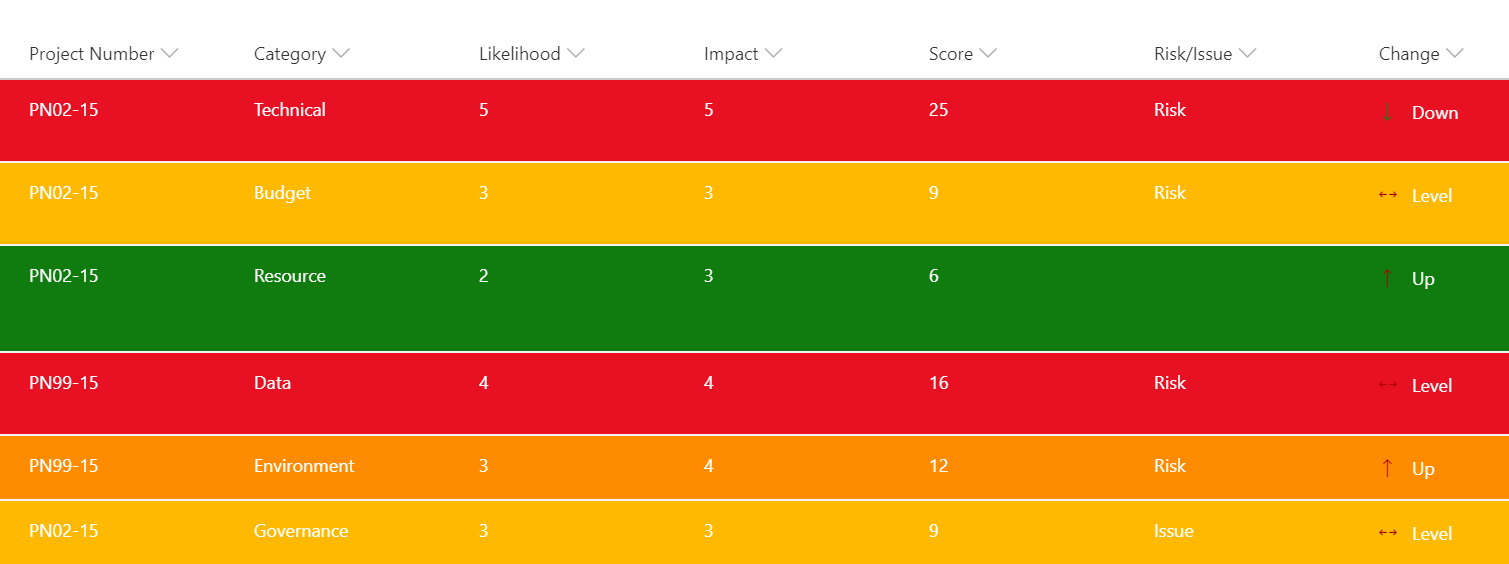
This is a template for Project health statuses; it has nice features such as Risk scoring, Severity of the project, Schedule timing, Hover effects that provide the latest project updates, Theme Colors, Project Team members, and the cost of the project.
View sample details →
Property Card preview
View Formatting
Property Card
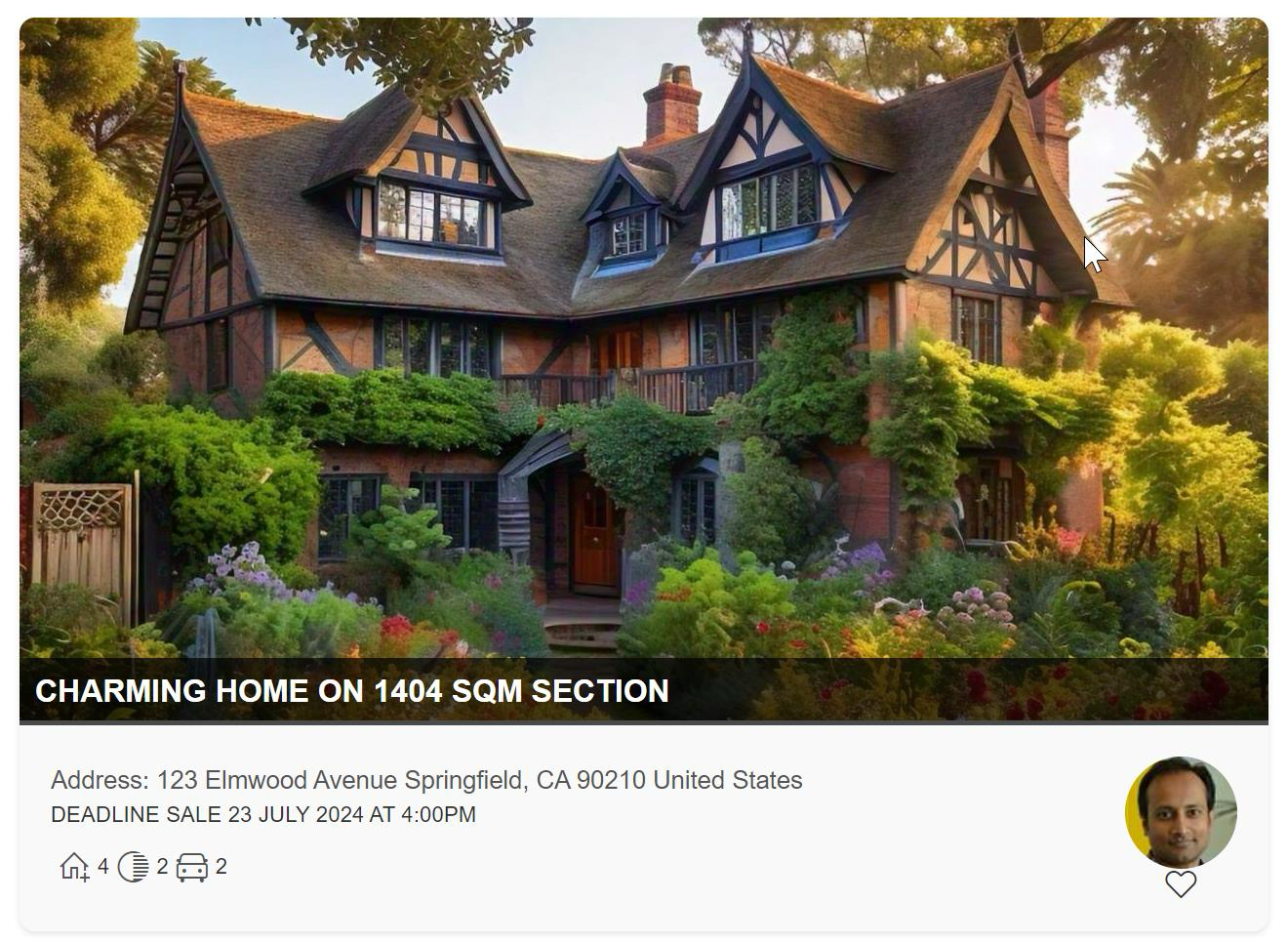
This sample transforms list items into cards formatted with property listing layouts. To ensure the view functions correctly, make sure all specified columns are included. The icons are referenced from Fluent UI Icons.
View sample details →
QR Code Row Formatter preview
View Formatting
QR Code Row Formatter
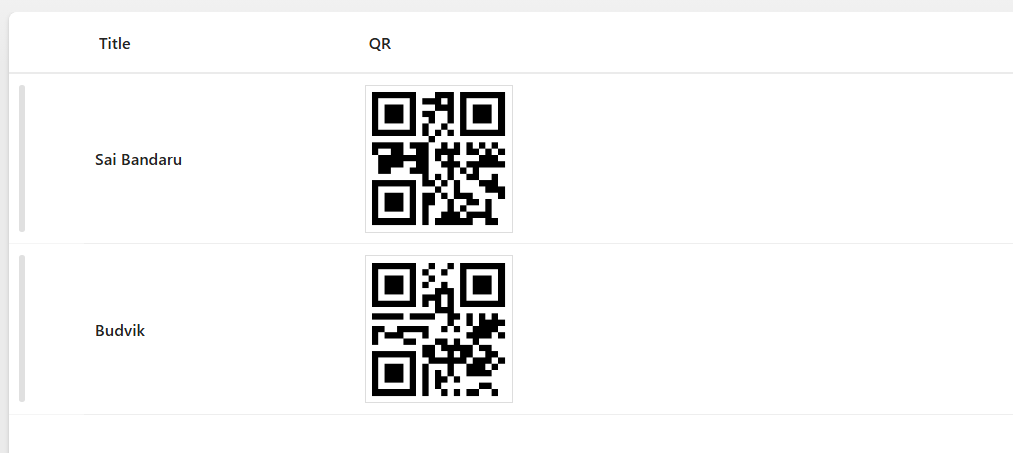
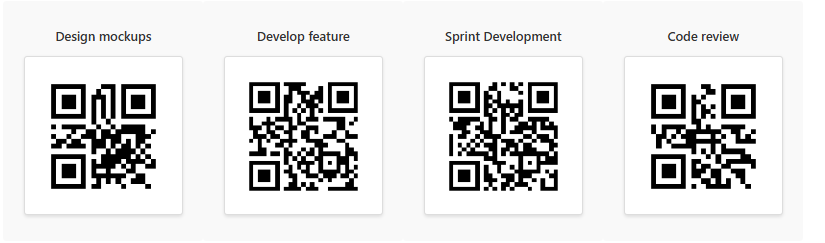
This sample uses SharePoint List Formatting to automatically generate QR codes for each list item based on the Title field.
View sample details →
QR Code Tile preview
View Formatting
QR Code Tile
This sample uses SharePoint List Formatting to automatically generate QR codes for each list item in a tile view based on the Title field.
View sample details →
Quiz preview
View Formatting
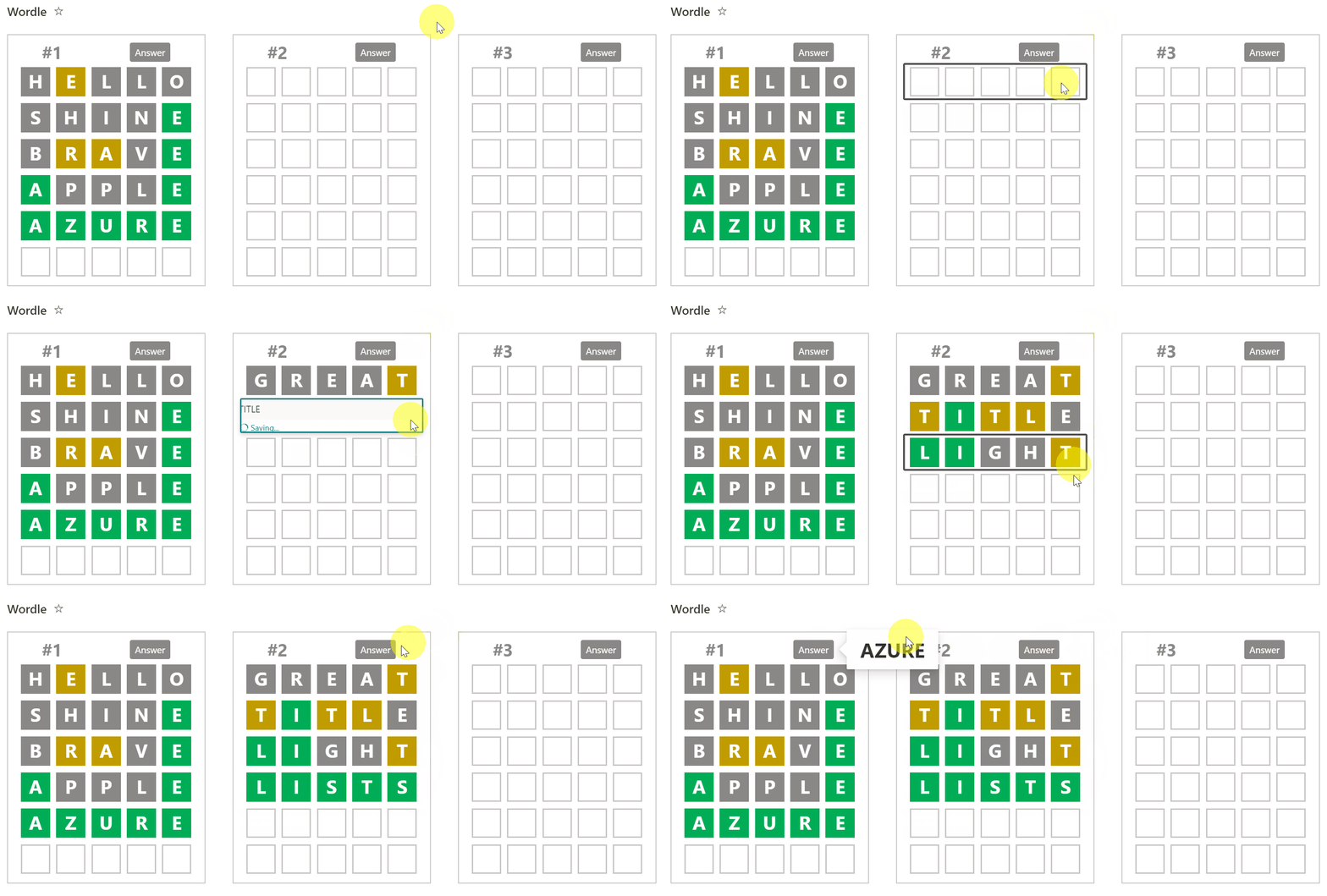
Quiz
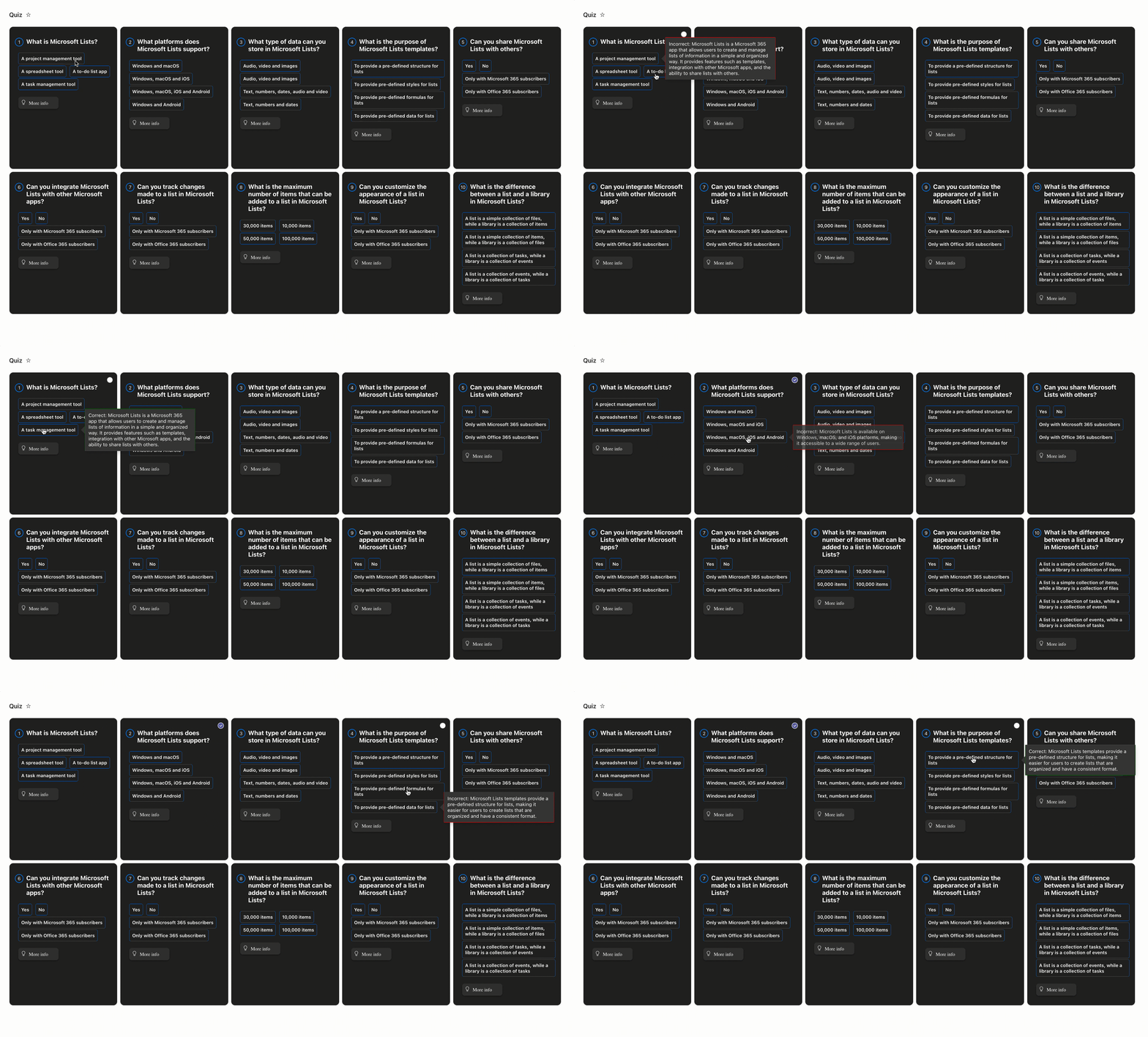
This sample creates a quiz with multiple choice questions. The tile view and custom card props provide visual feedback to users when making answer choices.
View sample details →
Random Item preview
View Formatting
Random Item
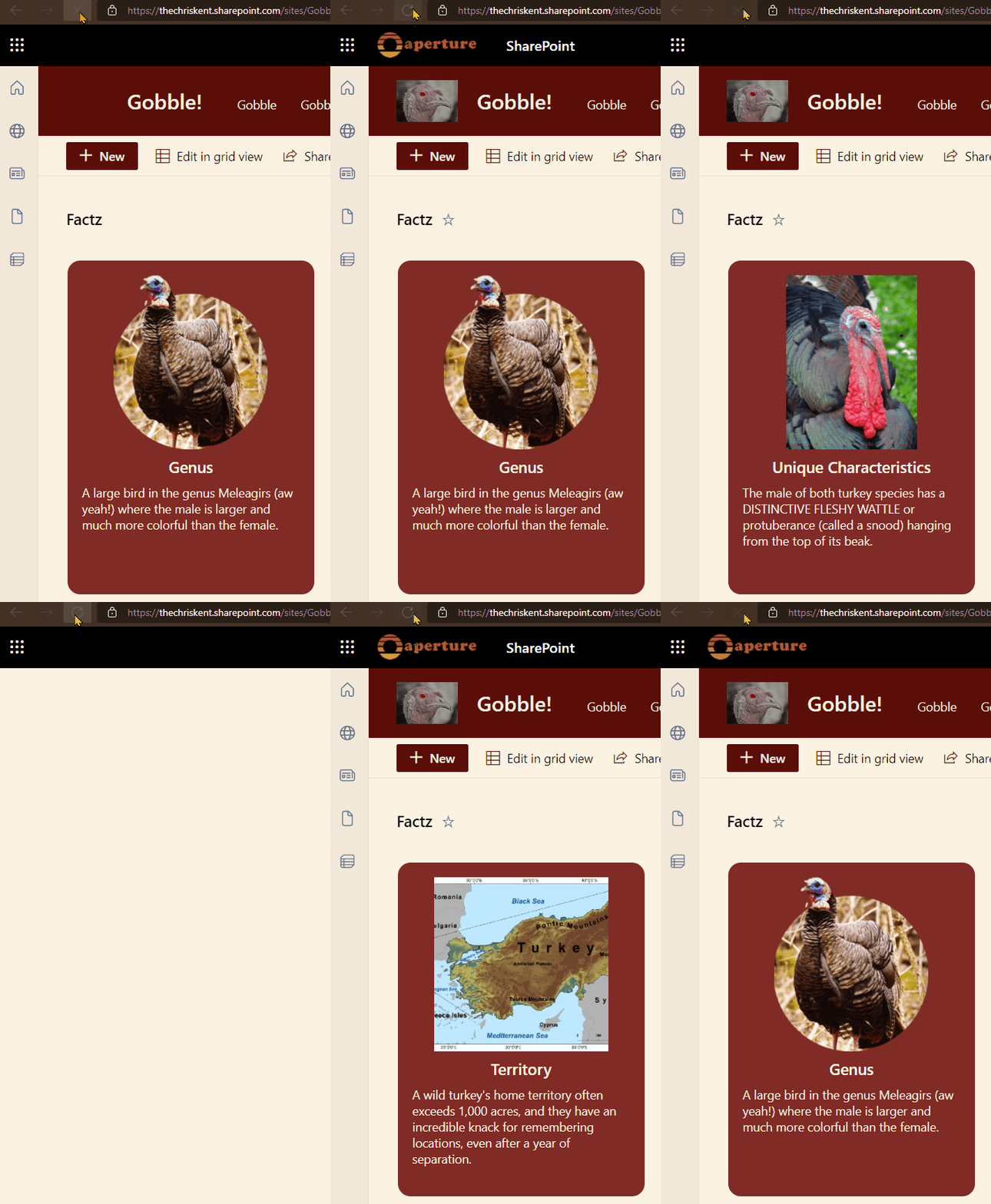
This sample demonstrates utilizing layering to draw all rows on top of each other and then the z-index is set to a randomized value to determine which row to draw on the very top.
View sample details →
Rating in Tiles preview
View Formatting
Rating in Tiles
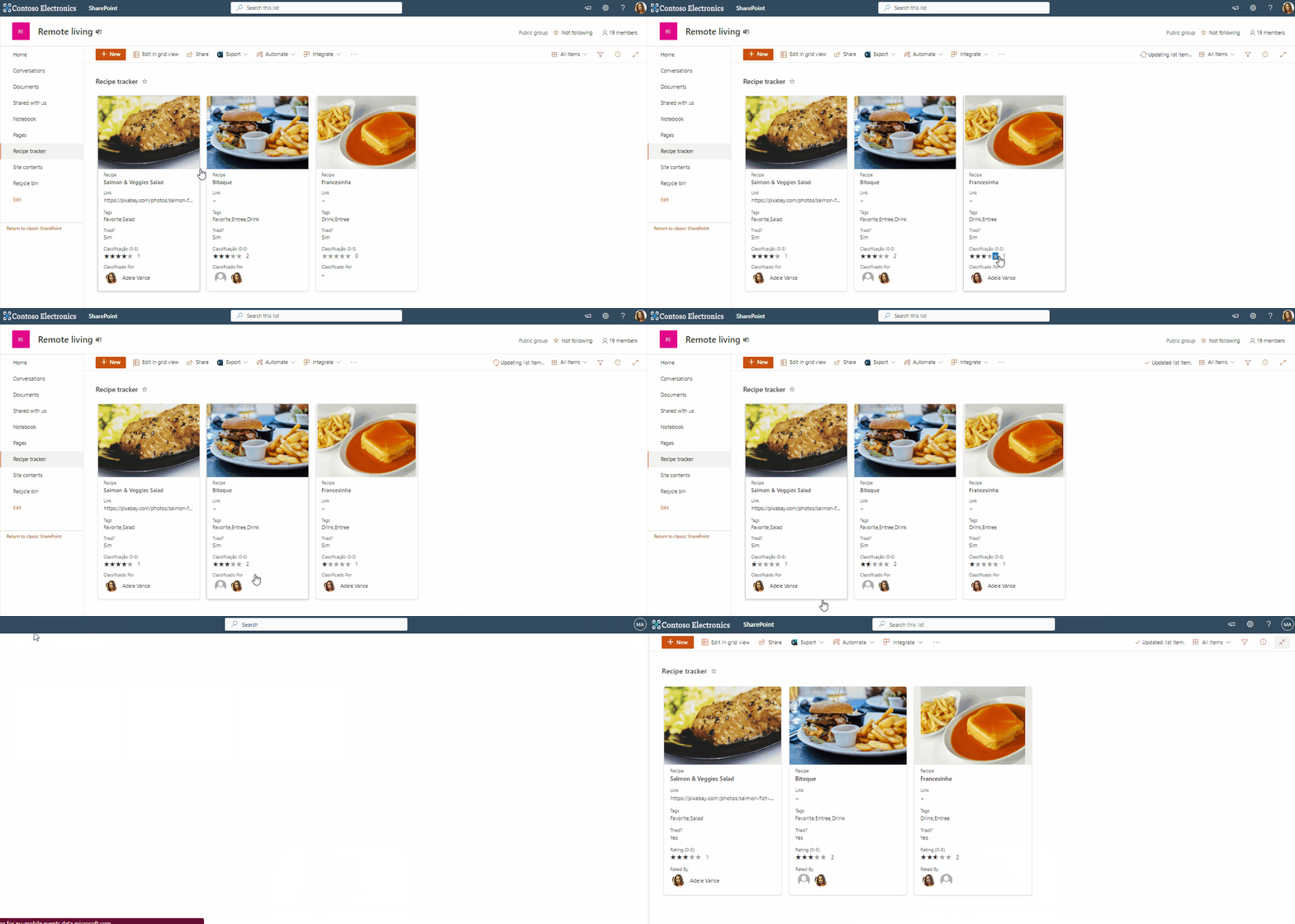
This sample demonstrates how to create a clickable rating experience in the view Tile mode. It allows users to rate the item/document when in the tile mode.
View sample details →
Remove Column Name from Group Header preview
View Formatting
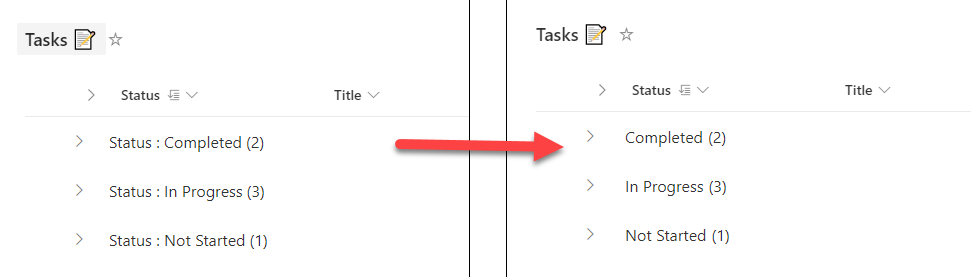
Remove Column Name from Group Header
This view formatting sample can be used to customize the group header to remove column name from group header.
View sample details →
Reorder and Expand Board Items preview
View Formatting
Reorder and Expand Board Items
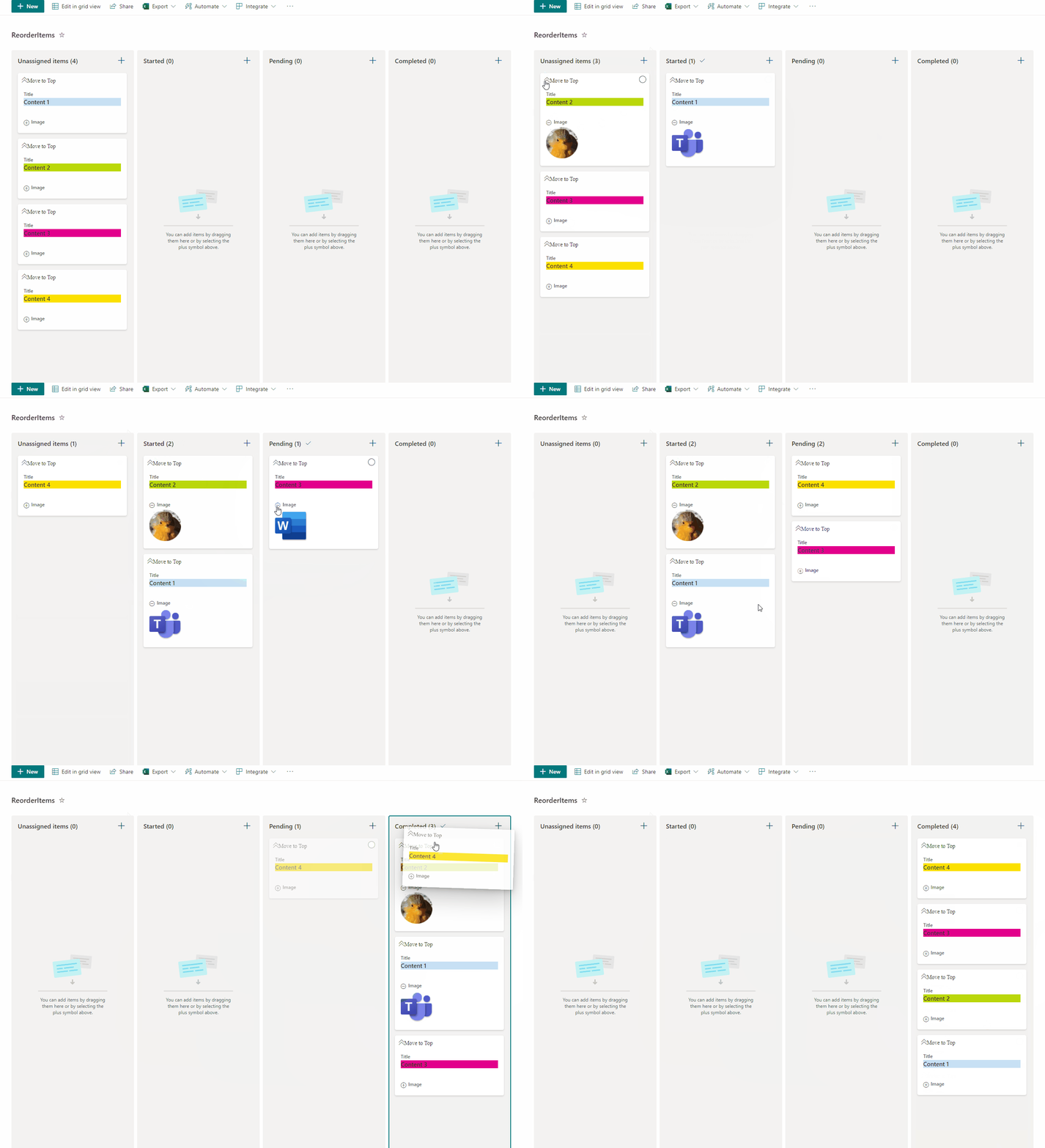
This sample allow users to manage card order in Board Views and also enables expanding and collapsing images. This sample has the option 'Move to Top' that allows users to move cards to the top of the board view as a way to rearrange card positions.
View sample details →
Request Sign-off preview
View Formatting
Request Sign-off
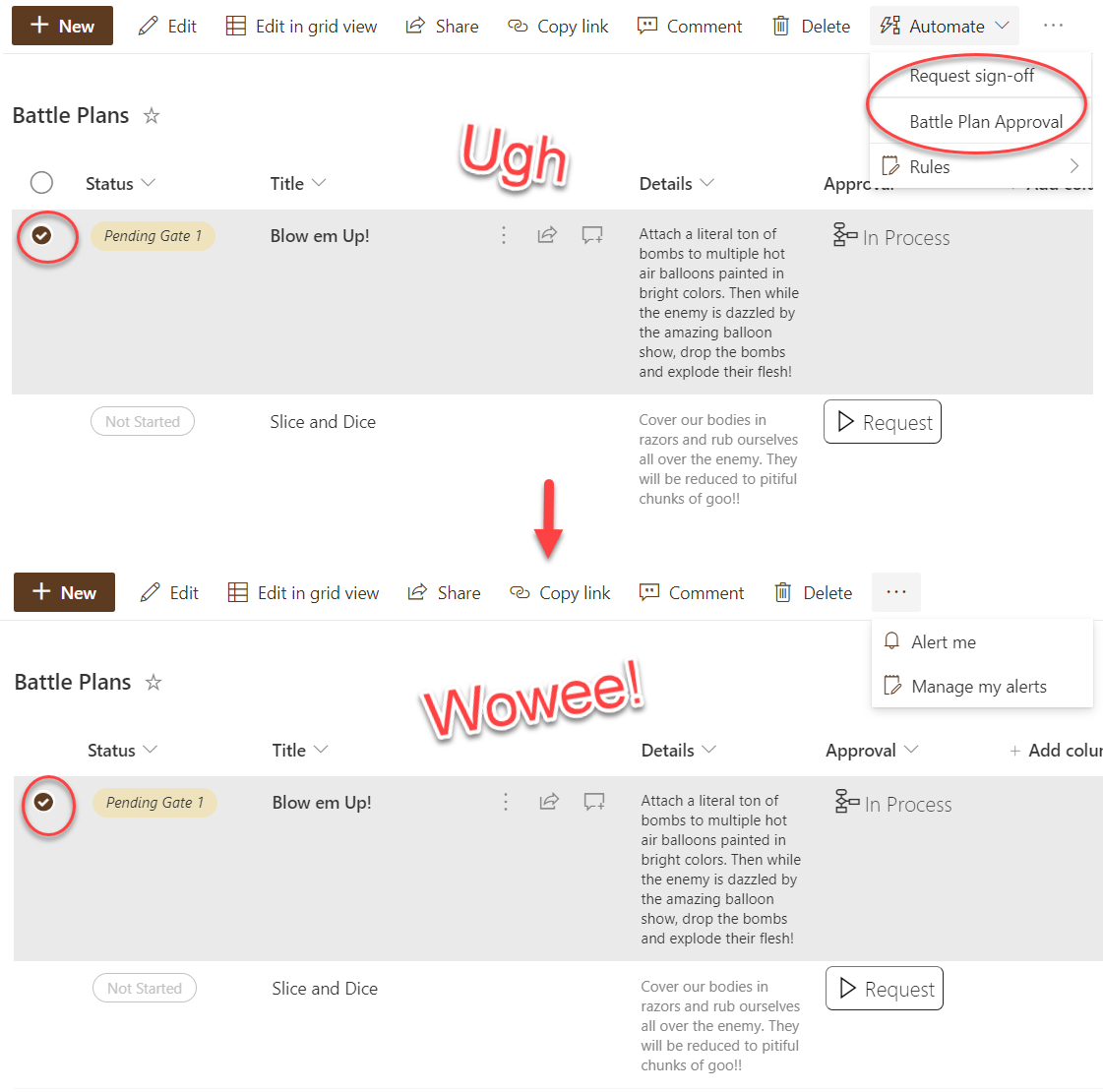
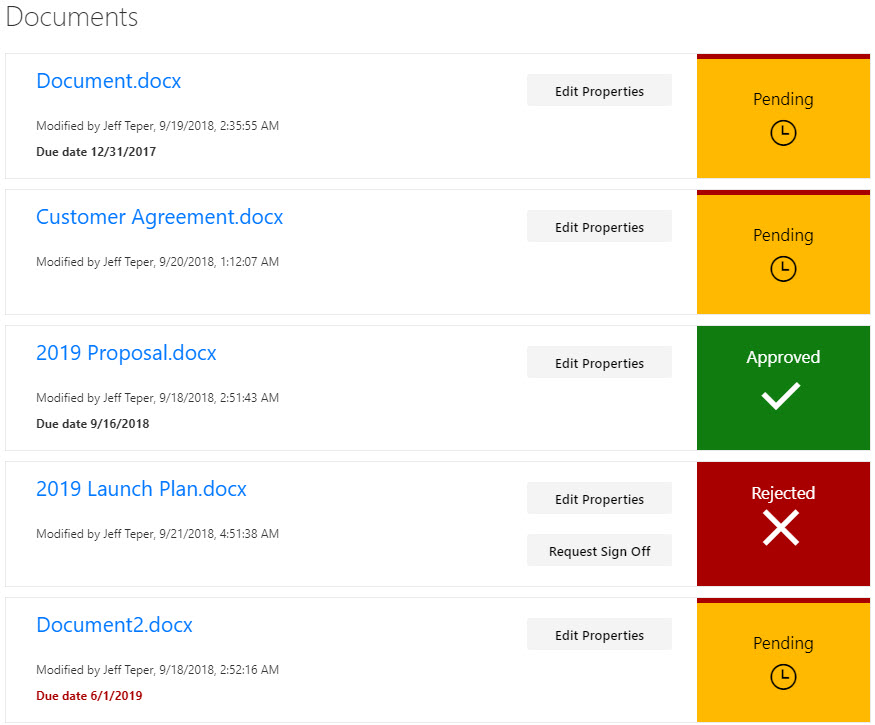
This sample provides a custom view to focus on files within a document library that need to be approved. A Power Automate flow is included to request sign-off (and to launch that flow directly from the view). This format provides a better visual indication of where documents are in the approval process.
View sample details →
Resource Catalog Sample preview
View Formatting
Resource Catalog Sample
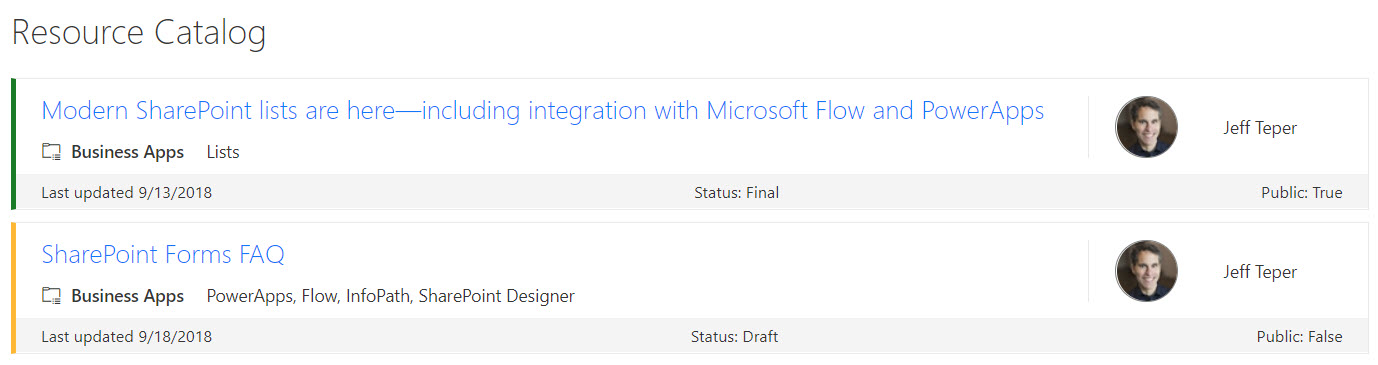
SharePoint lists are excellent places to store information. This example demonstrates how to use a custom SharePoint list to implement a marketing resources catalog. This sample defines a custom view to bring focus to the status of items in the resource catalog. It also provides a better visual experience by displaying all the data in an easy to read format by using icons, colors, and profile pictures.
View sample details →
Responsive People Profile Cards preview
View Formatting
Responsive People Profile Cards
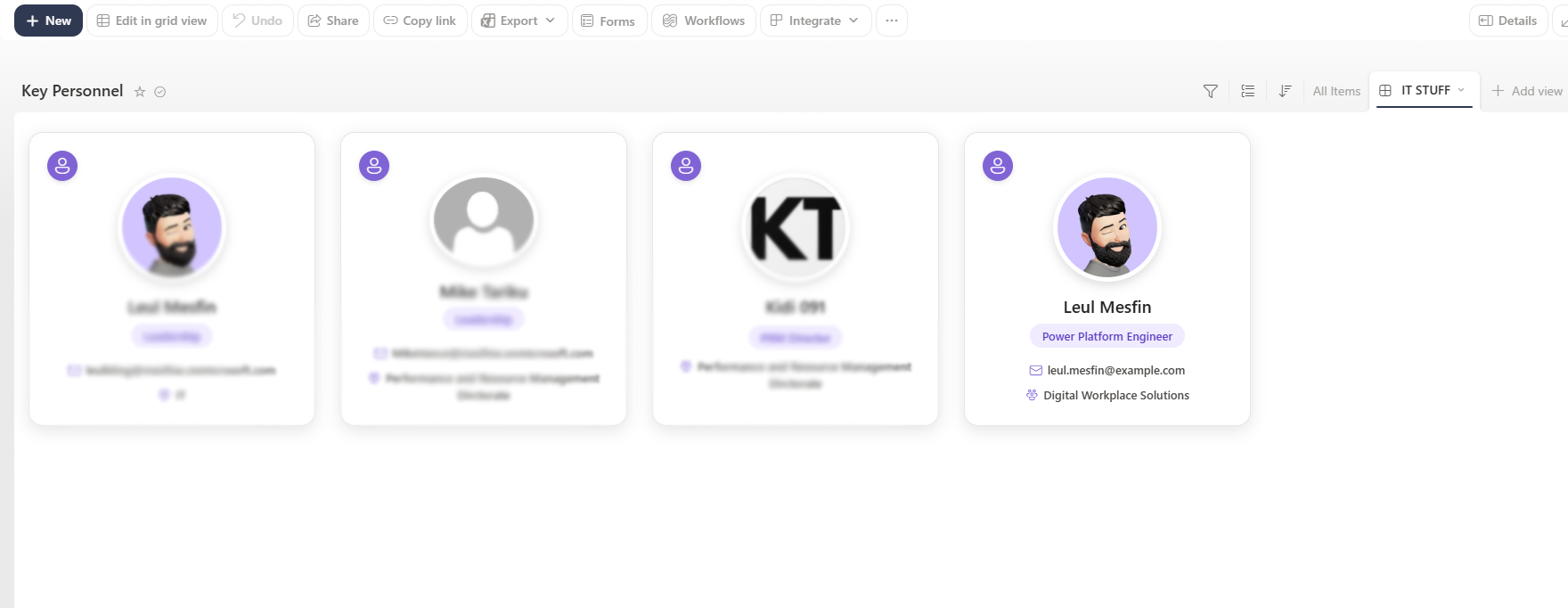
Modern responsive profile cards displaying Microsoft 365 profile pictures, names, roles, email addresses, and departments.
View sample details →
Retail Accounts preview
View Formatting
Retail Accounts
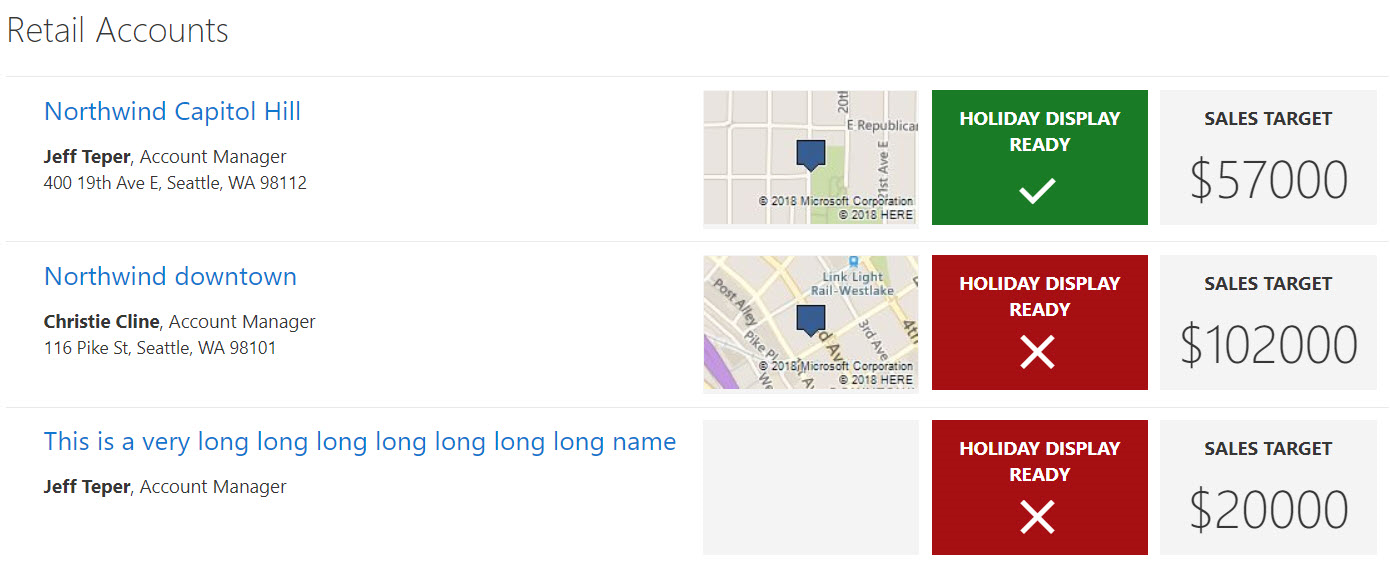
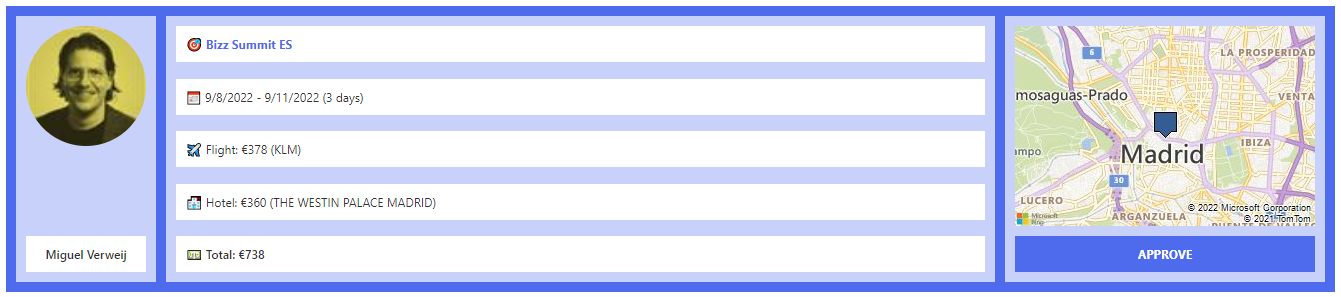
SharePoint lists are excellent places to store information. This example demonstrates how to use a custom SharePoint list to manage retail stores. This sample defines a custom view to bring focus to the status of store locations. It also provides a better visual experience by displaying all the data in an easy to read format by using icons, colors, and Bing maps.
View sample details →
Roll Dice preview
View Formatting
Roll Dice
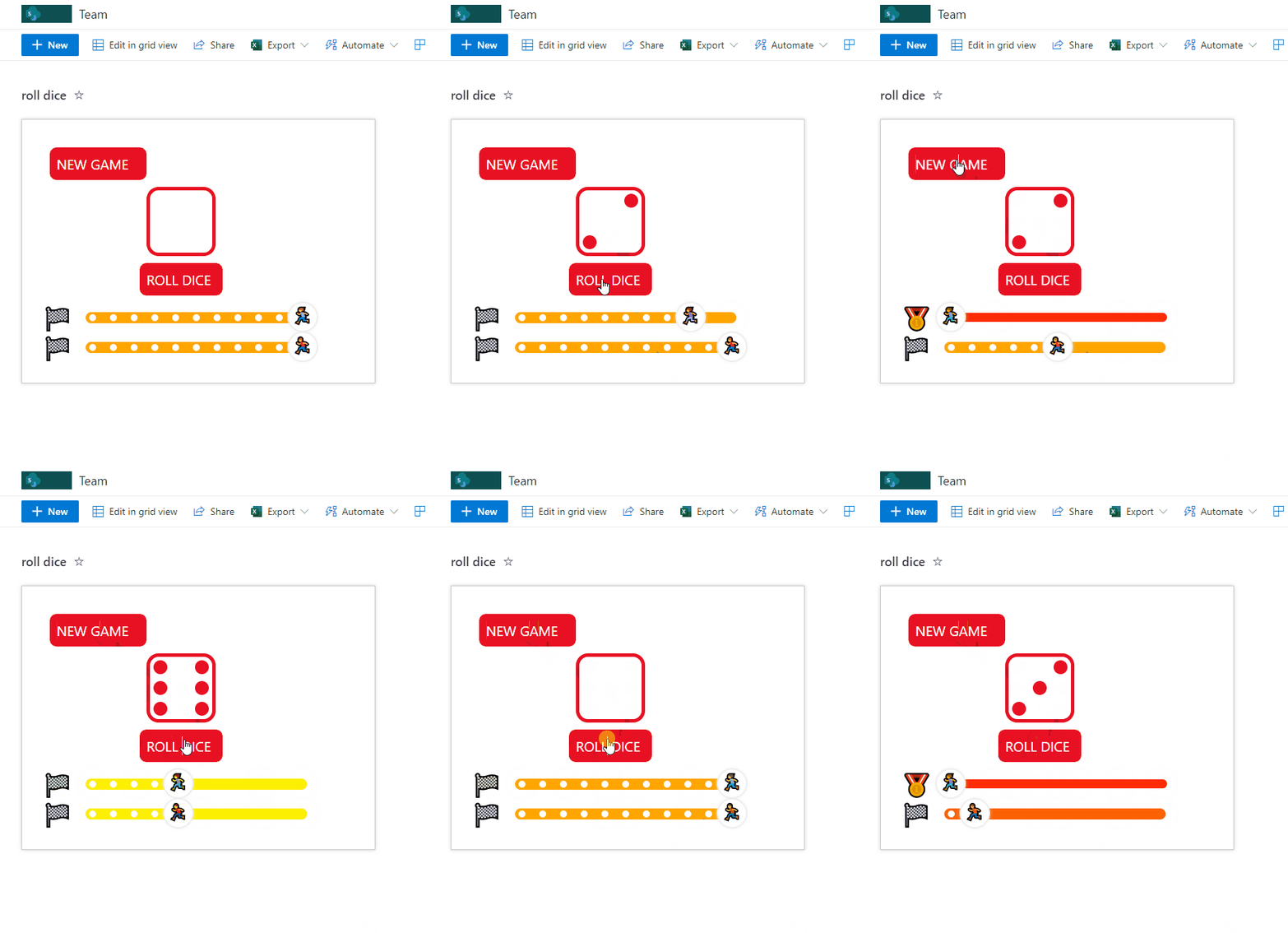
This sample format provides a simulation of a game where a random number (between 1 and 6) is generated and displayed as a die. The value makes the progress bar advance with the associated emoji until the value 0 is reached and the winner emoji appears.
View sample details →
RYG Status preview
View Formatting
RYG Status
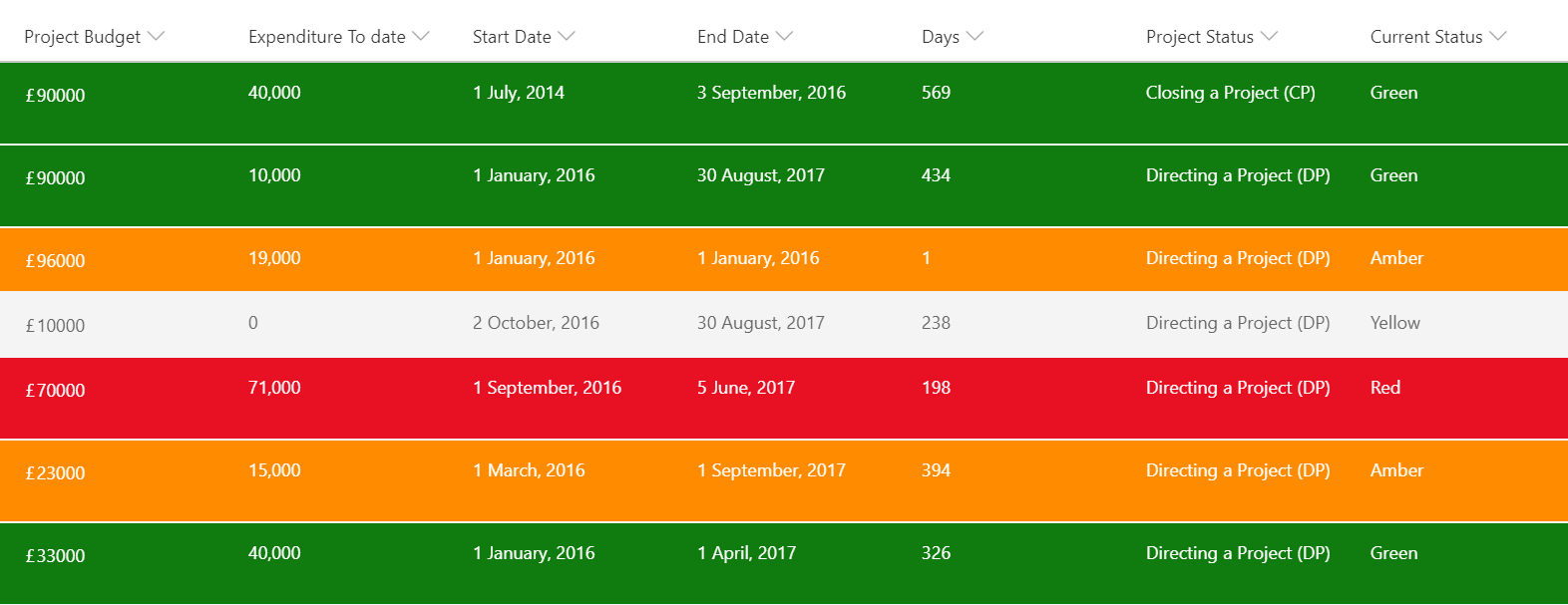
A status column is evaluated to provide colors corresponding to status. This format uses the values Red, Yellow, Green, and Amber but you could easily extend this to fit your own color-coded system by adding or removing nested conditions.
View sample details →
Search Within Tags preview
View Formatting
Search Within Tags
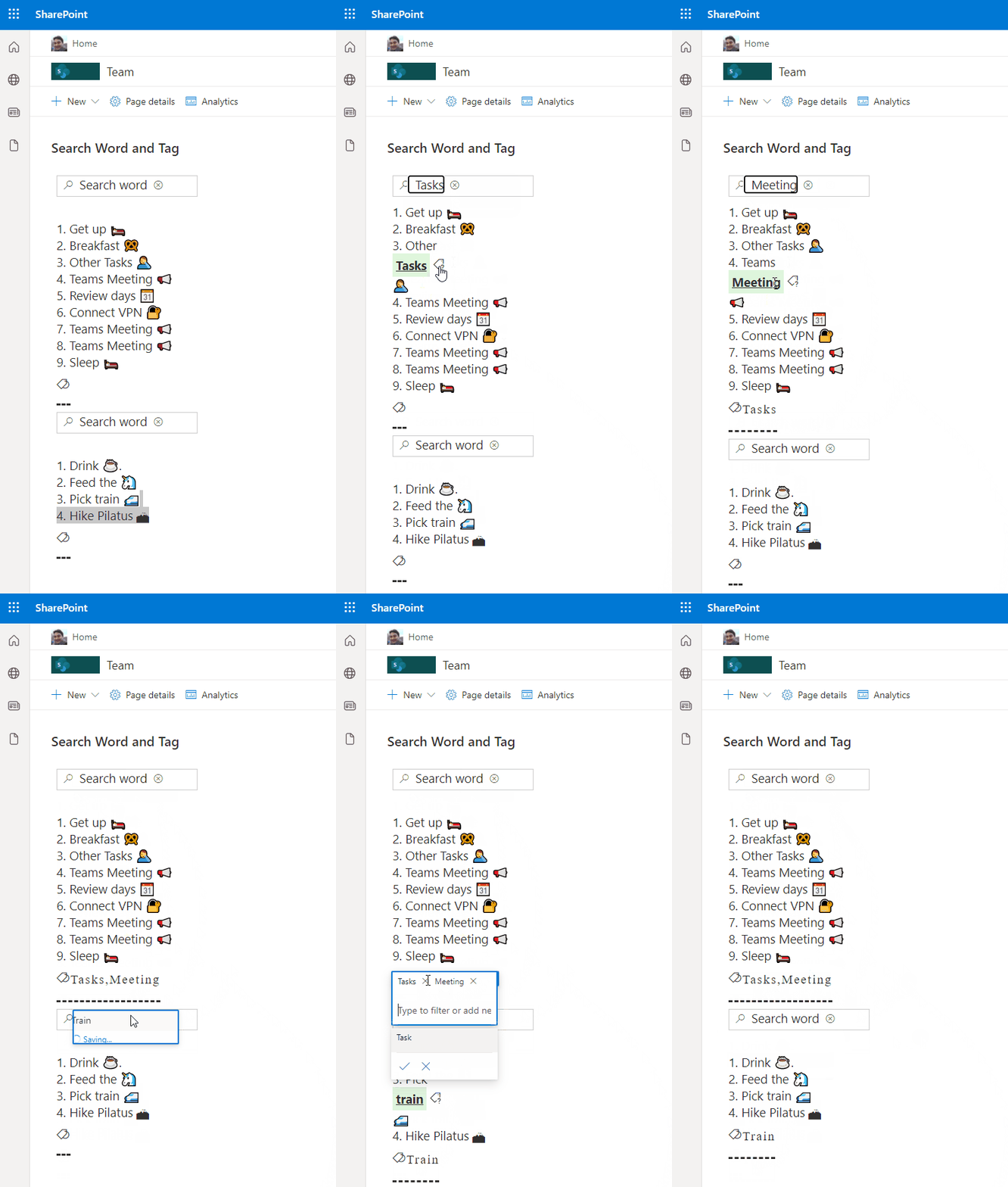
This sample demonstrates using inlineEditField to enable searching for a word against tags (choice column) within a list item.
View sample details →
Shopping Cart preview
View Formatting
Shopping Cart
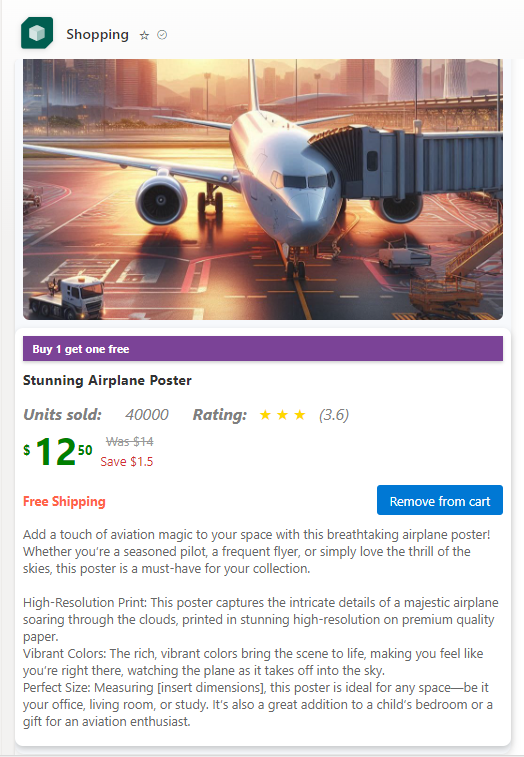
The JSON template is designed for an online shopping cart. It displays items within the cart, including product details, pricing, shipping information, and user interactions like adding or removing items.
View sample details →
Speed Dial preview
View Formatting
Speed Dial
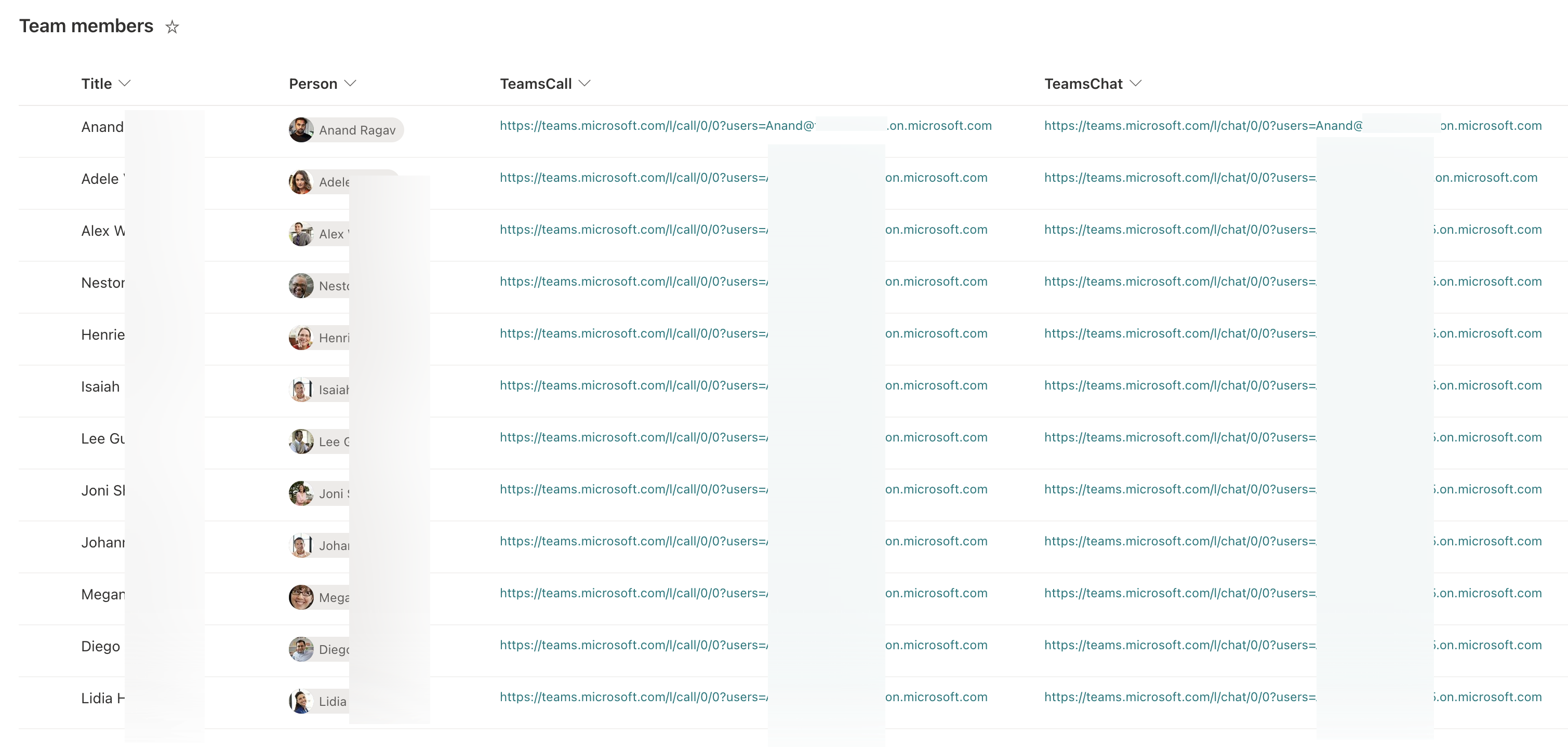
This sample creates a speed dial list for your team members/contacts, that you can list as a tab in your teams channel and/or display on your Team SharePoint site, to get quick access to your contacts through Teams call, chat and email.
View sample details →
Sports Card preview
View Formatting
Sports Card
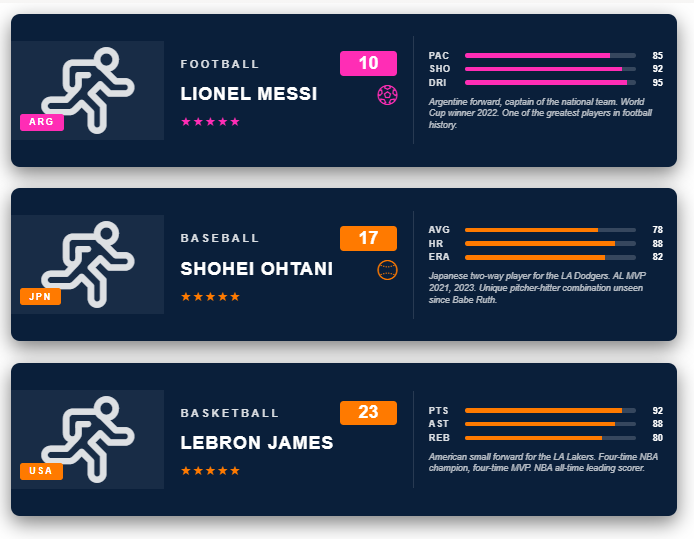
This SharePoint JSON view formatting sample transforms list items into vertical sports trading cards with header bar, country badge, player silhouette, name band, star rating and three stat bars.
View sample details →
Spotify Now Playing preview
View Formatting
Spotify Now Playing
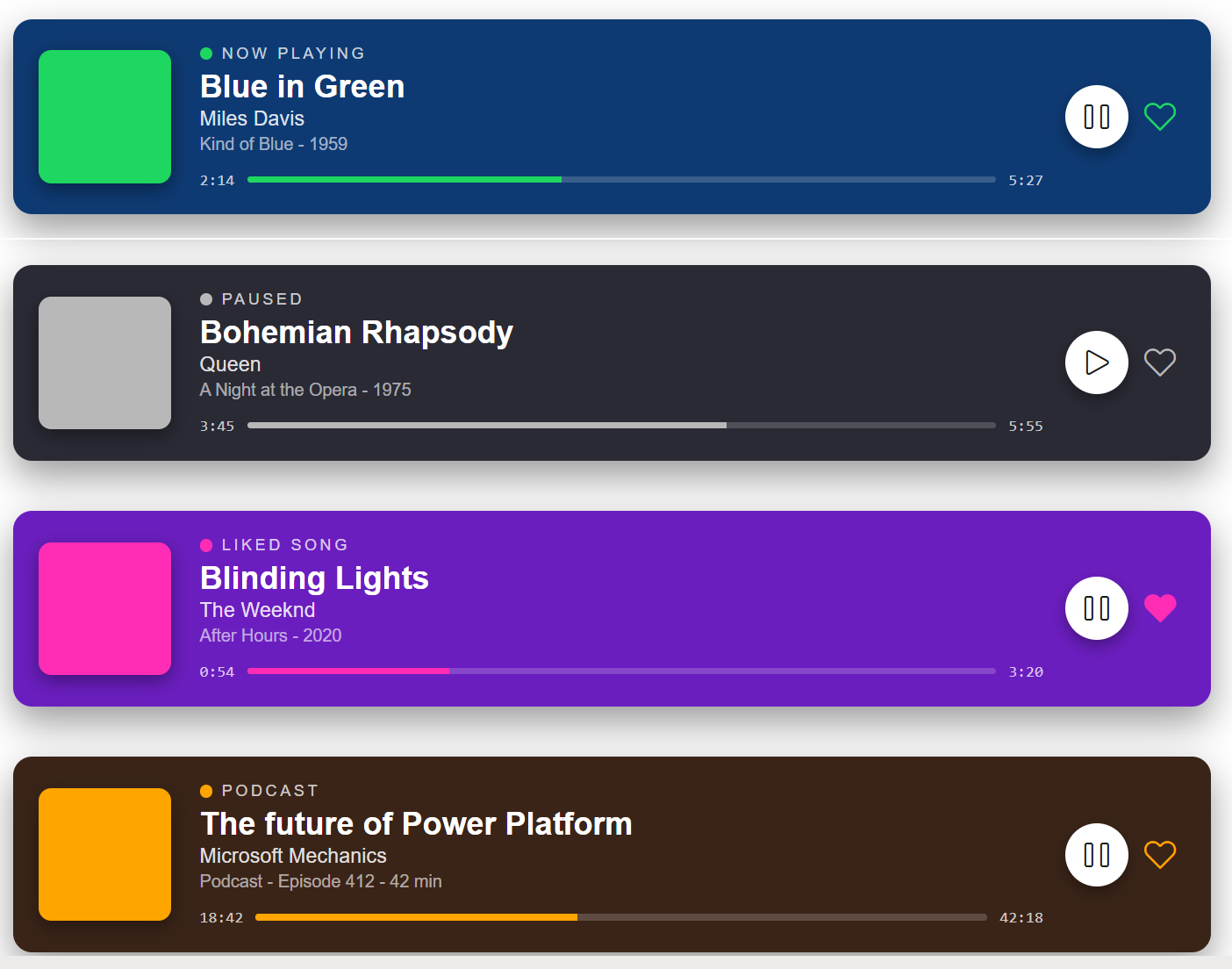
Transforms list items into Spotify-style 'now playing' cards with album-art block, status row, track / artist / album, a horizontal progress bar with elapsed and total time, and play / like controls.
View sample details →
Staff Rota Shifts with CSS Table preview
View Formatting
Staff Rota Shifts with CSS Table
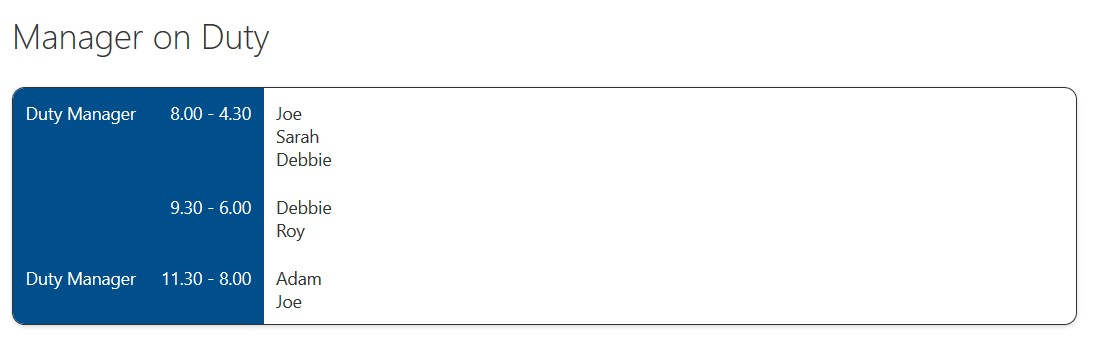
This sample demonstrates creating a Rota Shifts table using CSS Table layout by using rowFormatter to customise the entire display of a row.
View sample details →
Status Blocks preview
View Formatting
Status Blocks
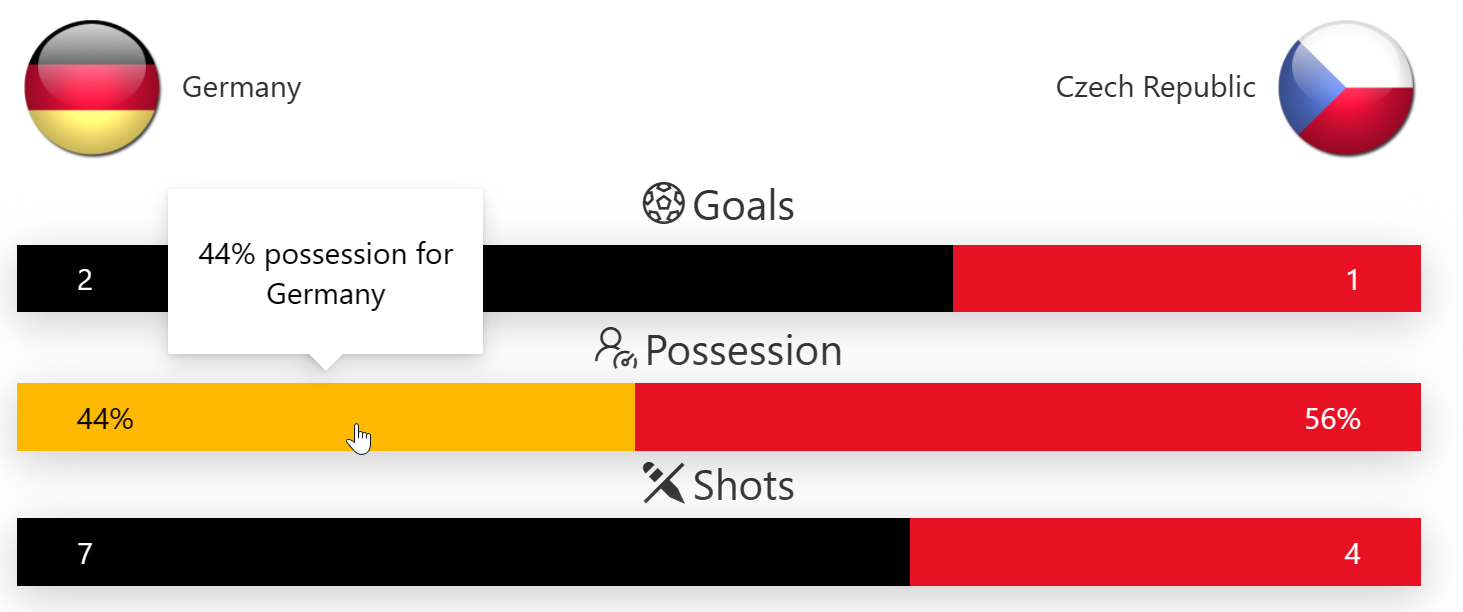
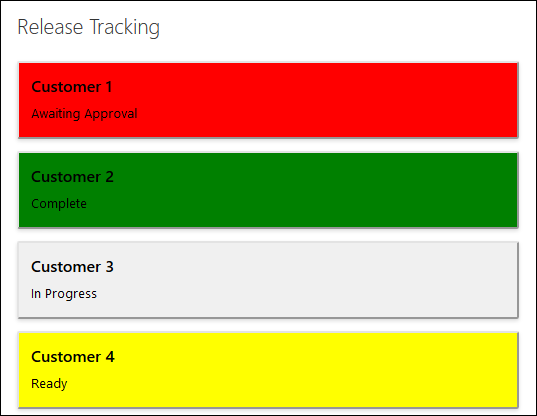
This sample demonstrates basic row display with conditional logic to adjust the background-color based on a Status field.
View sample details →
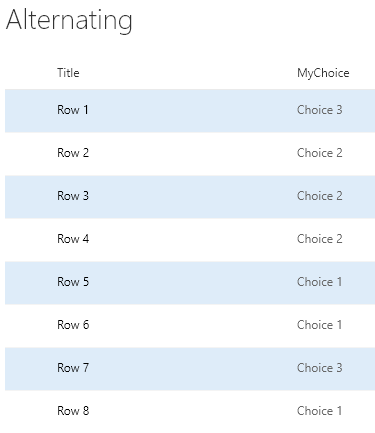
Status Row Class preview
View Formatting
Status Row Class
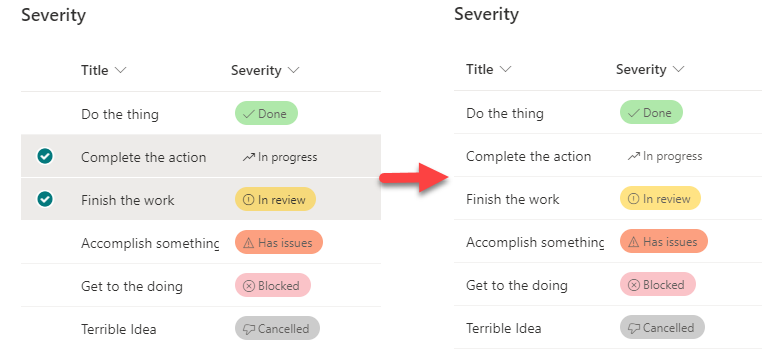
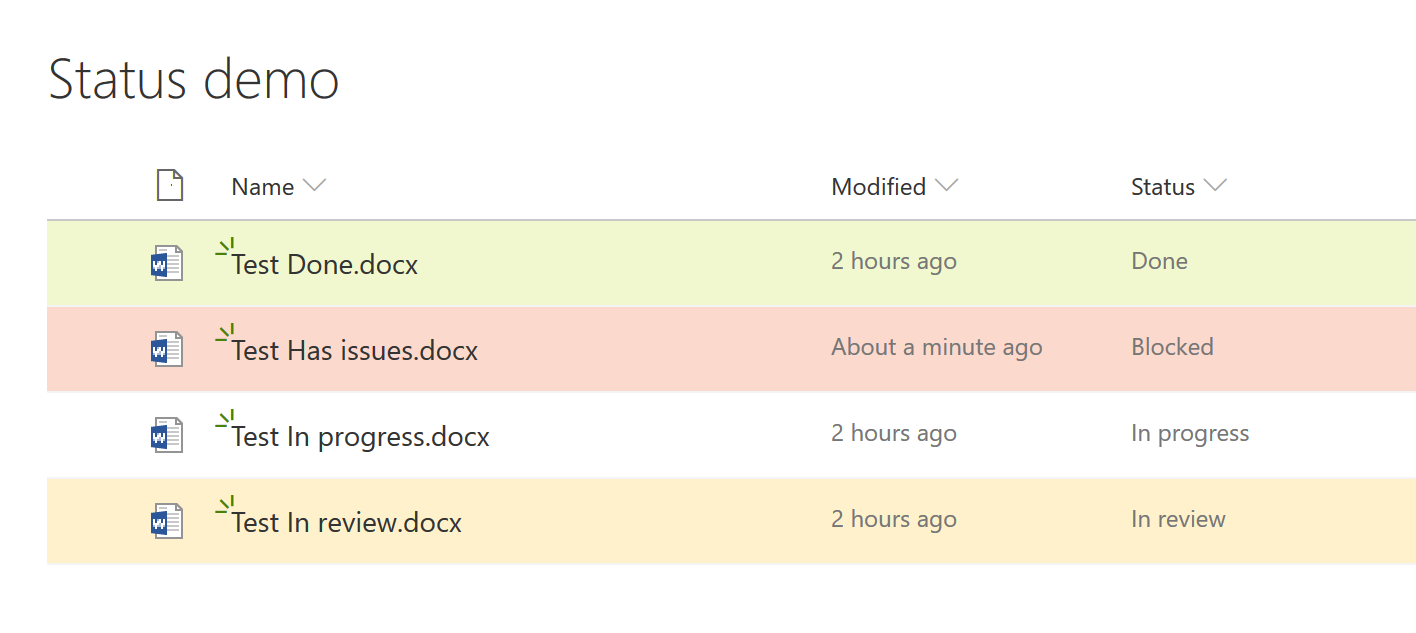
This sample applies a class to the entire row based on the value of a choice field using additionalRowClass to conditionally apply the severity classes.
View sample details →
Sticky Title Feedback Card preview
View Formatting
Sticky Title Feedback Card
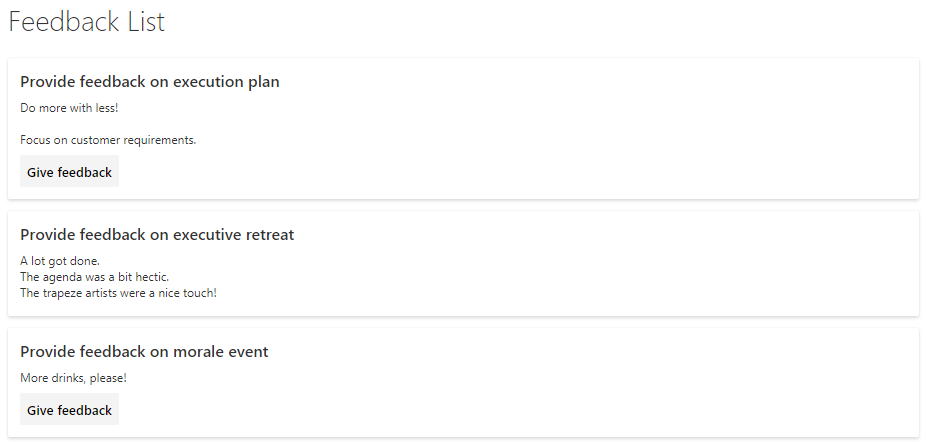
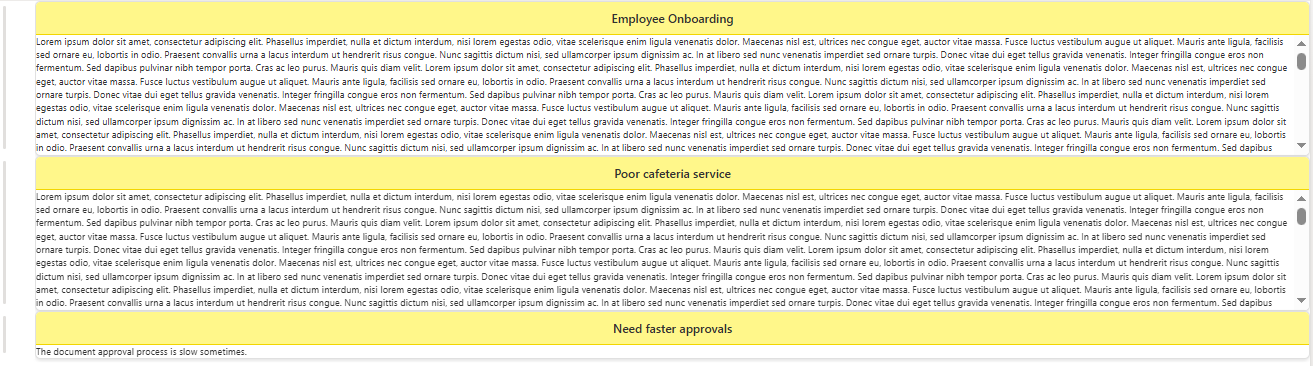
This sample uses SharePoint List Formatting to display feedback items as card-style layouts with a prominent title header and scrollable feedback content.
View sample details →
Tabs preview
View Formatting
Tabs
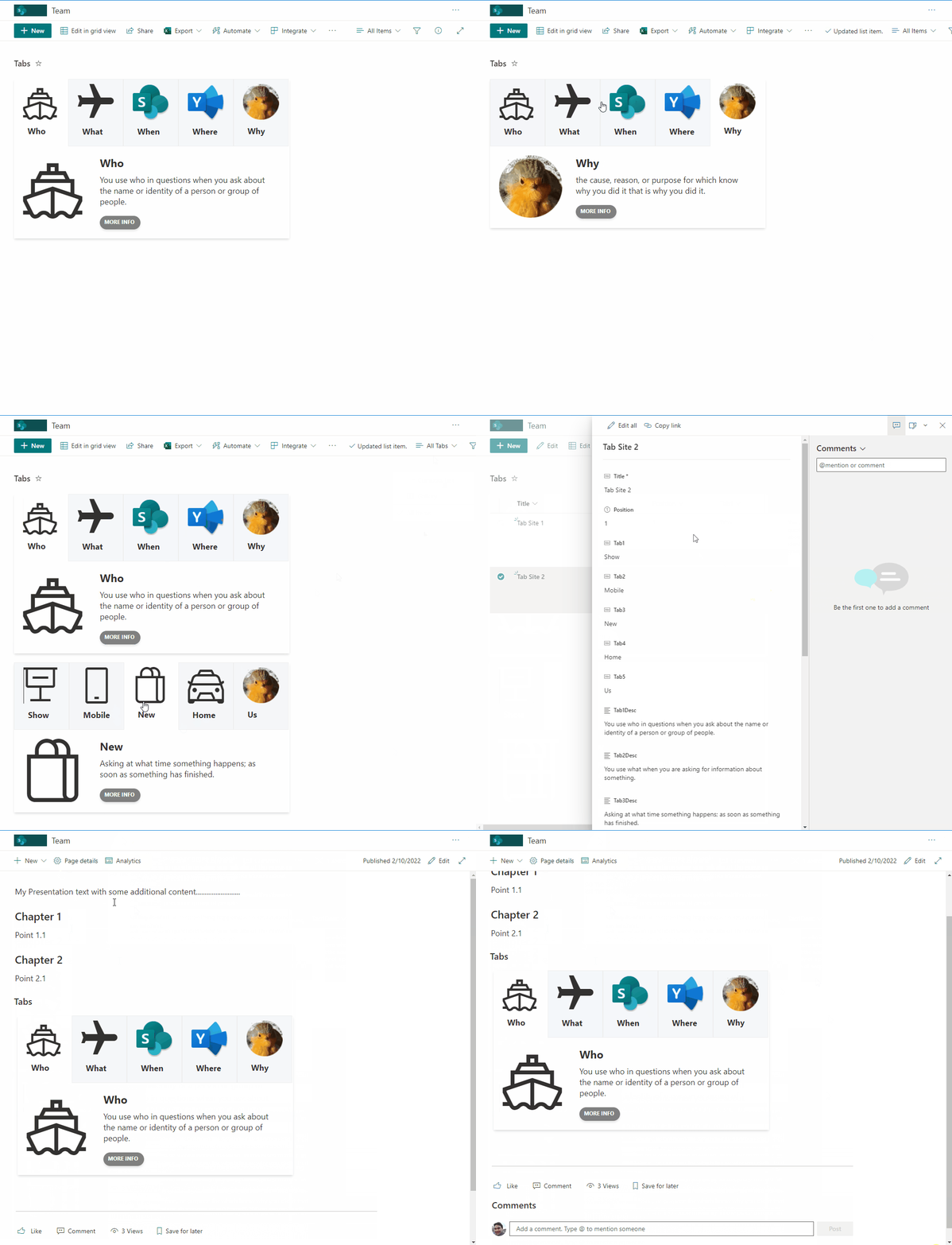
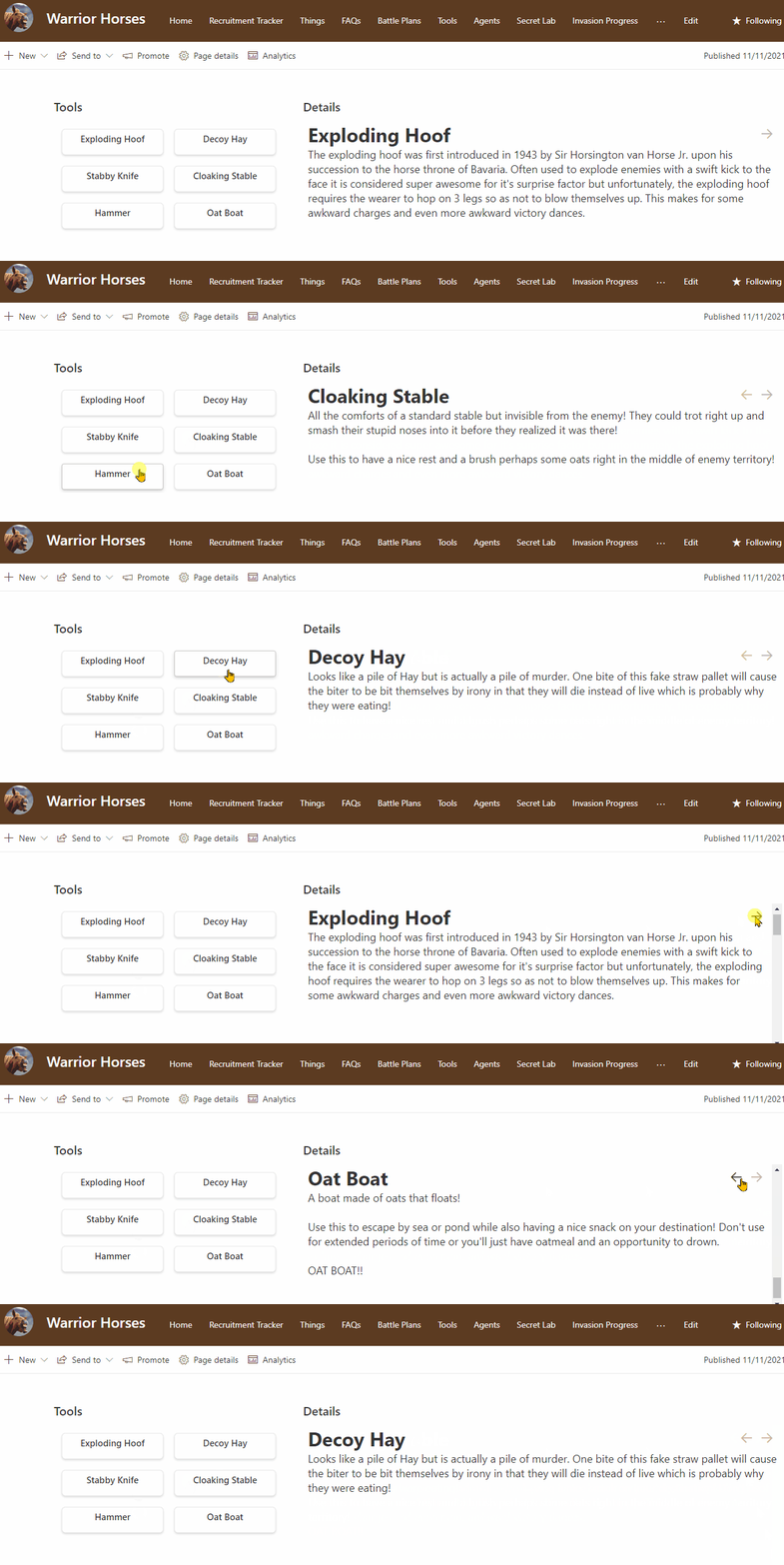
This sample creates tabs with associated content. Users can then navigate between tabs. This sample is intended to display content within a SharePoint page (using the lists webpart) to provide a more interactive and user friendly approach.
View sample details →
Team Poll preview
View Formatting
Team Poll
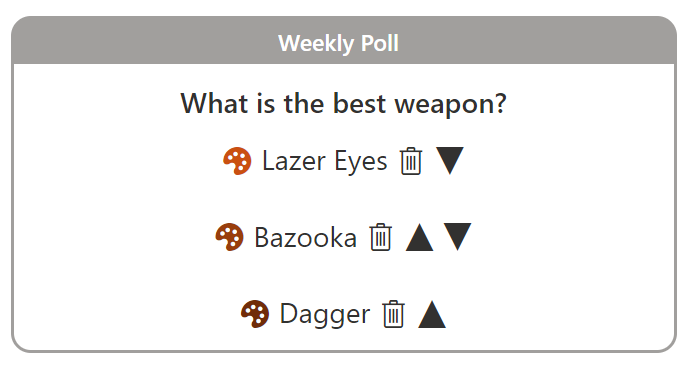
This sample combines a couple of lists and a few formats to demonstrate creating an application using view formatting. The end result is a configurable poll that end users can submit their choices too and view grouped results.
View sample details →
Teams Group Chat Links preview
View Formatting
Teams Group Chat Links
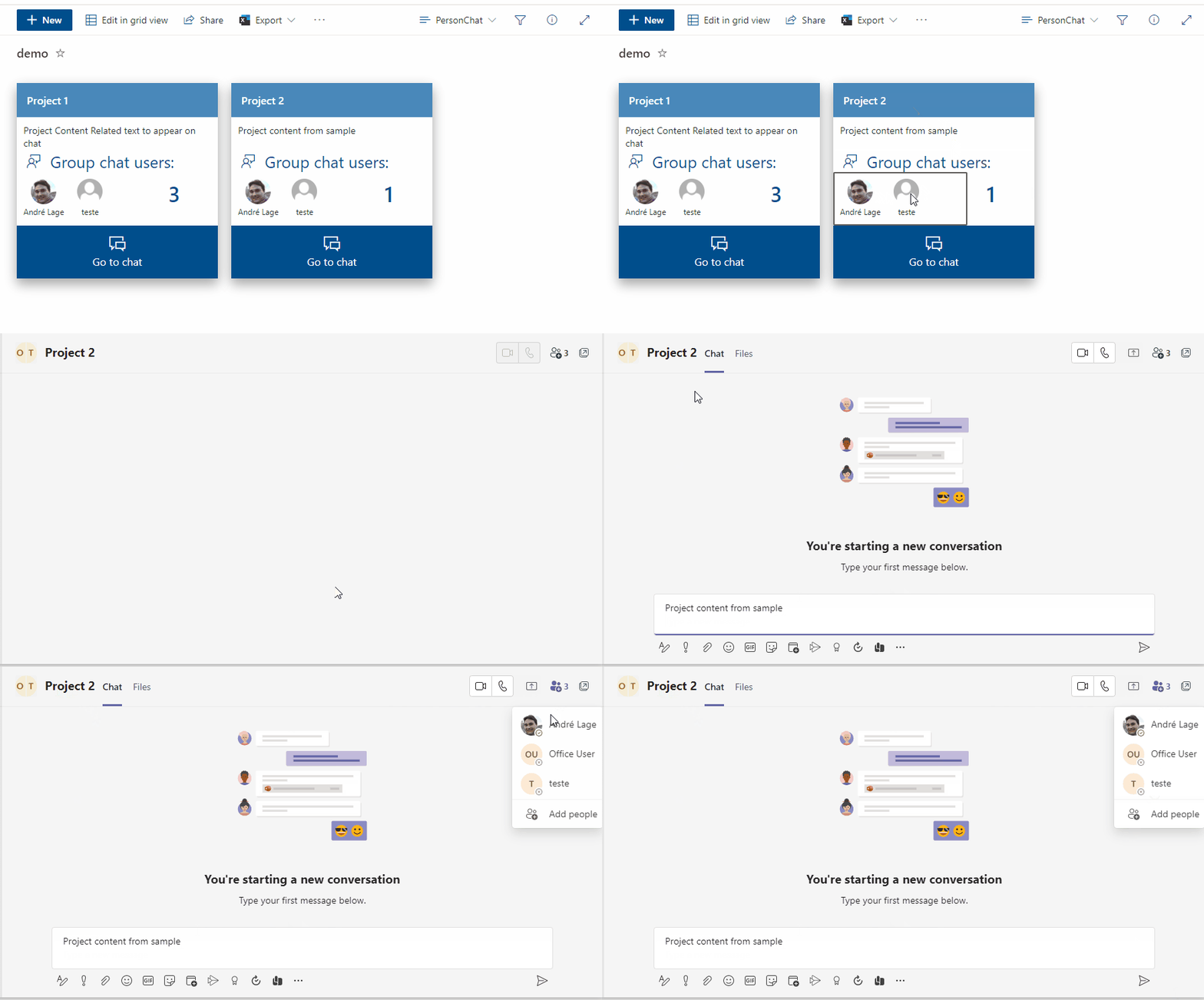
This sample uses Microsoft Teams deep links to create Teams chat group based on selected users with associated Group name and message.
View sample details →
Testimonials preview
View Formatting
Testimonials
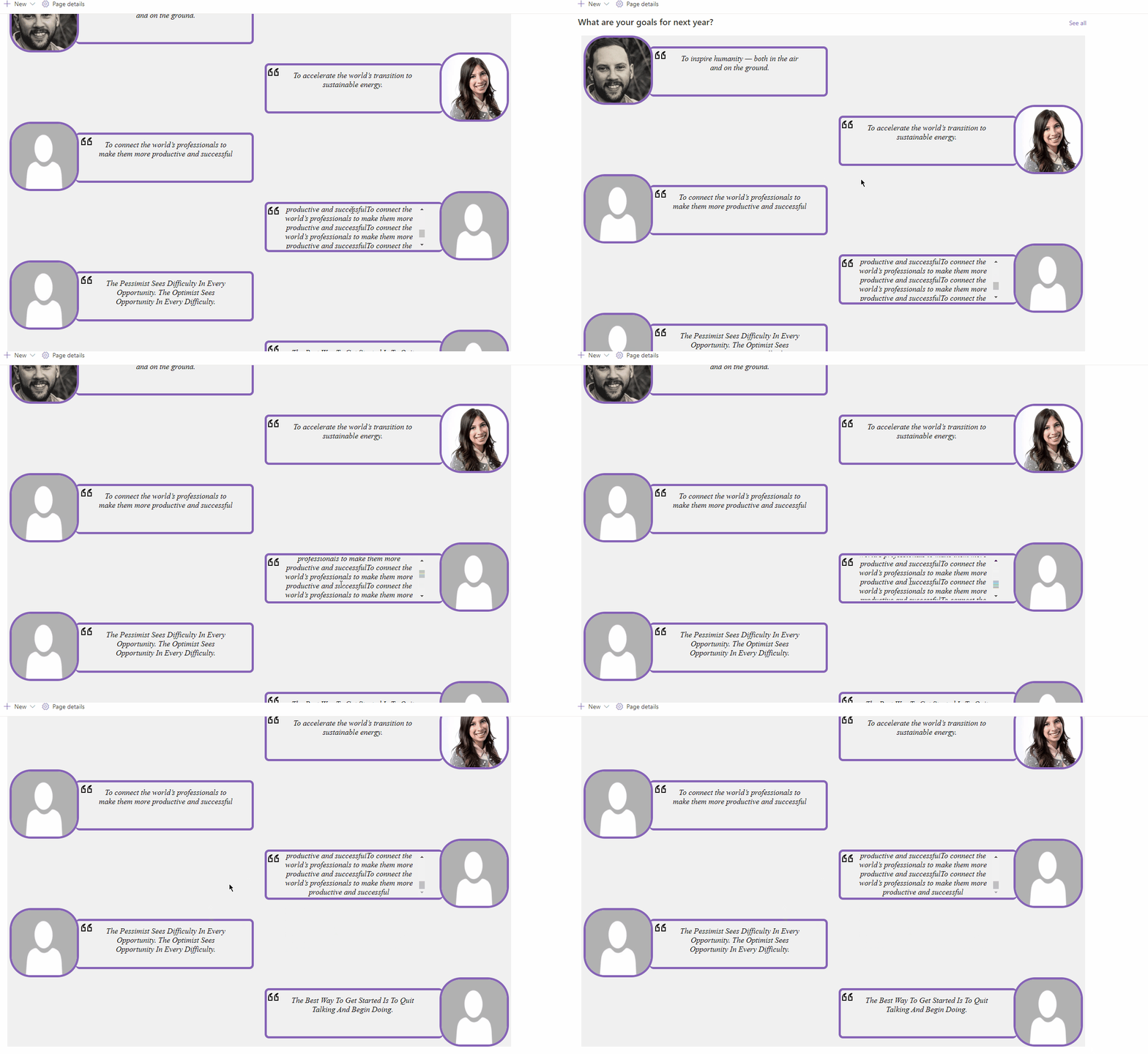
This is a template for testimonials (Business Statements), it has nice features such as directional messages, styles, utilizes the current theme colors, image persona hover card, overflow logic and even has some SVG Magic! 🙌
View sample details →
Tic-tac-toe preview
View Formatting
Tic-tac-toe
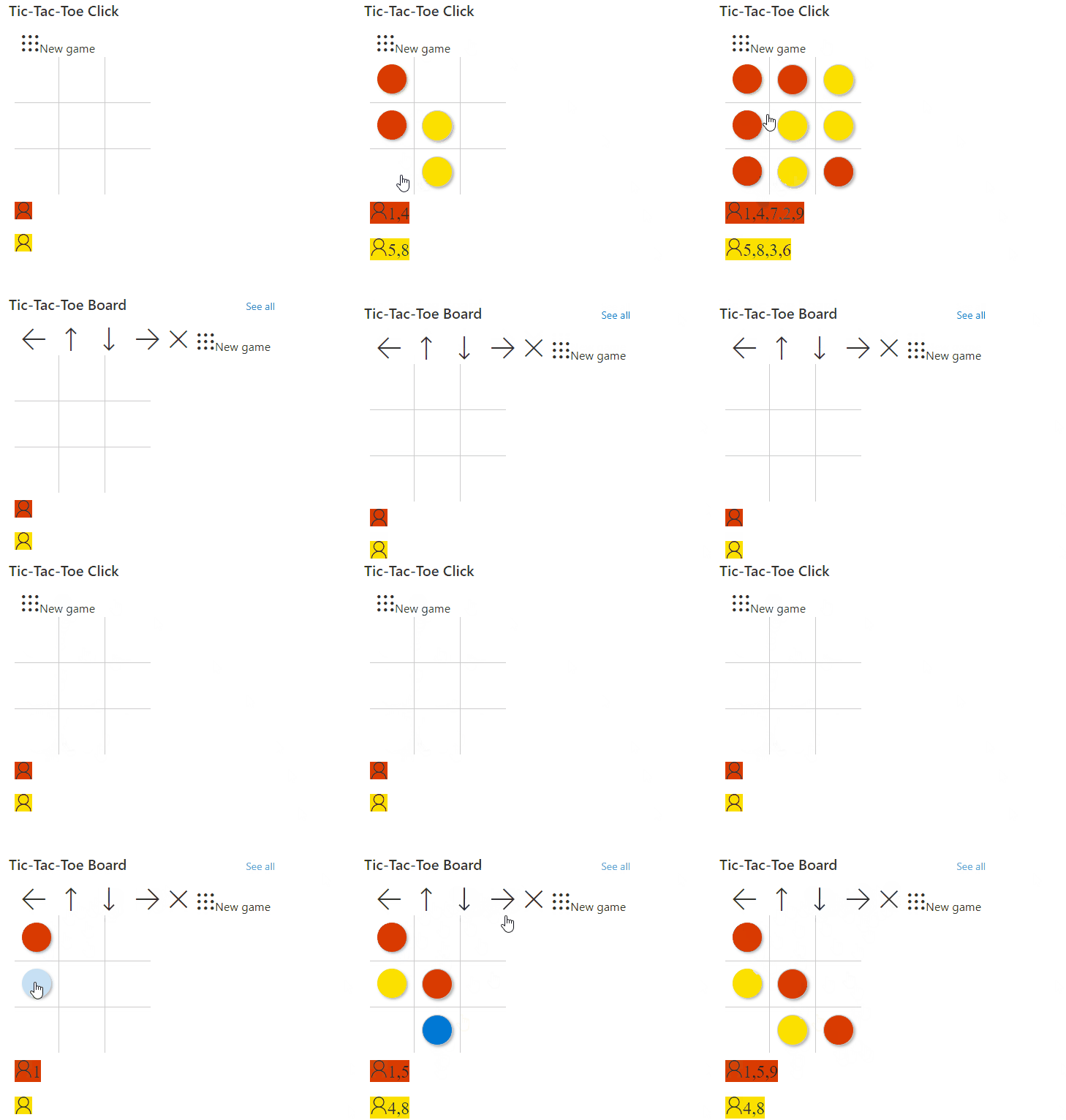
This sample demonstrates a version of tic-tac-toe using list formatting. By using the setValue action, the underlying list items are updated and the format is redrawn.
View sample details →
Travel Tweets Board preview
View Formatting
Travel Tweets Board
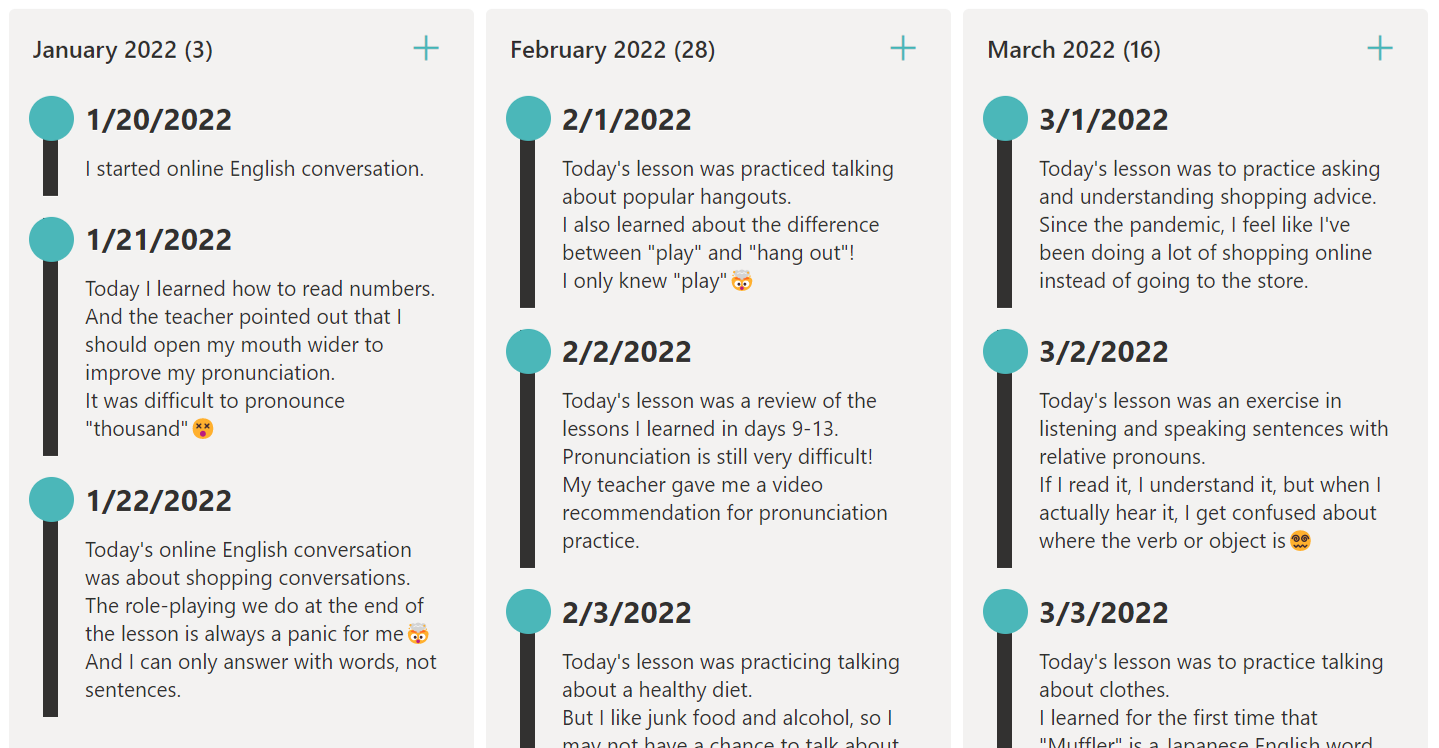
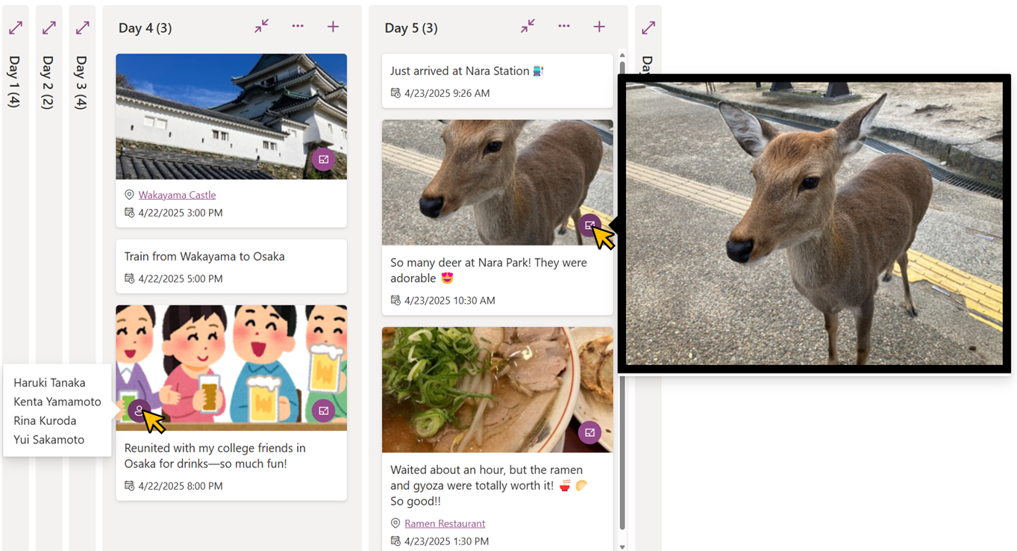
This sample demonstrates using the board view to display travel tweets in a timeline format. Each tweet supports one image and one map link.
View sample details →
Twitter Timeline preview
View Formatting
Twitter Timeline
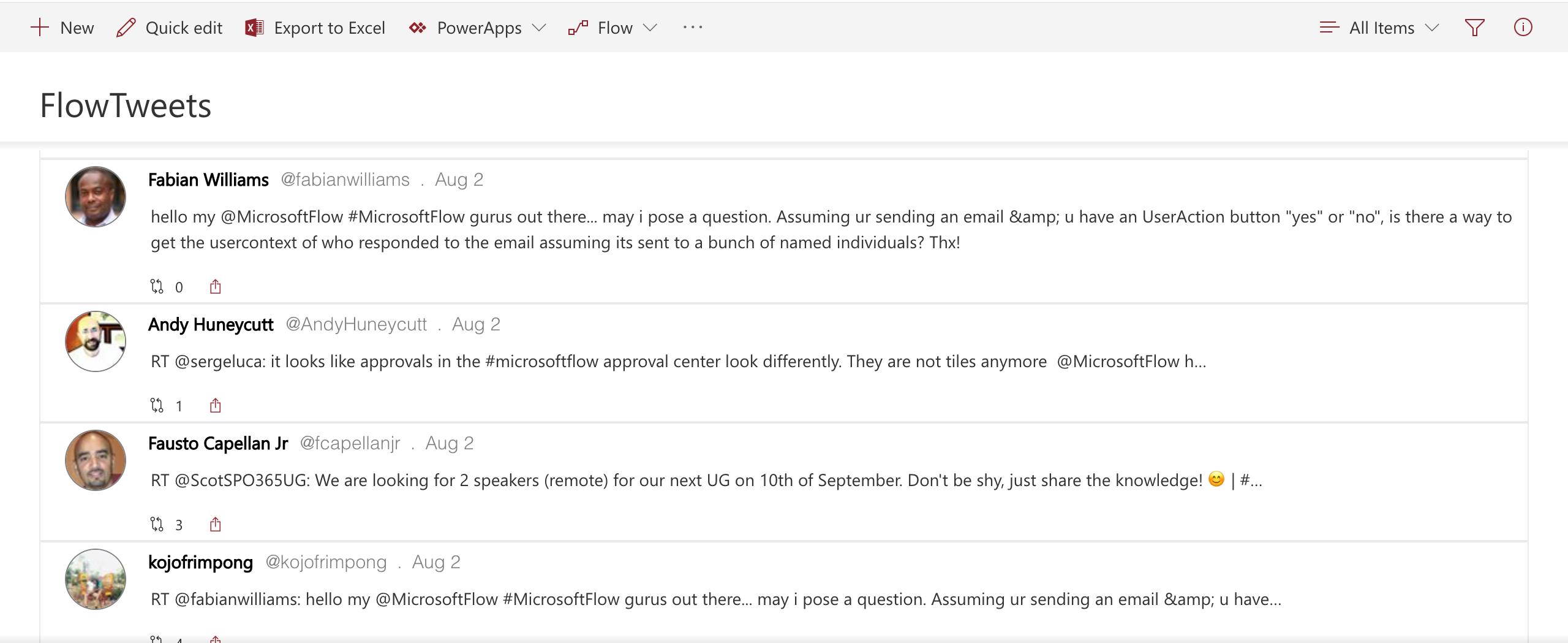
This sample formats your SharePoint list view to look like Twitter. If you are using the Microsoft Flow Templates to track tweets in a SharePoint list, this is a great way to format your list so that it looks more like Twitter.
View sample details →
User Profile Card preview
View Formatting
User Profile Card
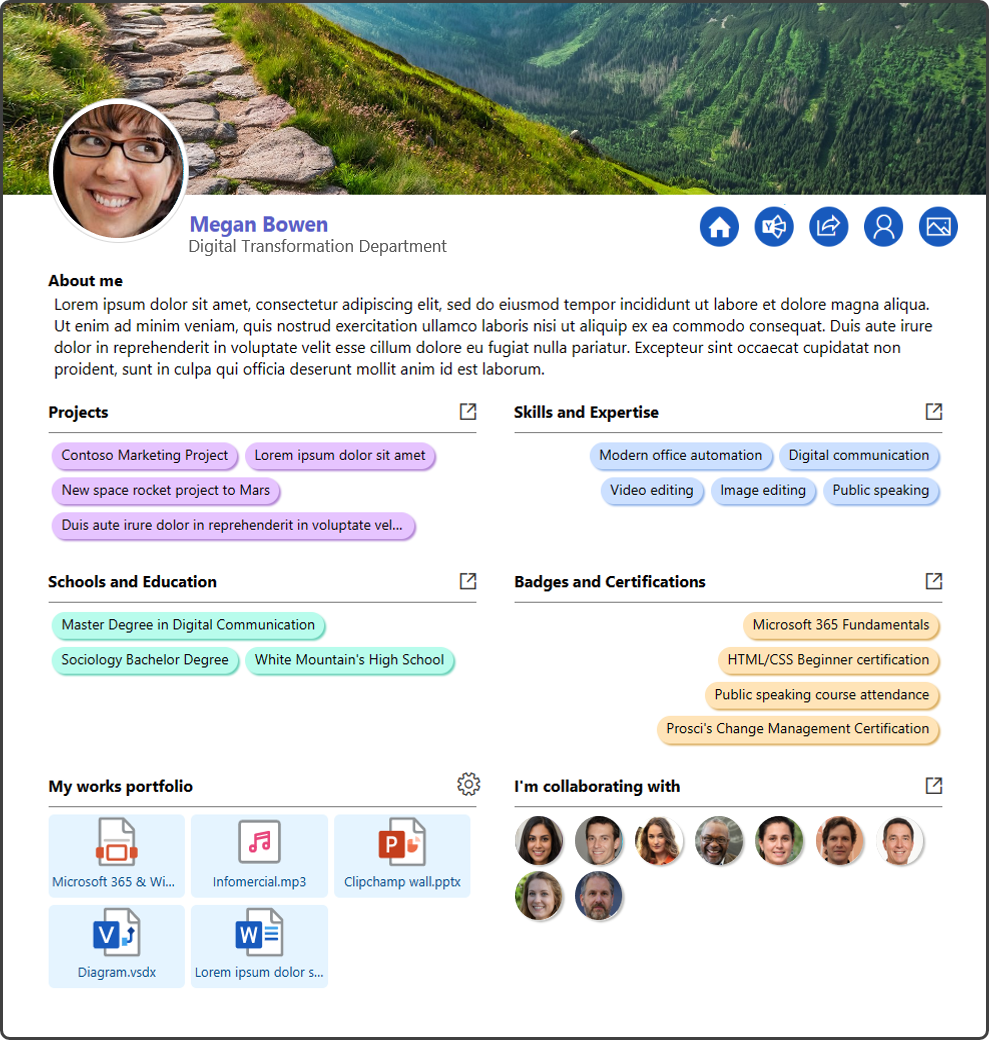
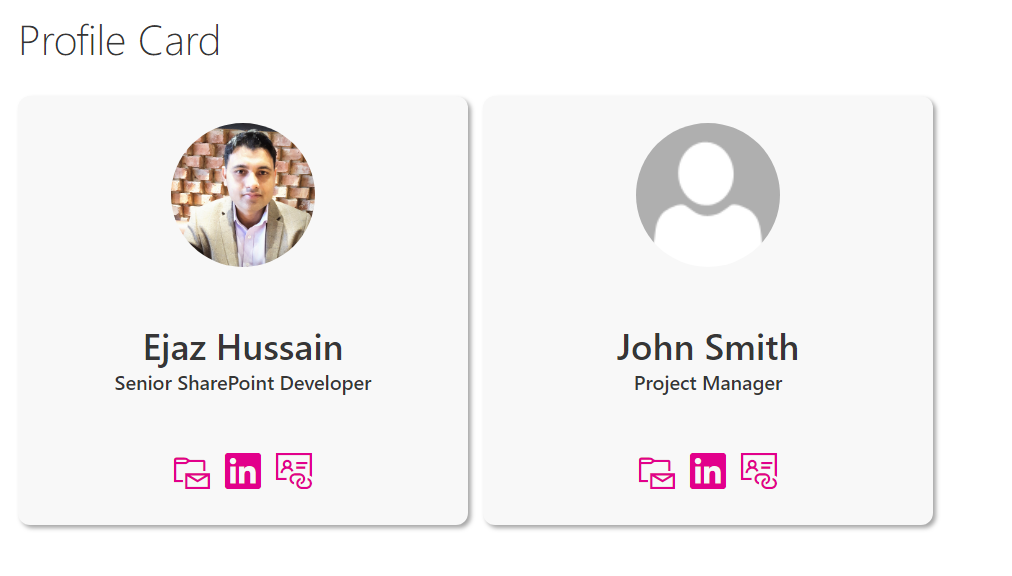
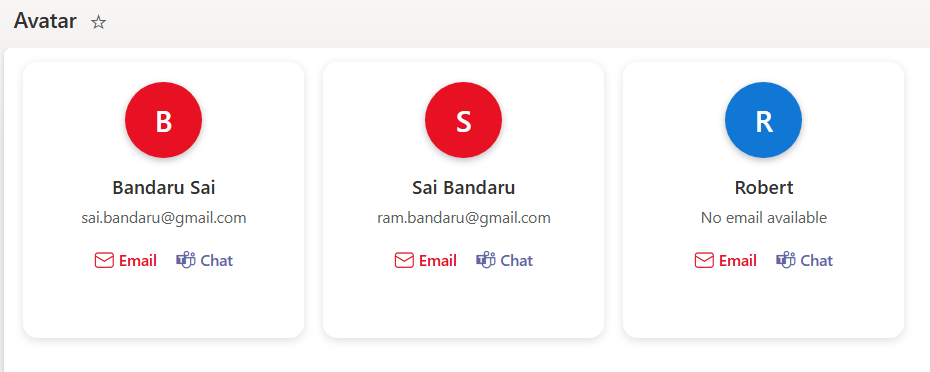
This is simple user profile card built to provide a tile view with contact buttons. A default image is shown if a picture is not provided.
View sample details →
Video Embed Codes preview
View Formatting
Video Embed Codes
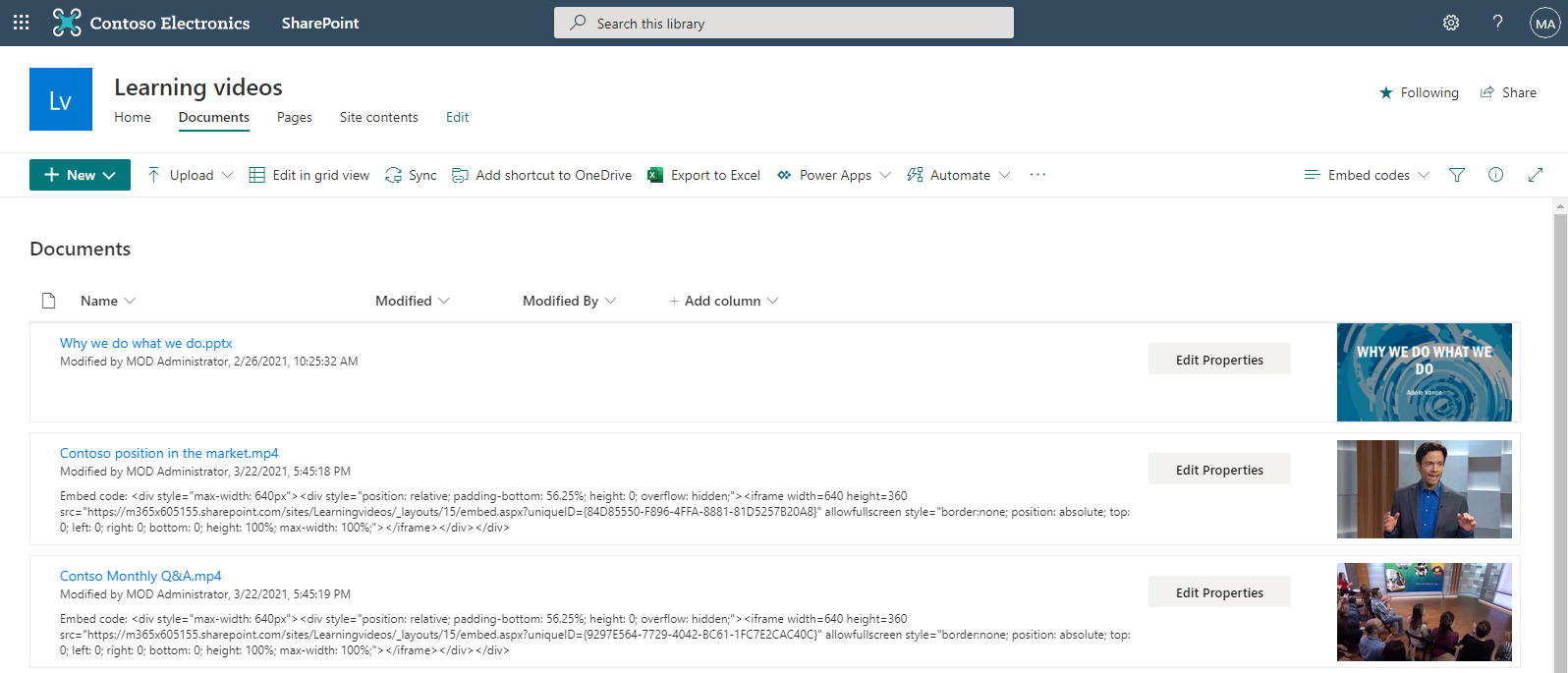
If you upload video files to a SharePoint document library, there currently isn't a way for an end user to easily get the iFrame embed code for the video file other than using the Microsoft Graph Preview item API. This document library view formatting example composes the iFrame embed code automatically for any video files in the library so users could easily copy and paste it.
View sample details →
Video Gallery preview
View Formatting
Video Gallery
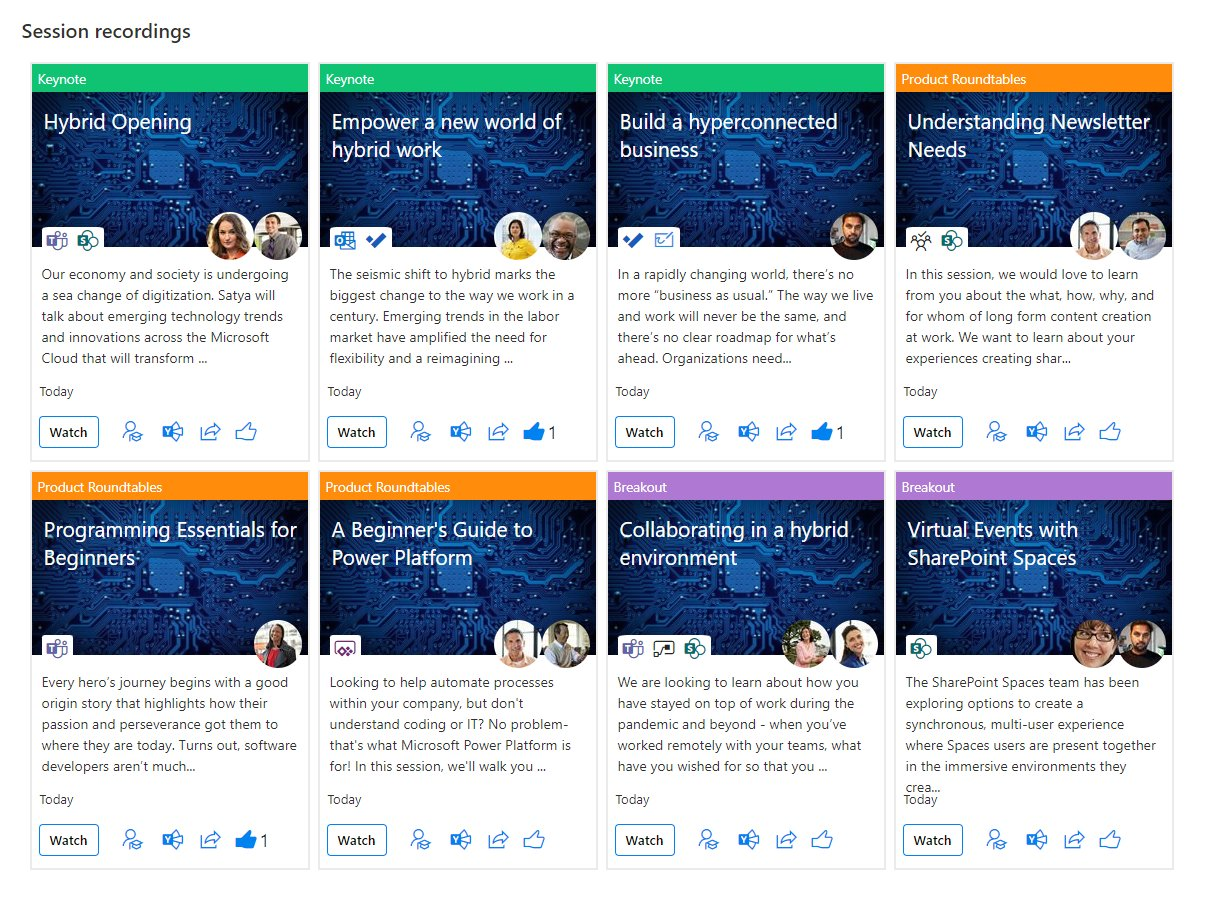
A gallery view of video stored in SharePoint with a card layout showing rich metadata such as title, description, people, tools topics covered, social sharing options like yammer, share and like.
View sample details →
Video Navigator preview
View Formatting
Video Navigator
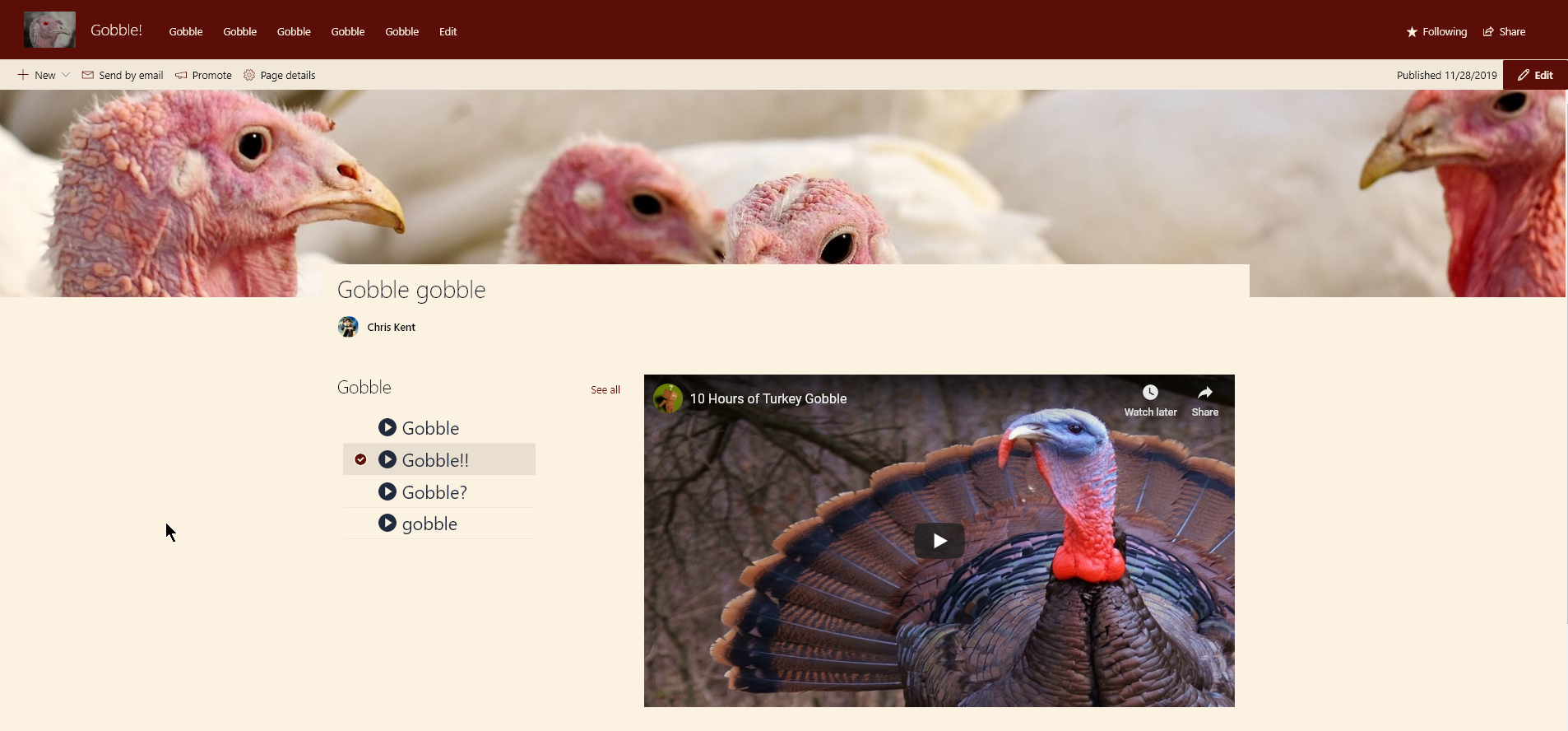
Demonstrates the use of dynamic connections in the list webpart while using a custom format. This results in a custom video selection application that changes the embeded video on the page.
View sample details →
Vinyl Record / Album Sleeve preview
View Formatting
Vinyl Record / Album Sleeve
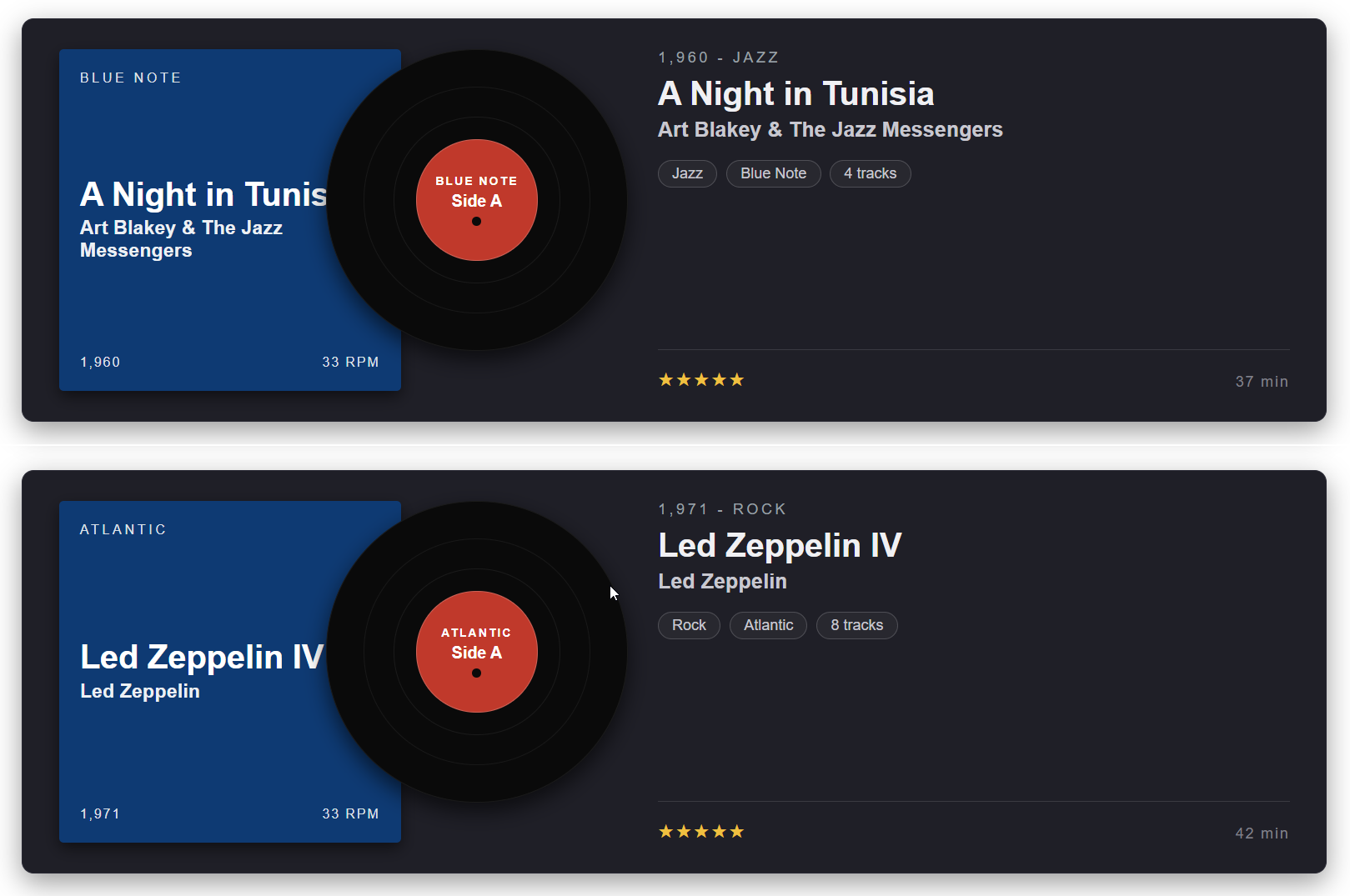
This SharePoint JSON view formatting sample transforms list items into vinyl record album cards with a sleeve, a record peeking out, and a metadata column.
View sample details →
Whiteboard sticky notes preview
View Formatting
Whiteboard sticky notes
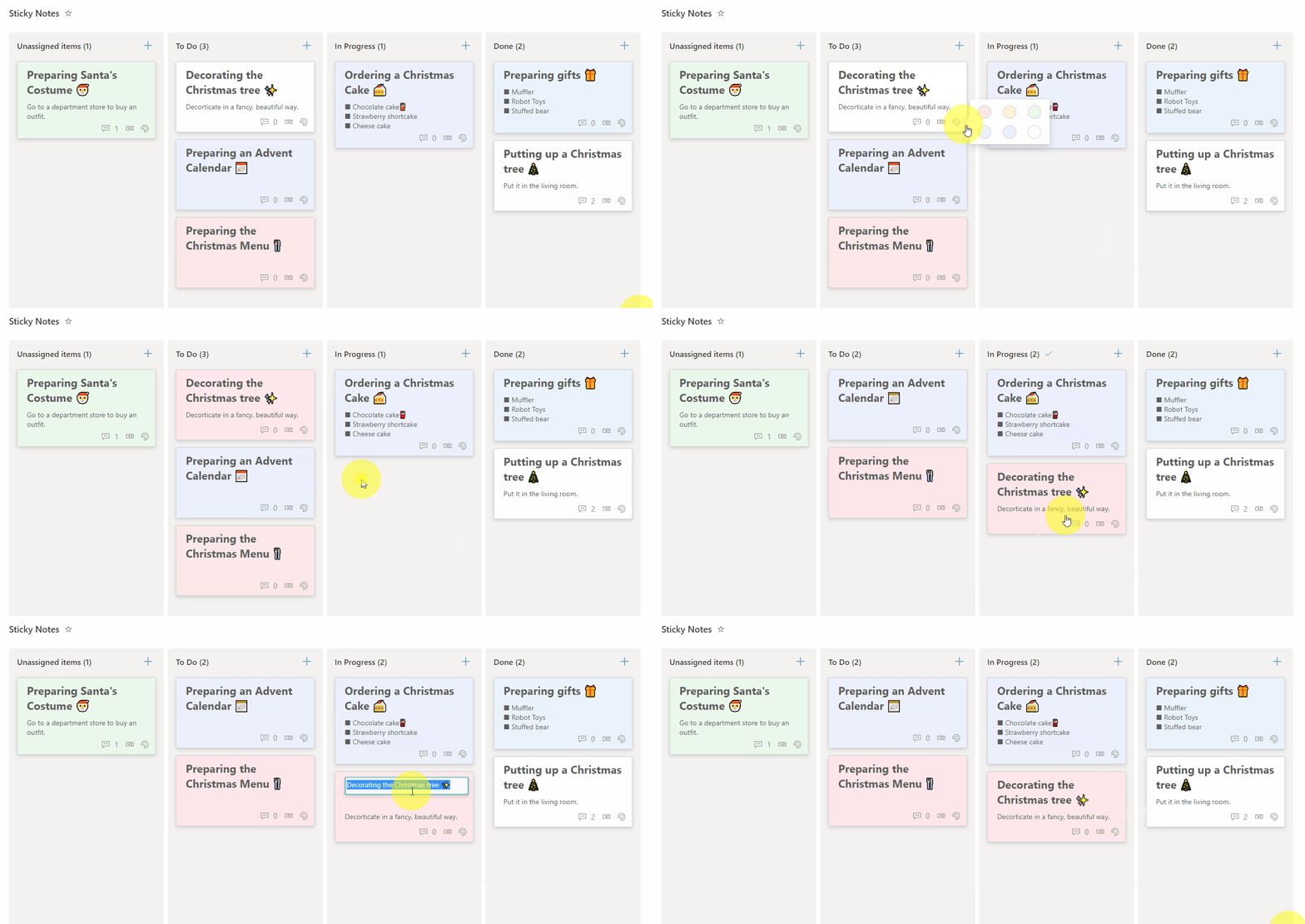
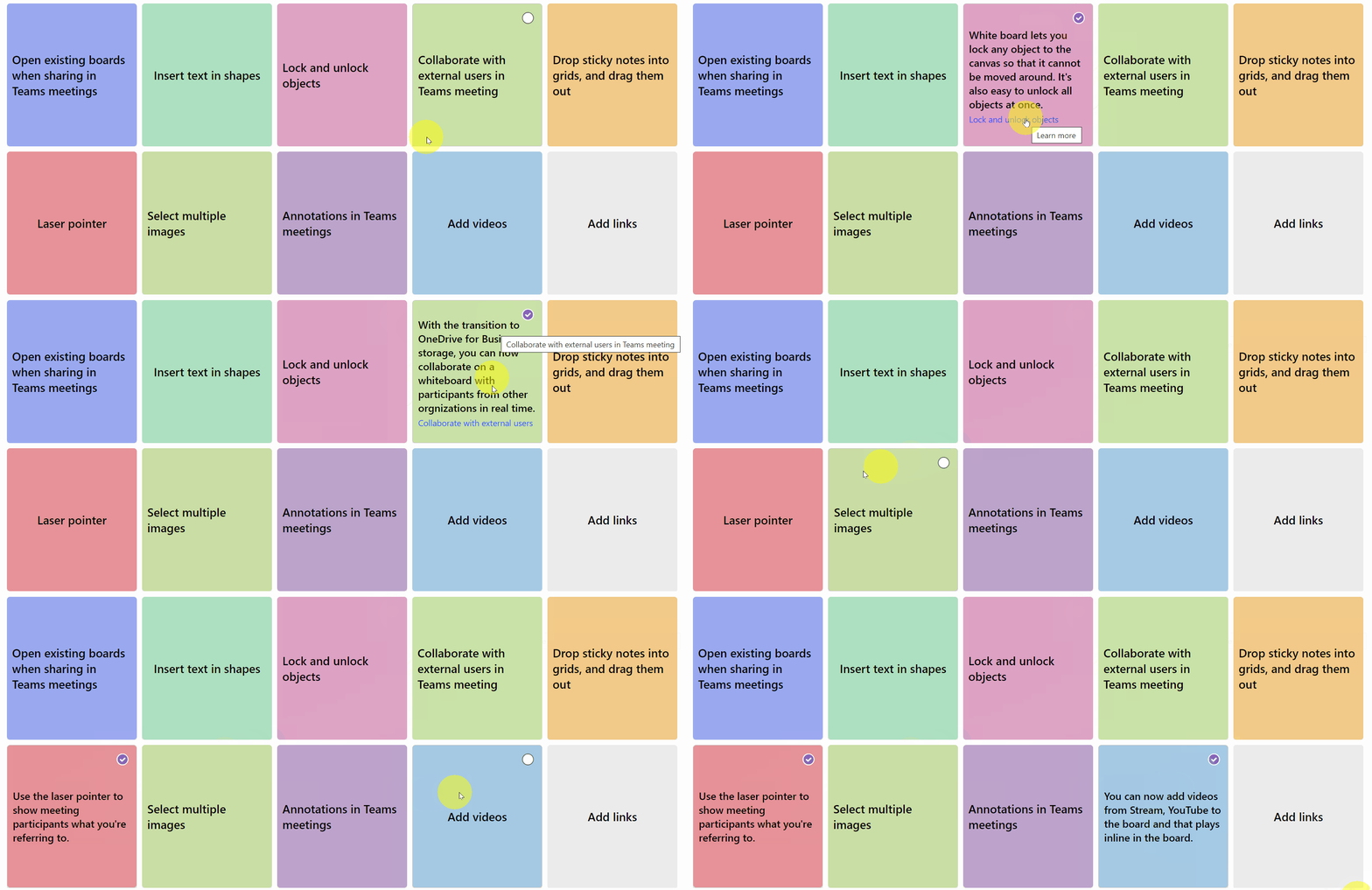
This sample creates a whiteboard-styled sticky notes that displays information. The sticky notes have two sides, so when clicked they show another piece of information.
View sample details →